

Setting up the Pipedrive integration
1. Find the integration in Granola
Click your workspace name in the bottom-left corner, then select Settings. You’ll find Pipedrive under Settings > Connectors: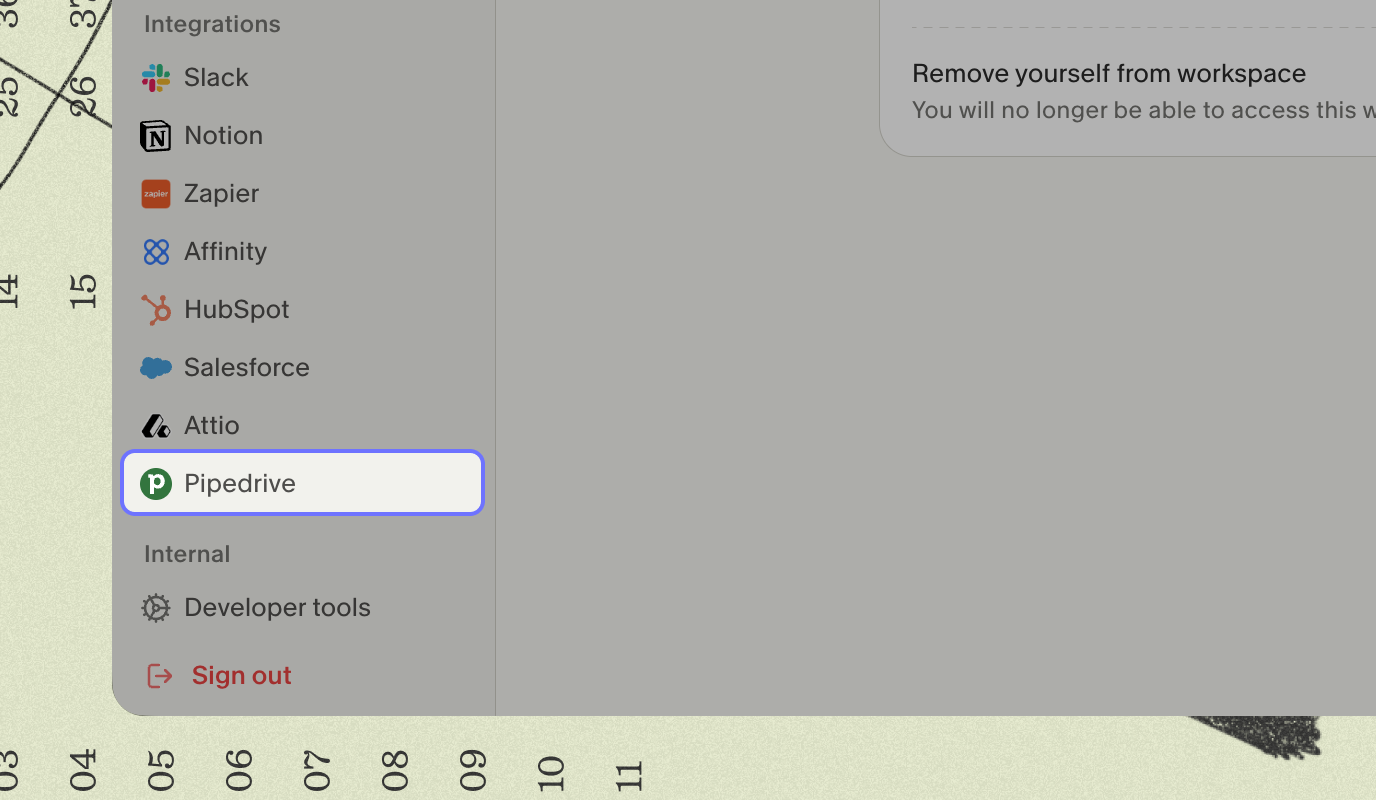
2. Connect your Pipedrive account
Click to connect Pipedrive to your Granola account. This launches a browser page to authorize Pipedrive. Each workspace member connects their own Pipedrive account. Notes you share are created in Pipedrive as you. Once the connection is complete, close the tab and return to Granola.3. Configure your settings
In Settings > Connectors > Pipedrive, configure how Granola creates records in Pipedrive:- Mark activities as done — Choose whether Granola marks the Activity as “Done” when it is created. Enabled by default.
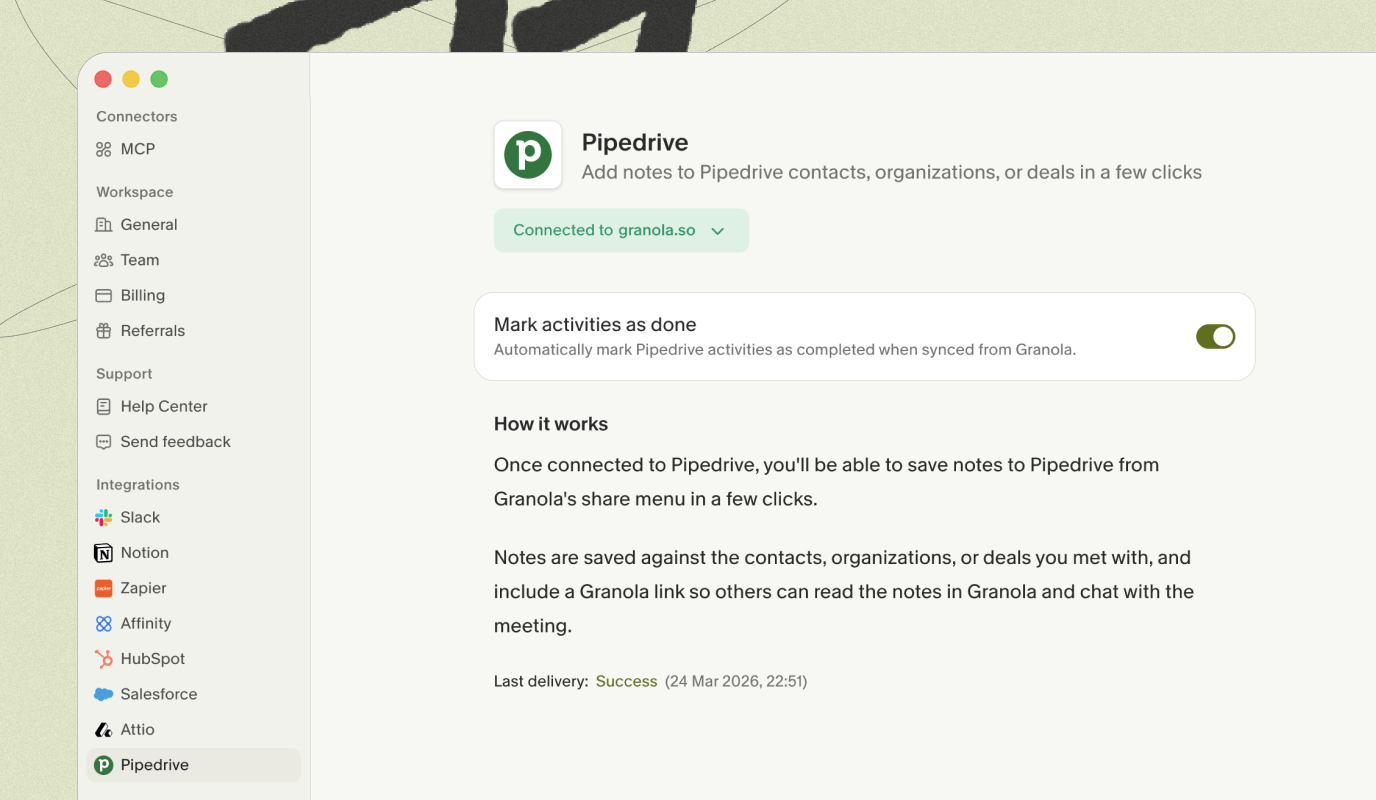
4. Share notes to Pipedrive
When you share a meeting to Pipedrive, Granola creates an Activity of type Meeting containing the meeting summary.Sharing individual notes
Once connected, share any note to Pipedrive by clicking the Pipedrive option in the top right of the note. Choose the contact, organization, or deal you’d like to share to — Granola suggests people or organizations involved in the meeting.Auto-sharing notes added to folders
You can configure Granola to automatically save notes added to Granola folders to matching records in Pipedrive. In a folder, click Connect your apps in the folder header (if the folder already has an integration, click its logos instead), then turn on Pipedrive. Choose which Pipedrive records you’d like Granola notes to attach to.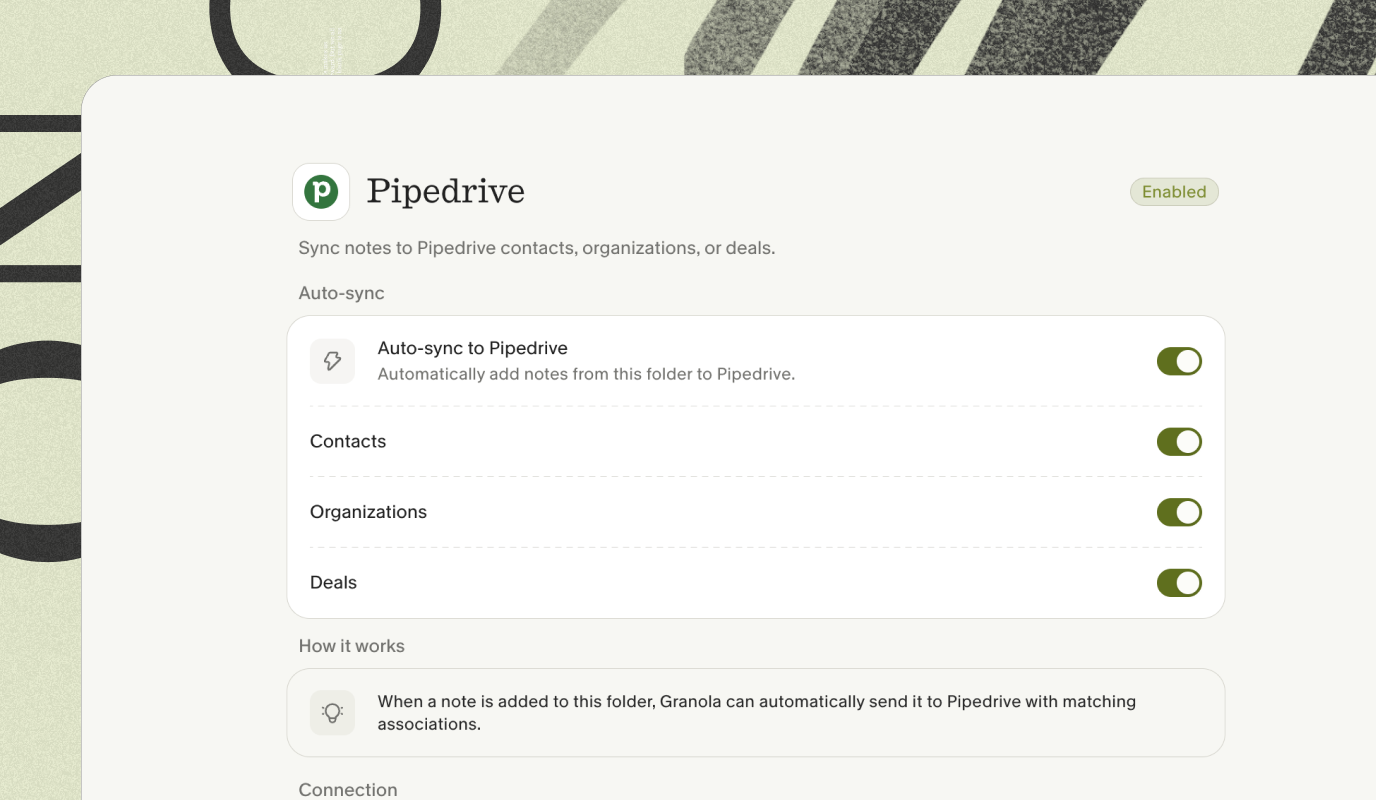 Notes added to this folder will attach to matching Contact, Organization, or Deal records in your Pipedrive account based on your selections.
Auto-sharing only applies to notes added to the folder after you enable Pipedrive on that folder — existing notes aren’t synced retroactively. To share older notes, use the Pipedrive button in the top right of each note individually.
If you use Granola on iOS or Android, share your notes to Pipedrive from Granola on macOS or Windows.
Troubleshooting
The "Save to Pipedrive" option is grayed out on my note
The "Save to Pipedrive" option is grayed out on my note
You need to generate summarized notes before you can share them. If Granola hasn’t generated your summarized notes yet, try regenerating your notes.
Notes from a folder aren't appearing in Pipedrive
Notes from a folder aren't appearing in Pipedrive
- Granola matches meeting attendees to Pipedrive records by email address. If no matching records are found, no data is created in Pipedrive. Check that the attendees’ email addresses exist as Contacts or Organizations in your Pipedrive account.
- Check the status of the last sync in Settings > Connectors > Pipedrive — any sync error will appear there.