

-
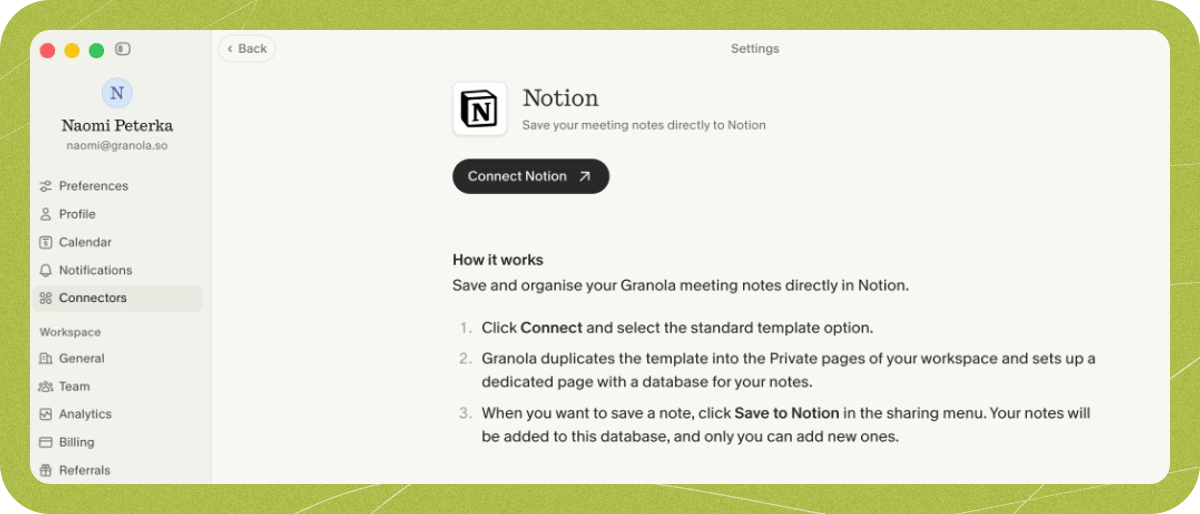
Open your settings via your avatar in the bottom left corner, then click into Notion under Connectors.
-
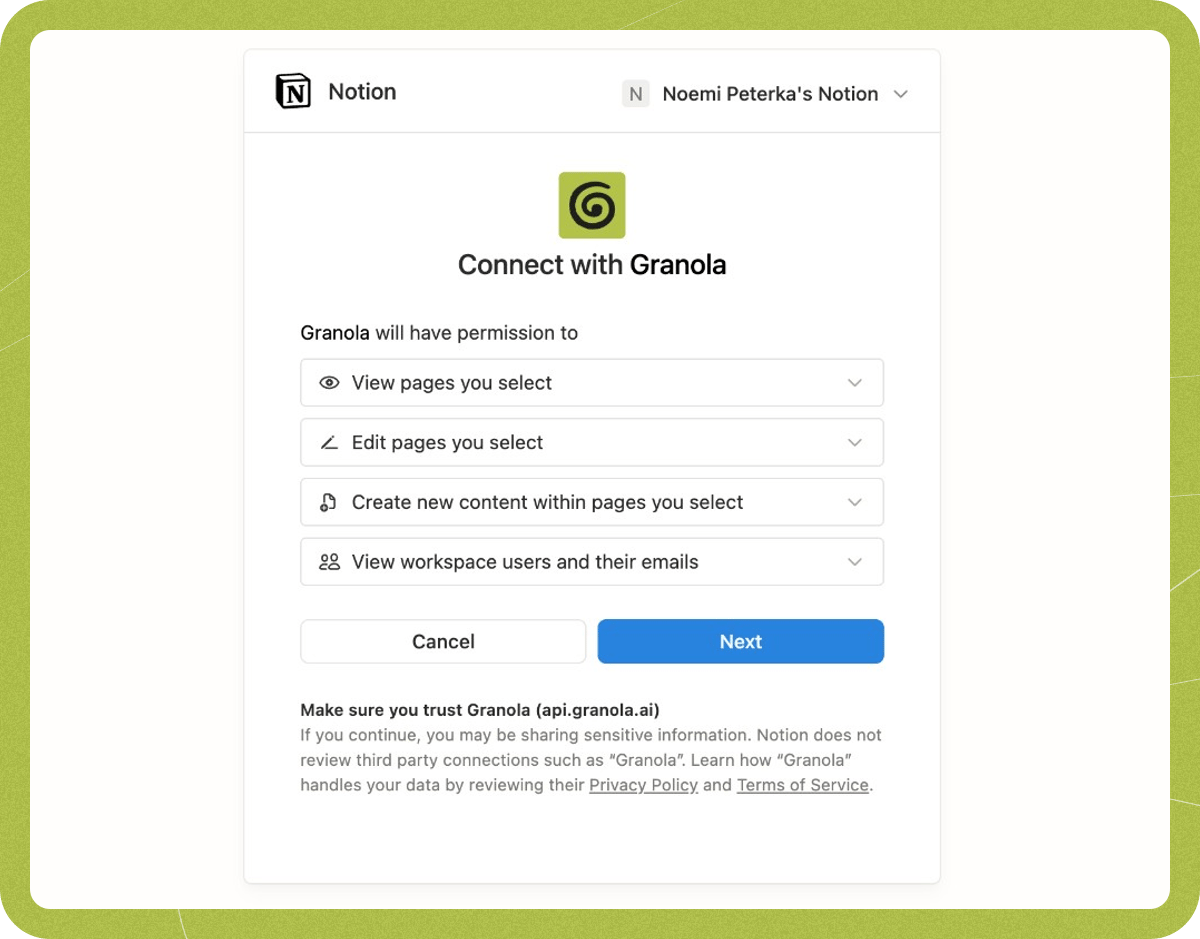
After clicking ‘Connect Notion’, you’ll be redirected to your browser to authorize Granola. Click Next.
-
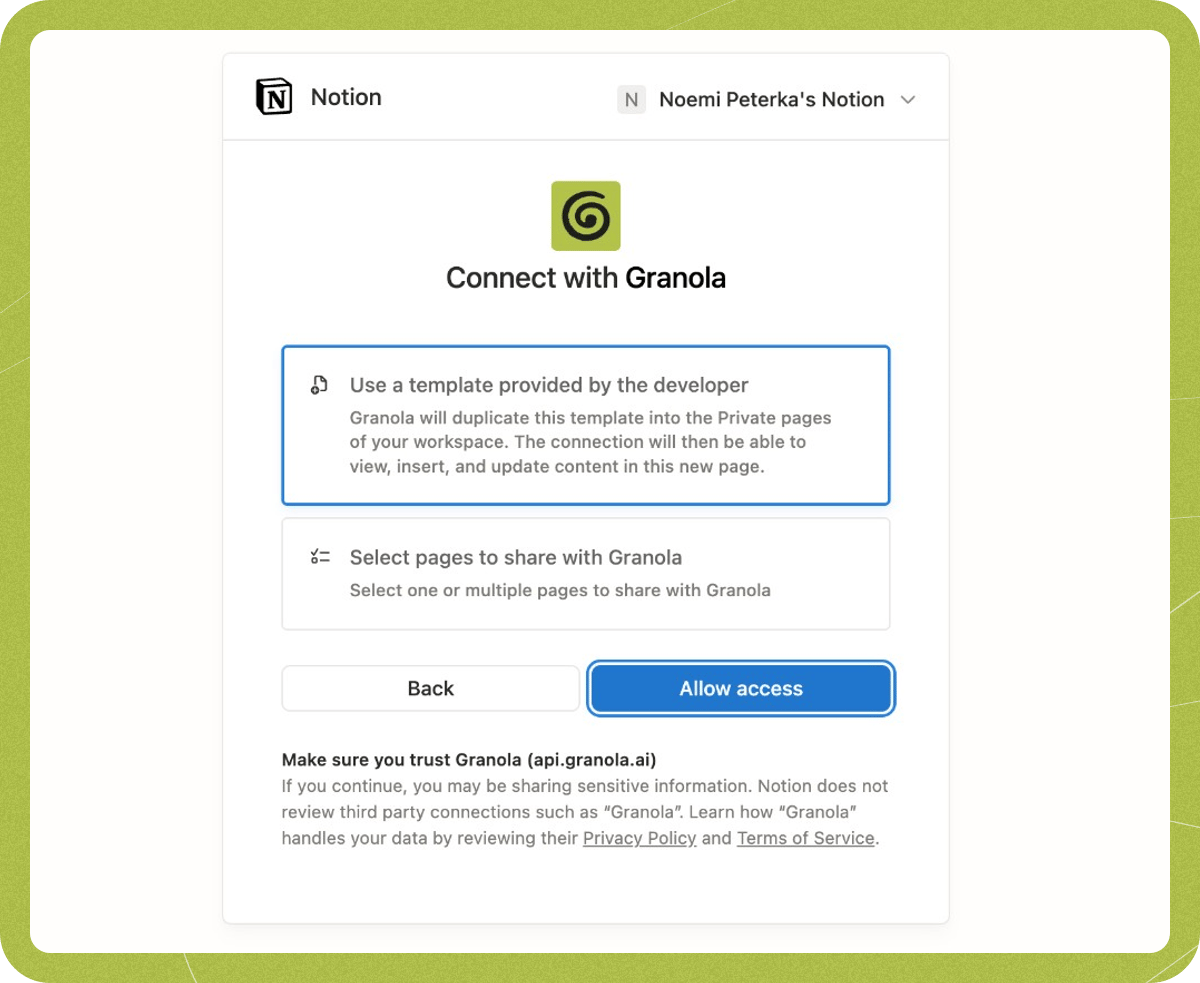
Make sure to select the ‘Use a template provided by the developer’ option. We currently don’t support selecting specific pages.
-
You’re connected! You’ll now see Notion appear as an option in the ⋯ (three dots) menu at the top of a Granola note.
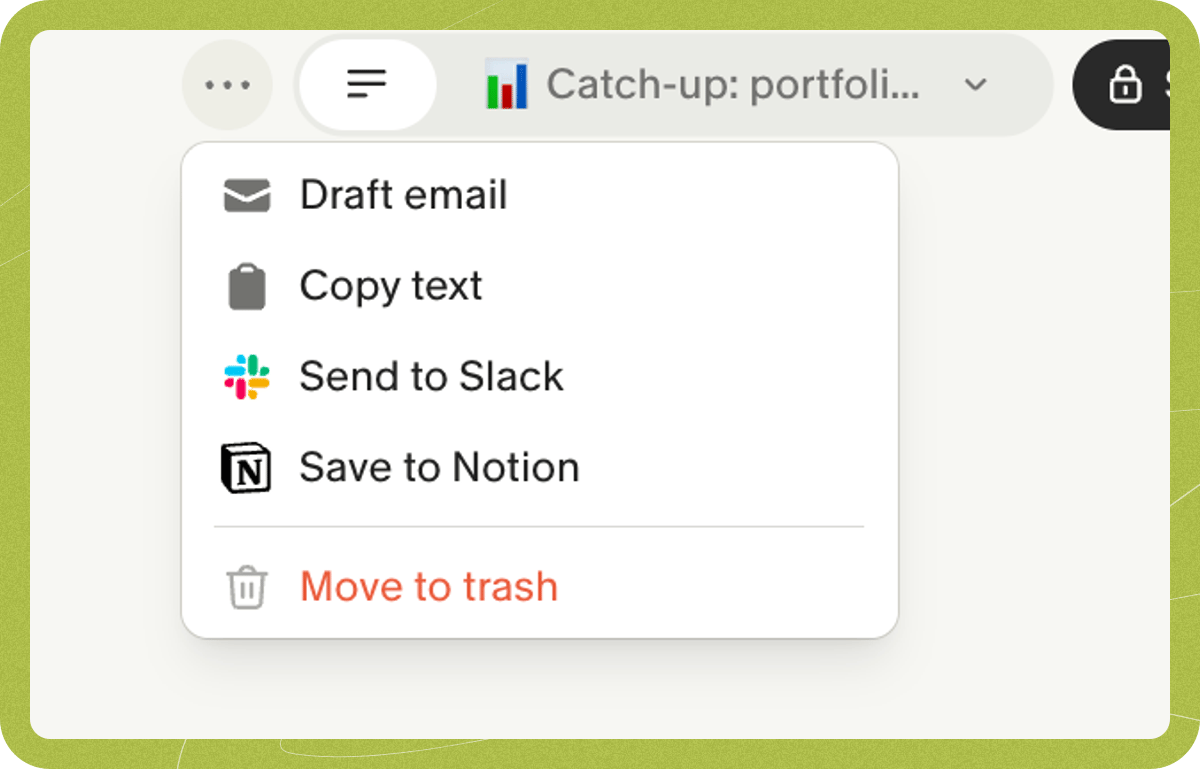
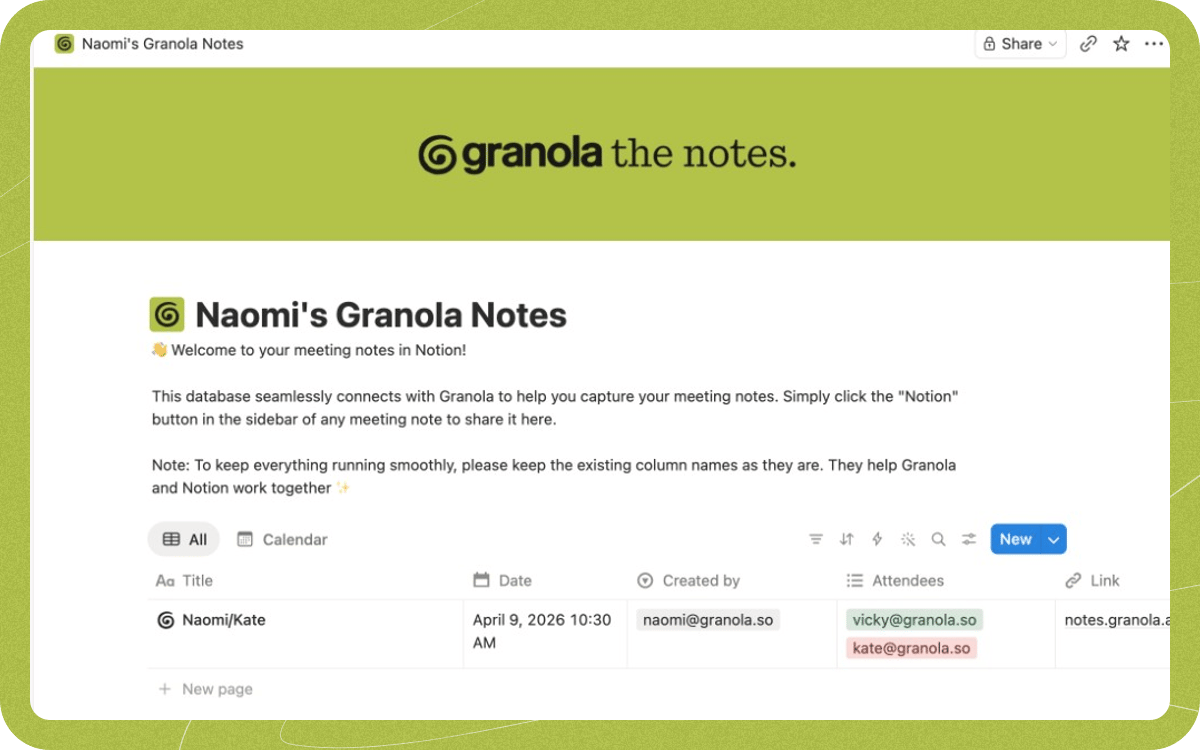
- When you share a note to Notion, it’ll be saved to your personal Notion database.
Can I change how the database displays in Notion?
Currently, Granola notes can only be shared to this specific database and cannot be configured to share to another part of Notion directly from Granola. In this database, you can:- Rearrange the columns in the notion database
- Sort it (e.g. by date/title)
- Add extra columns
- Rename a document once it’s in there
- Rename the column headings
- Remove columns
- Share to elsewhere in Notion - i.e. the notes can only come through to that database, and you need to ‘Link to page’ if you want them elsewhere
What isn’t supported yet
- Bulk sync — There is no way to sync or send many notes to Notion in one go. You share each note individually from the note’s share menu.
- Automatic sync — Notes are not pushed to Notion automatically. You must click to share each note when you want it in Notion. However, you can achieve automatic Notion sharing using the Zapier integration — set up a Zap with the Note Added to Granola Folder trigger and add Notion as the action app. Notes added to that folder will then be sent to Notion automatically.
- Choosing a different Notion page or database — Notes go to the database Granola creates when you connect. You can’t pick a custom page or database; you can rearrange, sort, and link from that database inside Notion.
Troubleshooting
Notes in Notion are missing formatting or content
Notes in Notion are missing formatting or content
Granola sends the enhanced notes into Notion. Some rich formatting may not map exactly to Notion’s blocks. If important content is missing, try copying the relevant section from the Granola note and pasting it into Notion manually, or contact hey@granola.so with an example so we can improve the integration.
Other connection issues
Other connection issues
- Use the same email for both Granola and Notion.
- Disconnect and reconnect the integration in Settings > Connectors > Notion.
- If it still fails, reach out at hey@granola.so with the details and we’ll get you sorted.