

Accessing recipes
You can bring up the recipes menu by typing forward slash (/) in the floating chat bar. This will display all available recipes, including default ones provided by Granola, recipes you’ve created, and any shared by your team.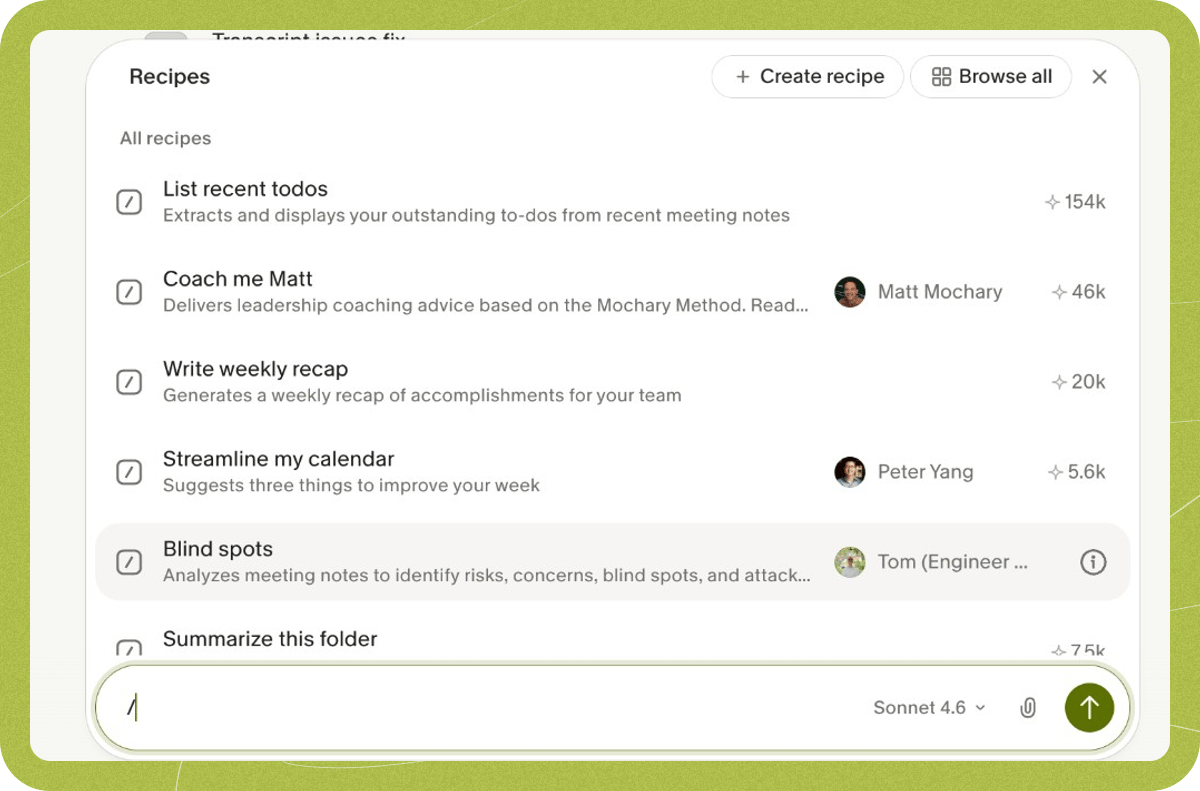
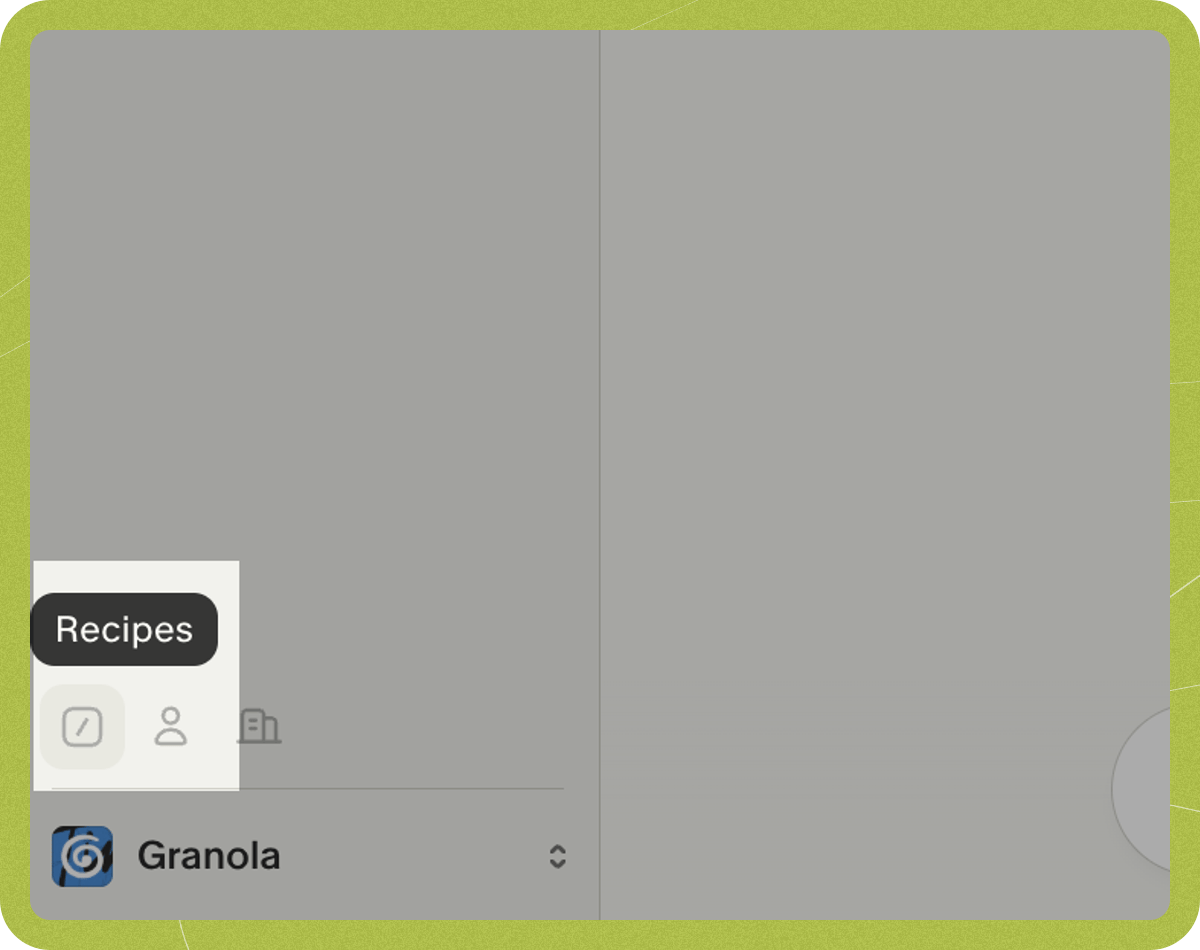
Browsing and finding recipes
The recipes tab organizes your prompts into several sections to help you find what you need.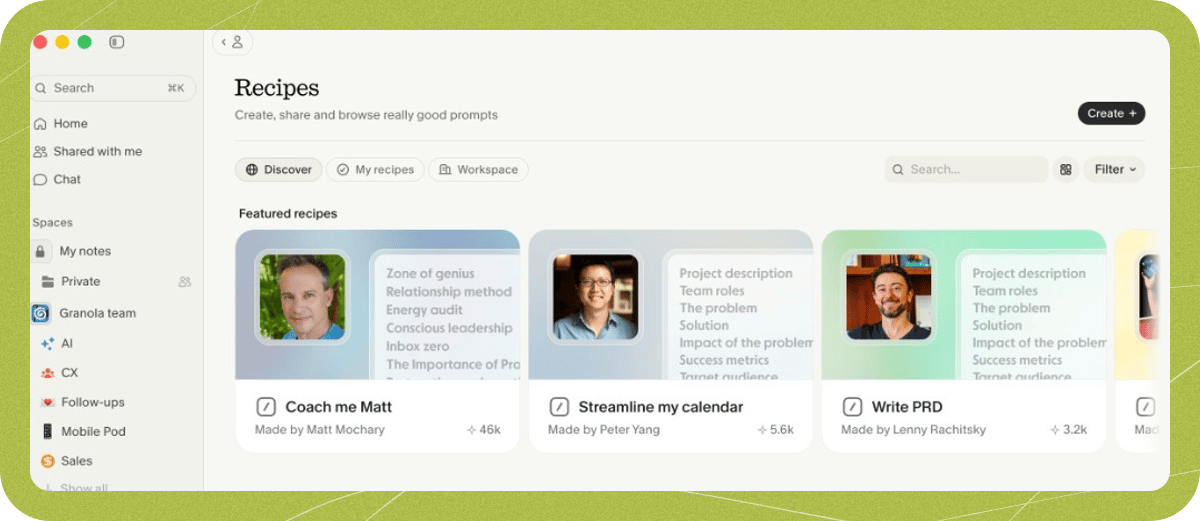
Creating a recipe
- Open the recipes menu by typing / in the chat bar, or navigate to the recipes tab
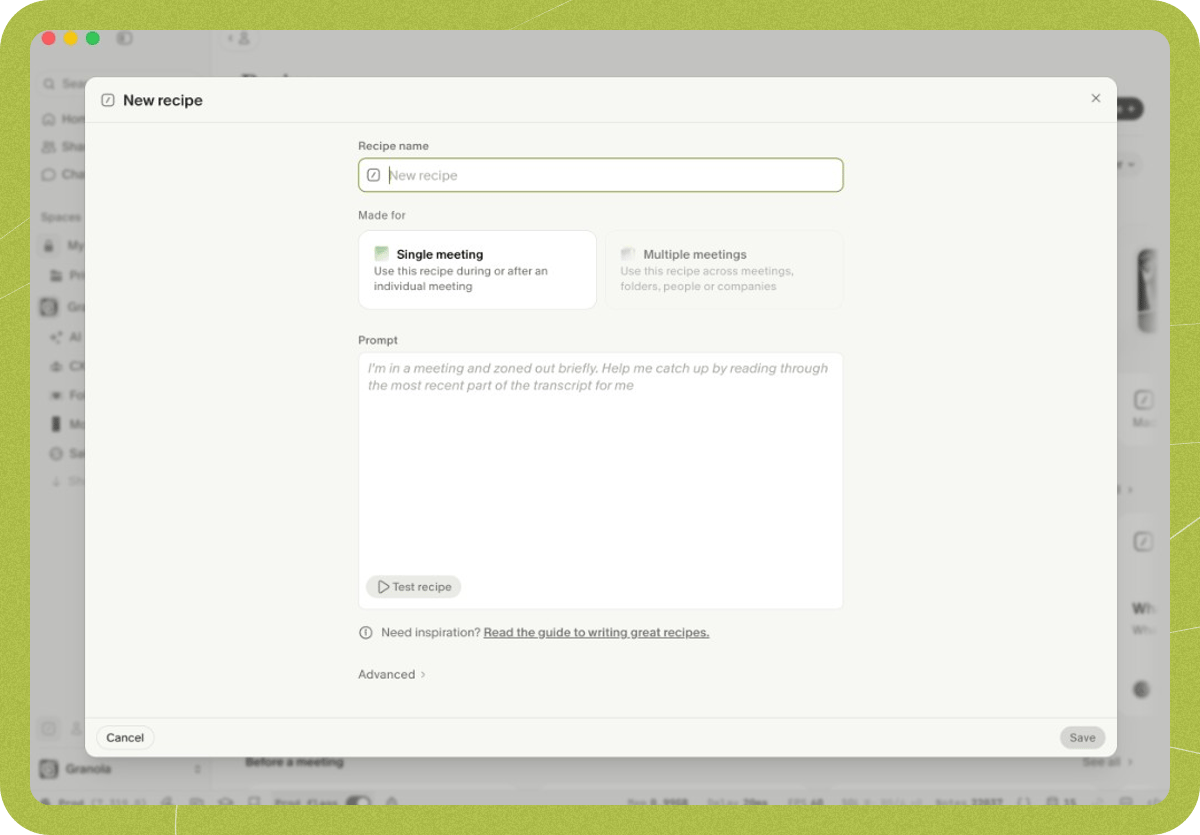
- Select “Create a recipe”
- Give your recipe a name - this is what you’ll type into chat as a shortcut
- Write your prompt with detailed instructions for what you want analyzed and how you want the results formatted
-
Choose where the recipe should be available:
- Single meetings — the recipe appears in individual meeting chats, including during live meetings and after they end.
- Multiple meetings — the recipe appears on the home screen, in folders, people view, company view, or when you select multiple meetings. It won’t appear in individual meeting chats.
-
Click into Advanced settings if you want to select a specific AI model. On the Basic plan, recipes use Auto. Business and Enterprise plans can choose a model:
- Standard models work well for most tasks
- Thinking models take longer but handle complex analysis better
- Save your recipe
-
Once you’ve saved your recipe, you can publish it to your Granola workspace, or share it via a link. You can control who can access the link:
- Private
- Anyone in your workspace
- Anyone with link
Editing and deleting recipes
You can edit or delete any recipe you’ve created. To edit a recipe:- Open the recipe from My recipes
- Click the pencil icon in the recipe detail view to enter edit mode
- Make your changes
- Click Save
- Open the recipe from My recipes
- Click the pencil icon to enter edit mode
- Click the trash icon in the bottom left corner to delete the recipe
The Remix button appears on recipes created by others and lets you create your own editable copy. You won’t see it on your own recipes because you can edit them directly. Remixing also lets you change any of the recipe’s settings — for example, if a shared recipe is set to “Multiple meetings” but you want to use it on a single meeting, you can remix it and switch it to “Single meetings”.
Using recipes effectively
Each recipe is a static prompt template — recipes do not support variables, placeholders, or dynamic content substitution. The prompt you write is sent as-is every time you run the recipe. If you need variations for different scenarios (for example, different interview rubrics for different roles), create a separate recipe for each variation with the specific details written directly into the prompt. Recipes work best when you provide clear, specific instructions in your prompt. Consider including details about what information to extract, how to structure the output, and what areas to focus on. Common use cases include:- Extracting action items or decisions from recent meetings
- Summarizing product feedback across multiple calls
- Identifying features or bugs to test from development discussions
- Creating interview assessments after candidate calls
- Analyzing sales conversations for common objections or questions