

- iOS: install from the App Store. Granola isn’t available in the App Store in China.
- Android: install from the Google Play Store.
- iOS
- Android
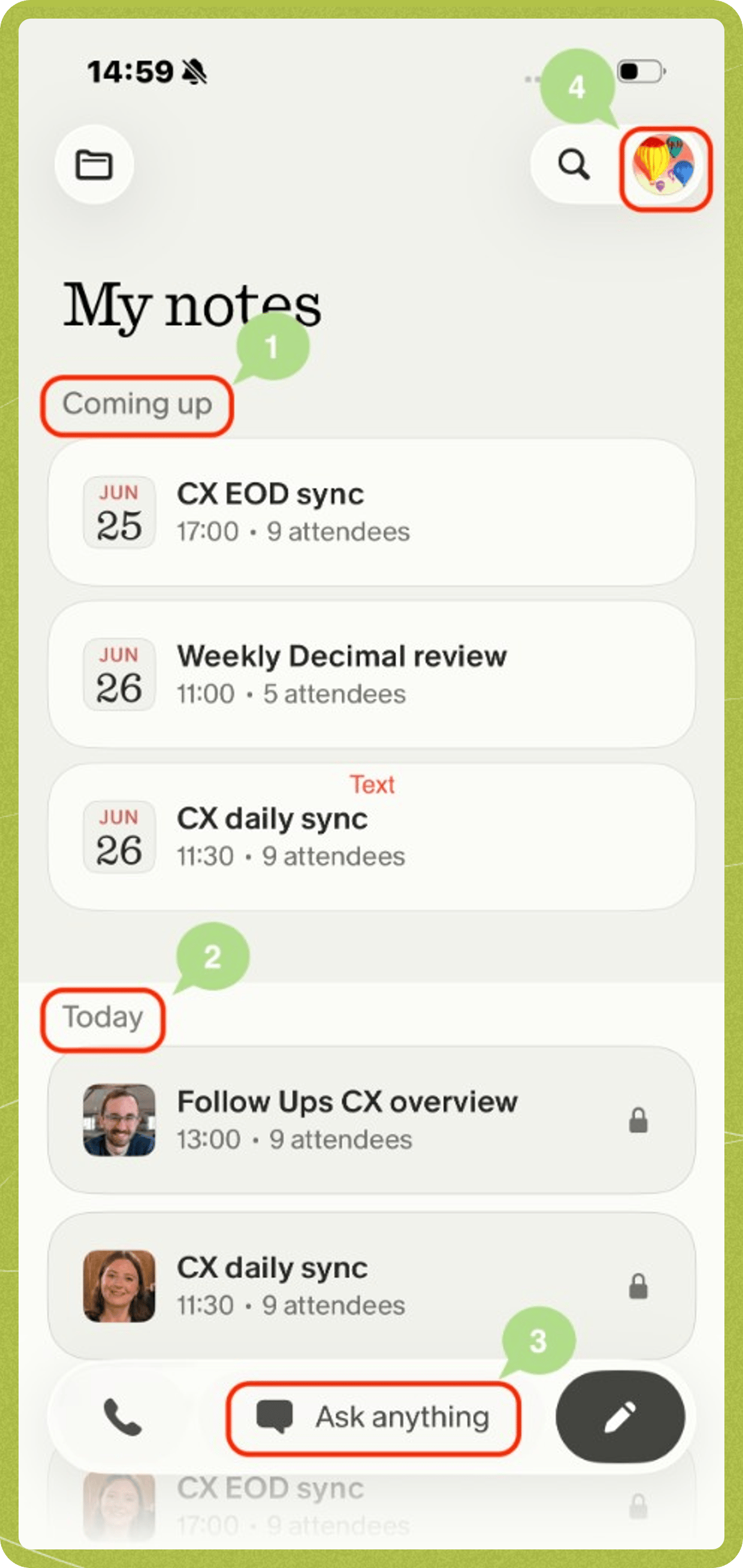
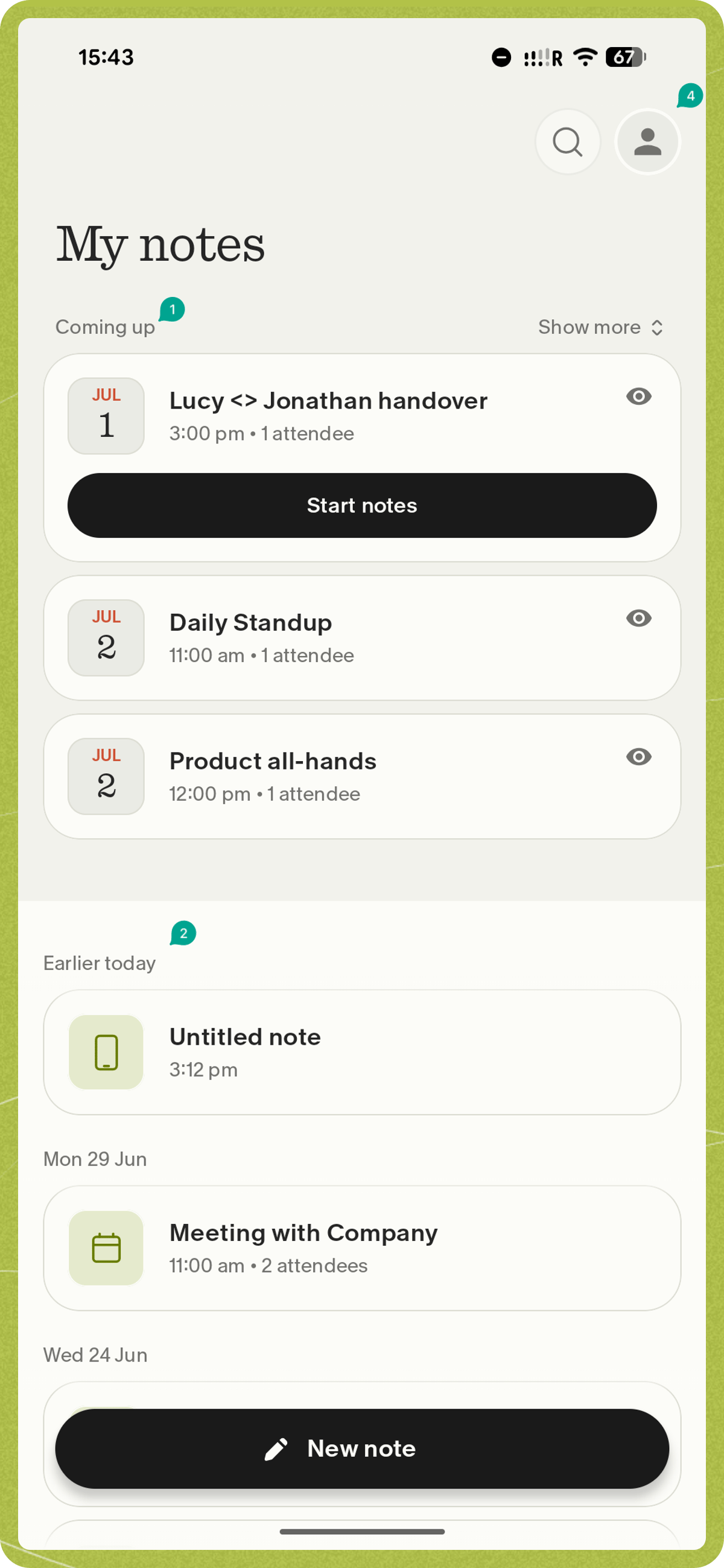
1. Coming up
Granola connects to your calendar to show your upcoming meetings. Tapping one of these meetings will create a note for that meeting - you can do this in advance to jot down some pre-meeting thoughts, or when the meeting has started to start transcribing immediately.2. Your notes
Once you’ve created a note, either from a calendar event or an ad-hoc note, it’ll appear here. Just swipe across a note to delete it if you need.3. Granola Chat (iPhone only)
Chat with your meeting notes to recall meeting details, spot patterns across customer calls, and generate follow-up outputs. Granola Chat is currently available on iPhone only — it’s not available on iPad or Android.4. Settings
Customize how Granola works - complete your profile to give Granola context when generating your meeting notes, and choose the notifications you want to get.Signing out and switching accounts
Granola does not support having multiple accounts logged in at the same time on one device — you must sign out of one account before signing into another. Before signing out, make sure any recent notes have finished processing and appear in your note list. To sign out, tap your profile picture in the top-right corner and tap Sign Out. You can then sign back in with a different account — for example, if you initially signed in with a personal email and want to switch to your work email.Key features
- In-person meeting notes: Capture conversations happening around you
- Phone call notes (iOS only): Take notes during outbound phone calls
- Apple Watch notes (iOS only): Start meeting notes from your wrist
- Speaker identification: Granola can identify different speakers in your conversations
- Sync with desktop: Your notes sync across all your devices
What’s different on mobile?
Some features work differently on mobile compared to the desktop app. These apply to both iOS and Android:- Virtual meeting calls: On macOS, Granola captures system audio, so it works inside any meeting app. Phones don’t let apps capture audio from other apps, so Granola can’t transcribe virtual meeting calls on mobile. On mobile, it’s designed for in-person meetings (and, on iOS, outbound phone calls made through Granola’s built-in dialer).
- Workspaces: You can’t create workspaces on mobile, but you can switch between your existing workspaces. New workspaces are created from the desktop app.
- Templates: Custom templates can only be created and applied from the desktop app, but you can apply them to mobile notes after they sync.
- Integrations: Sharing to Notion, Slack, HubSpot, and other integrations requires the desktop app.
- Folders: You can’t create or manage folders on mobile, but you can add notes to them.
- Coming up: The mobile apps show a short list of upcoming events, while the desktop app shows the next 14 days.
- Calendar sync: Calendar changes must be made on desktop - they’ll sync to your mobile device automatically.
Differences between iOS and Android
A few features exist on one platform but not the other:- Granola Chat: Available on iPhone only — it’s not available on iPad or Android.
- Phone calls: Taking notes on outbound phone calls is available on iOS only.
- Apple Watch: Taking notes from your wrist is available with Granola on iPhone and an Apple Watch running watchOS 11 or later. Learn how to set up Granola on Apple Watch.
- Recording indicators: On iOS, an active recording shows in a Live Activity on your Lock Screen and in the Dynamic Island. On Android, it shows as an ongoing “Taking notes” notification (with pause, resume, and end controls) and can be started from a Quick Settings tile.
Trouble signing in?
- iOS
- Android
Granola uses Safari to handle sign-in on iOS. If you see a cookie-related error or the sign-in screen won’t load, your Safari privacy settings may be blocking it.To fix this, open the Settings app on your iOS device, tap Safari, and check the following:
- Block All Cookies — turn this off. Granola’s sign-in flow requires cookies to work.
- Prevent Cross-Site Tracking — try turning this off temporarily, then sign in to Granola. You can turn it back on afterward.
Getting help
- iOS
- Android
If you run into issues with the iOS app, you can report a bug directly from the app:
- Tap your profile picture in the top-right
- Tap “Report a bug”
- Include logs when prompted