

How Granola captures transcription
Granola records from your phone’s active microphone input (note that this could be the built-in mic, or could be a bluetooth device if you’ve got one connected). Granola can pick up on in-person conversations, or sound playing from other devices. Granola temporarily caches audio during the meeting - when transcription is completed, cached audio is deleted from all Granola and third-party systems.When does transcription begin?
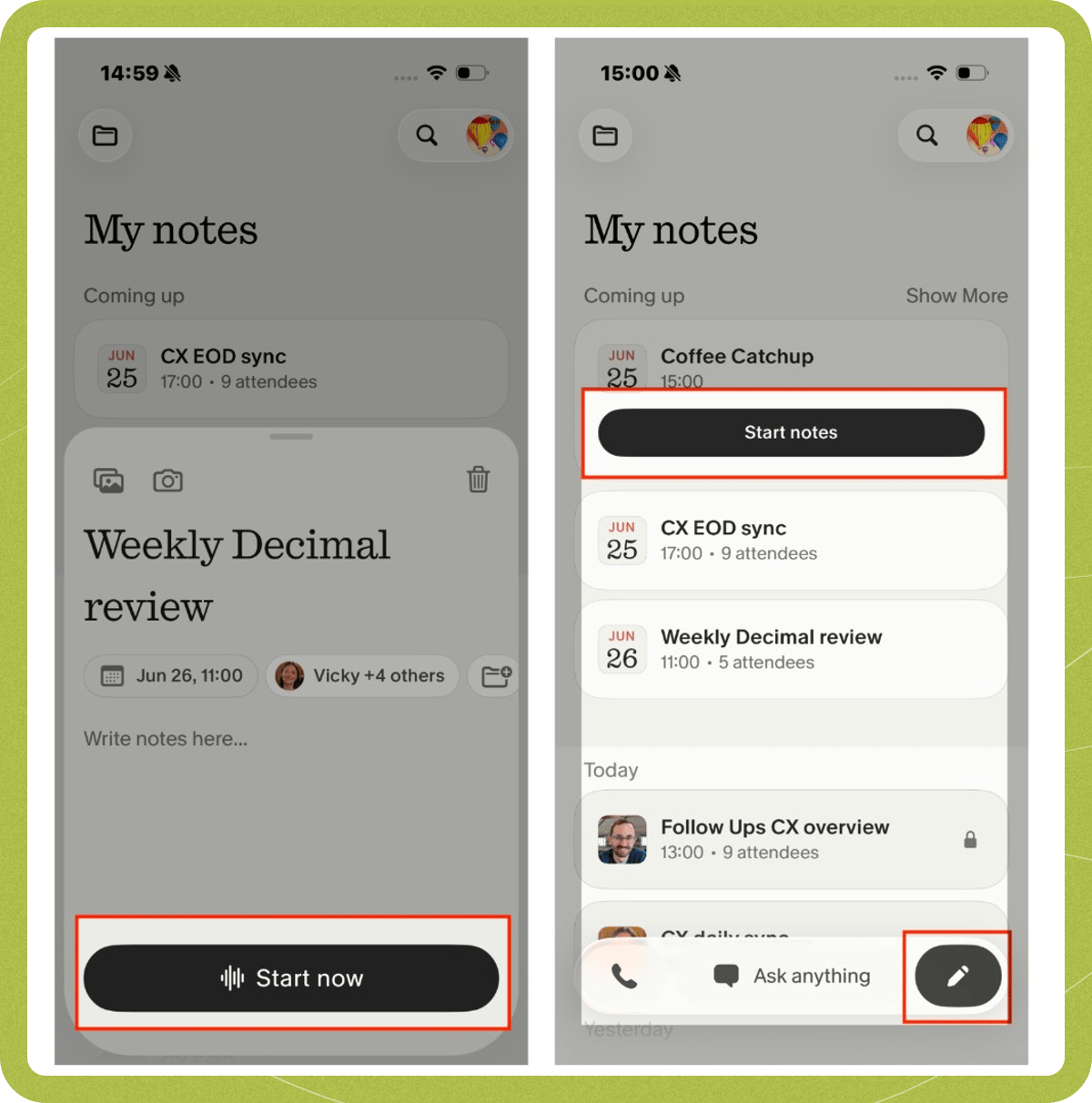
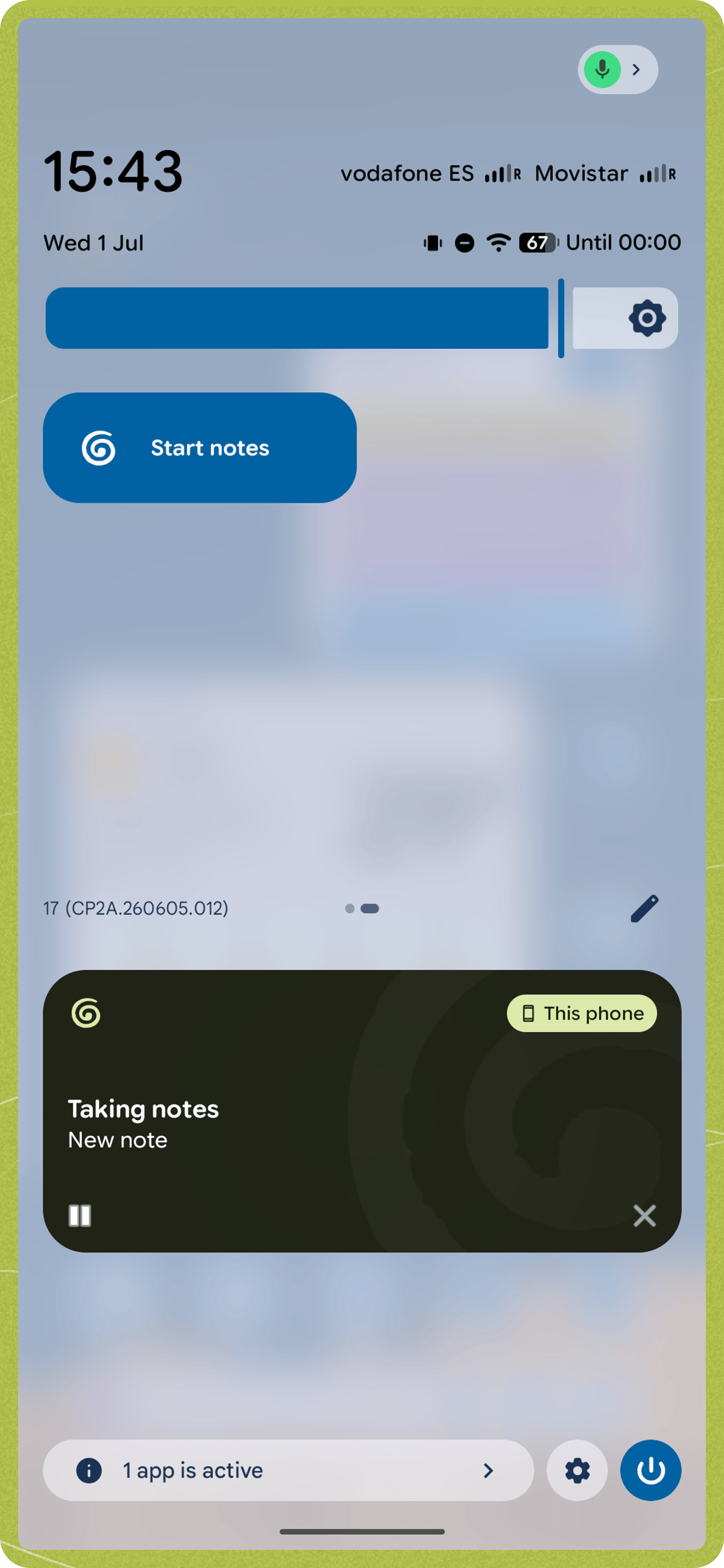
Transcription begins when you start a note, for example by:- Starting a new note
- Tapping ‘start notes’ for a meeting in progress from the list of upcoming meetings
- Tapping ‘start’ after opening an upcoming meeting
- On iOS: tapping ‘Start Granola’ from a Live Activity prompt
- On Android: starting a note from the Quick Settings tile
- iOS
- Android
Transcription indicators
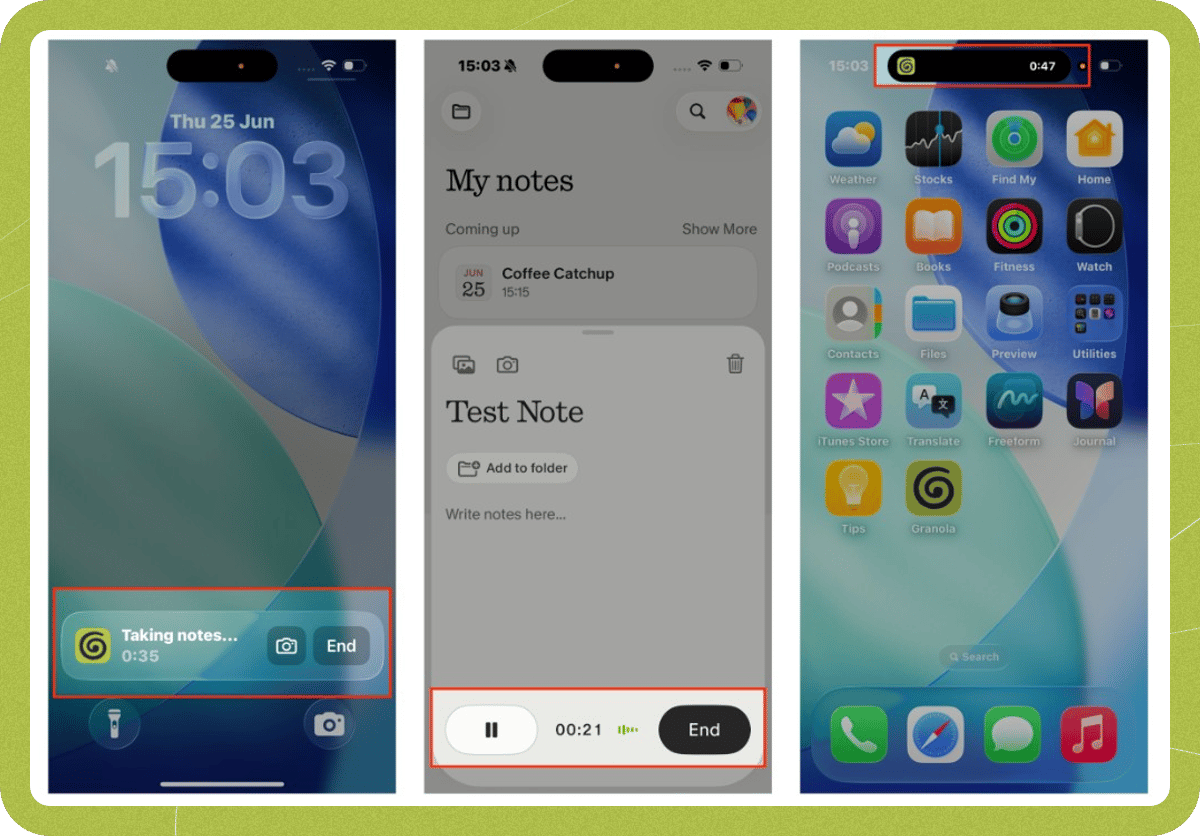
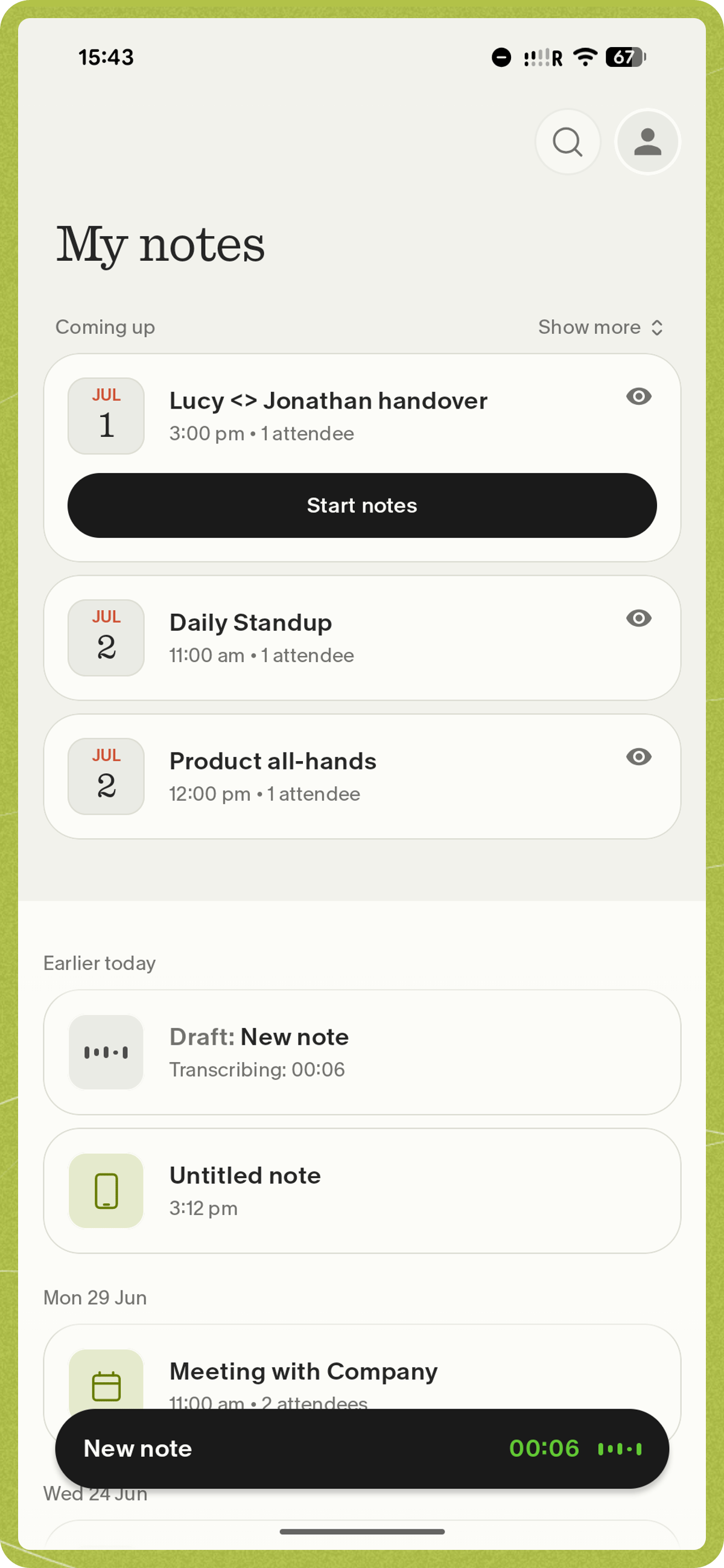
You can tell when Granola is transcribing in several ways:- On a note in progress: dancing bars respond to mic input, and the duration timer is active
- On iOS: the Lock Screen Live Activity says ‘taking notes’ with the current duration, and the Dynamic Island shows the Granola icon with an active timer
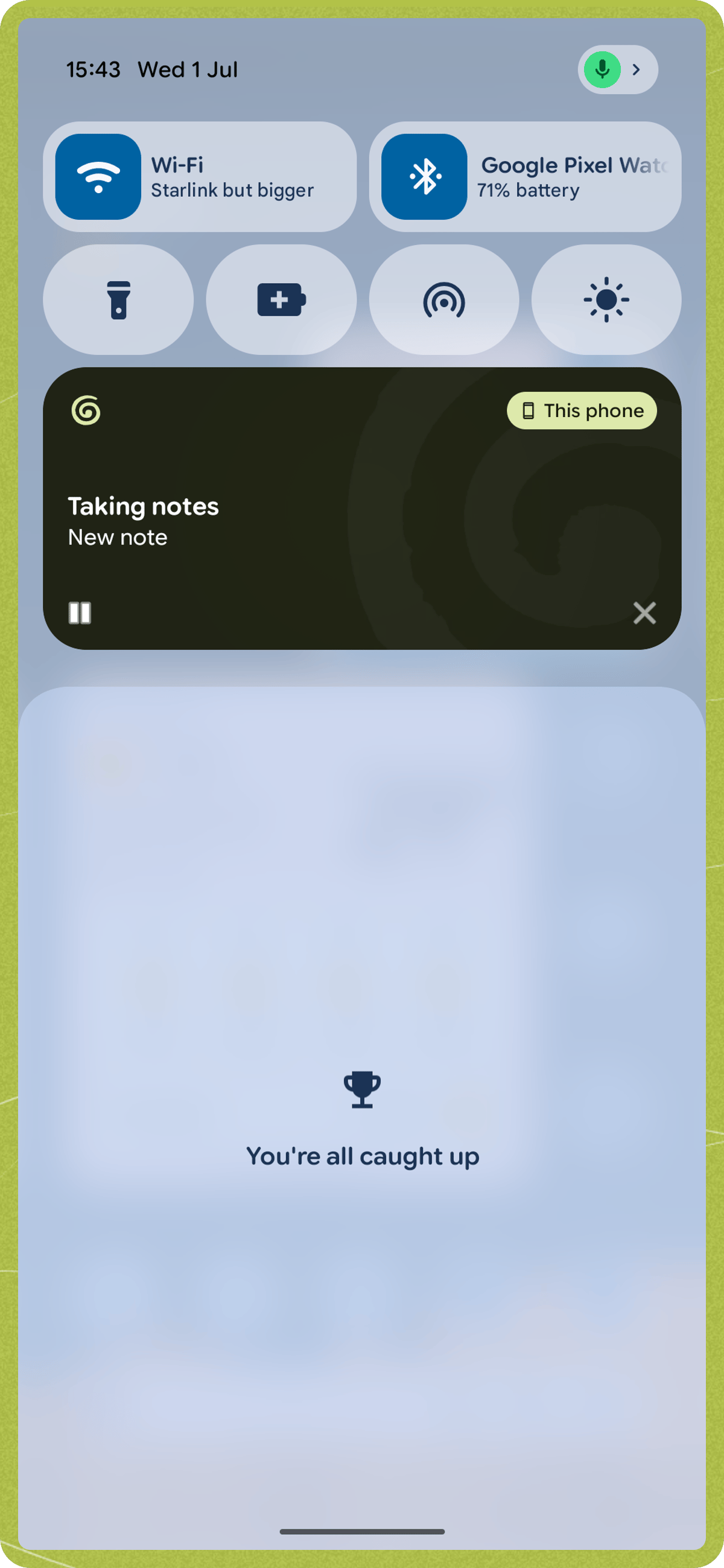
- On Android: an ongoing “Taking notes” notification shows the current duration with pause, resume, and end controls
- iOS
- Android
When does transcription end?
Transcription ends when you tap ‘end’ — from the note card, the Live Activity notification (iOS), or the ongoing notification (Android). Once transcription ends, the app will automatically generate your enhanced notes. It takes a bit longer than on desktop, so Granola will send you a notification when they’re ready. If your transcription is taking longer than a few minutes, get in touch with our support team. Please let us know a bit of detail about what’s happened, including the date/time of your meeting and the title (if it has one).Pausing and resuming transcription
You can pause and resume transcription from the note in progress card. Your meeting notes won’t be generated until you tap end to finalize the transcription.Speaker identification
The transcript will identify speakers as Speaker A, Speaker B, and so on, which should more accurately assign follow-up actions in enhanced notes. We have found that in cases where the speaker identification may not be 100% accurate, the enhanced notes usually do a good job of understanding the nuances of the conversation.Viewing the transcript from a completed note
To view the full transcript after your meeting, open the note, tap the three-dot menu (…) in the top-right corner, and select View transcript. From the transcript view, you can also share the transcript.Common transcription issues
Several issues can impact the quality of Granola’s transcription on mobile:- Bluetooth or external audio devices: If a Bluetooth device is connected to your phone, Granola may use it as the microphone source instead of the device’s built-in microphone. If the Bluetooth device isn’t positioned to pick up the conversation, transcription may capture little or no audio. To use the built-in microphone, disconnect any Bluetooth speakers, headphones, or microphone devices before starting a note.
- Linguistic accuracy: When meetings are conducted in multiple languages or accents not supported by the current version of Granola, transcription may not accurately capture the dialogue
- Background noise: While background noise can affect transcription quality, the summary feature does a good job of picking out important points from the conversation
- Recording length: Recordings that are too short may not contain enough audio to generate notes — on Android, this applies to recordings under about 5 minutes. Very long recordings (roughly 10 hours or more) may also fail to process.