Requirements
To use Granola on Apple Watch, you need:- The latest version of the Granola iPhone app
- An Apple Watch paired with your iPhone
- watchOS 11 or later
Install Granola on Apple Watch
Granola may install on your Apple Watch automatically after you update the iPhone app. If it does not:- Open the Watch app on your iPhone.
- Scroll to Available Apps.
- Find Granola.
- Tap Install.
Add Granola to your watch face
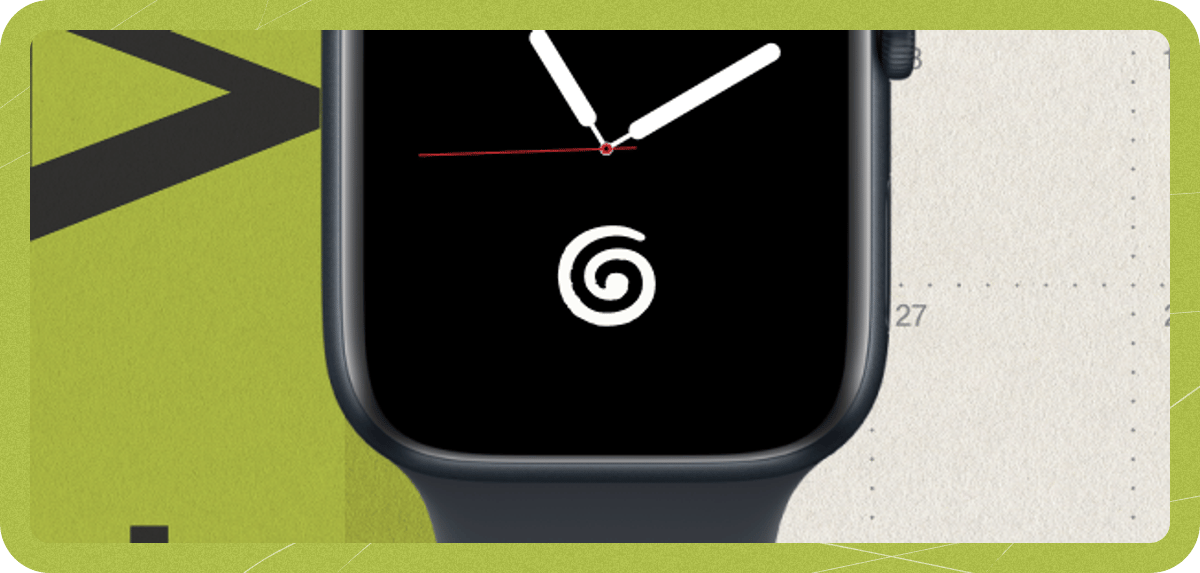
Adding Granola as a complication puts it one tap away from your watch face.- Open the Watch app on your iPhone.
- Select the watch face you want to edit.
- Choose a position in the Complications section.
- Select Granola.
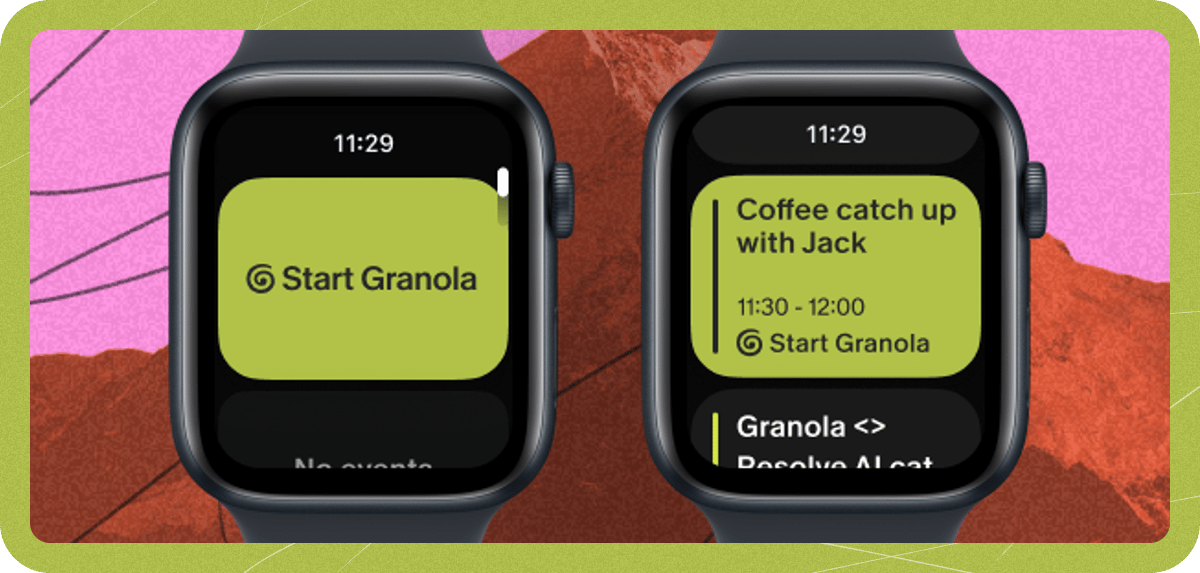
Start taking notes from your Watch
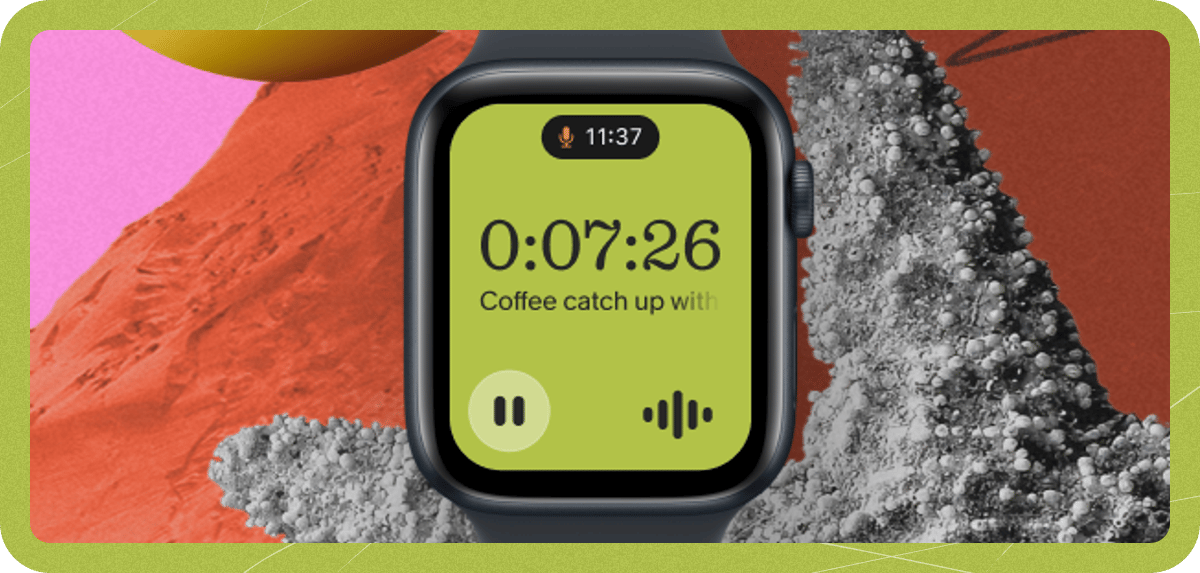
- Open Granola on your Apple Watch, or tap the Granola complication from your watch face.
- Tap an upcoming meeting, or start a new note.
- Let people know you are using Granola.
- Tap End when the conversation is finished.
What happens after you end a recording
After you tap End, Granola saves the audio on your Watch and then begins syncing. You may see these states:- Saved: the audio is safe on your Watch.
- Syncing to phone: the Watch is sending the recording to your iPhone.
- Synced: the recording has arrived on your iPhone.
- Uploading: your iPhone is uploading the recording.
- Generating notes: Granola is creating your notes.
- Complete: your notes are ready.
Find notes recorded on your Watch
When notes are ready, they appear in Granola on your iPhone and desktop like your other notes. You can also open Granola on your Apple Watch and go to Watch notes to see recent notes recorded on the Watch. Notes that are still processing may show Syncing or Generating notes.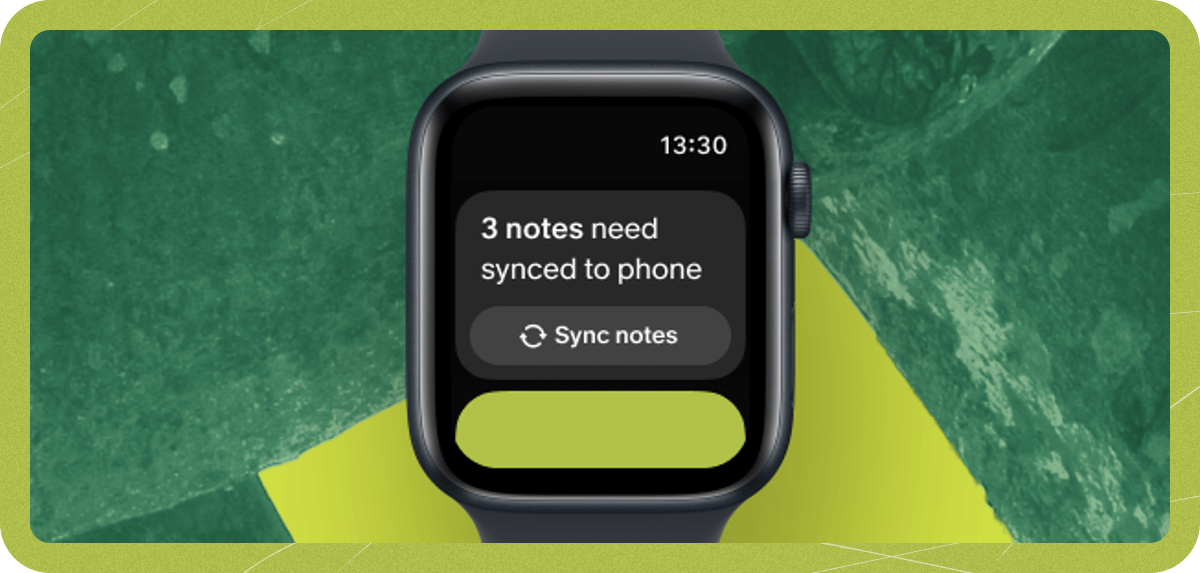
If a Watch note does not sync
If a note is waiting to sync, open Granola on your Apple Watch and go to Watch notes. Notes that have not synced appear under Waiting to sync. From there, you can:- Tap Sync to try sending the recording to your iPhone again.
- Tap Delete if you no longer need the recording.
- Confirm your iPhone has the latest Granola app installed.
- Keep your Watch and iPhone near each other with Bluetooth and Wi-Fi enabled.
- Open Granola on your iPhone and make sure you are signed in to the account and workspace you expect.
If recording is interrupted
If a call, Siri, battery issue, or another interruption stops the Watch recording, Granola will show an option to sync the partial audio. You can sync the partial recording, but you cannot resume the same recording.Getting help
If you contact support about Apple Watch, include:- Your Apple Watch model and watchOS version
- Your Granola iPhone app version
- The approximate date, time, and title of the affected note
- Whether the note is stuck on Syncing, Uploading, or Generating notes