Platform availability
Granola runs on macOS, Windows, iOS, and Android, connected to a Google or Microsoft account. It can transcribe meetings (Zoom, Meet, Teams, etc.), in-person conversations, voice memos, and any computer audio. On macOS and Windows, you can use Granola to transcribe and summarize:- meetings on any software - like Google Meet, Teams, Zoom, or any others that you use
- in-person meetings
- voice memos to yourself
- any audio playing off your computer like a podcast or YouTube video
Installing Granola
- For macOS
- For Windows
1. Download Granola from our website
2. Open the Granola.dmg from your Downloads
3. Drag the Granola icon into your Applications folder
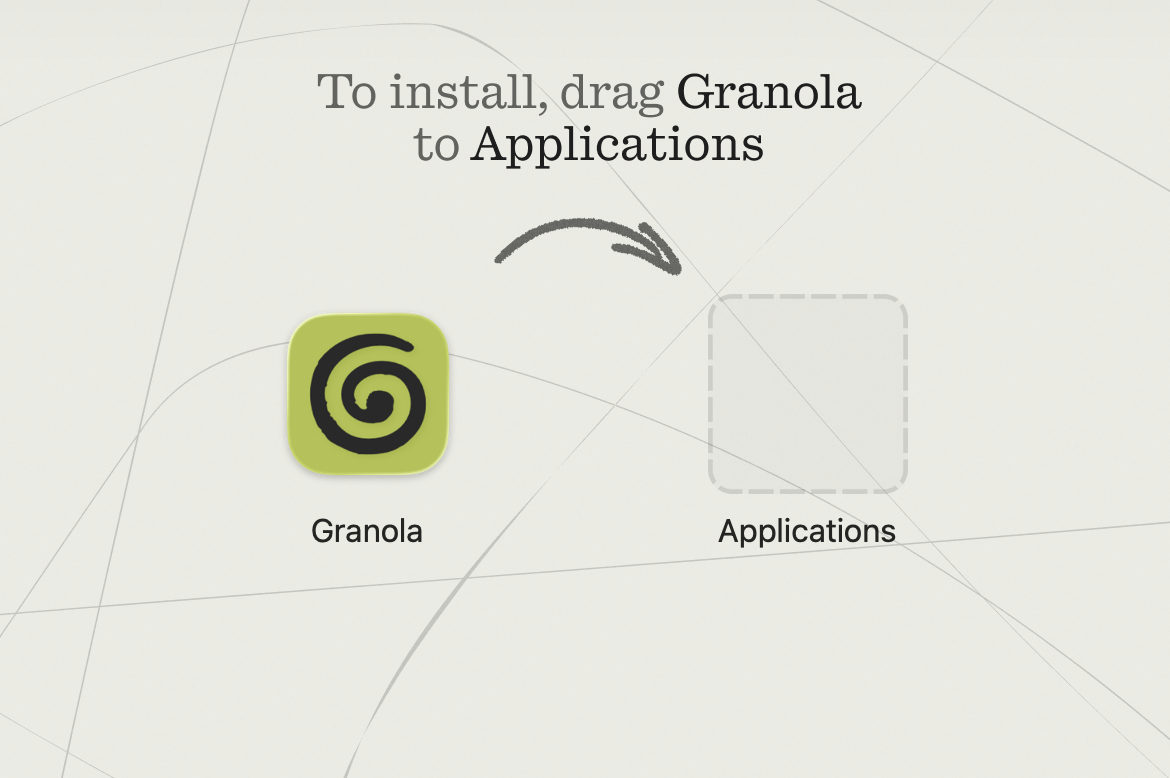
Granola requires a minimum macOS 14 to run
Launching Granola
Launch Granola from your Applications, Start Menu or home screen. You may see a warning “Granola is from the internet. Are you sure you want to open it?” - this is expected, and you can click ‘Open’.Signing in
Currently, Granola only supports Google and Microsoft single sign on, so you’ll need a Google workspace account, personal Gmail or Microsoft account to log in.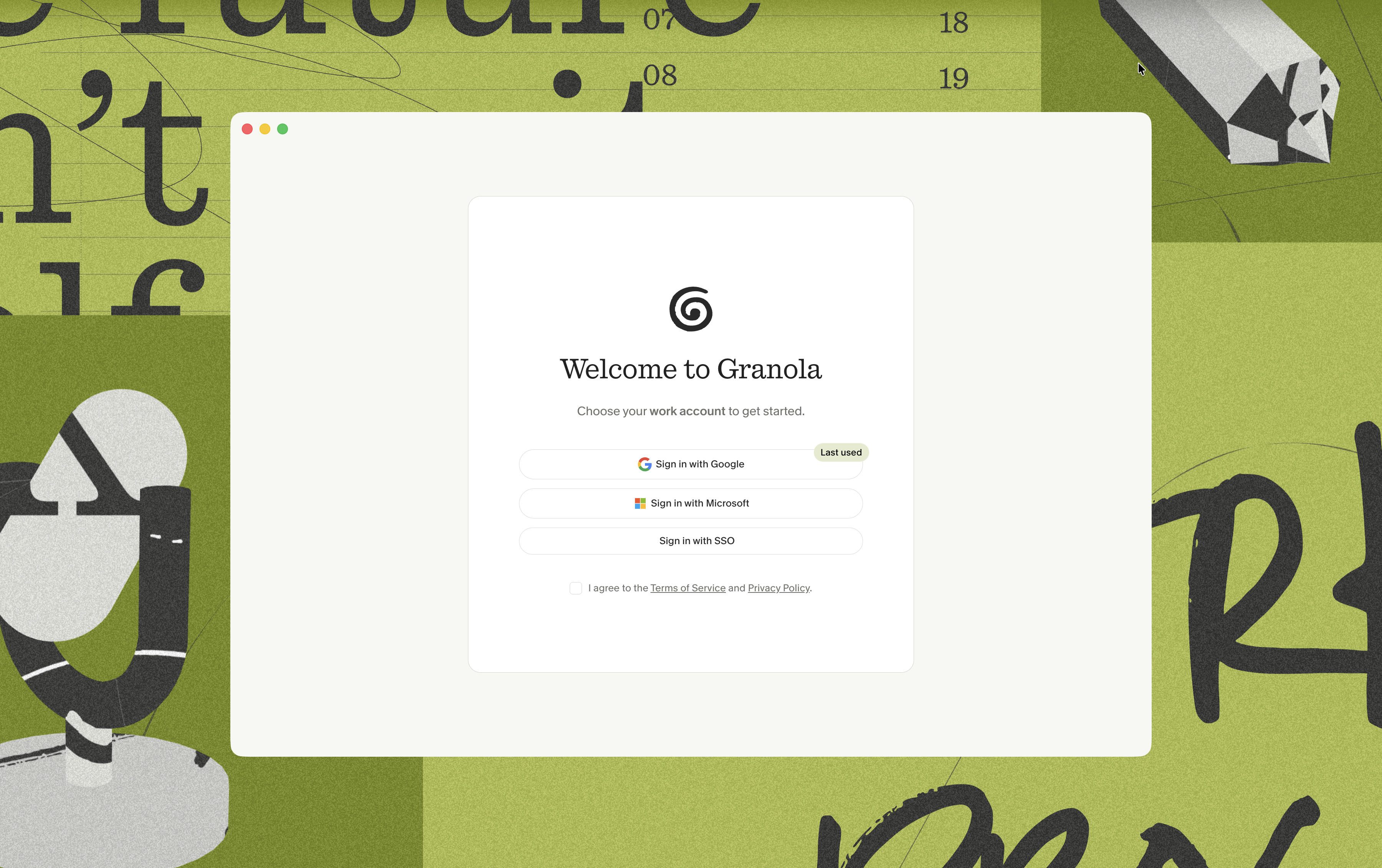
Calendar permissions
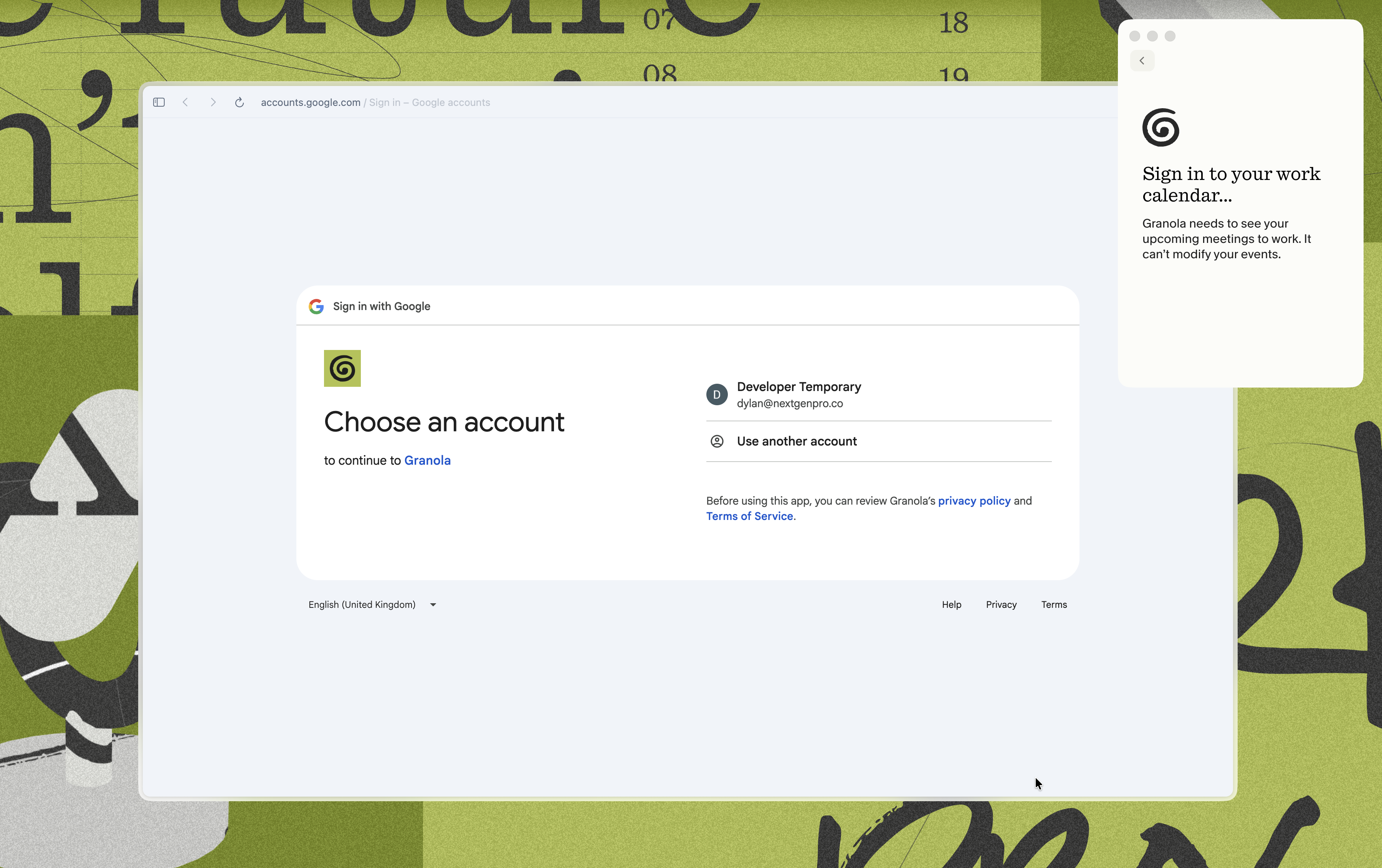
You’ll then be prompted to choose your calendar permissions. You’ll want to ‘Select all’ and then continue. Granola asks for the permissions to view events in your calendar and get the basic metadata from them (attendees, time, date, and title).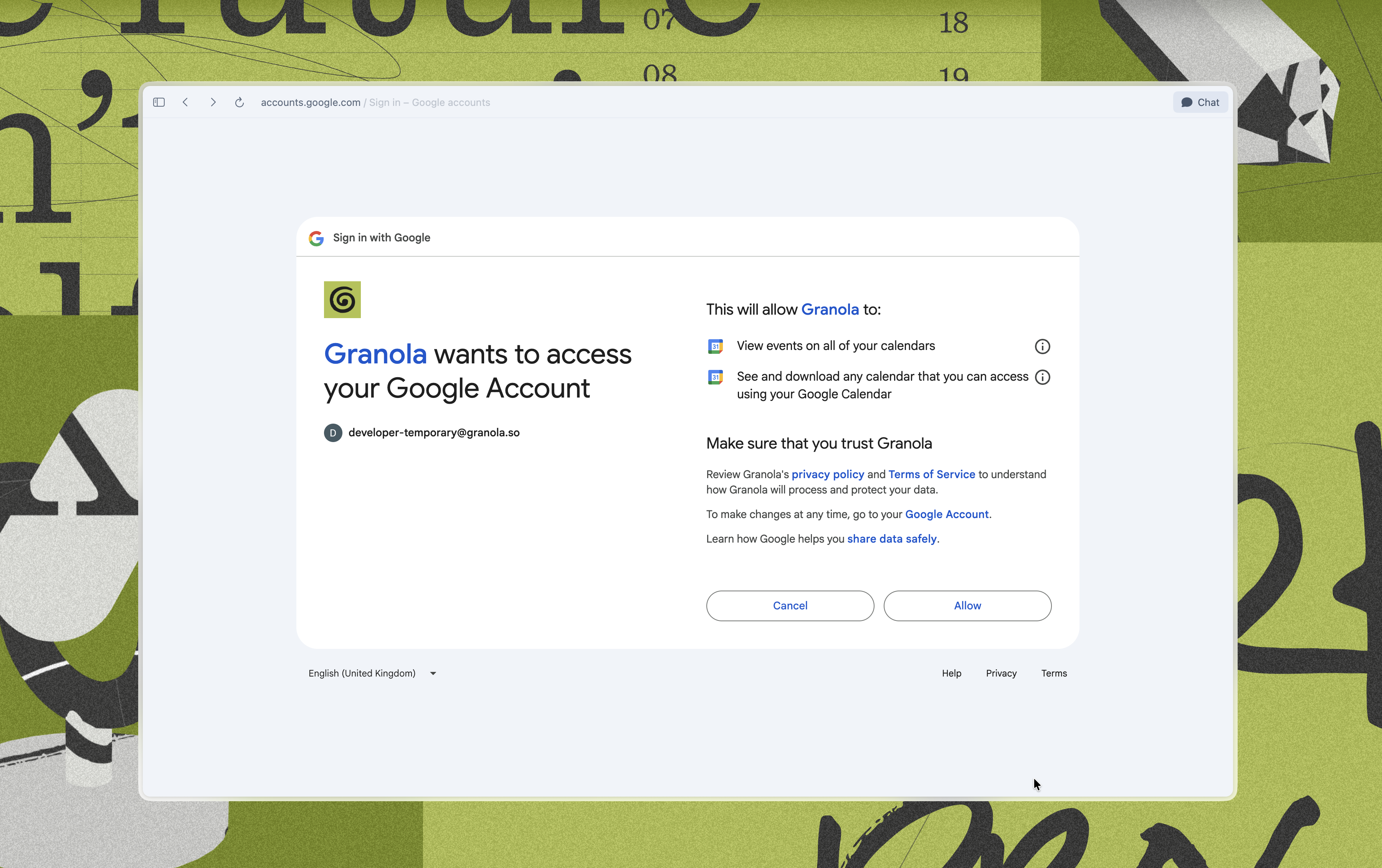
Audio permissions
Once you’re logged back into Granola, you’ll be prompted to enable your microphone and system audio if you’re on macOS. Clicking ‘Allow’ on the popups will gain access and allow Granola to transcribe the audio on your device. If you’re on Windows, these permissions are automatically granted - there’s no need to manually enable them.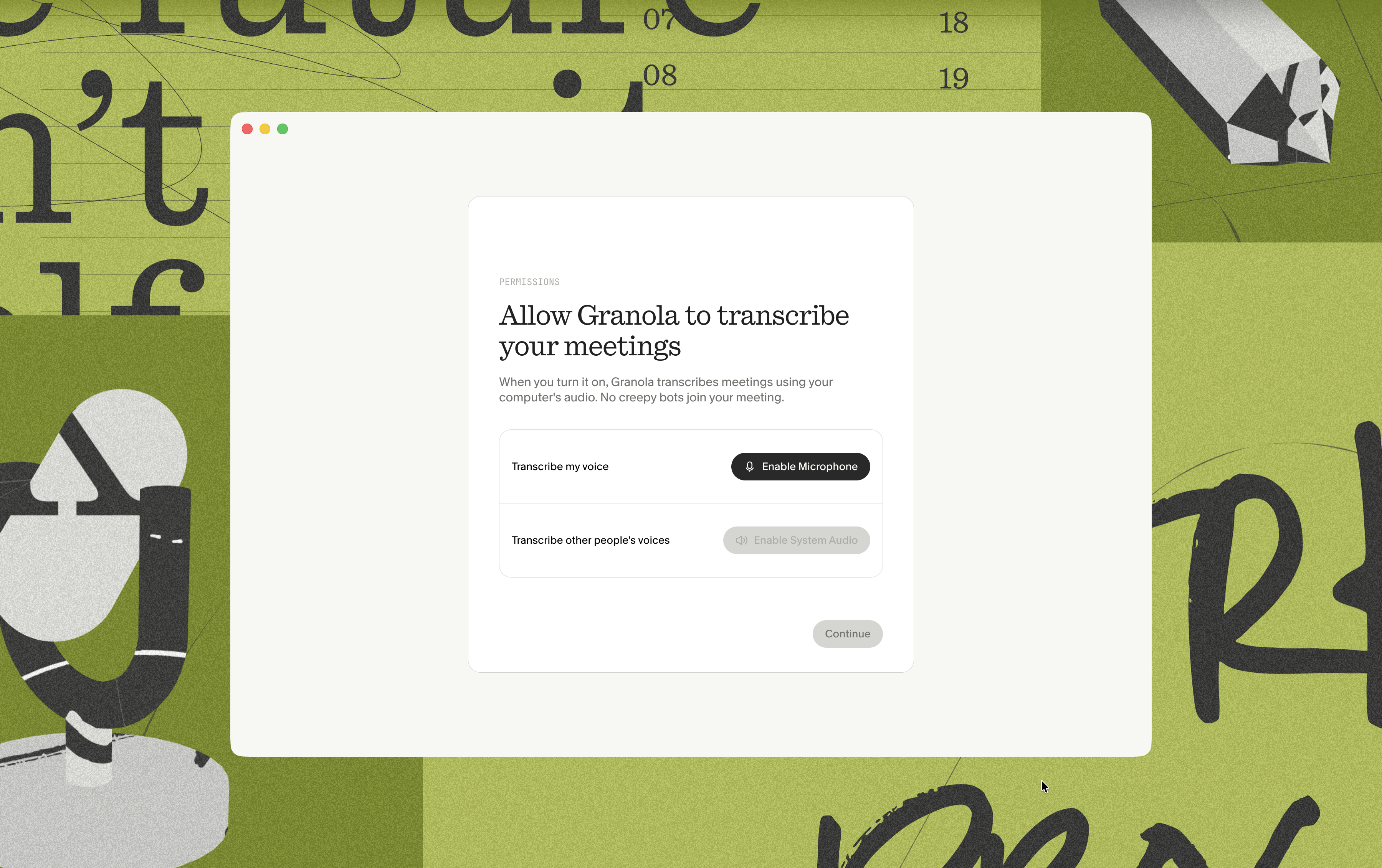
Granola works with cloud-based Microsoft 365 calendars (Exchange Online). On-premises Exchange servers are not supported.
Testing a meeting
Demo meeting
When you sign in for the first time, you’ll see a meeting already waiting for you to help you get started with Granola. It’s a 2 minute tutorial from our co-founder Sam, who will help walk you through the basics of using Granola. This is a one-time experience — once you’ve watched it, it won’t reappear in the app. If you’d like to rewatch it later, open grano.la/demo to jump straight back into the demo in the app. You’ll need to click the link on a desktop device that has the Granola desktop app installed for it to open. If the link doesn’t work, you can use granola.ai/demo-meeting as a fallback.
You’re all set 🚀
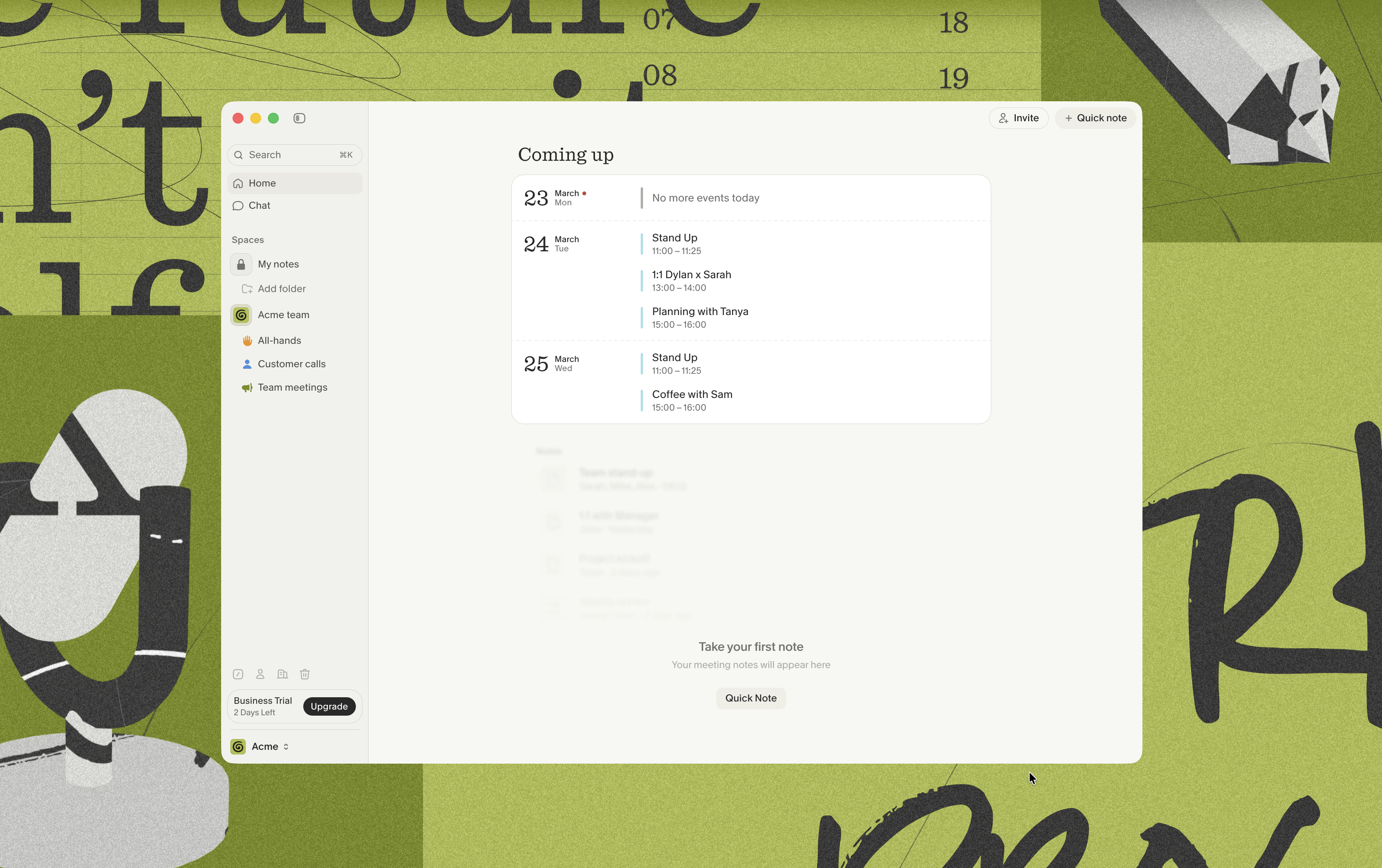
Granola should now look something like this, showing your upcoming meetings, and the note you took from the demo meeting.