

When does Granola start transcribing?
Granola only starts capturing audio and transcribing when you:- click on a notification
- open a meeting from your home screen once the scheduled start time has passed
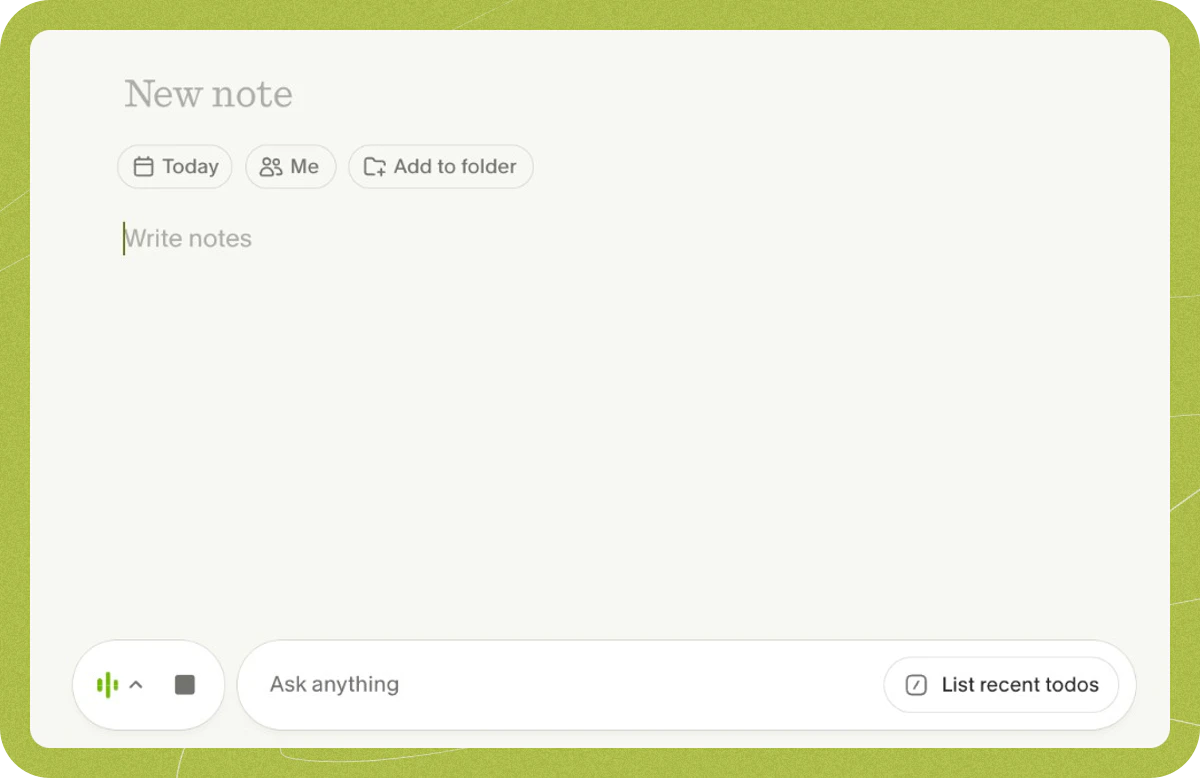
- click ’➕ New Note’ in the top right to open a new note — use this for an ad-hoc meeting or call that isn’t on your calendar
- if you’re clicked into an upcoming meeting before it starts - Granola will automatically start transcribing at the scheduled meeting start time
How do I know it’s transcribing?
When you’re in a Granola note, you’ll see green dancing bars at the bottom of the screen to show Granola is capturing audio. Click the transcript button — a small icon that looks like audio waveform bars, located to the left of the “Ask anything” chat bar at the bottom of your note — to show or hide the live transcript panel: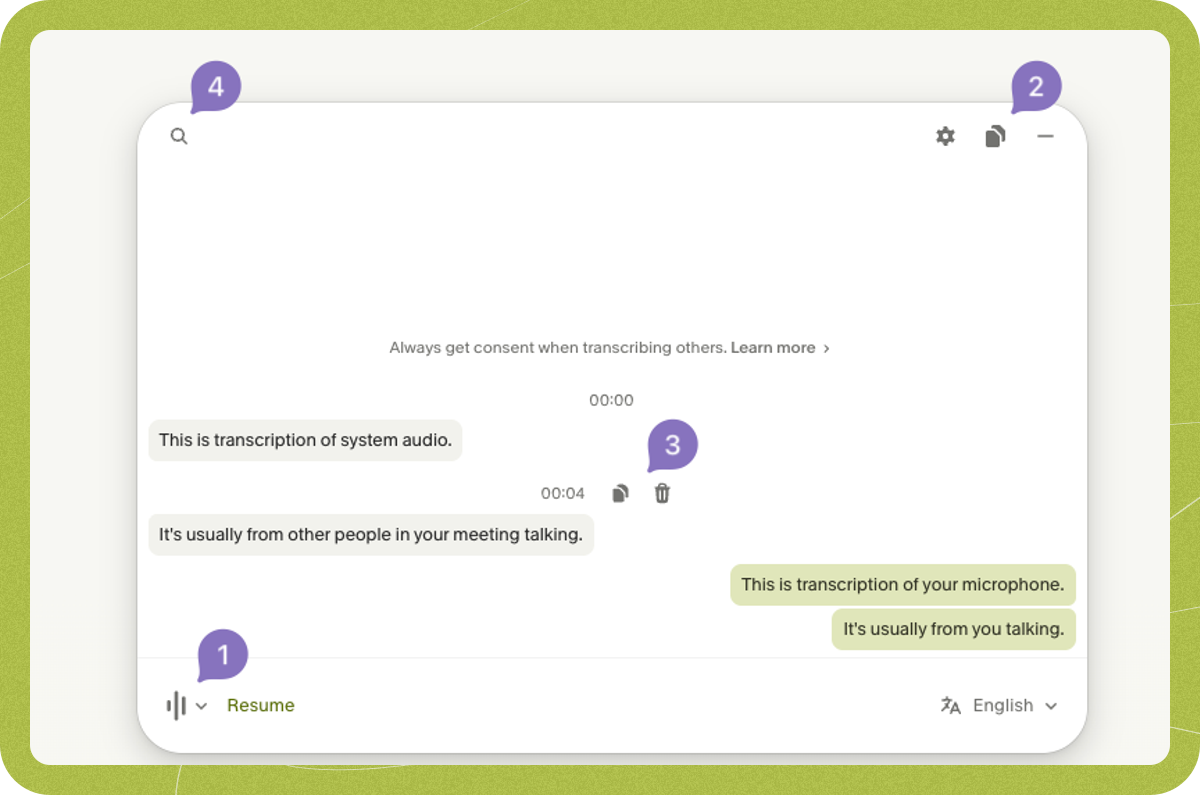
- Show/hide & Stop/Resume - click the transcript icon to show or hide the panel, and use Stop/Resume to temporarily stop transcription without ending the meeting
- Copy all - copy the entire transcript to your clipboard
- Copy/delete chunks - click on any transcript chunk to copy or delete it individually
- Search - search through your transcript to find specific words or phrases
- Grey bubbles (left side) - transcription from system audio, usually other people in your meeting
- Green bubbles (right side) - transcription from your microphone
When does Granola stop transcribing?
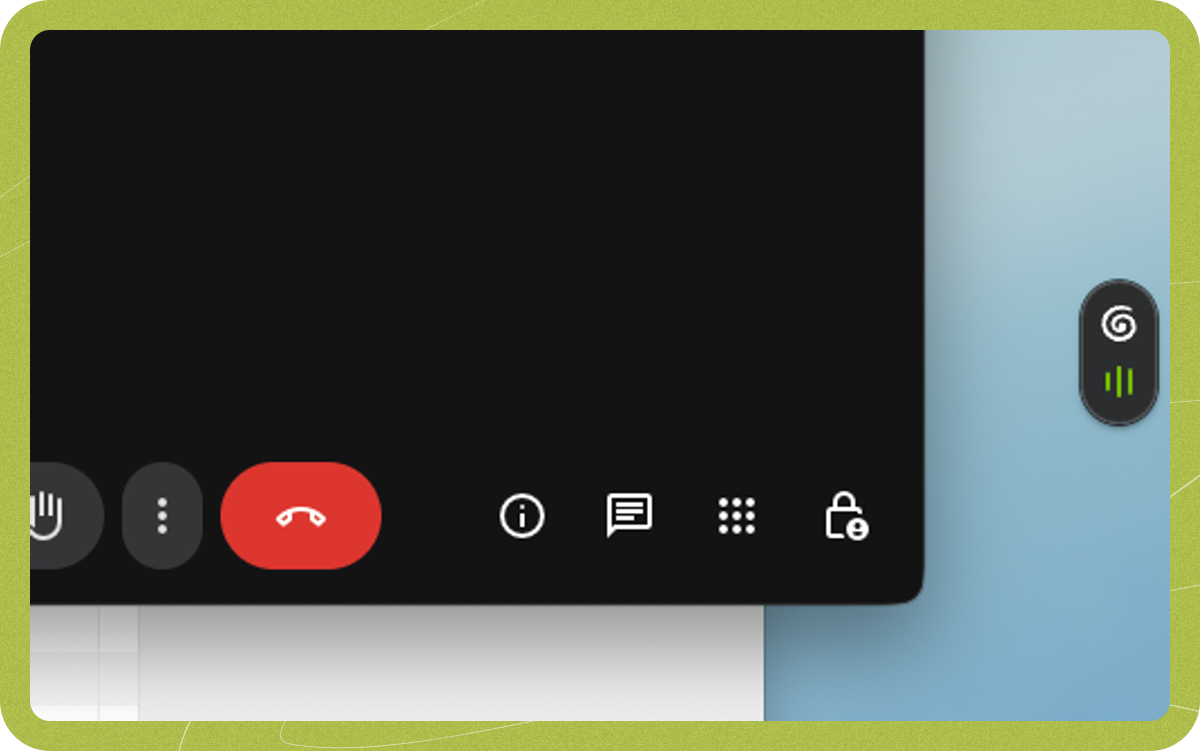
You can stop Granola transcribing any time by clicking the stop button at the bottom of the screen, but Granola will also auto-stop in a few other scenarios:- when it detects that your call has ended, based on the length of the transcript, whether or not you are still using the call software (e.g Zoom, Teams, Google Meet), and — for calendar-linked meetings — the scheduled end time of the event
- when 15 minutes passes without any new audio being detected to transcribe
- when you put your computer to sleep
What audio is Granola capturing?
Granola uses your system audio to capture transcription, capturing whatever audio inputs and outputs happen on your computer. This means Granola can transcribe any call where the audio plays through your computer — including calls from VoIP or internet calling apps. Since these calls won’t be linked to your calendar, use New Note to start transcription, and make sure your audio devices are configured so Granola can hear the call audio. Granola cannot isolate audio from individual applications — it captures the combined audio stream from your system. If you play music or other audio during a meeting, that audio will be included in the transcription even if it’s routed to a different output device. Granola passes audio directly from your microphone and system audio to our transcription provider for the purpose of transcription. It does not record or save audio or video at any point during the call, so there’s no way to access audio from your meetings. Granola is designed for live meeting transcription only — it does not support importing or uploading pre-recorded audio files (such as MP3s) for transcription.Can Granola recognize different speakers?
Yes — speaker tags can label who said what in your transcript using each participant’s display name, instead of just Me and Them:- Google Meet — available on macOS and Windows through the Granola browser extension. See Set up for Google Meet.
- Zoom — available on macOS through Settings > Preferences. See Set up for Zoom.
How can I improve transcription accuracy?
We recommend:- Adding any company-specific words to Personal jargon (or Workspace jargon, if your admin has set any) in your Language settings
- Ensuring your audio devices are set up correctly, and that the input volume of your microphone isn’t too low
- Using a headset where appropriate to minimize background noise
How can I extract or copy the transcript from my meeting note?
To copy your transcript, open the meeting note and click the transcript button (the waveform bars icon to the left of the “Ask anything” chat bar) at the bottom to reveal the transcript panel. From there you can:- Copy the whole transcript - click the copy icon in the top right of the transcript panel
- Copy individual chunks - click on any transcript chunk and click the copy icon
- Delete individual chunks - click on any transcript chunk and click the delete icon to remove it from your transcript