

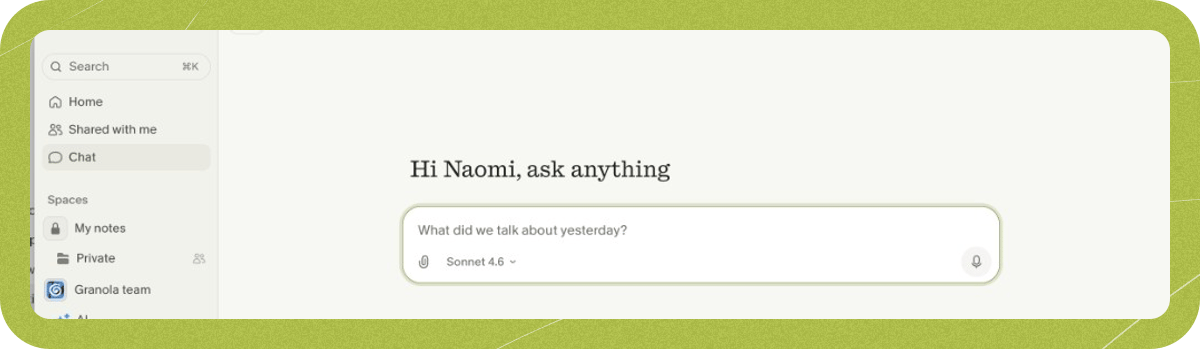
Common use cases for chat
Chat is particularly useful for different scenarios depending on when you use it. Before meetings:- Streamlining your calendar
- Prepping for specific upcoming meetings
- Reminders of what was said in previous related meetings
- Catching up on what you missed
- Getting quick recaps of action items
- Understanding explanations of complex topics
- Finding specific decisions or details
- Getting coaching and performance analysis
- Generating follow-up actions
- Tracking patterns or recurring themes
- Finding information when you can’t remember which meeting it was discussed in
- Getting insights from folder-level or company-wide meeting data
Using chat to rewrite your notes
In Granola on desktop (macOS or Windows), Granola Chat can help you rewrite sections of your notes. The rewriting functionality is triggered when you use specific language like “rewrite” in your prompt, and you can mention specific sections in the notes that you want it to focus on This can be helpful for:- Making your notes more or less detailed
- Correcting people’s names in the notes or reassigning action points
- Translating notes to another language
How to use chat
Granola Chat works fantastically with the default settings, but there’s a few options you can pick to customize your results.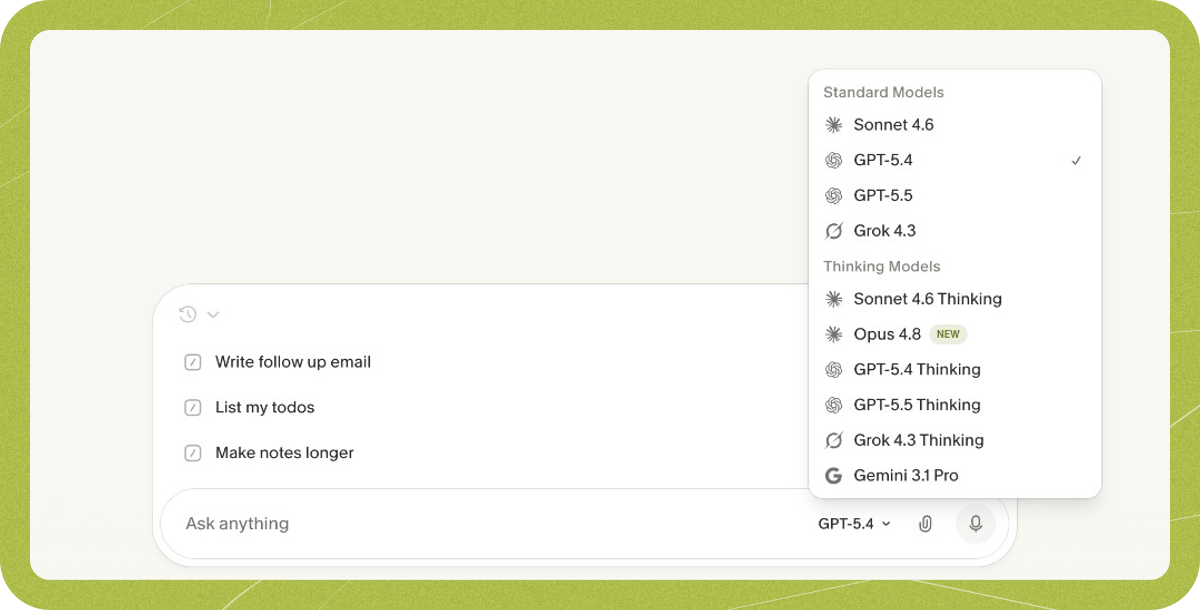
Setting context
Granola Chat works in different contexts depending on where you use it. Setting the right scope helps you get the most relevant answers.- Homepage chat: Query all your notes across every meeting
- Individual meeting chat: Ask questions about one specific meeting before, during or after the meeting, or rewrite notes after a meeting
- Folder level chat: Search within team or shared note collections
- Specific meetings: Hover over a meeting title and use the tickboxes on the left to select multiple specific meetings to use as context
- Basic (free): last 30 days of notes
- Business / Enterprise: full note history
Choosing the right model
Granola Chat uses Auto by default to pick the best model for your context. Which model options you can use depends on your plan:- Basic (free): Auto only
- Business: Auto, or manually select from the available standard and thinking models
- Enterprise: Auto, or manually select from the available standard and thinking models. Fable 5 must first be enabled by a workspace admin.
Fable 5 on Enterprise
Fable 5 is available to Business workspaces. On Enterprise, it is turned off by default. A workspace admin can enable it under Settings > Workspace > Data security > Claude Fable 5. When Fable 5 is used, Anthropic retains agent input-output logs for 30 days for trust and safety purposes. Chat conversations with Fable 5 are not subject to zero data retention (ZDR). Learn more about Anthropic’s retention practices.Adding extra context with file uploads
For additional context beyond your meeting data, you can upload files directly to chat with the attachment button. This helps when you need the AI to consider information from sources outside your meetings. File upload isn’t available on Granola Chat on iOS.Recipes
Sometimes you’ll have similar actions that you want to run multiple times in Granola Chat. For that, we’ve built recipes: reusable prompt templates that help you quickly get insights from your meeting notes without typing the same questions repeatedly - read more about recipes here.Privacy
Your chat history is completely private. Even if you share a Granola note with someone, your chat conversations about that note are never shared with them. Each user’s chat history remains personal and confidential. To delete a chat thread, hover over it in your chat history and click the trash icon.Troubleshooting and limitations
iPad: Chat is not currently supported on iPad. Understanding Granola’s data boundaries: Granola only has access to your meeting data or files that you upload/add to folders - it doesn’t know about your emails, offline tasks, or personal to-do lists. This means chat can only answer questions based on what was discussed or documented in your meetings. If chat isn’t finding what you need:- Try adjusting your scope (for example, switch from one meeting to a folder or homepage chat)
- Confirm you’re on the right workspace plan for the note history you need (Basic = 30 days, Business/Enterprise = full history)
- Ensure you’re in the right chat context (homepage vs. individual meeting vs. folder)