

Editing sharing for an individual note
In each set of notes, you can view and edit who has access in the top right: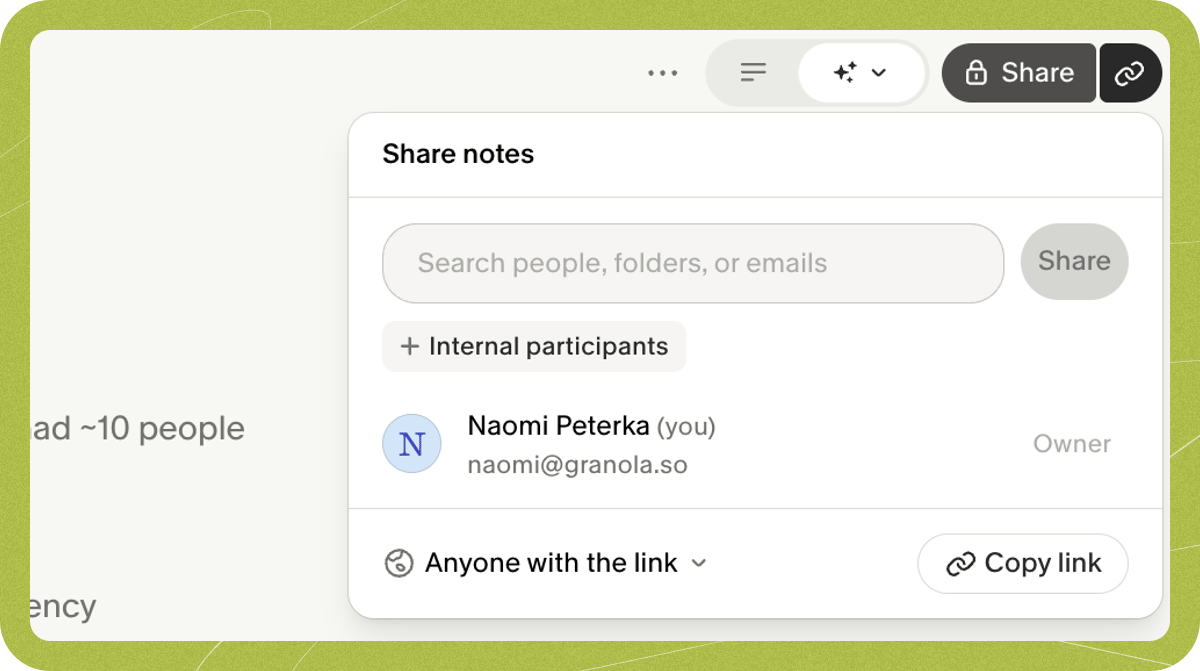
Editing default sharing permissions
Free or Business plans
Change your Default link sharing settings to either ‘Anyone with the link’, ‘Only my company’ or ‘Private’ depending on your preference. You can find this in Settings > Preferences > Data & sharing. Please note this only applies to notes created after the change — it does not apply retroactively to existing notes.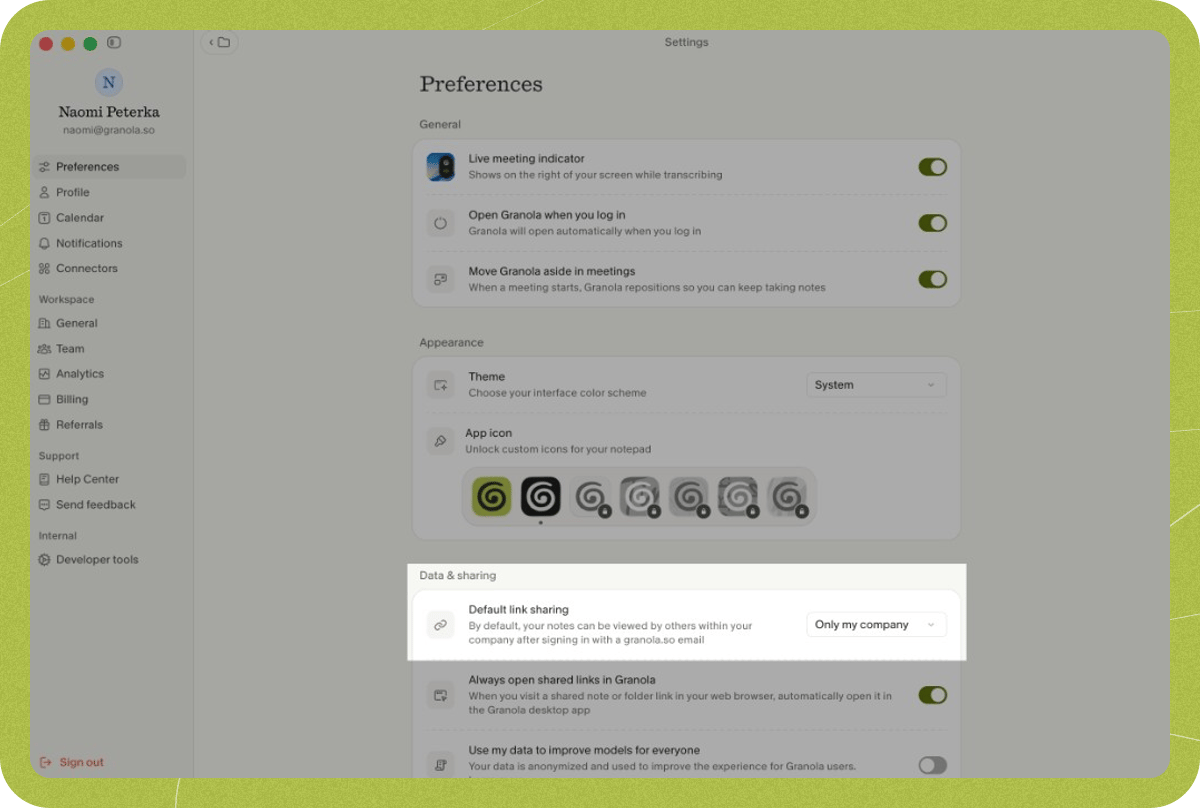
Enterprise plans only: configure for your whole organization
If you’re on our Enterprise plan, an admin can configure how your company’s notes and folders can be shared to others, via Settings > Workspace > General. Unlike Free and Business plans, changes to this setting apply retroactively to all existing notes and folders in the workspace. Individuals in the workspace are then unable to change their sharing settings beyond this permission level.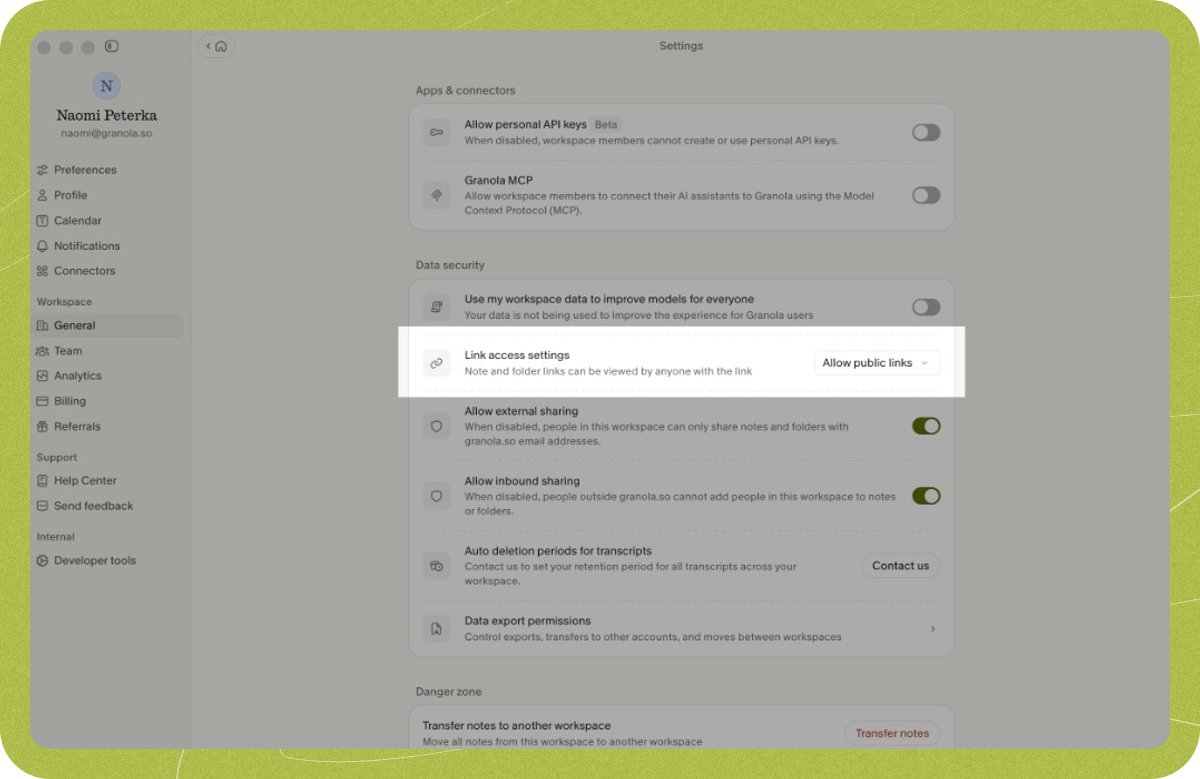
- Allow public links: All notes and folders will have sharing enabled. The link generated will be public and can be shared outside of your company.
- Only people at your company: Notes and folders will have sharing enabled, but can only be viewed by someone authenticating with your workspace’s email.
- Restricted access: Notes and folders have sharing disabled, meaning no sharing link is generated and people need to be explicitly invited in order to view.