

What is note import?
Importing notes moves all your meeting notes and their transcripts from one Granola account into another. This includes notes older than 30 days, even if they aren’t visible in the app due to the free plan’s 30-day limit. You do not need to upgrade the old account before importing. This feature is for importing between two accounts that use different email addresses — for example, switching to a new email address, moving from a personal account to a work account (or the other way around), or consolidating two accounts into one. A verification code is sent to the old account’s email address, so both accounts must have different emails.This only works between two Granola accounts. You can’t use it to import notes from other apps or platforms (such as Notion, Apple Notes, or Google Docs) — both the source and the destination must be Granola accounts.
If you have multiple workspaces under the same email address (for example, a personal workspace and an organization workspace), this feature is not the right one — use Transfer notes between workspaces instead.
How to import notes
Note import is only available on the Granola desktop app (macOS and Windows). You cannot import notes from the iPhone app. Follow these steps to import your notes from an old account into your current one:- Log into the Granola account you want to import notes into and open the workspace you want the notes in — the import lands in whichever workspace you’re in when you start
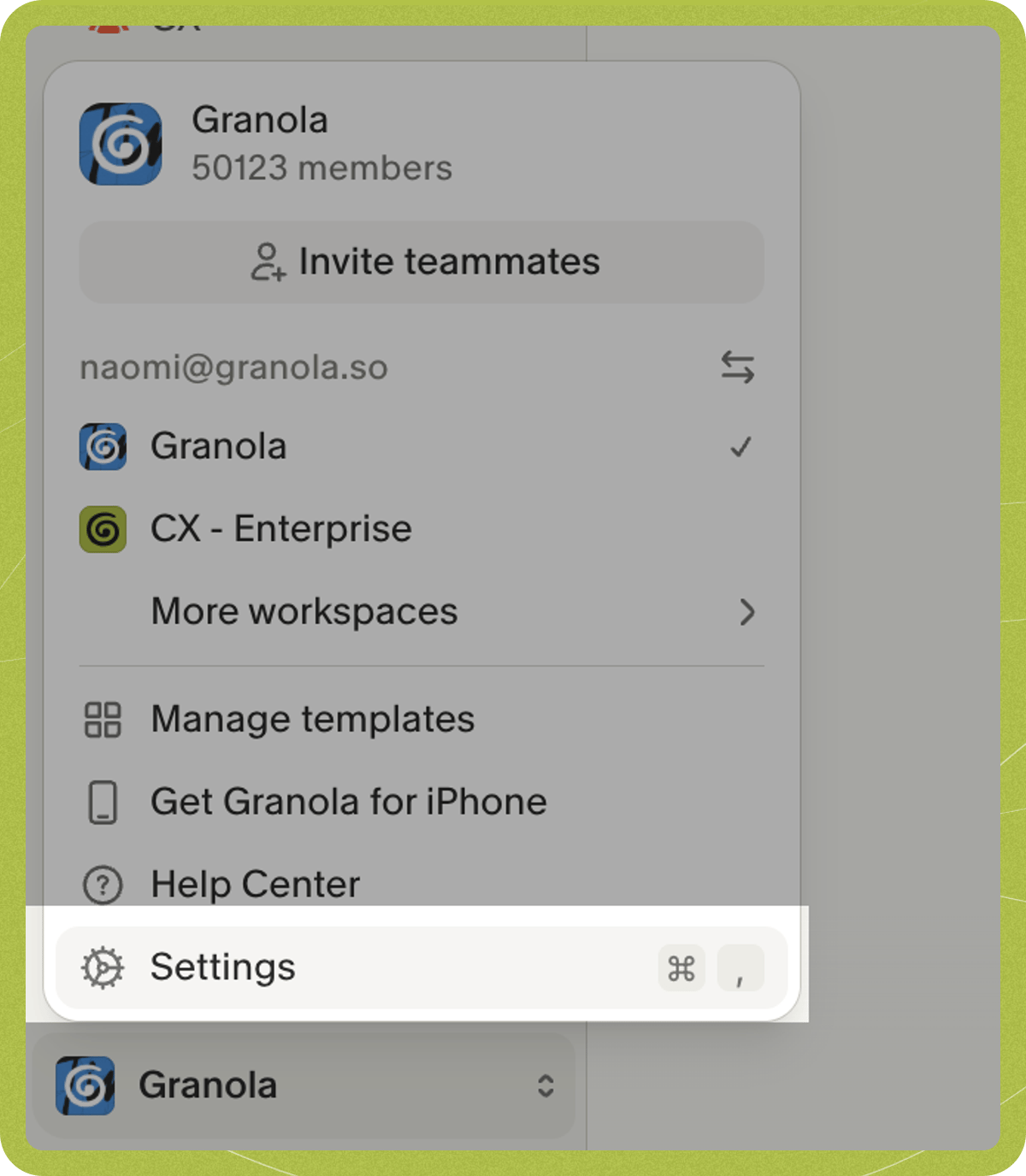
- Click on your workspace name in the bottom left corner of the app
- Click Settings
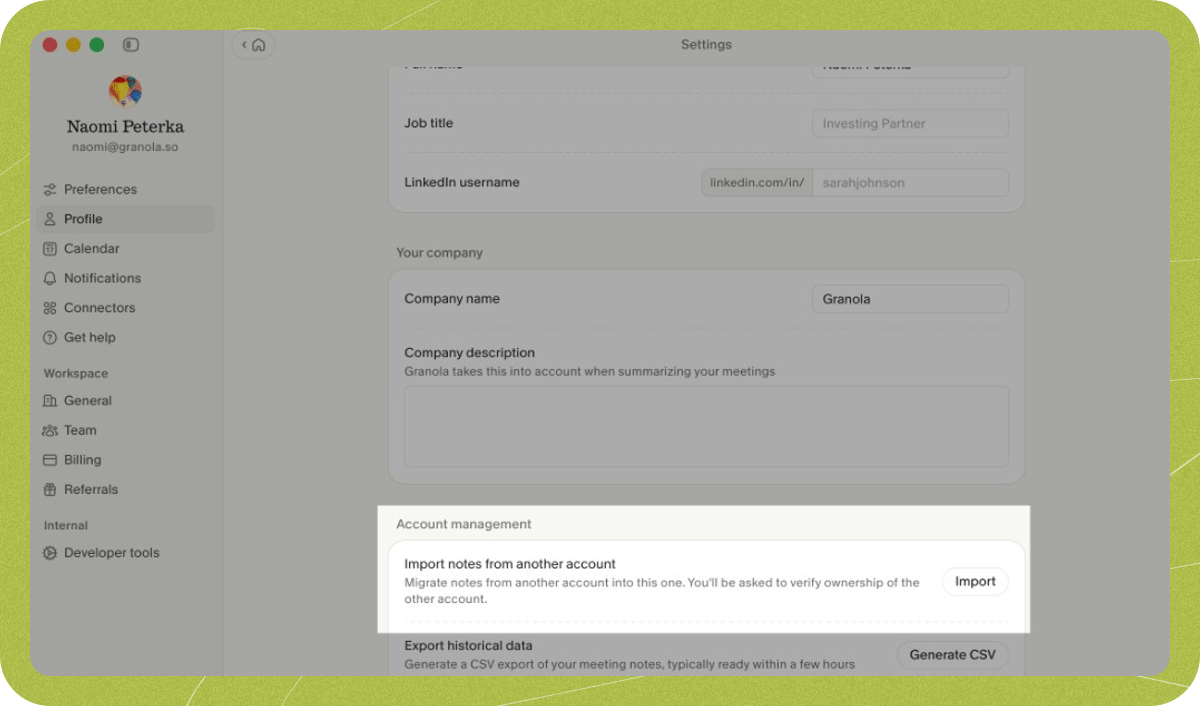
- Click on Profile in the settings menu
- Scroll down to the Account management section and find “Import notes from another account”, then click Import
- Enter your old account’s email address
- Check your old email inbox for a verification code. The code expires 10 minutes after being sent.
- Enter the verification code to confirm you own the old account
Important limitations
Before importing your notes, be aware of what doesn’t come with them. Subscriptions - Your subscription plan stays with your old account. After the import, open Settings > Billing in the new account’s destination workspace to set up a new subscription and continue accessing premium features like transcriptions. Folders - Folders where you’re the only member (nobody else has joined or been invited) are imported into the destination workspace along with the notes in them. Folders shared with other people are not imported: your notes from those folders still come across, but they’re removed from those folders and arrive unfiled, so you’ll need to re-add them to folders in your new account.Troubleshooting
Import not working
Import not working
The settings that control this feature belong to the workspace you’re importing from. On Business and Enterprise plans, one or both may be off by default — or that workspace’s admin may have turned them off. You’ll find them in that workspace’s Settings > Workspace > General > Data export permissions: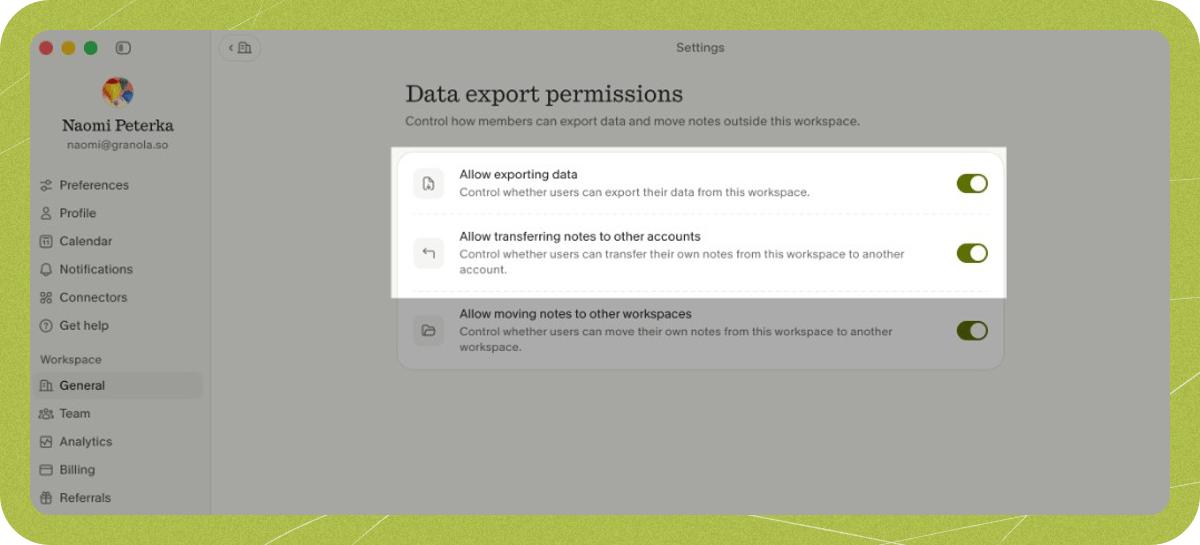
- Allow moving notes to other workspaces — this is the prerequisite setting and must be enabled first.
- Allow transferring notes to other accounts — this setting is unavailable until “Allow moving notes to other workspaces” is enabled.
Verification email not arriving
Verification email not arriving
If you’re not seeing the verification email in your inbox, check your email’s Updates, Promotions, and spam folders. Some email providers may also quarantine the message — check any quarantine or junk folder your provider offers. You can request a new code 10 minutes after the previous one.
New account doesn't exist yet
New account doesn't exist yet
You must be logged in with the account you want to import into to start the import. If you haven’t created a Granola account with that email address, you’ll need to sign out, and then log into the new email to create a new account for it. You can then start the import from there. Note changing or creating workspaces is a separate action and this functionality must be done between accounts (i.e. between different email addresses).
Don't have access to old email
Don't have access to old email
You must have access to your old email address to verify ownership and complete the import. For privacy and security reasons, there’s no alternative verification method available.