

SSO and SCIM are available on the Enterprise plan only.
Before you start
You’ll need:- An Enterprise workspace and workspace admin access in Granola.
- At least 50 active workspace members, or an Enterprise subscription with a minimum commitment of 50 seats.
- A company email domain, such as
yourcompany.com. Personal domains, such asgmail.com, cannot be used for SSO setup. - Admin access to your identity provider, such as Okta or Microsoft Entra ID. Ask your IT admin to help if needed.
- The Google or Microsoft account provider your team uses for email and calendars.
Set up SSO
SSO applies to your whole company email domain.If your company uses multiple internal email domains, contact Granola support
at hey@granola.so to configure SSO for you.
- In the Granola desktop app, switch to the workspace you want to configure.
- Open Settings > Workspace > General.
- Under Workspace invites & members, click Set up beside SSO.
- If prompted, choose Google or Microsoft for your team’s email and calendars. You’ll choose your SSO identity provider separately in the setup portal.
- In the browser portal, select your identity provider and follow its setup instructions. The portal guides you through the values to copy between Granola and your provider.
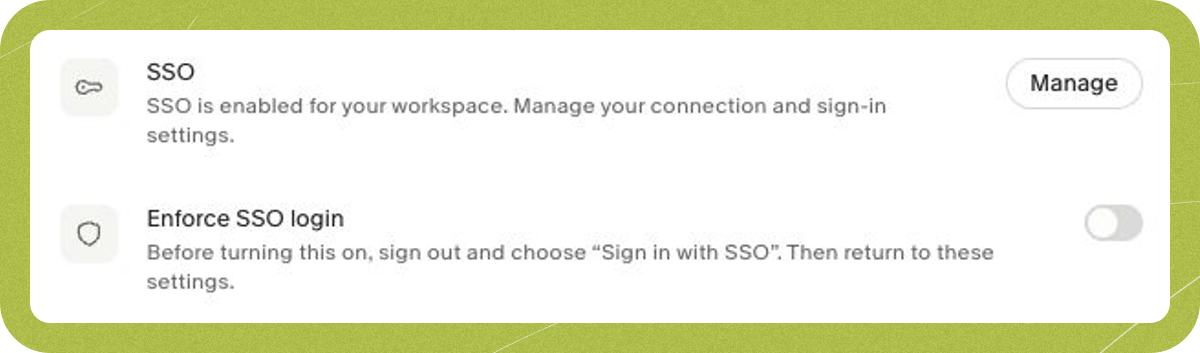
- Complete the connection setup, then return to Granola. Reopen workspace settings to check the result.
Test sign-in
- Assign your own account to Granola in your identity provider.
- Sign out of Granola, then choose Sign in with SSO.
- Enter your work email and complete your provider’s sign-in steps.
- Connect your Google or Microsoft calendar if prompted.
- Check that you can access the correct workspace and your notes.
Require SSO for your team
First, make sure everyone who needs access is assigned to Granola in your identity provider. Test sign-in before changing this setting. After you have signed in with SSO, return to Settings > Workspace > General and turn on Enforce SSO login. Workspace members must then use your identity provider instead of signing in directly with Google or Microsoft. If the switch is unavailable, read the message below it. You may need to finish the connection setup or sign in with SSO once yourself.Set up directory sync (SCIM)
Directory sync creates and updates workspace members from your identity provider. When a synced user is deactivated or removed from the directory, Granola removes their workspace membership. Groups can also sync for sharing Spaces and folders. You’ll need an active SSO connection and a provider that supports directory sync.- Open Settings > Workspace > General.
- Under Workspace invites & members, click Set up beside Directory sync.
- Select your directory provider in the browser portal and follow its instructions. For SCIM connections, copy the endpoint and token into your provider as directed.
- Assign the users who need Granola access. Include existing Granola users so your provider can manage their membership too.
- If you want to sync groups, configure group syncing in your provider. In Okta, use Push Groups.
- Return to Granola. It can take a few minutes for users and groups to sync.
- Check Settings > Members for synced users and Groups for synced groups.

Control who can join
Check Allow teammates to join automatically in the same settings section. If it stays on, people with your company domain can join without being assigned through directory sync. Turn it off if your identity provider should control who joins.Check setup problems
- No Directory sync setup button: Confirm that SSO is active and you are an Enterprise workspace admin.
- A user or group is missing: Check its assignment and provisioning status in your provider. Existing Granola users also need to be assigned. In Okta, check Push Groups for missing groups.
- The domain already has SSO: Another workspace may already use that domain. Ask your Granola contact to help resolve the existing setup.