

How Granola Works with Calendars
Granola integrates with both Google Calendar and Microsoft Outlook. Events from your connected calendar will be pulled through to Granola. You can sign in with either your Google or Microsoft account to connect your calendar. See below for troubleshooting calendar sync issues. If you’re using Granola for iPhone and want to change the calendars that show up in your upcoming meetings, follow these instructions in Granola on your computer. Any changes made via Granola on macOS/Windows will sync to your iPhone. We’d expect your Granola home screen to look something like this: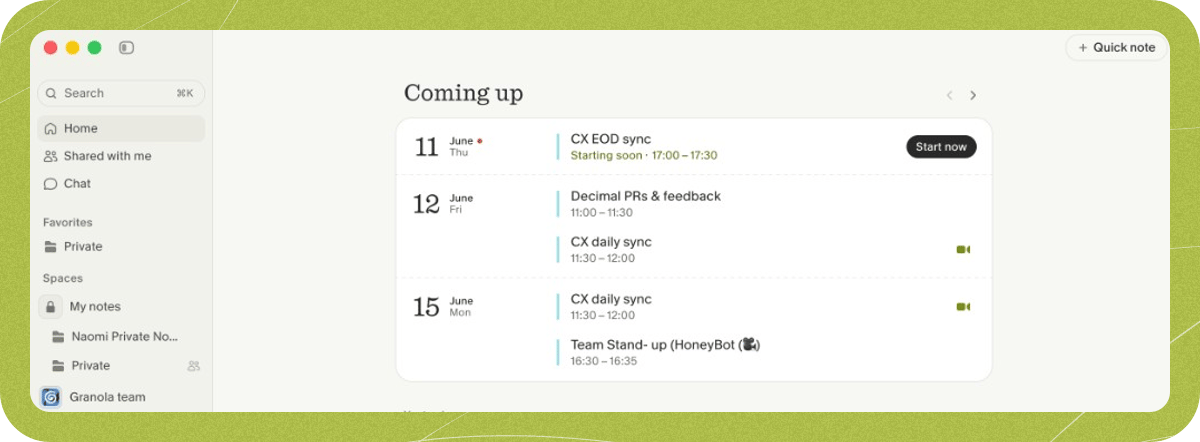
Troubleshooting
I can't see any events in 'Coming up'
I can't see any events in 'Coming up'
Make sure that:
- You can see events in your calendar (Google Calendar or Outlook Calendar) for the email address you’re using to log in to Granola
- If you click the cog next to ‘Coming Up’, the right calendars are selected
- Sign out of Granola by clicking the menu in the bottom left > Settings > Sign out
- Sign back in - you’ll be prompted to give calendar permissions again
- Disconnecting from a VPN or other networking tool
- Talking to your company IT team if relevant
I see a calendar event I don't recognise
I see a calendar event I don't recognise
Granola only shows events from the Google or Microsoft calendar connected to your account. It doesn’t read other people’s Granola calendars.If a meeting looks unfamiliar, it’s usually still on your calendar in a form that’s easy to miss:
- An invitation you haven’t accepted or declined yet
- A spam or unknown-sender invite — Google can still send these to Granola even when they don’t show in the normal calendar view
- A shared or delegated calendar that’s toggled on in Settings > Calendar
- A multi-day or all-day event sitting in the banner at the top of the week
If you’re trying to share a calendar to Granola but can’t see events, this likely means the calendar is not correctly shared to the email address you’re using to log in to Granola. If the calendar you’re sharing is from a different provider than the one you signed in with (e.g. sharing a Google Calendar when signed in with Microsoft), the events must appear in your sign-in provider’s calendar — sharing to your email address alone isn’t enough. For Google Calendar, see how to share your calendar here.The shared calendar should appear as a checkbox to tick in your calendar settings. Granola pulls from the calendar for the email address you’re signed in with, so can only see what’s visible in that calendar.Once you’re sure those events are shared across: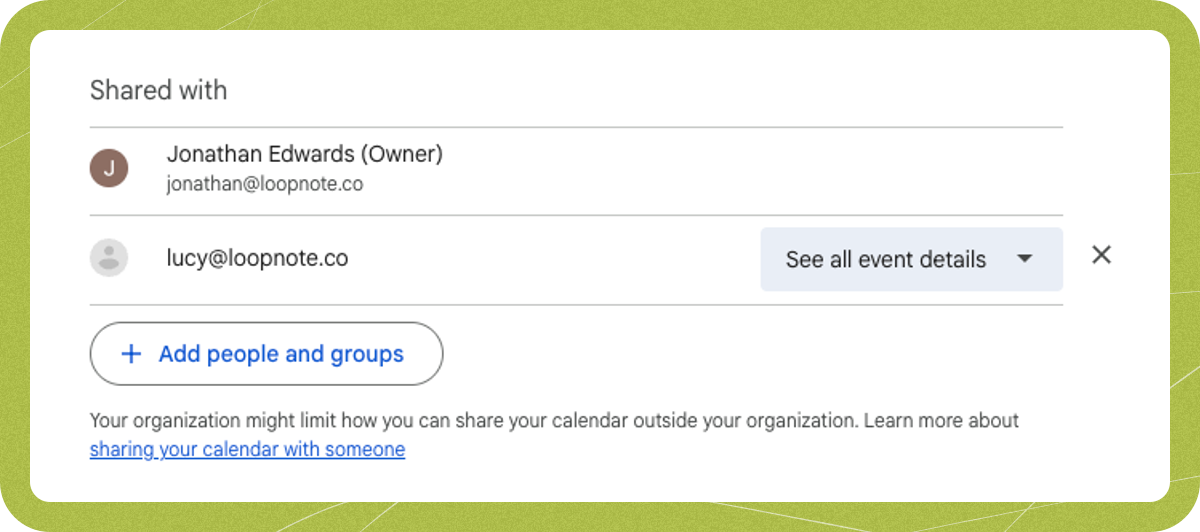
- In Granola, click the cog next to ‘Coming Up’ to view the calendars that it is able to see from your connected account.
- This might take a couple of minutes to sync!
The time zone seems wrong, Granola's showing the wrong time for my meetings
The time zone seems wrong, Granola's showing the wrong time for my meetings
Granola uses whatever time is stored in the calendar connected to your account.If your meetings are showing at the wrong times in Granola, check your calendar settings (Google Calendar or Outlook Calendar) and verify what times your meetings are stored in there. Fixing the time zone logic in your calendar should reflect in Granola (note that it can take a few minutes to sync).
Outlook / Exchange calendar won't connect
Outlook / Exchange calendar won't connect
Granola works with cloud-based Microsoft 365 (Exchange Online) calendars. On-premises Exchange servers are not supported. If you use Outlook with an Exchange server that isn’t Microsoft 365, calendar sync may not be available. For connection issues with Microsoft 365, try signing out of Granola and signing back in with Microsoft; you’ll be prompted again for calendar permissions. If your org requires admin approval, your IT admin must approve Granola in the Microsoft admin portal — see Sign in with Microsoft.
Outlook public folder calendars aren't supported
Outlook public folder calendars aren't supported
Outlook public folder calendars use a different system than regular calendars, so unfortunately Granola can’t access them — even if your organization uses cloud-based Microsoft 365.
Disconnect and reconnect to fix sync
Disconnect and reconnect to fix sync
If events used to show up but have stopped, or you’ve changed calendar sharing:
- Sign out of Granola (workspace name in bottom-left > Settings > Sign out).
- Sign back in with the same Google or Microsoft account.
- When prompted, grant calendar permissions again.
- Open Settings > Calendar and ensure the right calendars are toggled on. Wait a few minutes for sync to catch up.
Google Calendar keeps disconnecting after reconnecting
Google Calendar keeps disconnecting after reconnecting
If your Google Calendar connection disconnects repeatedly after reconnecting, your organization’s Google Workspace security policies may be revoking Granola’s access. Ask your IT admin to allowlist Granola in the Google Workspace Admin Console under Security > Access and data control > API controls > Manage third-party app access.