

How to transfer your notes
To move your notes to a different workspace, follow these steps:-
Click on your workspace name in the bottom left corner of the screen
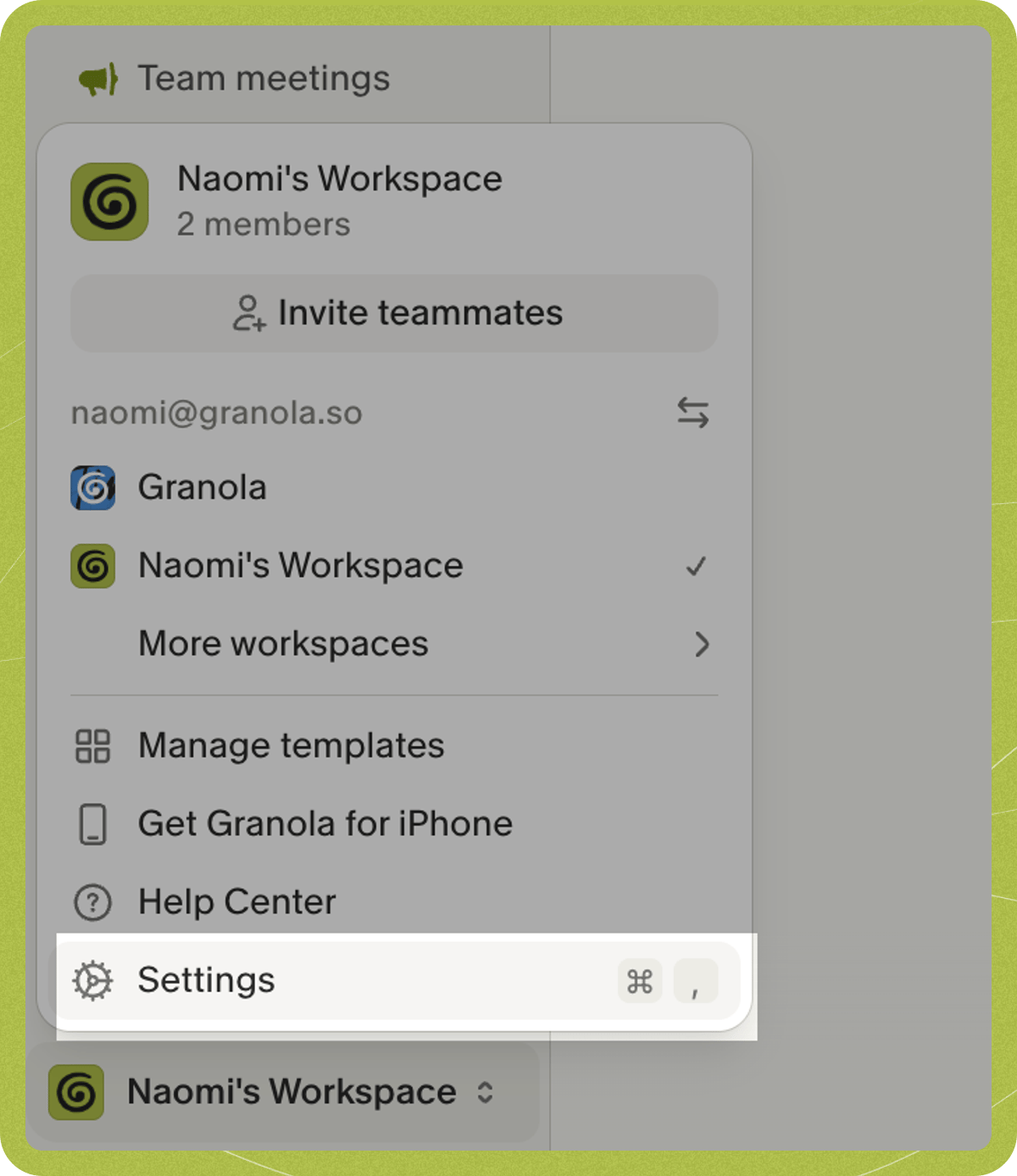
- Select Settings from the menu
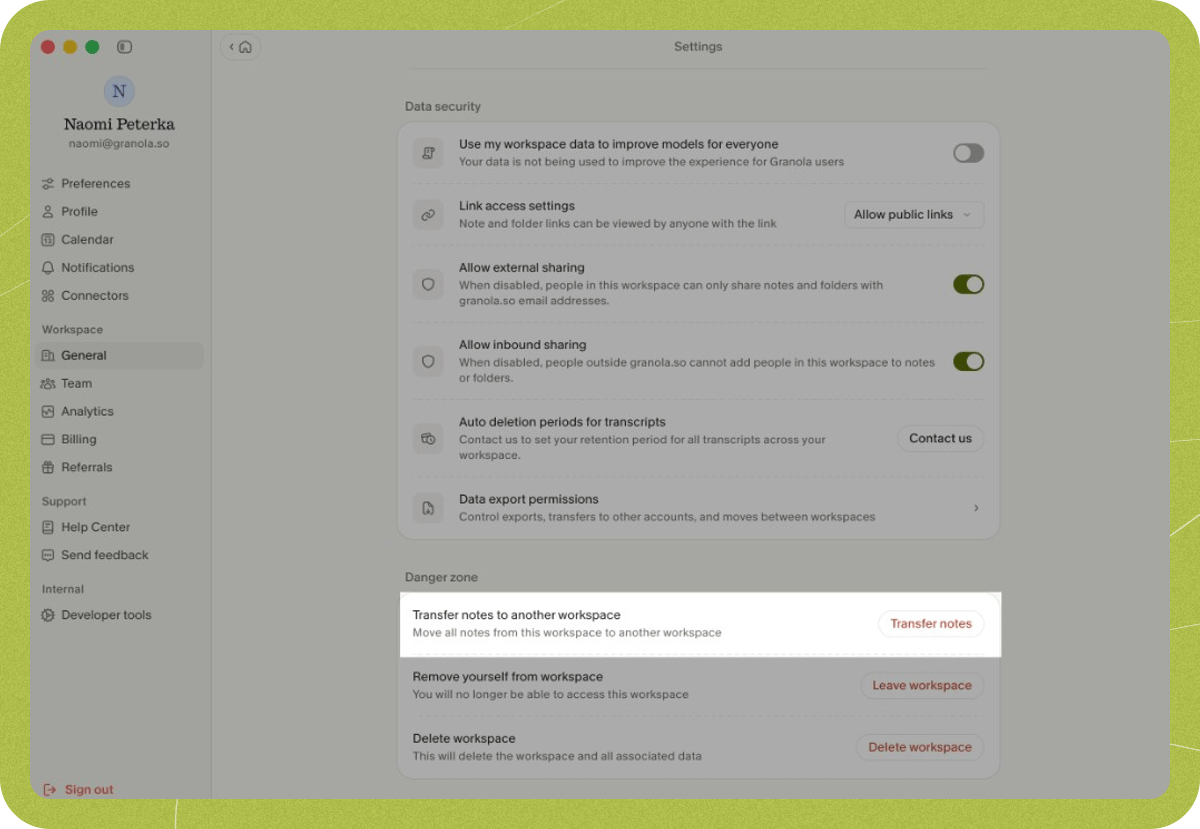
- Click on General from the menu options on the left-hand side
- Scroll down to the Danger Zone section
- Find the option that says Transfer notes to another workspace
-
Click the Transfer notes button
-
Select the destination workspace from the list
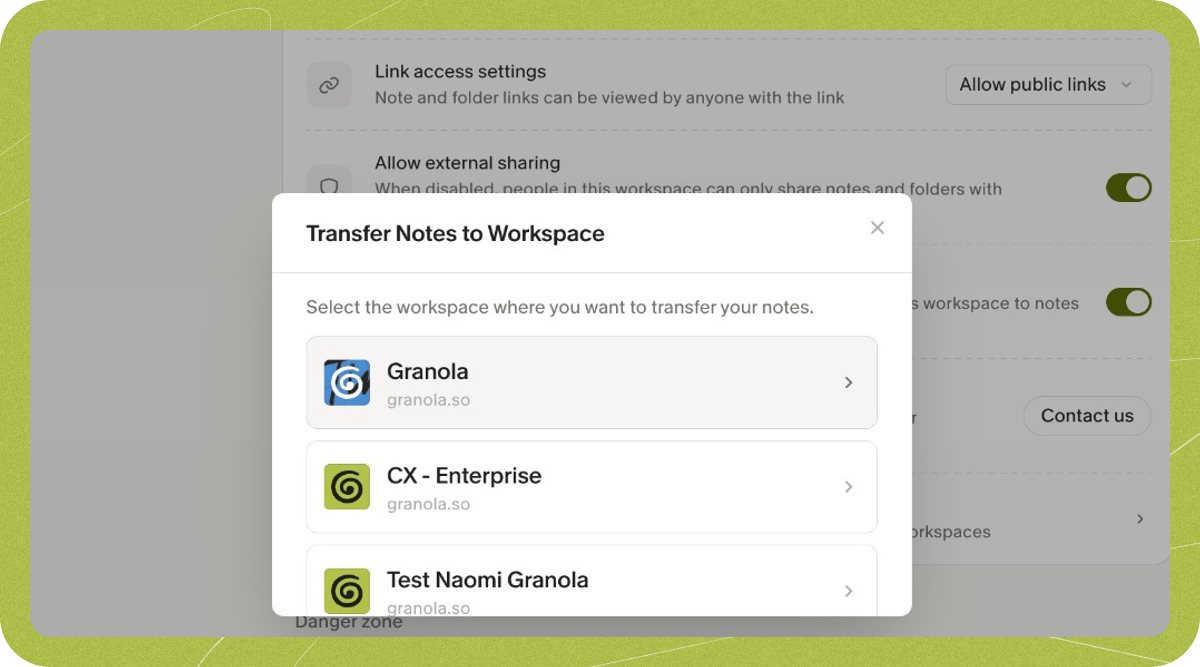
- Review the preview. It lists how many notes will move, which folders move with them, and which shared folders your notes will be removed from. Click Back to pick a different workspace, or Move my notes to confirm
Important limitations
Subscriptions — Your subscription stays with the original workspace. If you’re moving to a different workspace, switch to the old workspace and cancel its subscription from Settings > Billing, then switch to the destination workspace and subscribe from Settings > Billing to keep accessing premium features. Folder organization — Folders where you’re the only member move with your notes and arrive as private folders in the destination workspace. If you’re the only member of the workspace you’re moving from, its workspace folders and your chats move too. Folders shared with other people stay behind and your notes are removed from them, so you’ll need to organize those notes into folders again in the destination workspace. Moving notes one at a time with Move to workspace never moves folders. Templates — Templates are not included in the transfer. If you want to use the same templates in the destination workspace, recreate them by clicking your workspace name in the bottom-left corner and selecting Manage templates.Permission requirements
Your workspace admin can turn off moving notes between workspaces for security reasons. When it’s off, the Transfer notes button and the per-note Move to workspace option are hidden entirely, and you’ll need to ask your admin to enable it.For workspace admins
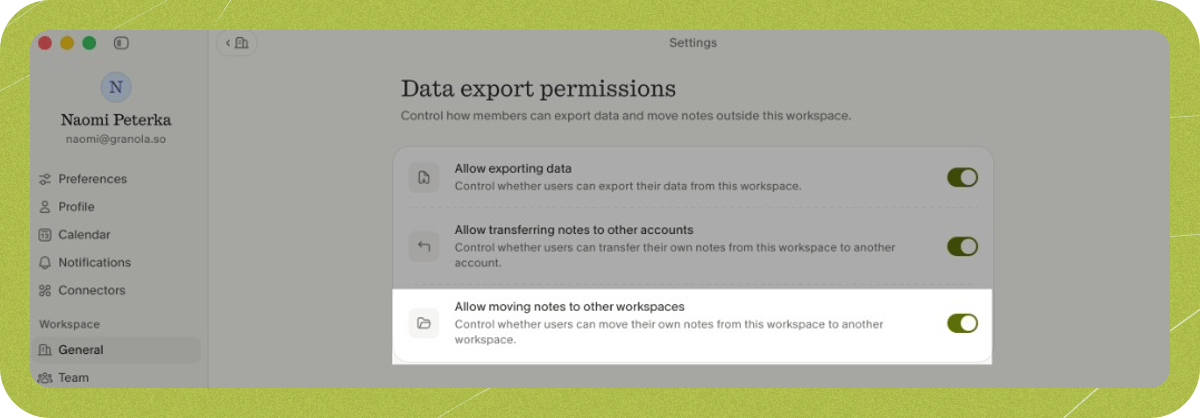
If a user needs to transfer notes but the feature is disabled, you can enable it by:- Go to your Settings, and select General
- Under Data security, click on Data export permissions
- Toggle on the option for Allow moving notes to other workspaces
Troubleshooting
I can't see the transfer option
I can't see the transfer option
Go to Settings > Workspace > General (workspace name in bottom-left > Settings > General under the Workspace heading). The Transfer notes button is in the Danger zone section at the bottom of the page. It only appears if you have notes in this workspace and your admin allows moving notes — see Permission requirements.
I can't select a destination workspace / the list is empty
I can't select a destination workspace / the list is empty
You can only transfer to workspaces you’re already a member of. To join or create one, click your workspace name in the bottom-left corner and select Add workspace, then try the transfer again.