
Business & Enterprise · Rolling out over the coming weeks. Customer calls
is available on Business and Enterprise plans. It may not be in your
workspace yet.
How it works
When Granola detects that an external call is a sales or customer call, you’ll see this indicator on the note. Once the notes are ready, they’re shared to Customer calls automatically. You can always hit × on the indicator to stop that note appearing in Customer calls. Customer calls appears in the sidebar for everyone in your workspace who can see it.Only external customer calls are included. Calls with sensitive content aren’t
shared automatically.
Chat with your customer calls
Customer calls shows relevant meeting notes in one place, so your team can easily find and chat with them. Browse by company, note or person, or ask a question across every call.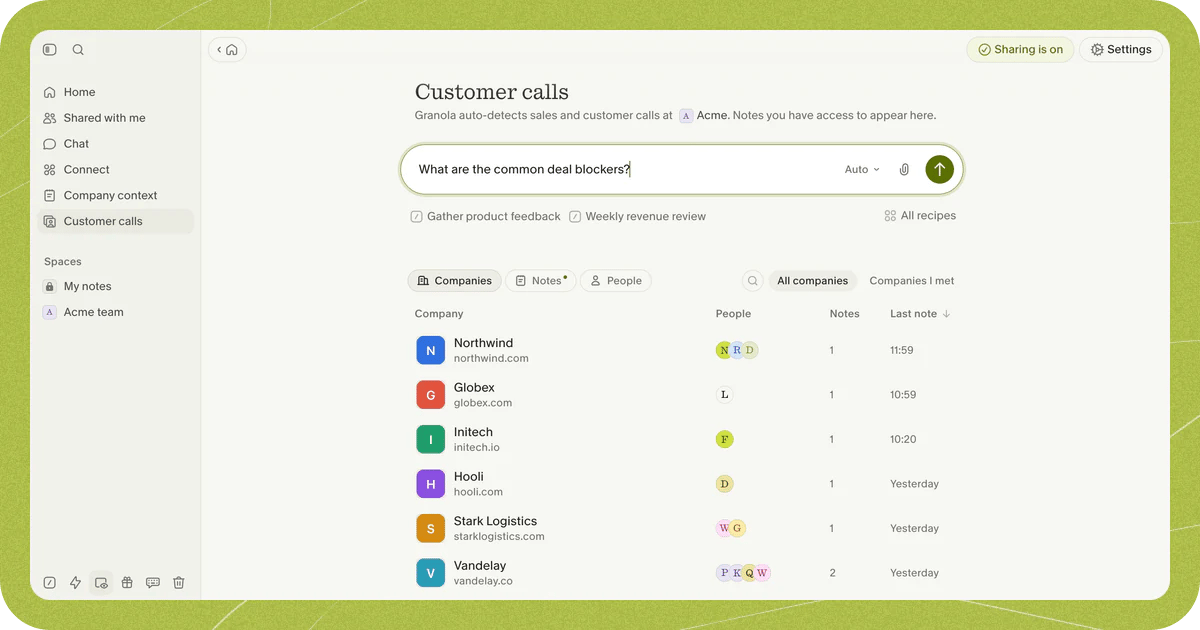
Calls with sensitive content
Granola won’t automatically add any customer calls that are detected as having sensitive content in them, based on the content of the transcript. If any sensitive content is detected, a banner like this will show: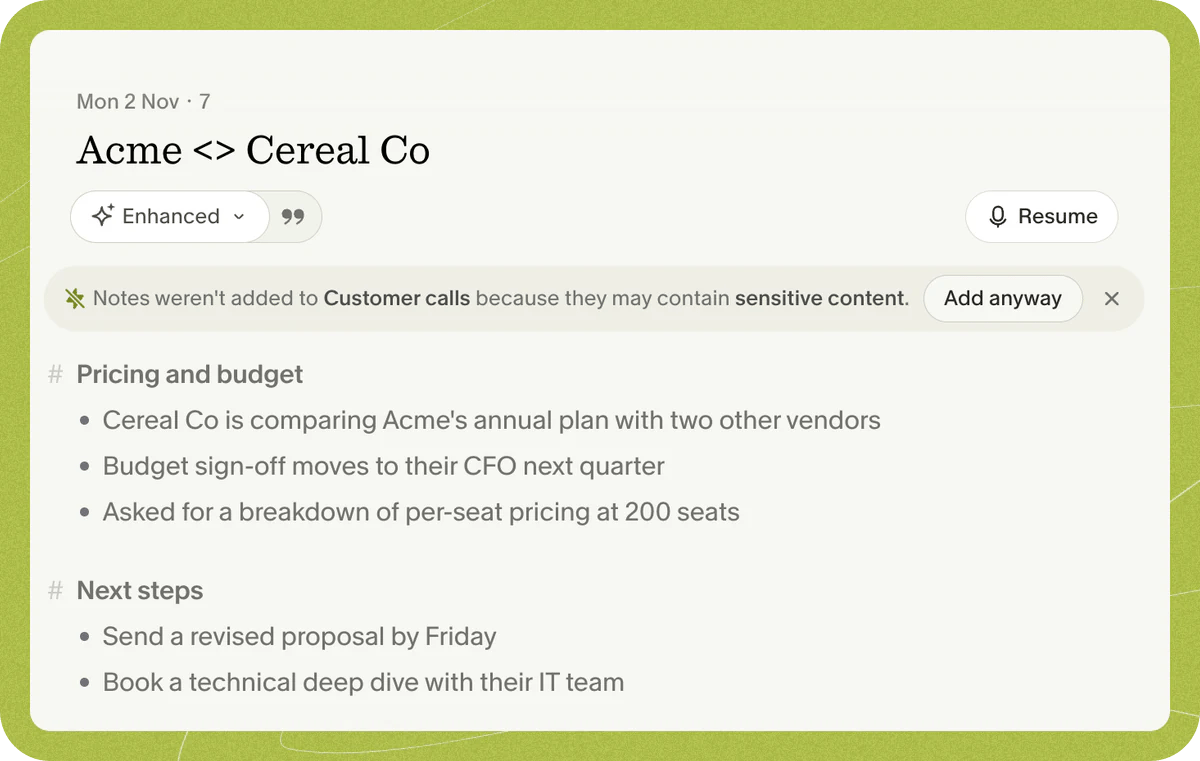
Stop adding your calls
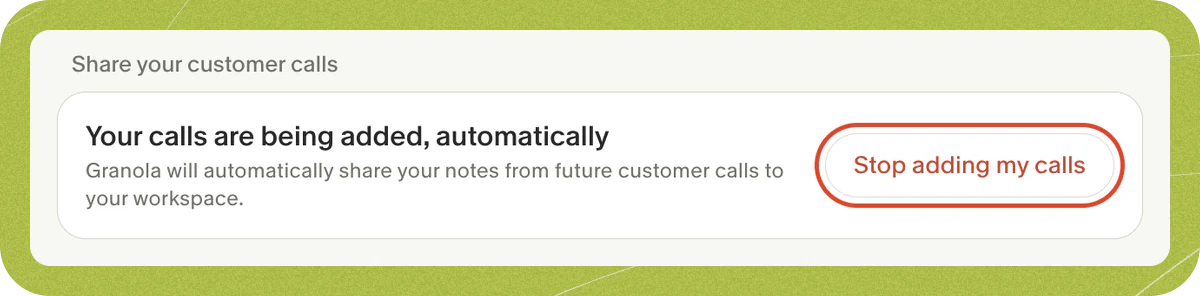
You can stop your calls being added at any time. Any calls that were previously added will remain shared. In Customer calls, click Sharing is on in the top-right corner, then click Stop adding my calls.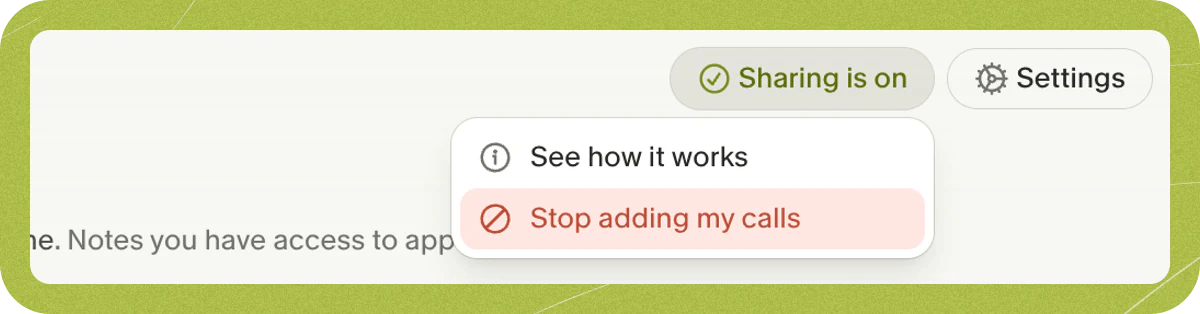
Configure
Admin only. Only workspace admins can change these settings.
Turn on
Click Turn on next to Turn on Customer calls for your workspace. If your workspace doesn’t have a Customer calls folder yet, click Create folder and turn on to confirm.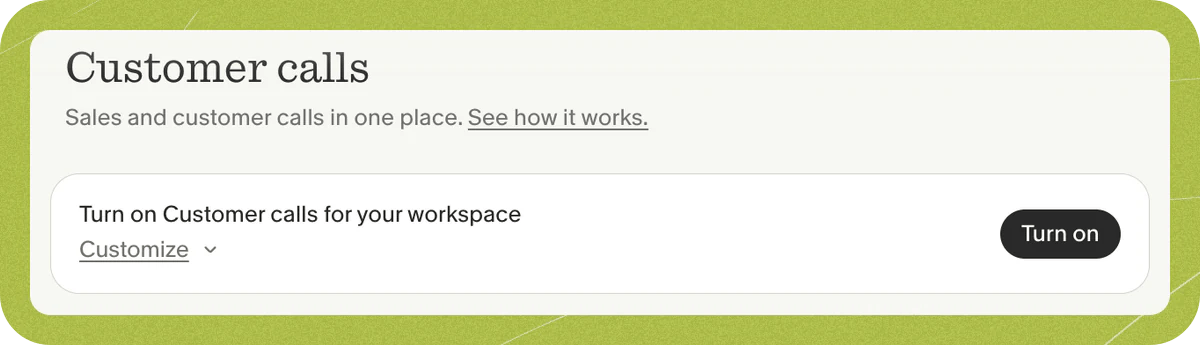
Change destination folder
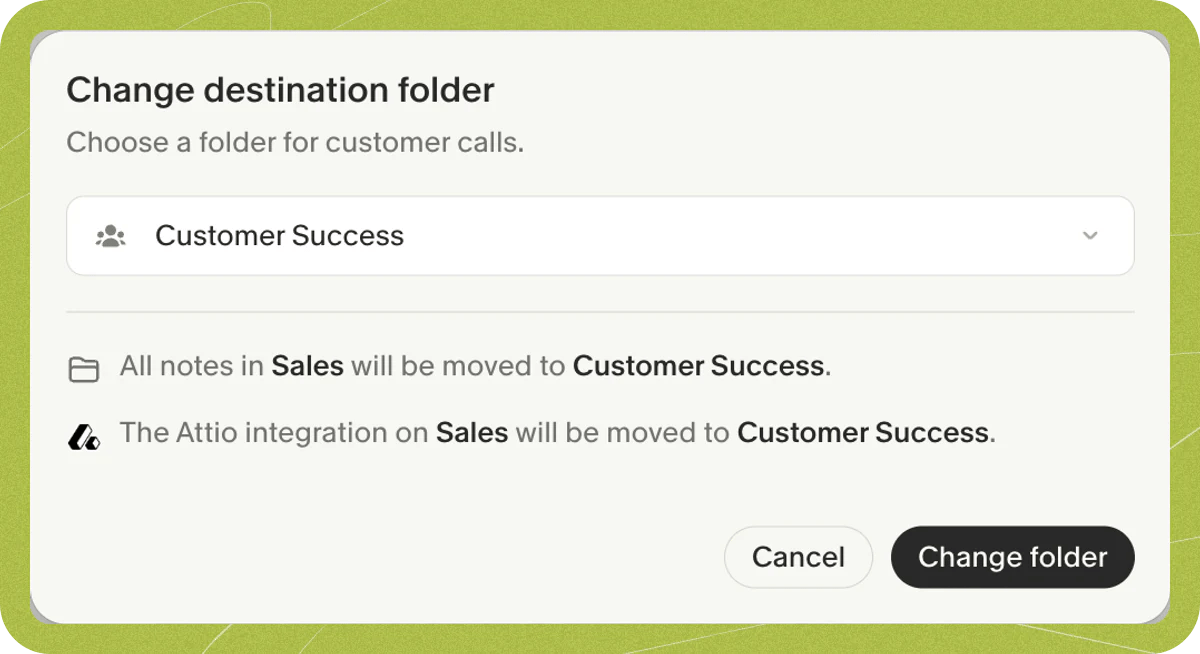
Destination folder sets which folder customer calls are automatically shared to. To change it, click Change folder, choose a workspace-shared folder, then click Change folder to confirm.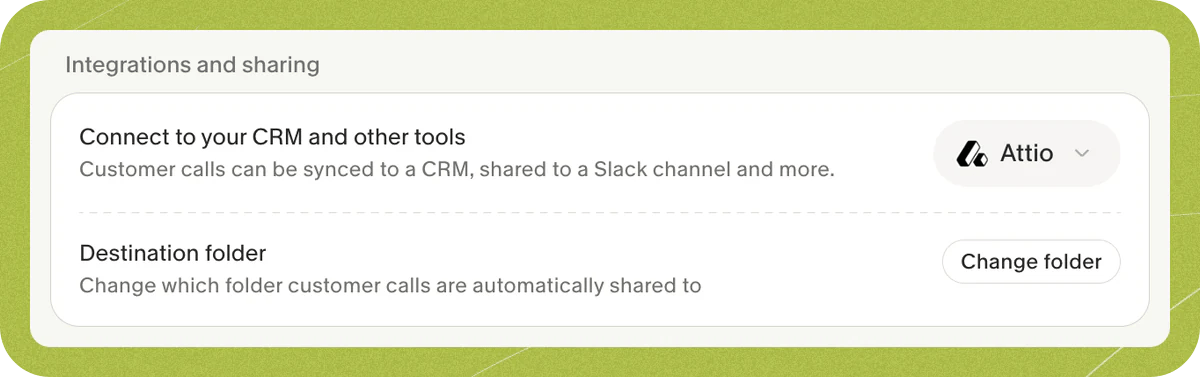
- All notes in the current folder will be moved to the new folder.
- Integrations on the current folder will be moved to the new folder. If the new folder already has the same integration, the existing one will be used.
- If the current folder was created by Granola, it will be deleted after the notes are moved.
Add members
Members lists everyone whose customer calls are shared automatically. To add more people, click Add members.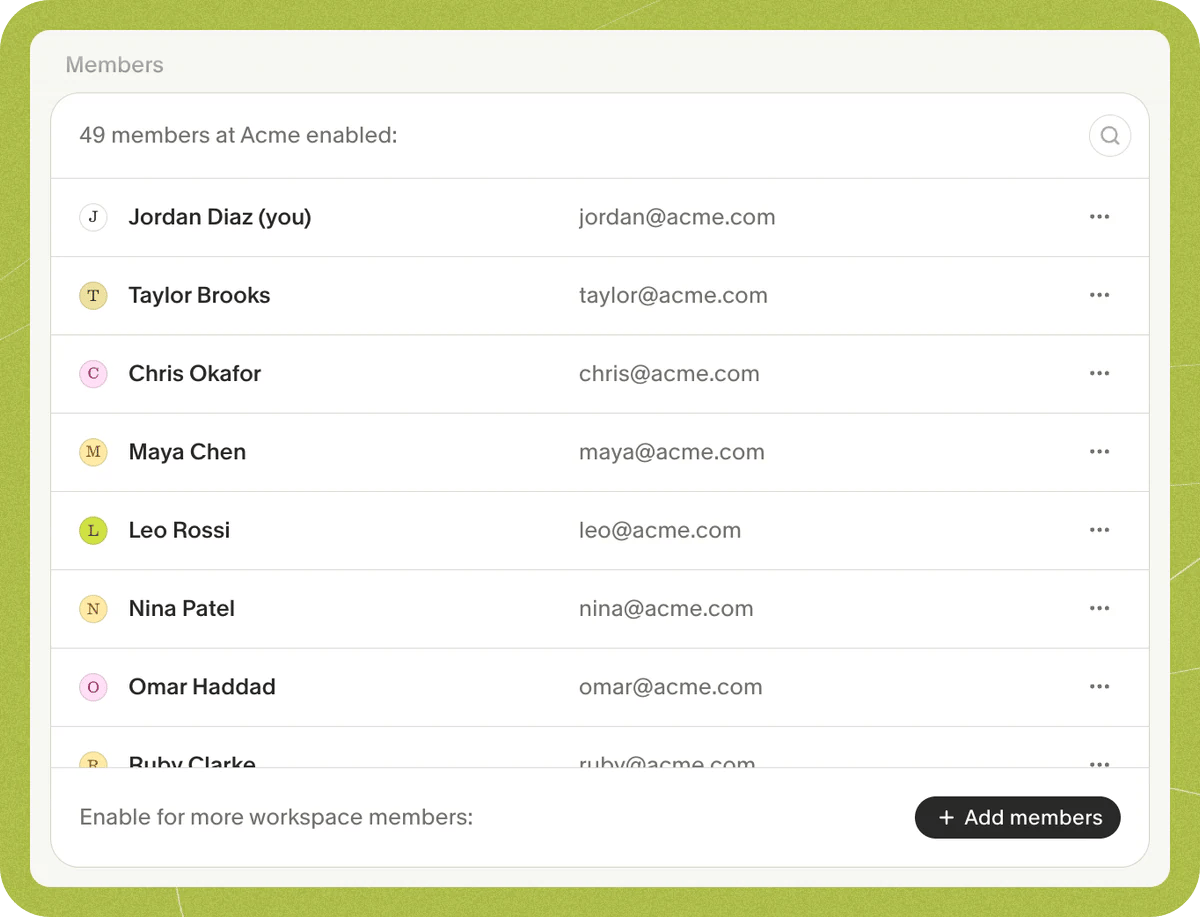
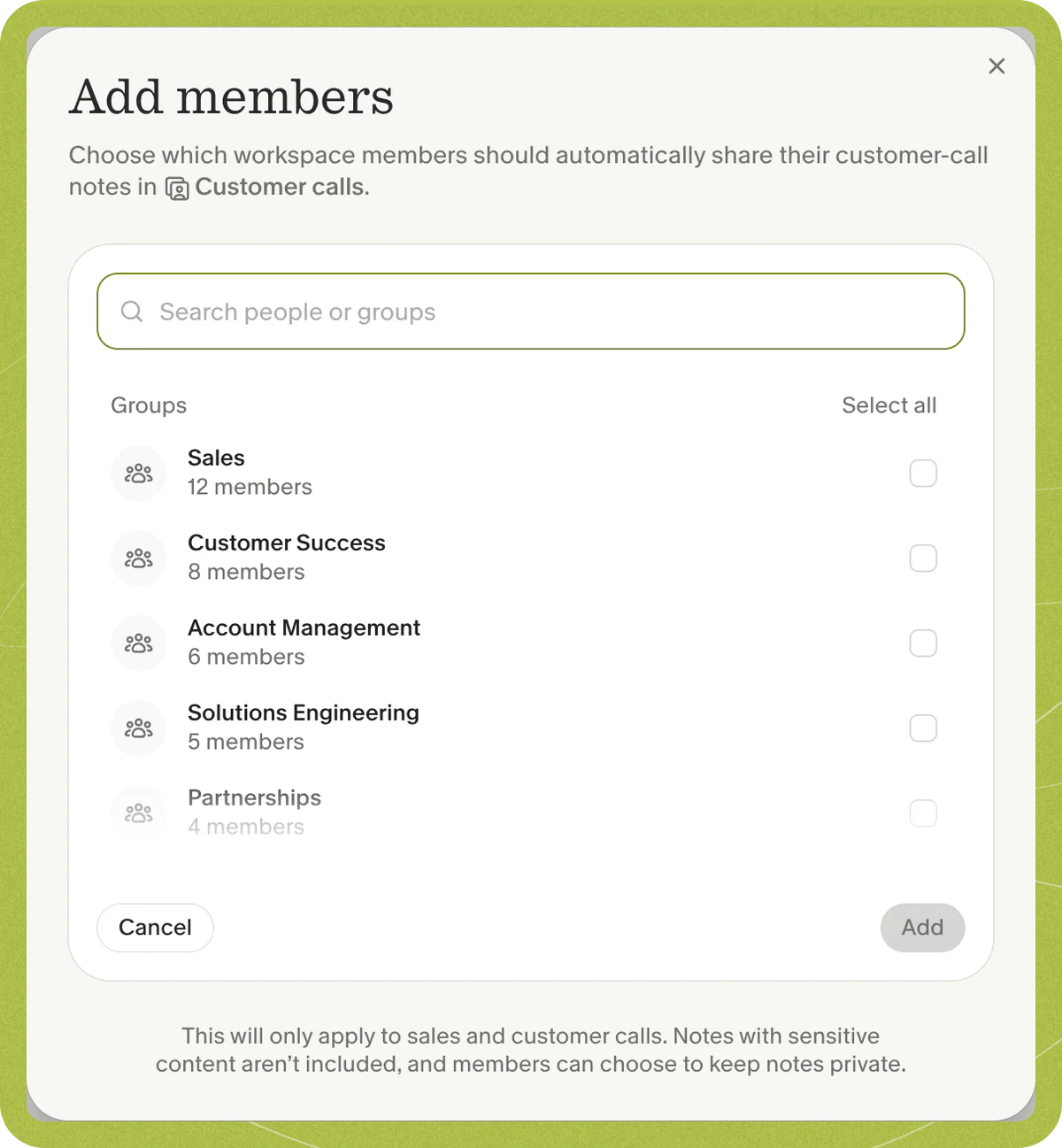
Exclude companies and people
Meetings with these people or companies won’t be shared automatically. This is useful for partners, investors or anyone whose calls shouldn’t be shared with the wider team. Under Meeting exclusions, add an email address to exclude a person, or a domain to exclude a whole company.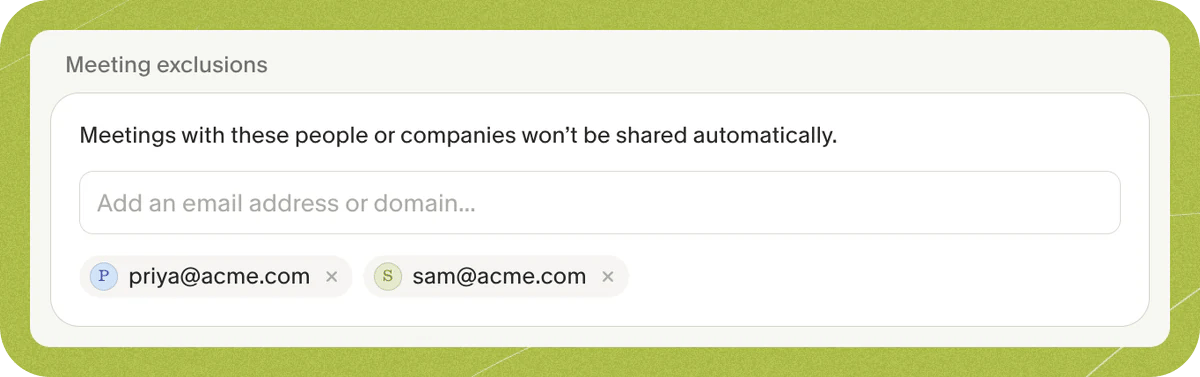
Stop members from opting in
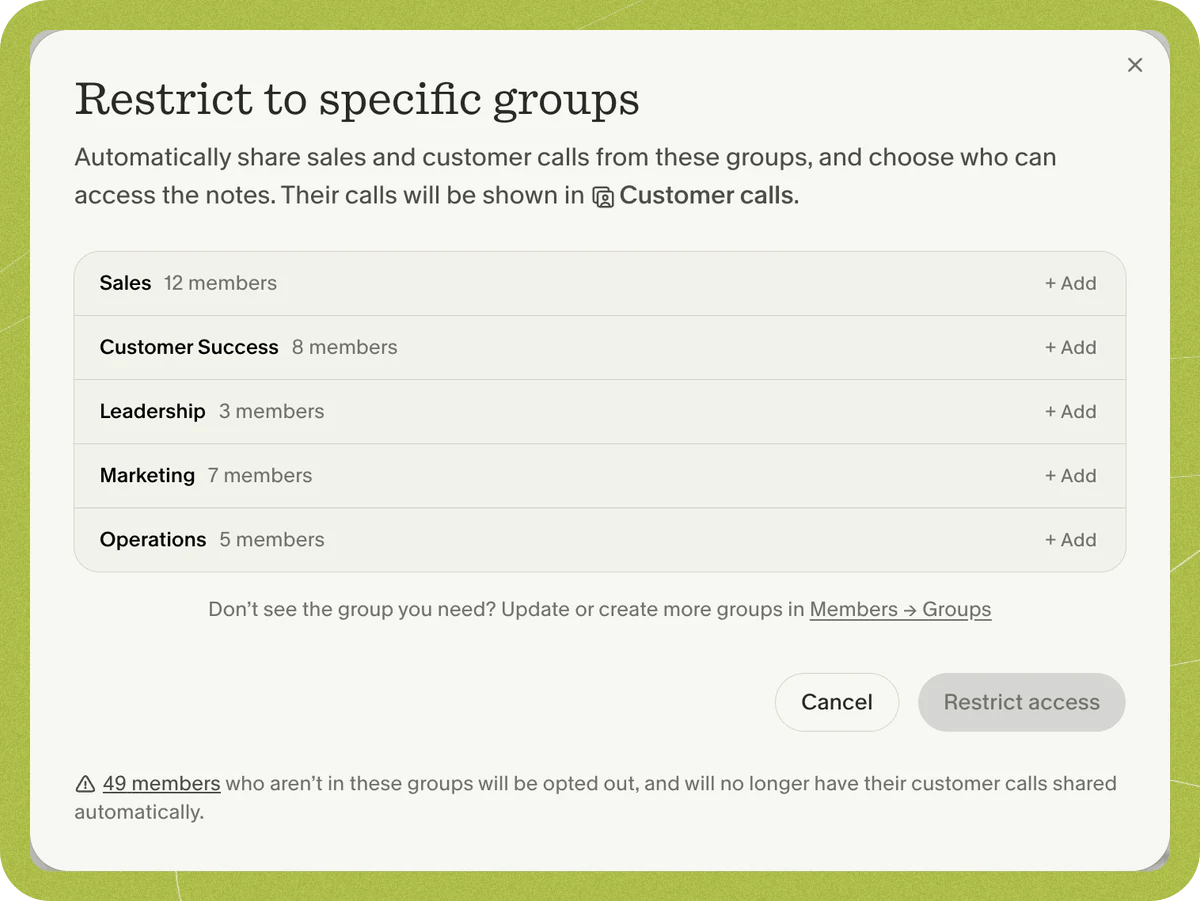
By default, members can discover Customer calls and opt in to share their calls themselves. To control exactly whose calls are shared, turn off Allow members to discover and opt in to share their calls.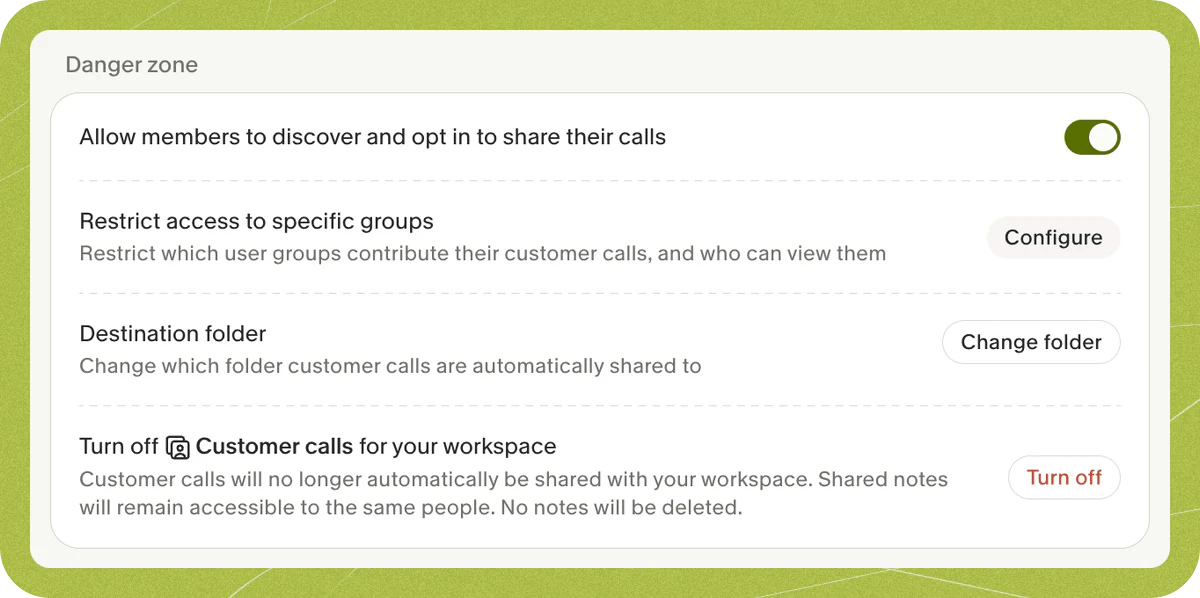
Restrict access
Restrict access is available on the Enterprise plan.