Applying templates
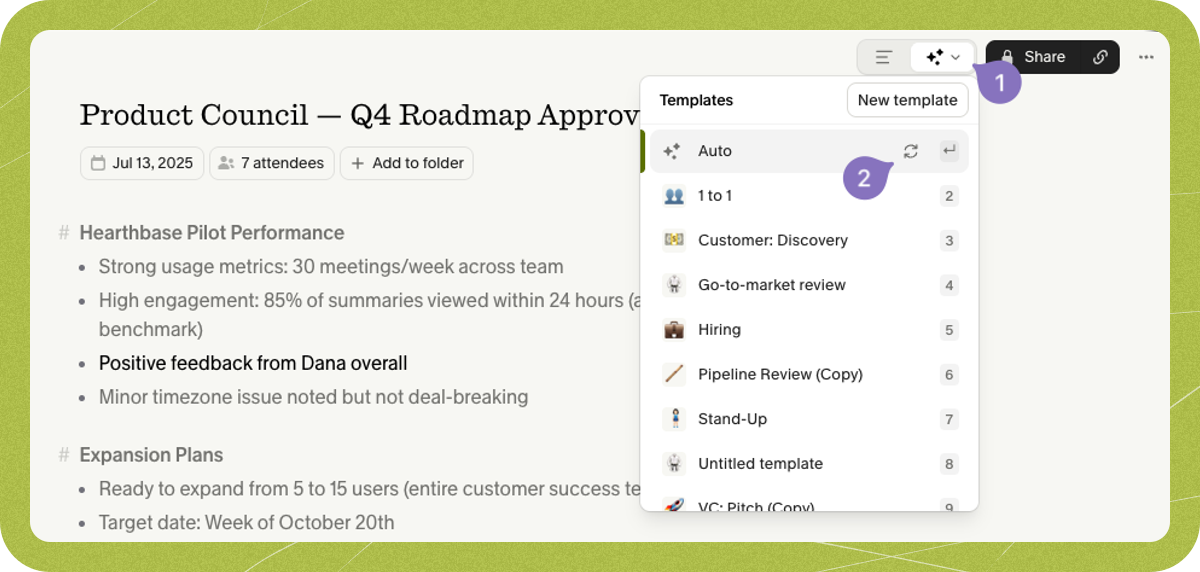
During a call, type/ in your meeting notes to open the context menu and select a template. Granola uses your choice when it generates your enhanced notes.
After your notes are generated, you can also change templates by clicking the dropdown arrow on the “Enhanced” tab. Selecting a template regenerates your notes using that format.
Creating your own templates
You can create your own template to prompt Granola to take a specific structure for your meetings. To create your own templates, you can either select “All templates…” from the template menu above, or “Manage templates” from the workspace menu on your homepage: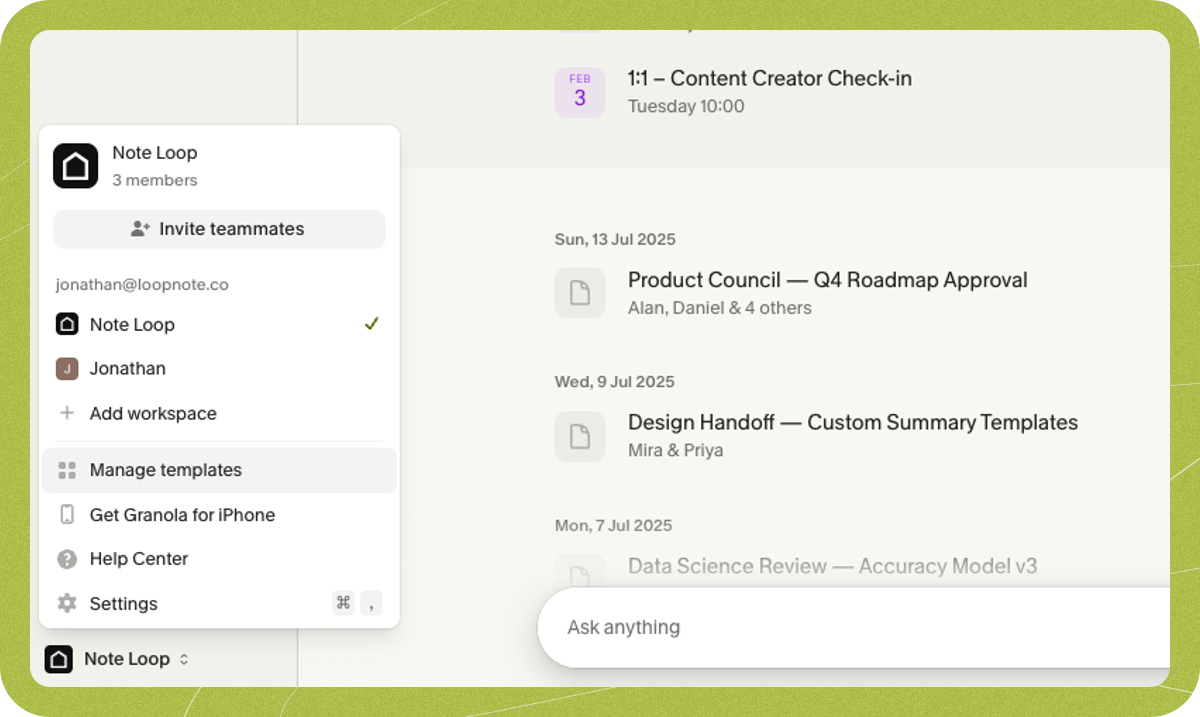
Template best practice
We believe a good prompt for a meeting has a few key components:-
Set the purpose and context: Start by writing a description of what you hope to get out of the meeting, and any other potentially useful background.
- This is a user interview, I am trying to understand what the user thinks about my product, Granola, an AI note-taking tool for meetings
-
Specify the length and style: for instance..
- I’d like a lot of detail, and to include quotes, numbers and data wherever mentioned
- Focus more on what they said, not what I said
-
Outline the structure: Using the template sections, add groupings you expect to be useful.
- Common elements might be key discussion points, decisions made, or action items.
- You can then be very specific about what you’d like in each section: Who introduced Granola to the team and how did they share it?
- Test your templates: Apply them following the steps at the top of this article, and keep iterating to fit what you need
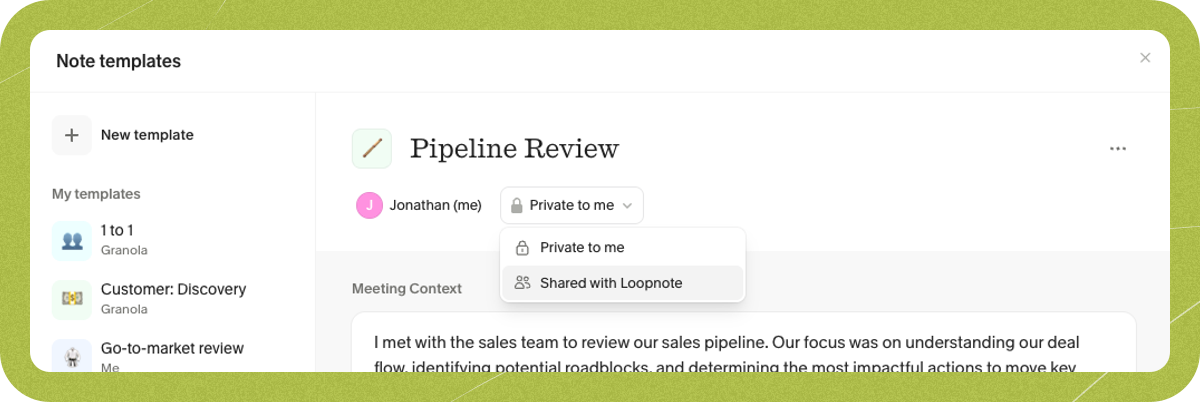
- Share templates with team members to better standardize across your organization. By default templates will be private to you, but you can click on ‘private to me’ and choose to share with your organization. Template sharing requires signing in with a company email domain (e.g., @yourcompany.com). If you’re signed in with a free email provider like Gmail or Yahoo, the sharing dropdown won’t appear. Note that “your organization” means users signed in with the same email domain—if team members use different email domains (e.g., @companyA.com and @companyB.com), they won’t see each other’s organization-shared templates even if they’re in the same workspace.