

What you’ll need
- A paid plan or active trial (not the free plan). See Subscriptions and billing.
- Sign-in with Google (Gmail or Google Workspace). Microsoft / Outlook isn’t supported yet.
- Gmail connected with read and send access (below).
Connecting Gmail
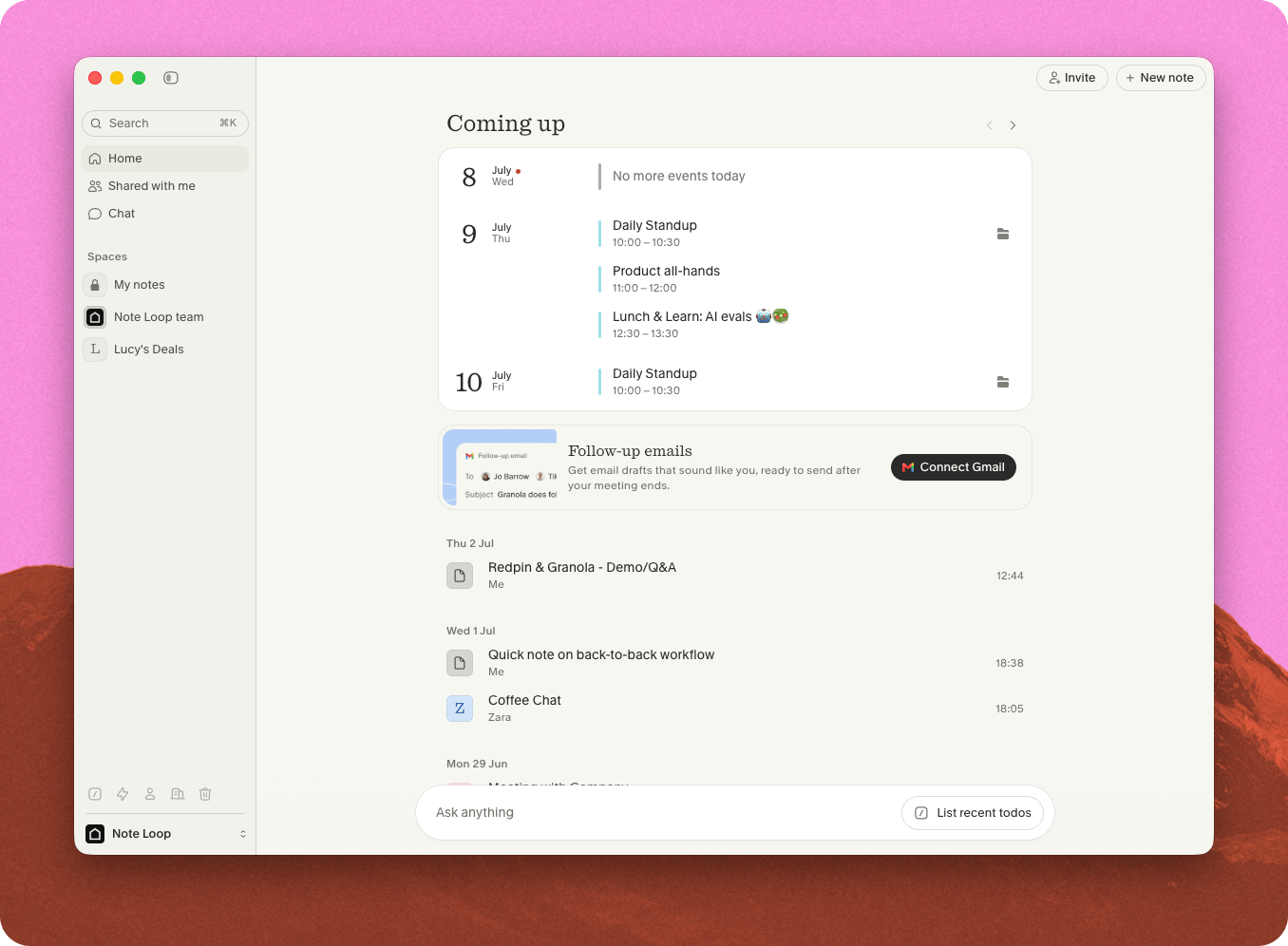
This is a one-time setup.- On the home screen, find the Follow-up emails banner, click Connect Gmail, then Continue.
- In the browser, follow Google’s prompts to let Granola view and send email.
-
Granola then drafts your two most recent external meetings so you have something to try right away.
Connect the same email you sign in to Granola with. Aliases aren’t supported, and a mismatch only shows up as an error when you try to send.
How drafts are decided
A draft is generated when the meeting had at least one external guest and no more than 10 people total, and you meet the requirements above. Even then, Granola stays quiet when an email doesn’t make sense - for example when Slack is the active channel, a colleague owns the follow-up, or there’s a blocker before any next steps. Drafts appear a minute or two after your notes finish generating.Finding and sending a draft
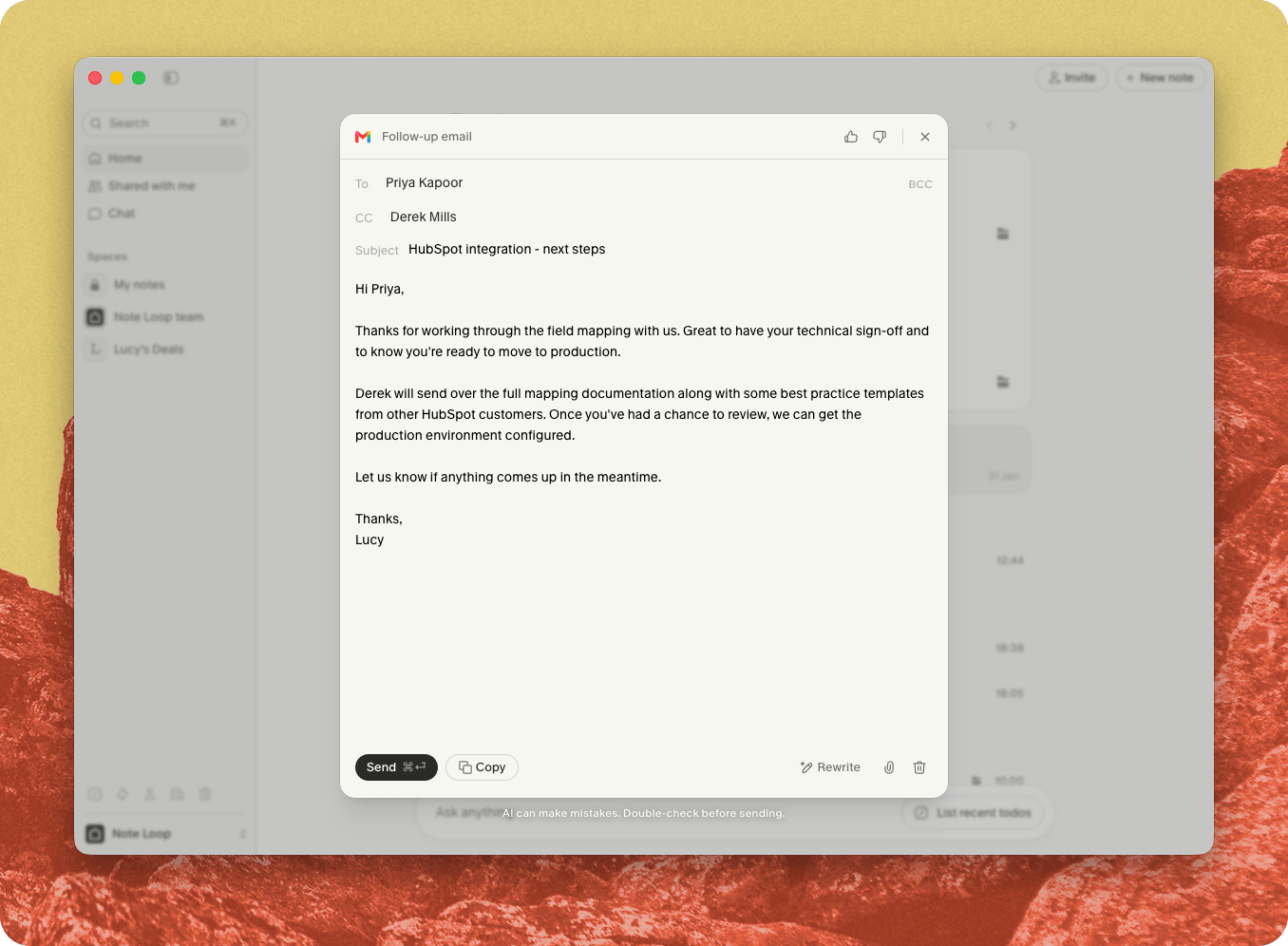
Open a draft from the Suggested follow-up emails section on the home screen, or the View draft prompt at the top of the meeting note. In the editor you can edit the subject, body, and formatting; add CC / BCC; attach files (up to 25 MB total); and toggle your Gmail signature. If a draft contains a placeholder, fill it in before sending. Click Send, then Undo within about 10 seconds to stop it going out.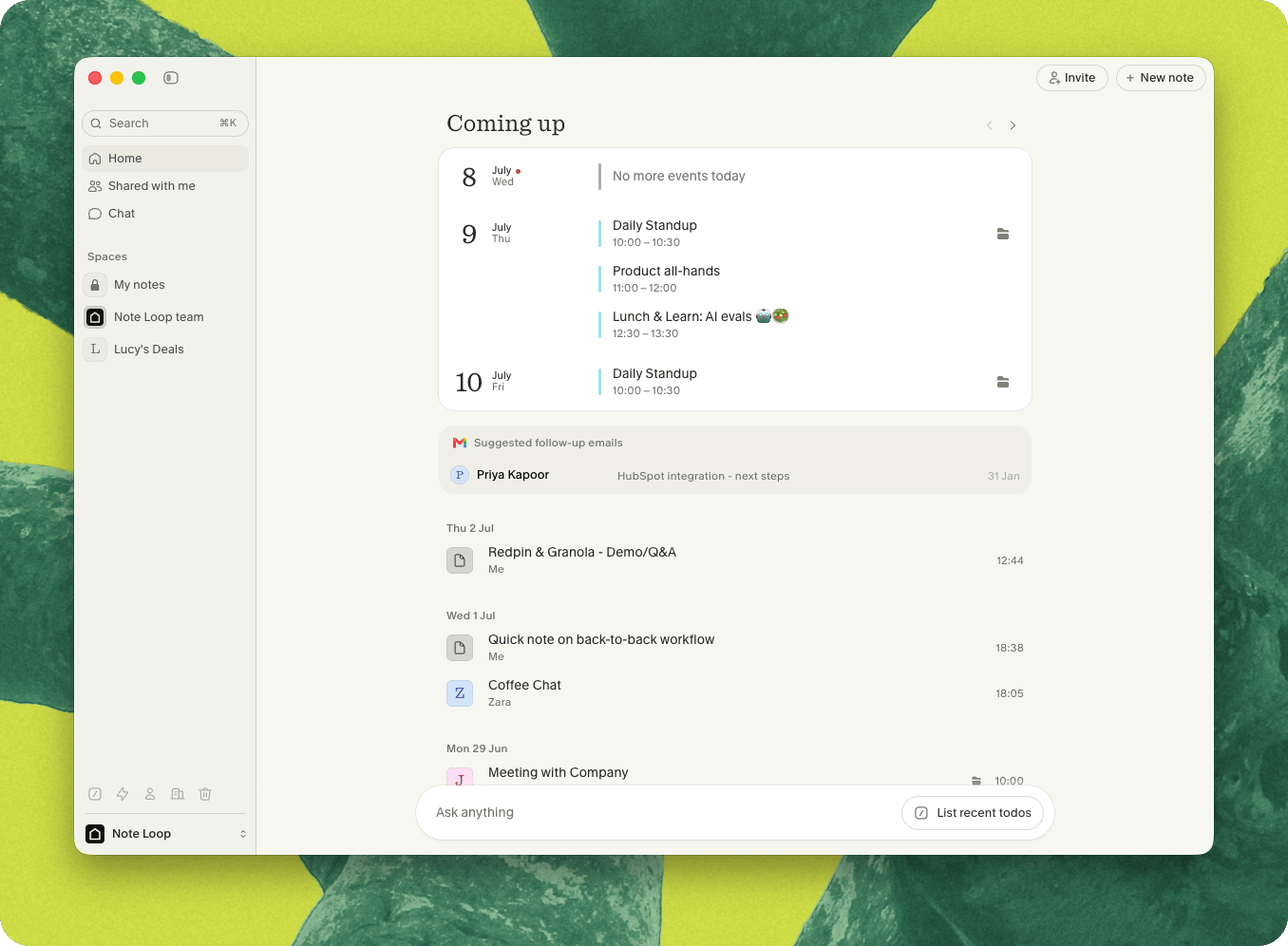
- Draft edits are saved on your device only - they don’t sync, and are cleared when you sign out.
- Attachments aren’t saved - re-add them if you close the draft or quit before sending.
- Home-screen suggestions show for 3 days.
Turning them off
Go to Settings > Preferences and turn off Suggested follow-up emails under Features. Your Gmail stays connected.Troubleshooting
I didn't get a follow-up I expected
I didn't get a follow-up I expected
Usually Granola decided an email wasn’t needed - Slack is the channel, a colleague should follow up, or there’s a blocker. Also check the meeting had an external guest, no more than 10 people, and that you’re on a paid or trial plan with Gmail connected.
I don't see a draft anymore
I don't see a draft anymore
Drafts stop showing after 3 days. They also disappear once you’ve sent or dismissed them, and can drop off earlier if the conversation has moved on - for example if you or the recipient has already replied. If all your drafts have gone, check Gmail is still connected in Settings > Connectors > Gmail.
I dismissed a draft - can I get it back?
I dismissed a draft - can I get it back?
No. Once dismissed, a follow-up can’t be restored. A draft you’ve already sent is in your Gmail Sent folder.
I get an error when I try to send
I get an error when I try to send
The connected Gmail must match your Granola sign-in email exactly (aliases aren’t supported). Reconnect with the matching address in Settings > Connectors > Gmail.
Disconnecting Gmail signed me out
Disconnecting Gmail signed me out
That’s expected - Gmail shares your Google sign-in. Sign back in with Google; your calendar reconnects and Gmail stays disconnected.
I'm on Microsoft / Outlook - can I use this?
I'm on Microsoft / Outlook - can I use this?
Not yet. Follow-up emails are currently Google-only.