Using the sidebar
You can toggle the left sidebar open or closed with ⌘S (Mac) or Ctrl+S (Windows). The sidebar automatically closes when you open a meeting note, giving you more room to focus on your notes. If you make the Granola window wider, the sidebar stays docked inline rather than floating as an overlay.Spaces
The Granola sidebar is organized into two spaces:- My notes — Your private space. It contains all the notes you’ve created, plus any private folders that others have shared with you. Folders here are only visible to you and people you explicitly share them with.
- [Your workspace name] — Your team space. Folders here are visible to everyone in your workspace. Workspace admins are automatically owners of all team space folders, and can move a folder to My notes to make it private if needed.
Custom spaces (admins only)
Workspace admins can create additional spaces beyond My notes and your team space. Custom spaces are a way to manage permissions in larger organizations: they let you share notes and folders with a specific group — a department, region, or project team — without making them visible to everyone in the workspace. To manage spaces, open Settings → Spaces (or click Manage spaces in the sidebar):- Create a space: Click Create space, give it a name, icon, and description, then add members. Everyone added to a space can see the notes and folders inside it.
- Delete a space: Open the space’s menu and choose Delete space. Deleting a space is permanent, but the notes and folders inside it are not deleted — they’re just removed from the space.
Creating a folder
To create a folder, open the sidebar and hit the + button next to a space. Give your folder a name, pick an icon, and add a description to give teammates context on what’s in the folder and to help Granola Chat focus on the insights that matter.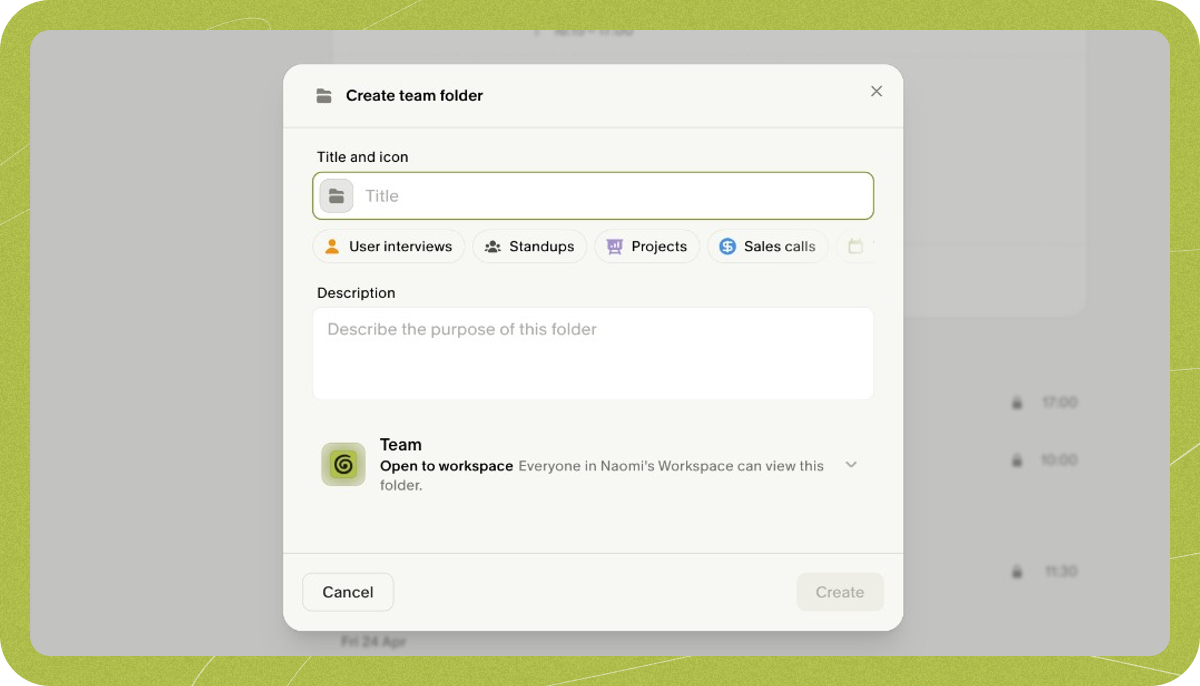
Subfolders
You can create subfolders inside a folder to add another level of organization. For example, you might have a “Sales” folder with subfolders for each client, or a “Product” folder with subfolders for different workstreams. There are two ways to create a subfolder:- From the menu: Click the 3 dots next to a folder’s name in the sidebar and select Create folder.
- Drag and drop: Drag an existing folder onto another folder in the sidebar to nest it inside. You can only nest folders you own — folders shared with you (where you are a member, not the owner) cannot be dragged into other folders.
Add your notes
Just click Add to folder from your list of notes, or drag and drop your notes into folders in your sidebar.
- Hover over a note and click the checkbox that appears to select it
- Shift + click another note to select a range
- Click Select all to select all notes in the current view, or click Add to folder to add the selected notes to a folder.
Auto-adding recurring meetings to a folder
If you add a note from a recurring meeting (e.g. a weekly standup) to a folder, Granola can ask whether to auto-add all future instances of that meeting to the same folder. That way, every new note from that series goes into the folder automatically. To turn on auto-add for a recurring meeting:- Add a note from the recurring meeting to a folder (via Add to folder or drag and drop).
- When the “Auto-add future meetings?” prompt appears, click Auto-add.
- All future notes from that recurring meeting will be added to that folder automatically.
- Stop auto-adding: Open the folder picker for a note in that recurring series and remove the note from the folder (uncheck the folder). That removes the auto-add rule for that recurring meeting.
- Use a different folder: Remove the note from the current folder as above, then add it to the new folder and choose Auto-add when prompted if you want the new folder to receive future instances.
Sharing & permissions
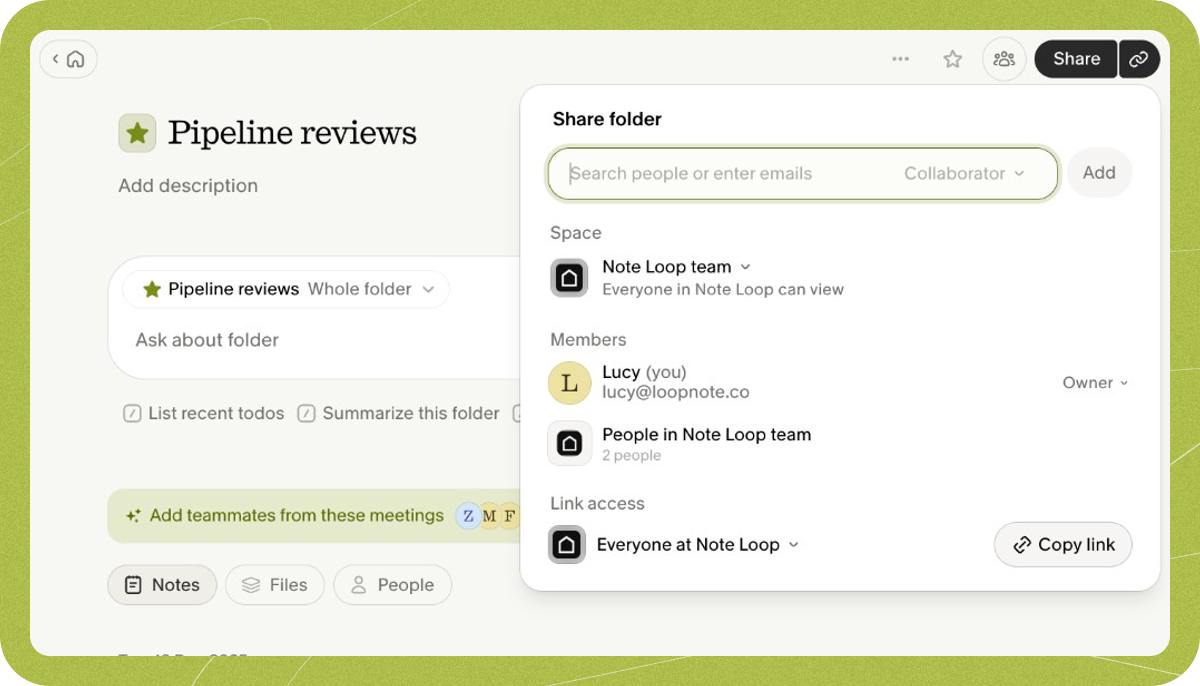
- Space — Which space the folder belongs to determines its default visibility. You can change a folder’s space from its sharing settings at any time.
- Members — Add specific people directly to a folder using their email address.
- Link access — Choose who can access your folder when you share a link.
Adding members
To add someone directly to a folder:- Open the folder sharing settings
- Type their email address
- Click “Add”
- They’ll receive an email notification alerting them that you’ve added them to a folder
Link access
These settings give you control over who can access your folder when you share a link.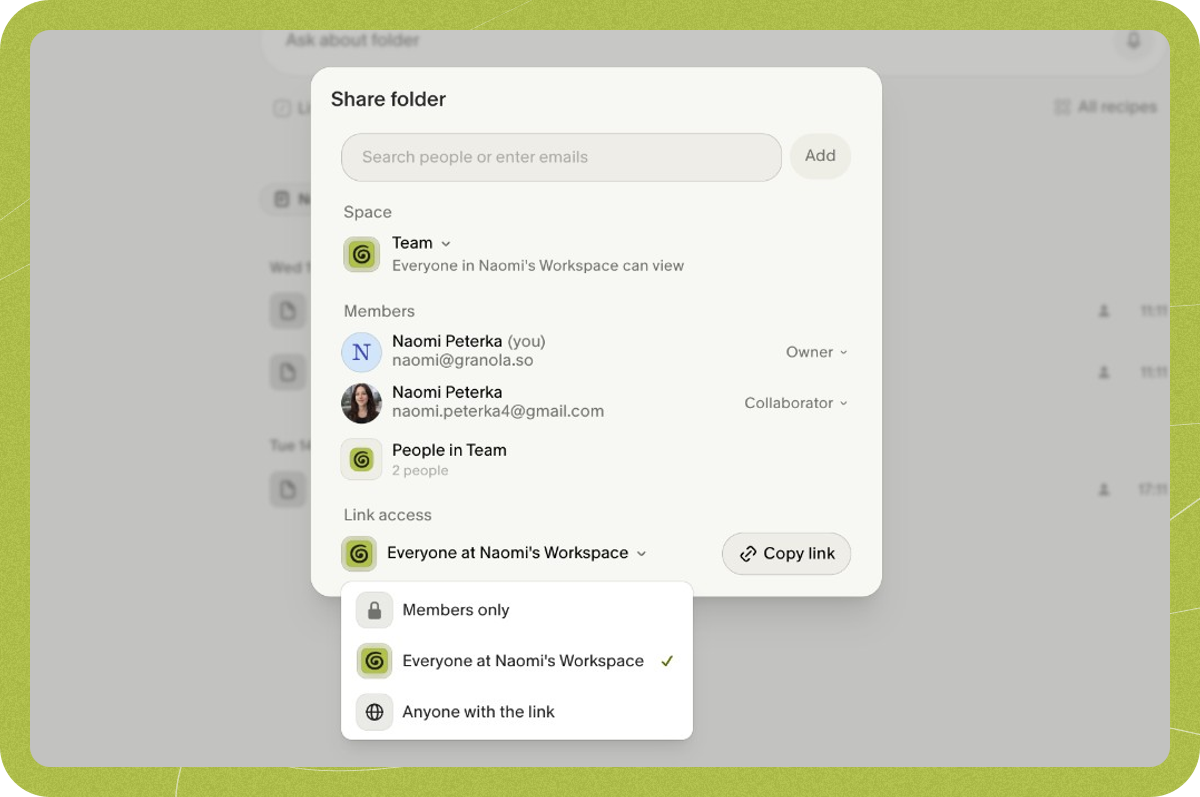
- Invited people only: Only existing members of the folder can view the folder via the link. Best option for sensitive information.
- Everyone at [your workspace]: Any Granola user with your company domain can access. Non-workspace members will see “folder not found” after signing in.
- Anyone with the link: Most open option. Anyone can view in a web browser, even non-Granola users.
Owner vs member permissions
By creating a folder, you become the owner of that folder. Anyone else you add is a member of the folder, with different permissions: Folder Owners:- Can add their own notes
- Can remove notes (their own or others’)
- Can modify sharing permissions
- Can add or remove members
- Can nest their folder inside another folder via drag and drop
- Can add their own notes
- Can add or remove members
- Can leave the folder via the three-dot menu to remove it from their sidebar
- Cannot remove others’ notes
- Cannot modify sharing permissions
- Cannot delete the folder
- Cannot nest the folder inside another folder
Granola Chat
You can use Granola Chat to chat with any folder or space — including My notes and your team space — to uncover insights across your meetings. Navigate to a folder or space, then ask a question, write a memo, get an analysis or spot themes. Granola Chat uses best-in-class reasoning models, which we’ve found to be able to do detailed analysis across large numbers of meetings. Leave Granola on Auto to pick the strongest option for long-range reasoning, or switch the dropdown to your favorite model whenever you like.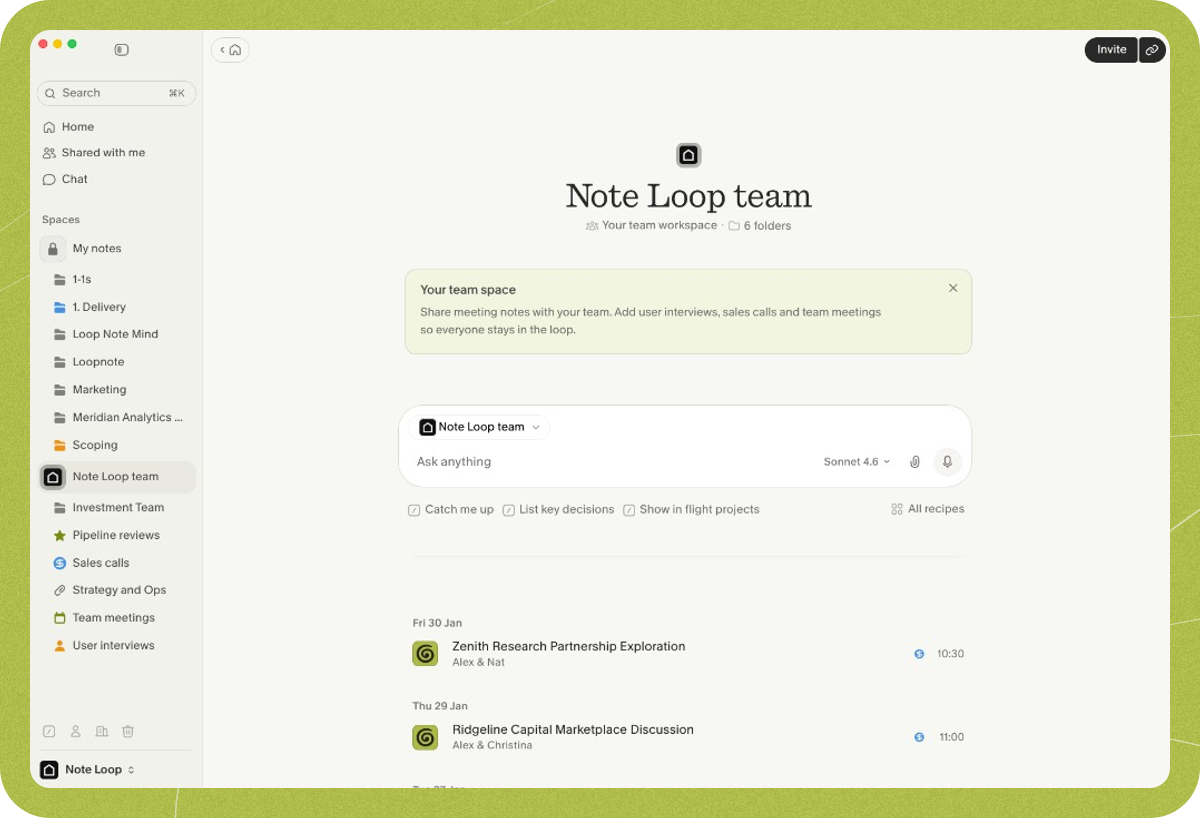
Auto-post integrations
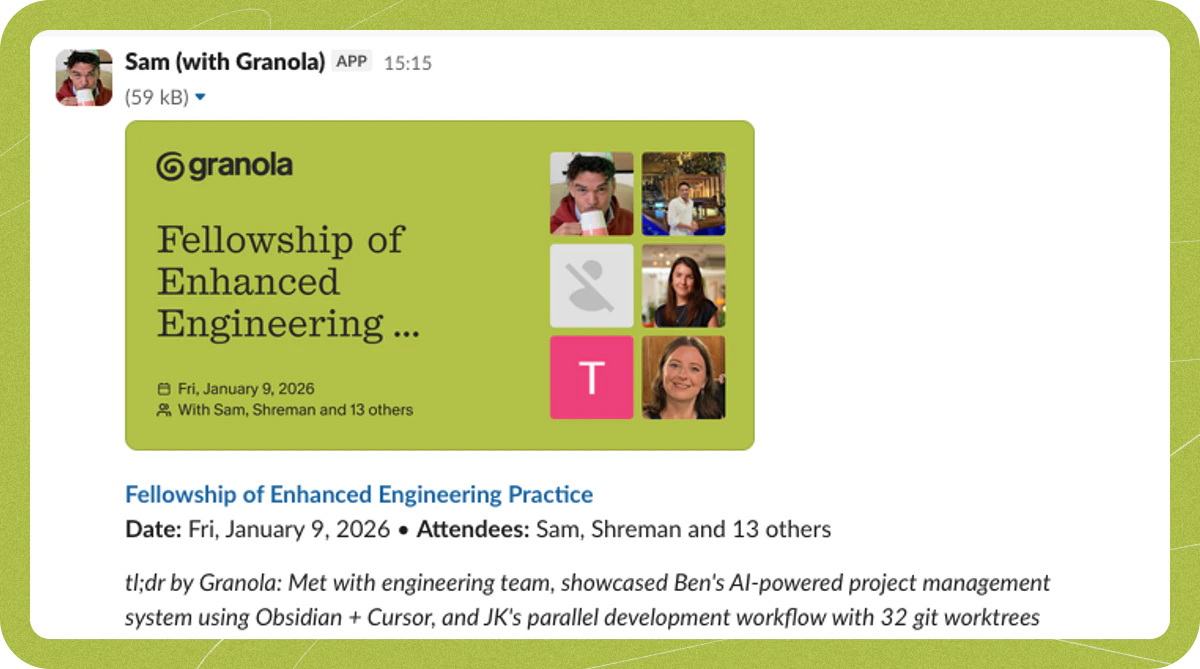
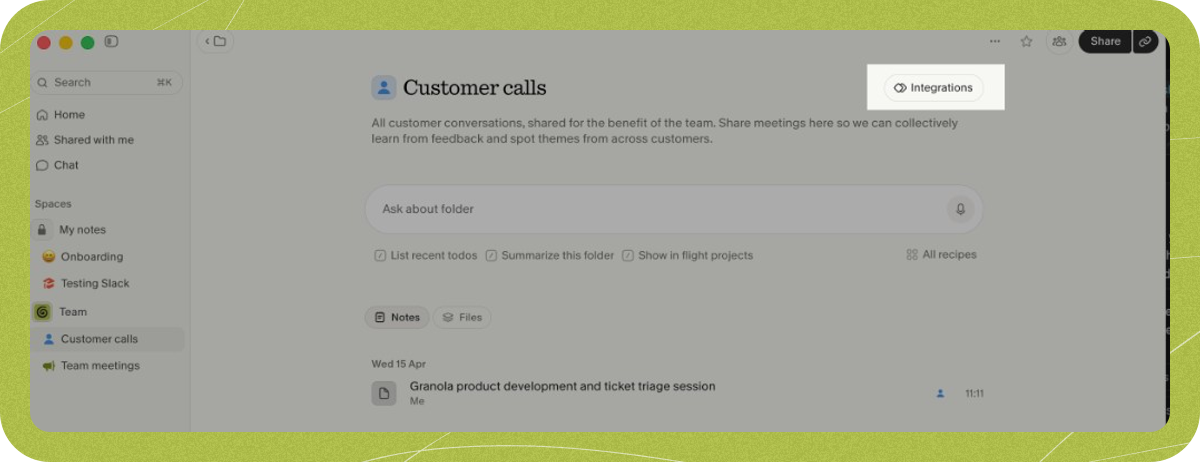
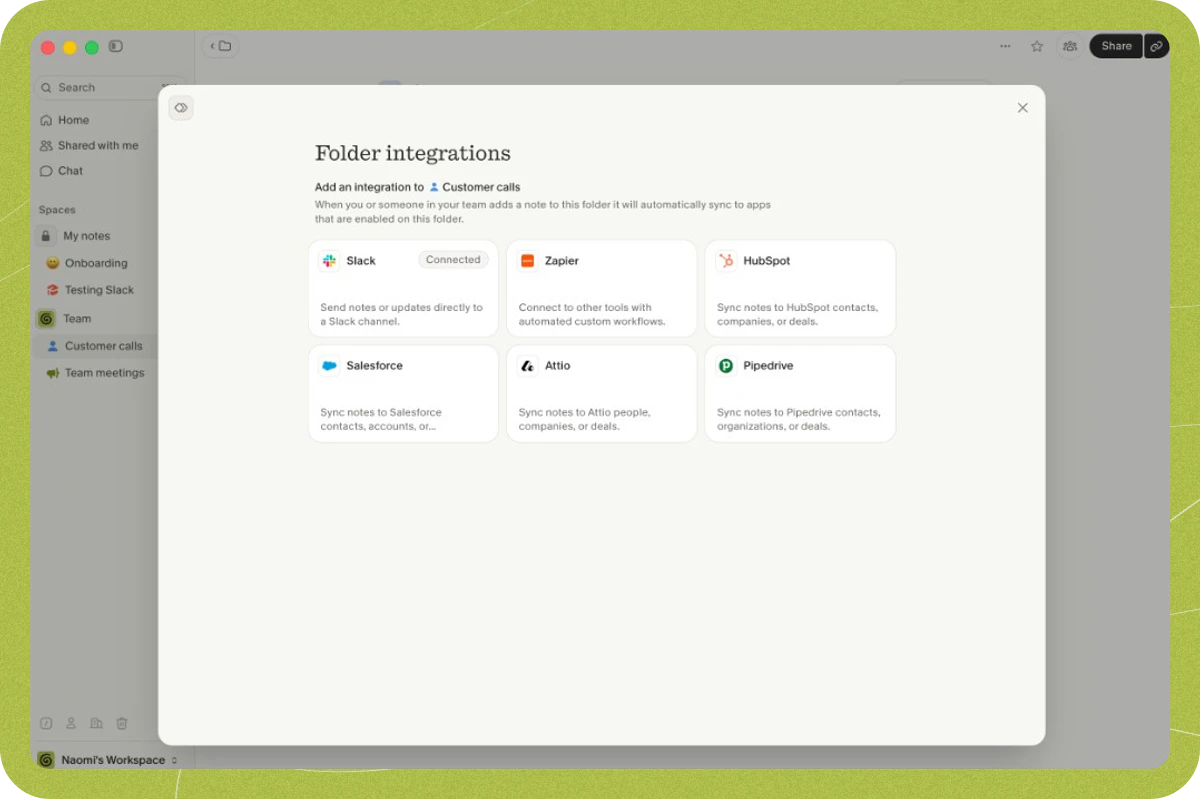
You can set up rules to automatically share notes added to a folder with your other tools. Granola supports auto-posting to Slack, HubSpot, Attio, and Zapier.