

The HubSpot integration requires a Google Workspace or Microsoft 365 account.
It’s not available for personal Gmail or Outlook.com accounts.
Setting up the HubSpot integration
1. Find the integration in Granola
You can find our integrations in your Settings under Connectors. Here you’ll see HubSpot as an integration: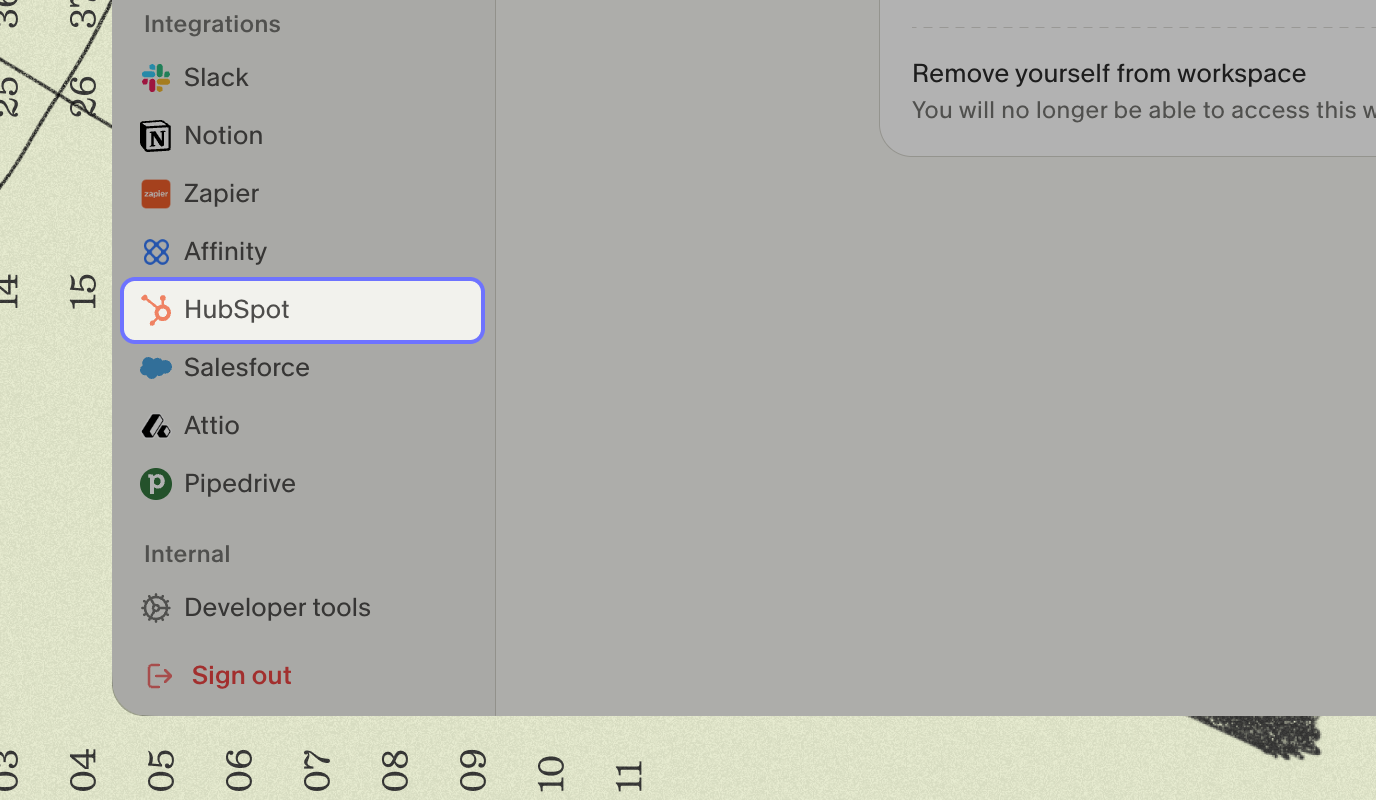
2. Connect your HubSpot account
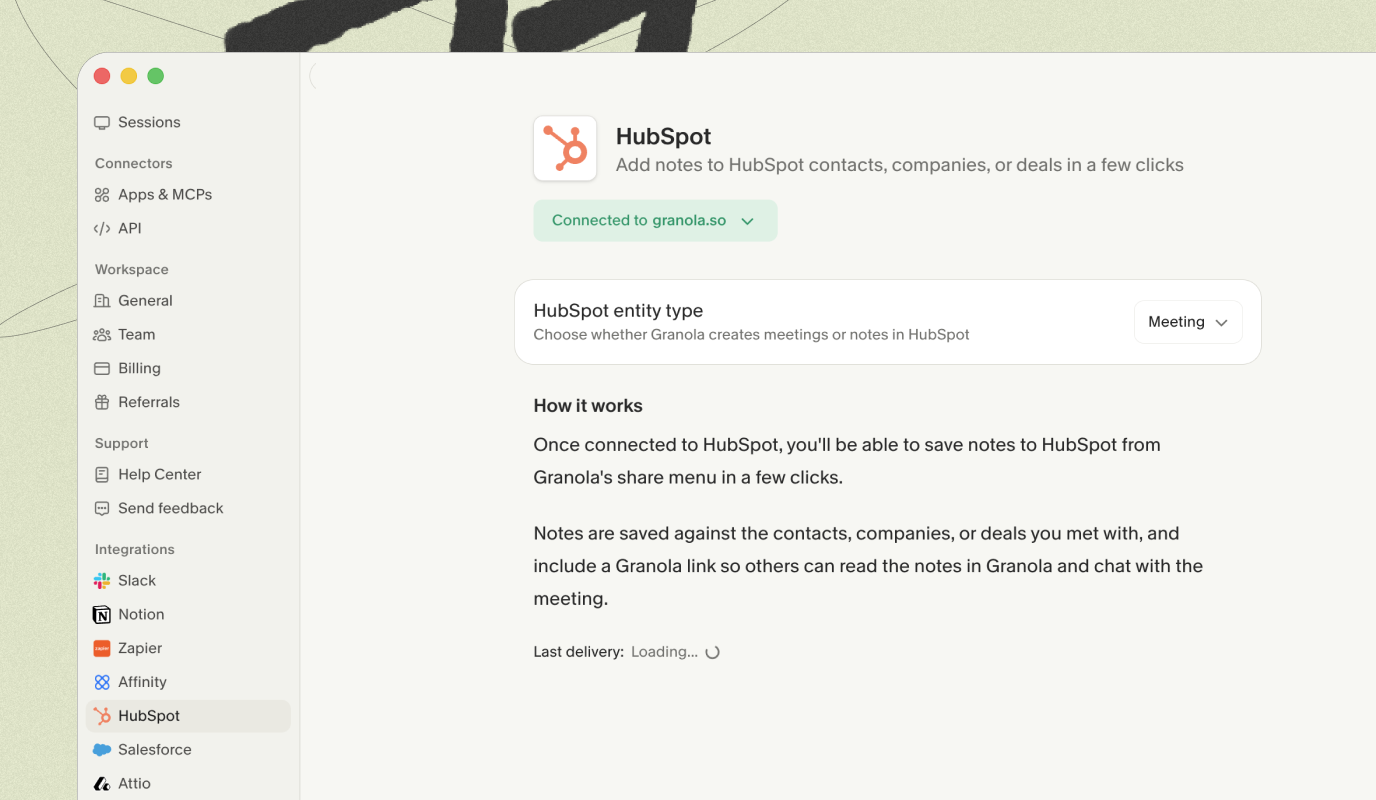
Click to connect HubSpot to your Granola account. This will launch a webpage for you to connect HubSpot to Granola. Once the connection is complete, you can close the tab and go back to Granola.3. Configure workspace settings
In Settings > HubSpot, you can choose how Granola creates records in HubSpot:- HubSpot entity type — Choose whether Granola creates a Meeting or a Note in HubSpot when you sync a meeting. The default is Meeting.
4. Share notes to HubSpot
Sharing individual notes
Once connected, you can share any note to HubSpot by clicking the HubSpot option in the top right of the note. Select which HubSpot contact, company, or deal you want to associate the note with and Granola will link the note with those records in HubSpot.Auto-sharing notes added to folders
You can set up Granola to automatically save any notes that are added to Granola folders to the relevant contacts, companies, or deals on HubSpot. In a folder, click the Integrations button and turn on the option for HubSpot. Choose which HubSpot records you’d like Granola notes to attach to.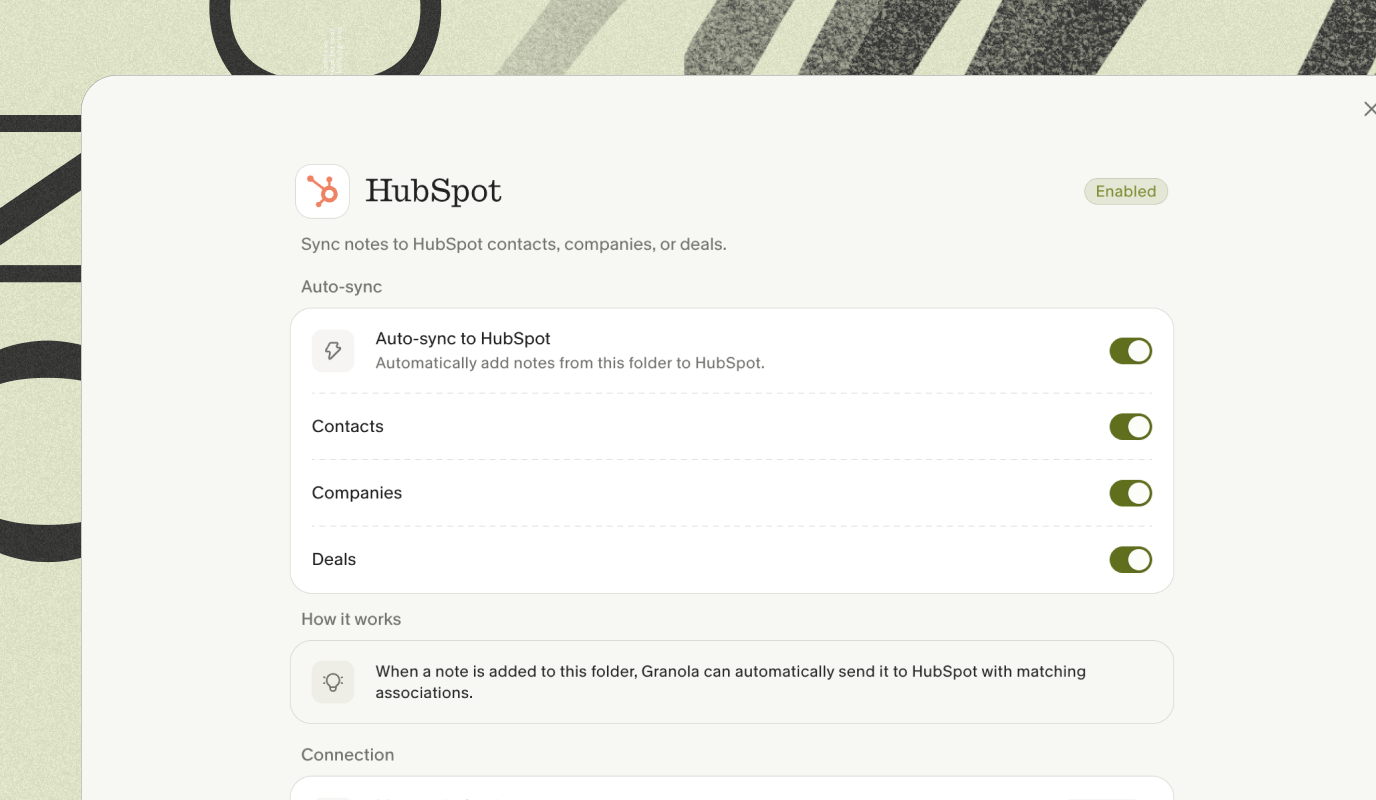 Any notes added to this Granola folder will be added to matching Contact, Company, or Deal records in your HubSpot account, based on the options you select.
Note that auto-sharing only applies to notes added to the folder after you enable the HubSpot integration on that folder. Notes that were already in the folder before enabling the integration will not be synced retroactively. To share older notes, use the HubSpot button in the top right of each note to share them individually.
Any notes added to this Granola folder will be added to matching Contact, Company, or Deal records in your HubSpot account, based on the options you select.
Note that auto-sharing only applies to notes added to the folder after you enable the HubSpot integration on that folder. Notes that were already in the folder before enabling the integration will not be synced retroactively. To share older notes, use the HubSpot button in the top right of each note to share them individually.
Troubleshooting
Check your account emails match
Check your account emails match
Always check your Granola and HubSpot accounts are using the same email address.
My HubSpot integration was working and has stopped
My HubSpot integration was working and has stopped
Try disconnecting and reconnecting the integration in Granola > Settings > HubSpot.
The sharing option is greyed out on my note
The sharing option is greyed out on my note
Check your sharing settings: if your note is set to ‘Private’ you won’t be able to share it and you’ll need to change that setting before you can.
Notes from a folder aren't appearing in HubSpot
Notes from a folder aren't appearing in HubSpot
- Granola matches meeting attendees to HubSpot records by email address. If no matching records are found, no data will be created in HubSpot. Check that the attendees’ email addresses exist as Contacts or Companies in your HubSpot account.
- You can check the status of the last sync in Settings > HubSpot. If there was an error, it will be shown there.