

Integrate Granola with Slack
Setting up integration with Slack will allow you to share your notes directly to a Slack channel without leaving Granola. When you share a note to Slack, Granola posts a link to the note along with a summary of the note directly in the Slack message. Because this summary is part of the Slack message itself, changing the note’s sharing settings (for example, setting it to Private) does not remove or hide the summary text already posted in Slack. This integration supports sharing to channels only.- Find Slack in integrations settings
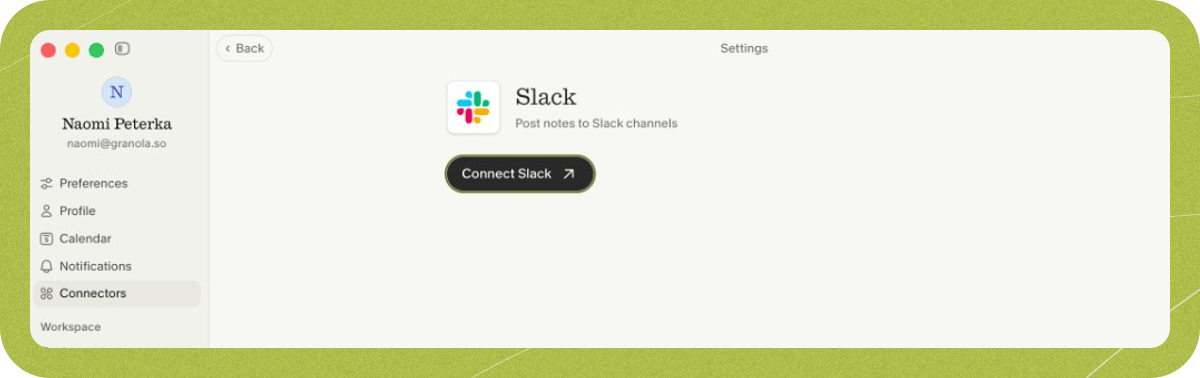
- Connect your Slack workspace
- Share notes to Slack
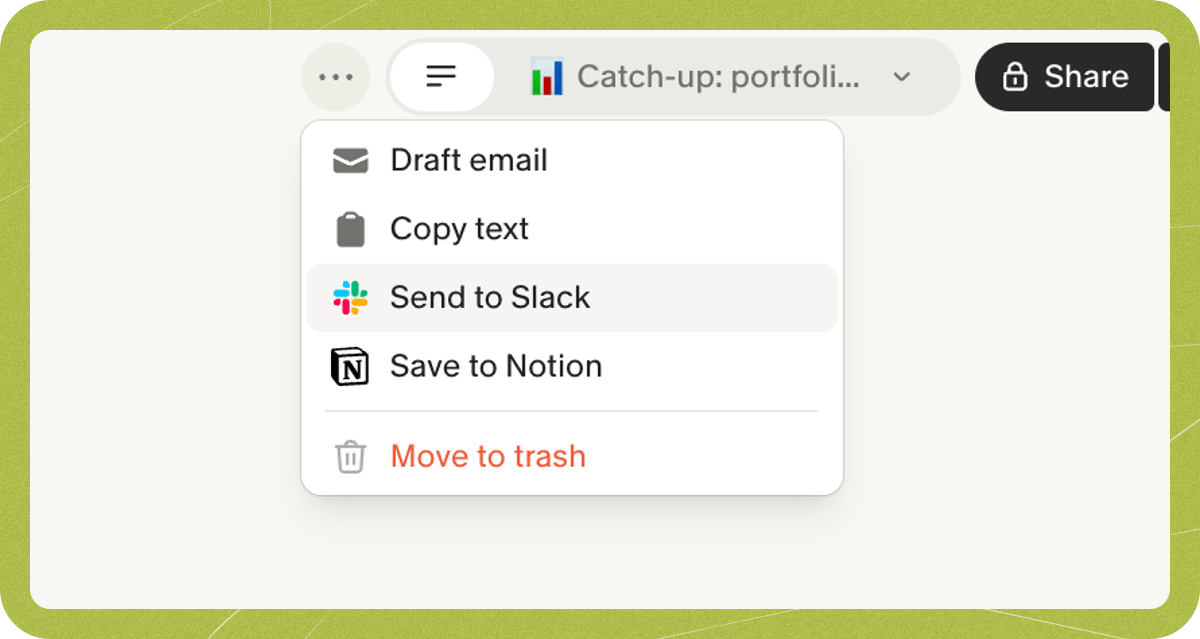
- Choose your channel
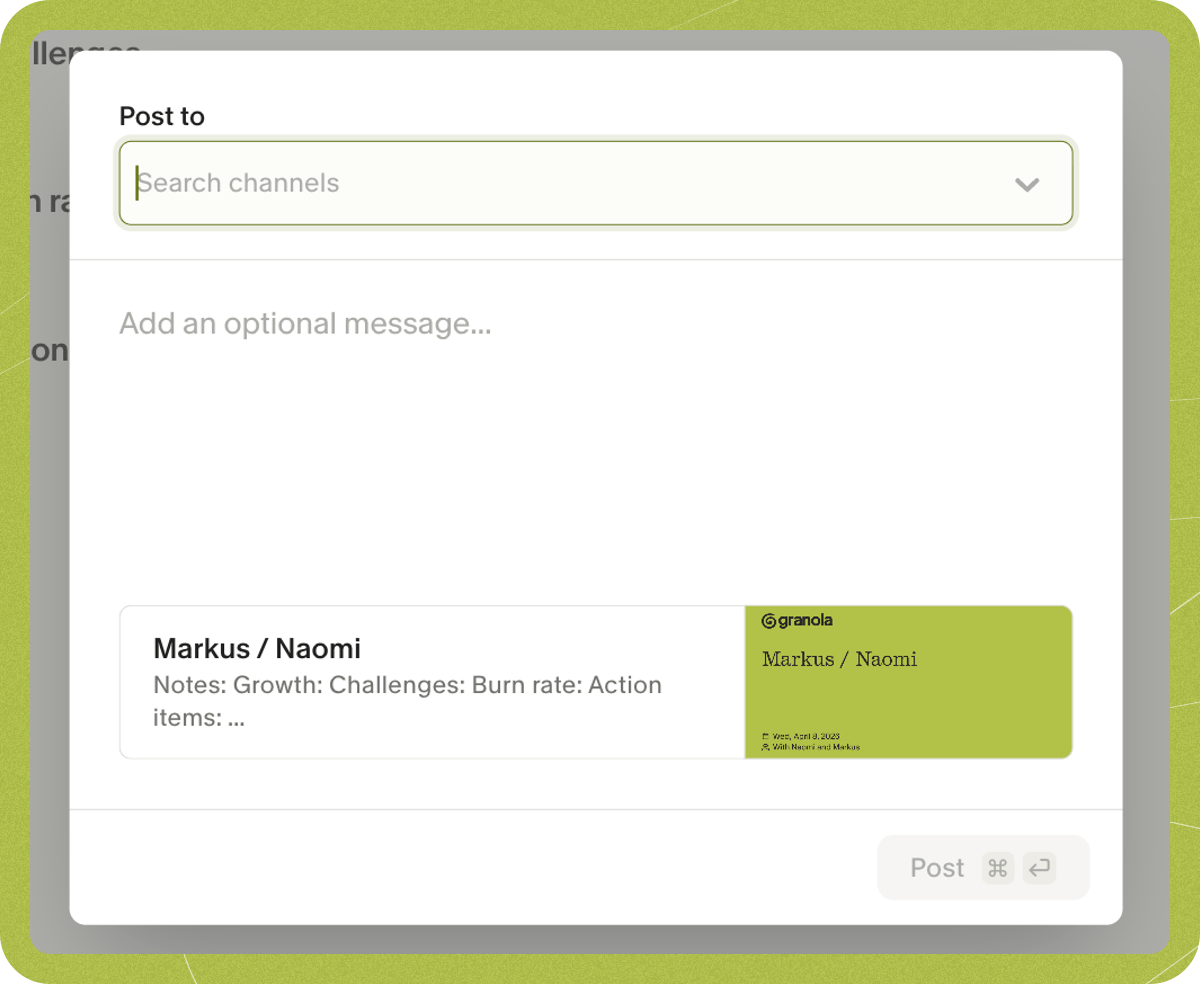
Posting to private Slack channels
To post to private channels in Granola, you’ll need to do the following things:- Make sure you’re logged into Granola with the same email address as your Slack account
- Make sure you have access to the private channel
- Add the Granola app to the private channel
- Go to the channel in Slack and type ’/’ in the new message box
- Click ‘Add apps to this channel’
- Head back to Granola, and search for your new channel in the ‘post to Slack’ dialog
Can I automate pushing my notes to Slack?
You can set up a rule for any notes added to a folder to be automatically posted to a Slack channel of your choice.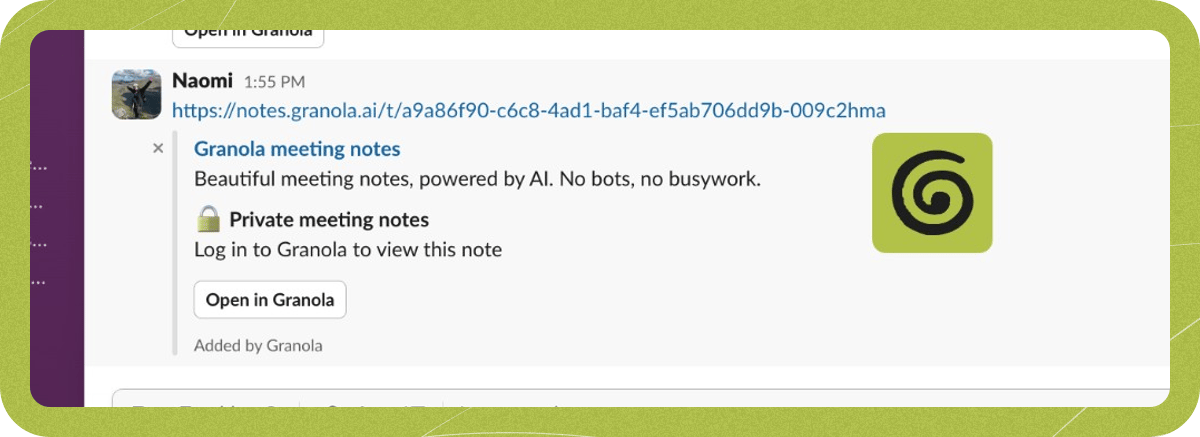
Troubleshooting
Which accounts can use the Slack integration?
Which accounts can use the Slack integration?
The Slack integration requires a Google Workspace or Microsoft 365 account. It’s not available for personal Gmail or Outlook.com accounts.
The Slack integration settings page is stuck loading
The Slack integration settings page is stuck loading
Your Granola session may have expired. Sign out of Granola and sign back in, then try opening the integration settings again.
My Granola and Slack email addresses changed or don't match
My Granola and Slack email addresses changed or don't match
Your email address must be the same in your Granola and Slack accounts. If you’ve recently changed your email address on Slack, you might need to disconnect and re-connect the Granola integration to pick up your new email address. You can do this in Settings > Connectors > Slack.
Link previews in Slack
Link previews in Slack
When you paste a Granola link in Slack, the preview (unfurl) can show the meeting title, attendees, date, and a summary snippet. Whether you see that rich preview depends on the note’s sharing visibility and your Rich previews settings in Settings > Connectors > Slack.Notes set to Anyone with the link show a rich preview automatically — Slack can fetch the note without extra permissions.Notes set to Company only or Private stay protected by default and show a generic placeholder preview. To show meeting details for these links without changing the note’s sharing setting, turn on rich previews:
- Open Settings > Connectors > Slack.
- Under Rich previews, enable Show for my links to show rich previews when you share private or company-only links.
- Granola workspace admins can also enable Show for everyone’s links so anyone in the connected Slack workspace gets rich previews when they share a protected Granola link.
- Your Granola and Slack accounts use the same email address.
- The Slack integration is connected in Settings > Connectors > Slack.
- Show for my links (or the workspace-wide setting) is turned on if the note is company-only or private.
- The note itself is not set to Private if you are using Send to Slack — that button requires a shareable link, which is separate from link previews.
- You are testing with a link you have already shared in Slack. Slack caches link previews, so changing your rich preview settings will not update an old message. Try sharing a different note to confirm the new setting is working.
I still need help
I still need help
For any other problems, reach out to our support team on hey@granola.so - screenshots are always helpful!