

How Granola updates itself
While Granola is open, it checks for a new version about every 10 minutes and downloads it in the background. It installs the update when it can restart without getting in your way, so not while you’re recording or transcribing a meeting, and not while you’re using the app. After the update, Granola reopens by itself.Check which version you have
macOS
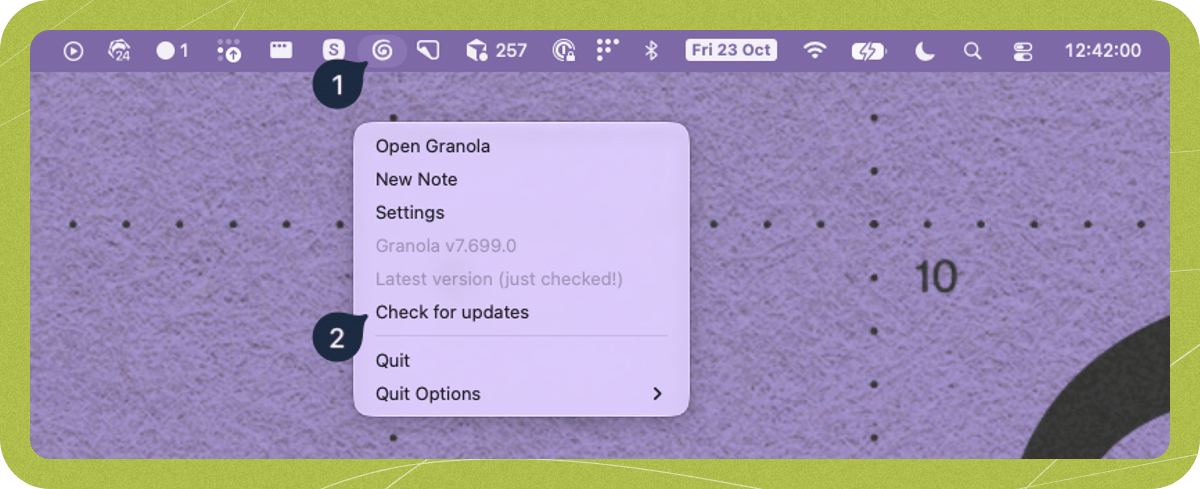
Click the Granola icon in the menu bar at the top of your screen. The menu shows:- Granola v…: the version you have.
- Latest version: you’re up to date.
- Downloading v… (…%): a new version is downloading.
- Install Latest Version (v…): a new version is ready to install.
Windows
Click the Granola icon in the system tray, at the bottom-right of your screen. If you can’t see it, click the arrow next to the clock to show hidden icons. The menu shows the same version and update items as on macOS.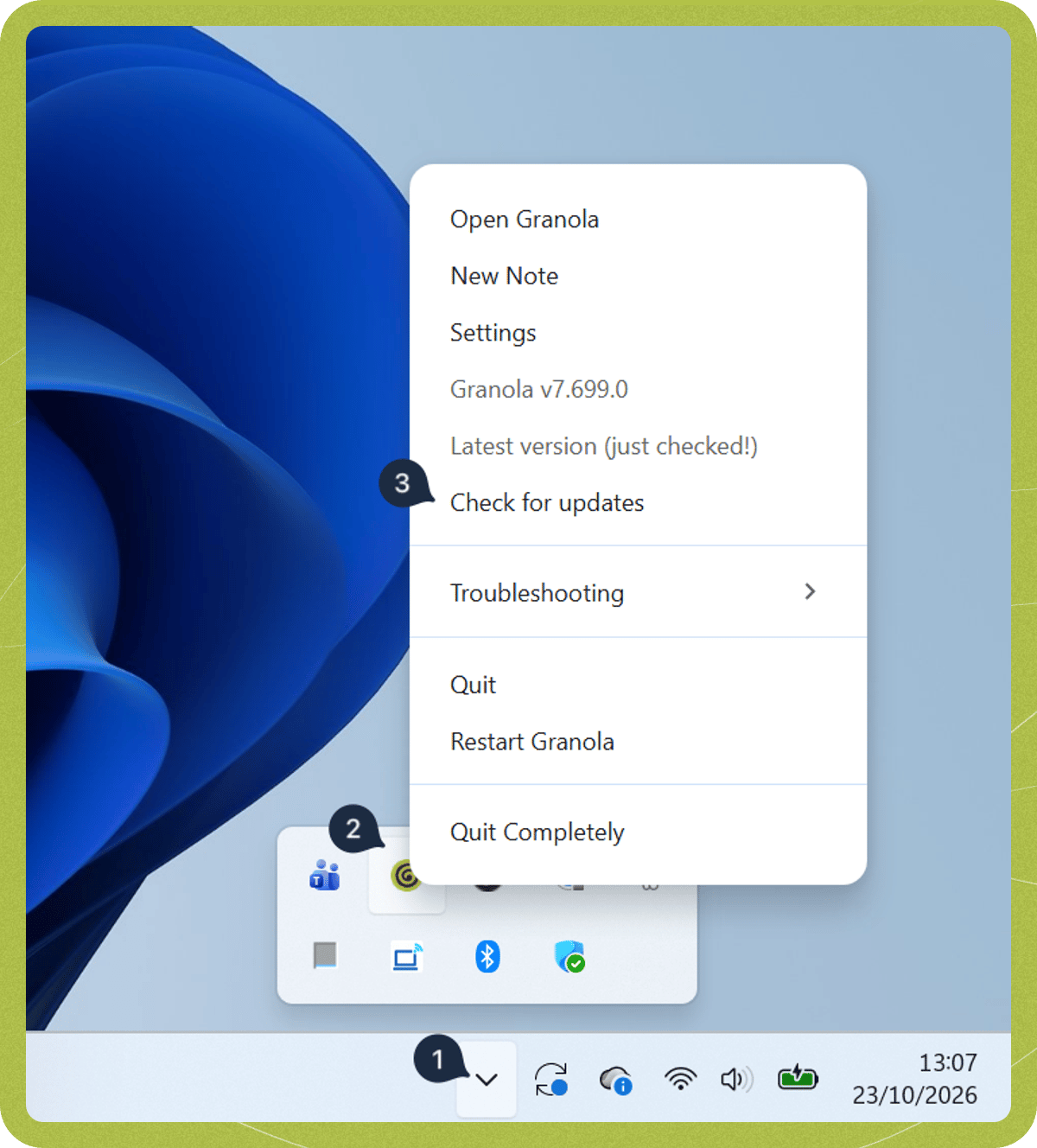
Update Granola now
- Open the Granola menu from the menu bar (macOS) or system tray (Windows).
- Choose Check for updates. If you’re up to date, the menu shows Latest version (just checked!).
- If there’s a new version, wait for it to download, then choose Install Latest Version.
If Granola asks you to update
If your copy of Granola falls too far behind, it asks you to update before you can carry on:- More than 4 weeks out of date: Granola shows “A new version of Granola is available”. You can choose Later for now.
- More than 6 weeks out of date: Granola can’t be used until it’s updated, and there’s no Later option.
Why updates might not install
Your company manages Granola for you
If your company’s IT team installed Granola for you, they may also manage its updates. In that case, Check for updates doesn’t do anything, and you won’t see Latest version in the menu. Your IT team installs new versions instead. If Granola is out of date, ask your IT team to update it, and share our guide to deploying and updating Granola with MDM.You need permission to update Granola (macOS)
To update Granola, macOS needs to let you replace the Granola app. If someone else installed Granola on your Mac, such as your IT team or another account on the Mac:- If you’re an admin on your Mac, macOS asks for your password each time Granola updates. Enter it to finish the update.
- If you’re not an admin, macOS asks for an admin’s name and password, and the update can’t finish without them.
Granola is outside your Applications folder (macOS)
Granola can’t update itself if you open it straight from the downloaded installer. If Granola asks to move to your Applications folder, choose Move to Applications Folder. Otherwise, quit Granola, drag it into Applications, and open it from there.Granola is installed in C:\Program Files (Windows)
Granola for Windows is installed for each person, in their own user folder, so it can update without admin rights. If your IT team installed Granola inC:\Program Files instead, Windows asks for admin approval for every update.
Ask your IT team to reinstall Granola for each person, using the Windows section of our MDM guide.