

Phone calls are available on iOS only. The Granola Android app doesn’t support taking notes on phone calls.
Setting up
To start using Granola for out-bound calls, select the phone icon in the bottom left corner. This will load up the set up menu.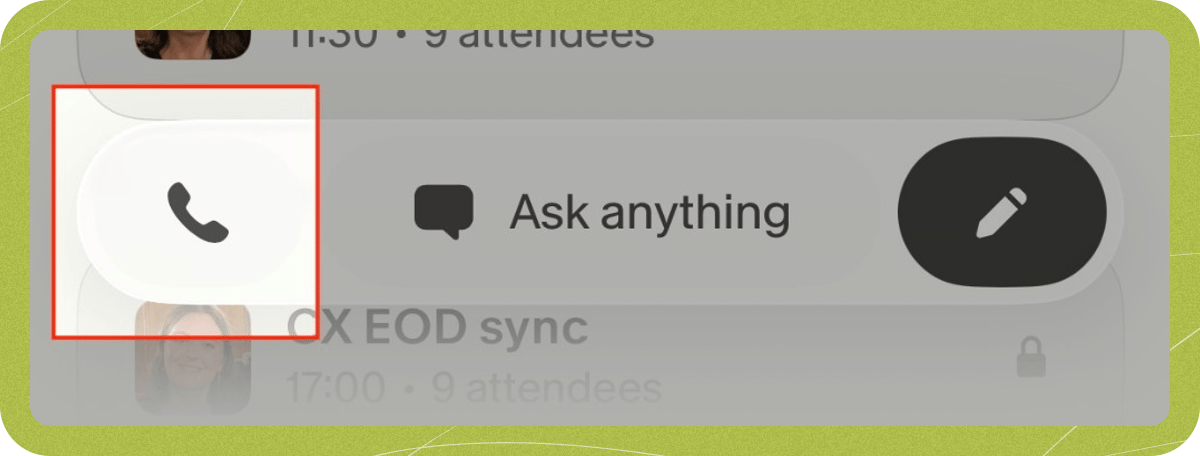
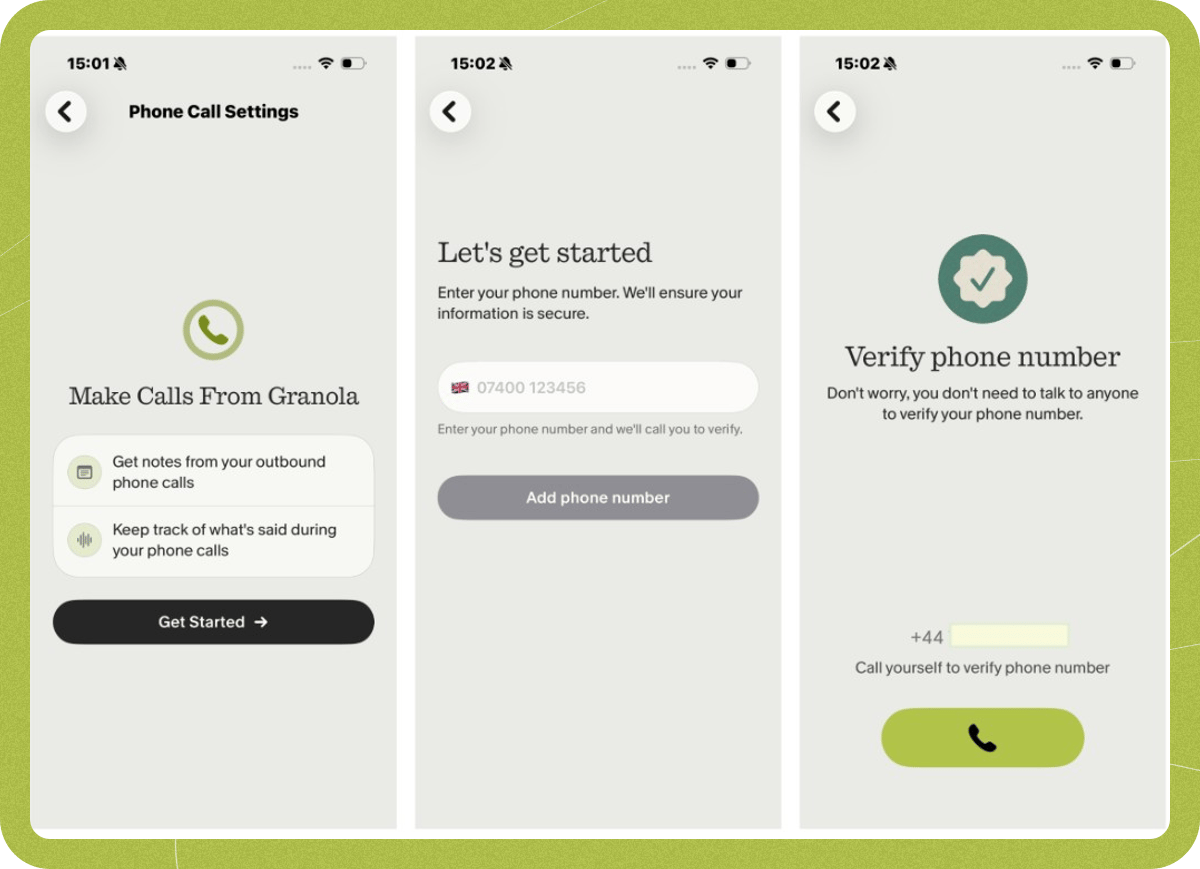
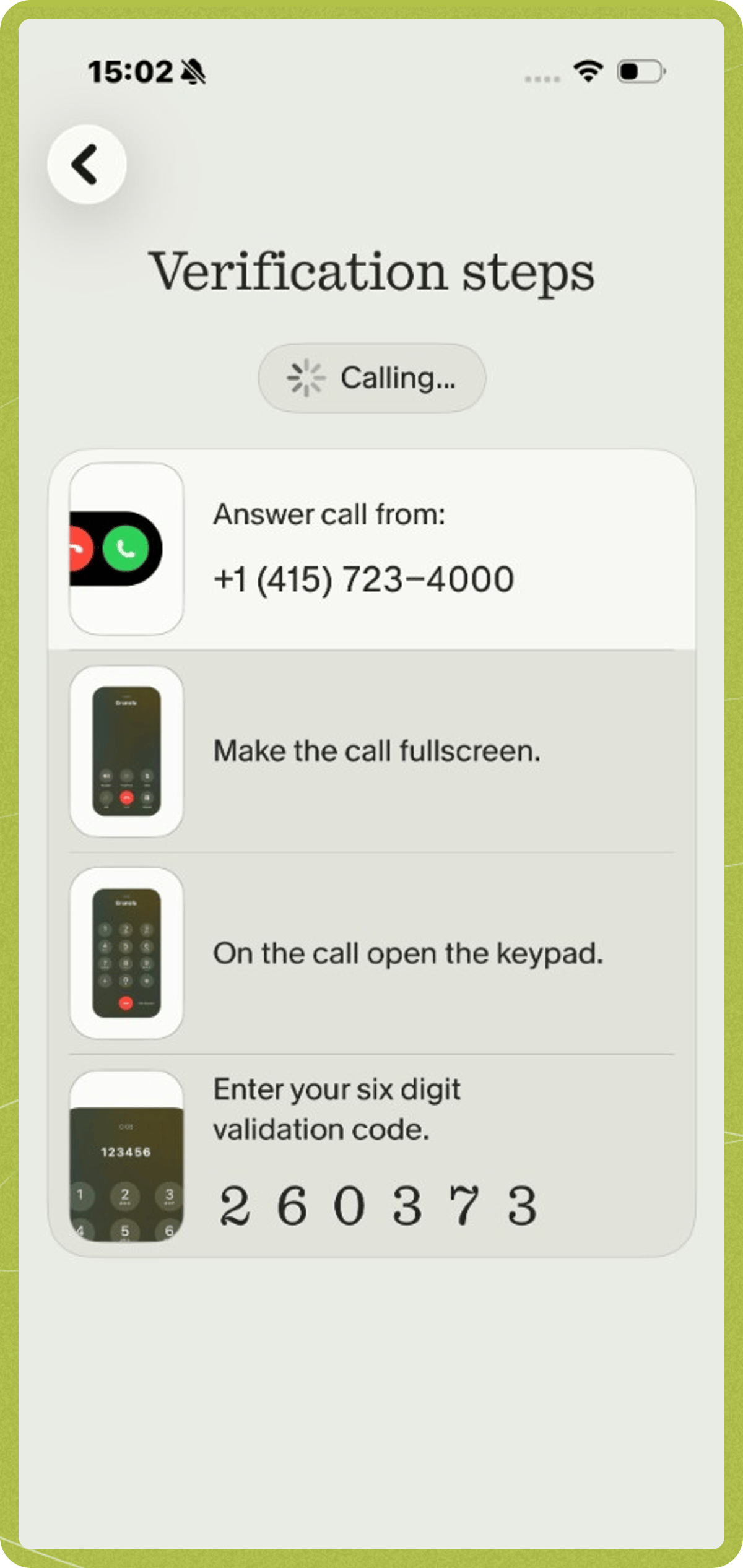
How to use
Make an outbound call by either selecting one of your contacts, or by entering in their phone number. The person you’re calling will see your own phone number (the one you registered during setup) as the caller ID. End the call as usual, and wait a few minutes for the summarized notes to generate. You don’t need to stay on this screen, and we can notify you when the notes are complete.Updating contacts
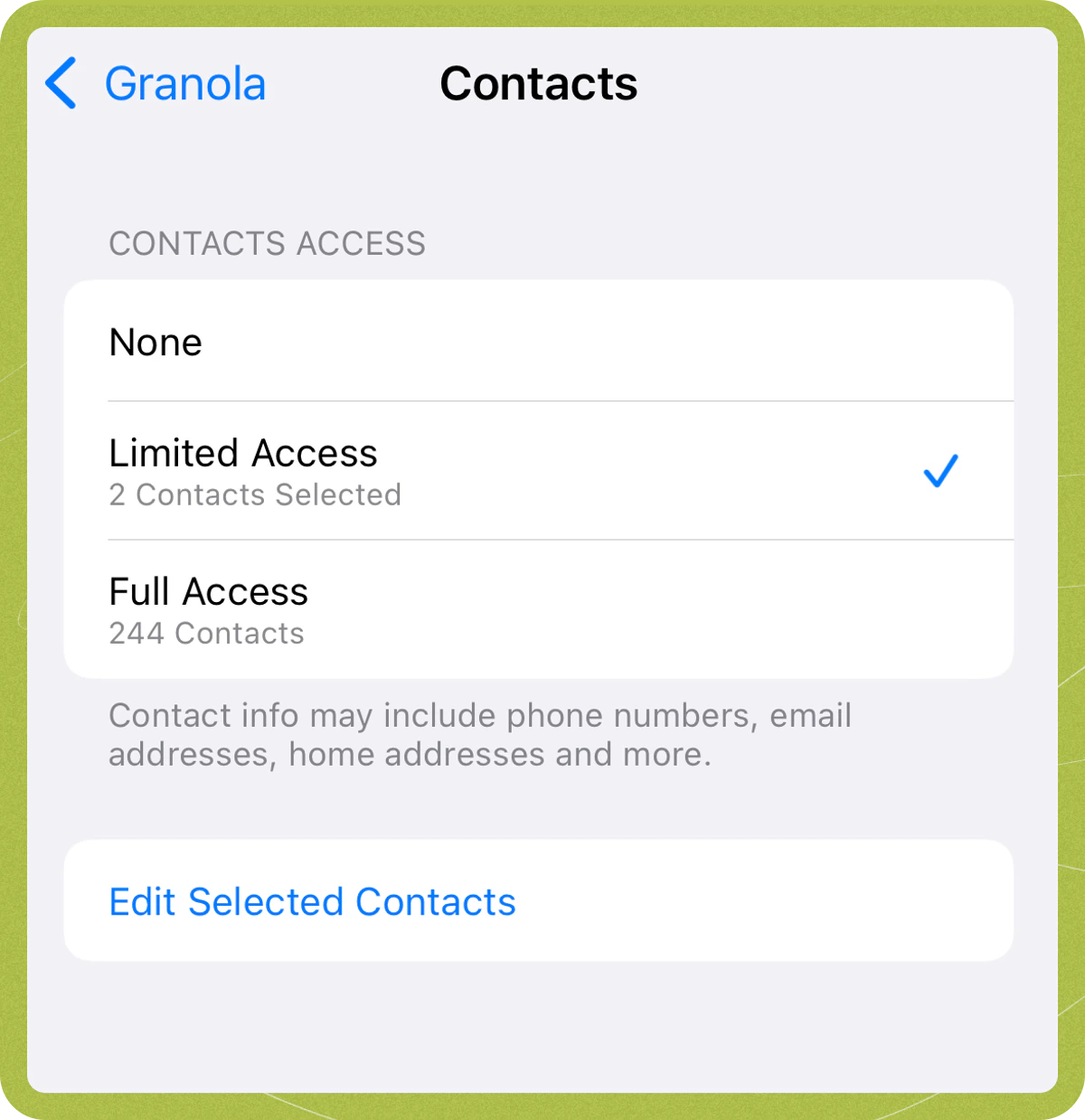
If you’d like to use Granola to call your existing contacts, you’ll need to grant access to the contacts as part of the onboarding process. If you skipped this stage during onboarding, here’s how to import them later:- Go to Settings on your iOS device
- Select Granola
- Update Contacts: Limited Access or Full Access If you want to update your limited access, you can click ‘edit selected contacts’
Inbound calls
Unfortunately due to strict limitations in iOS, Granola can’t transcribe inbound calls at the moment. The best workaround currently is to ask the person calling you if you can quickly call them back!Availability
Phone calls are currently available in the following countries: Americas- United States
- Canada
- Mexico
- Argentina
- Brazil
- Chile
- Colombia
- Venezuela
- Costa Rica
- Puerto Rico
- United Kingdom
- Ireland
- France
- Germany
- Spain
- Italy
- Netherlands
- Belgium
- Austria
- Switzerland
- Portugal
- Poland
- Czech Republic
- Hungary
- Romania
- Greece
- Sweden
- Denmark
- Iceland
- Luxembourg
- Australia
- New Zealand
- Japan
- South Korea
- China
- Hong Kong
- Singapore
- India
- Malaysia
- South Africa
Troubleshooting
If you’re having trouble receiving verification calls, it might be due to your phone’s spam settings. This guide will help you adjust those settings to ensure you receive important calls.Adjust your spam settings
Adjust your spam settings
1. Check carrier-level spam filtering
- Check if your carrier offers spam-filtering settings and whether you can disable it or allow-list specific numbers.
- Add the verification number (e.g., 415-723-4000) to the allow-list if possible.
2. Adjust iOS spam settings
- Go to Settings on your iOS device.
- Select Phone and then Call Blocking & Identification.
- Turn off any spam filtering apps or settings that might be blocking calls.
- Add the verification number to your contacts to ensure it is recognized.
Multiple Granola accounts
Multiple Granola accounts
You can only register your phone number to a single Granola account at one time. If you’d like to use phone calls on another Granola account, you’ll have to remove it from Granola first by going to Granola settings > Phone Calls > Delete Phone Number.If you no longer have access to the account where your phone number is registered (for example, after leaving a company), please email us at hey@granola.so.