

Transcribing policies are available on the Enterprise plan only.
Create or change a policy
- In the web admin portal, select the workspace you want to manage, then open Settings > Transparency > Transcribing policies.
- Select Add new transcribing policy, or Edit on an existing policy.
- Choose When the policy applies, then what happens under Then.
- Optionally change the message under Message members see.
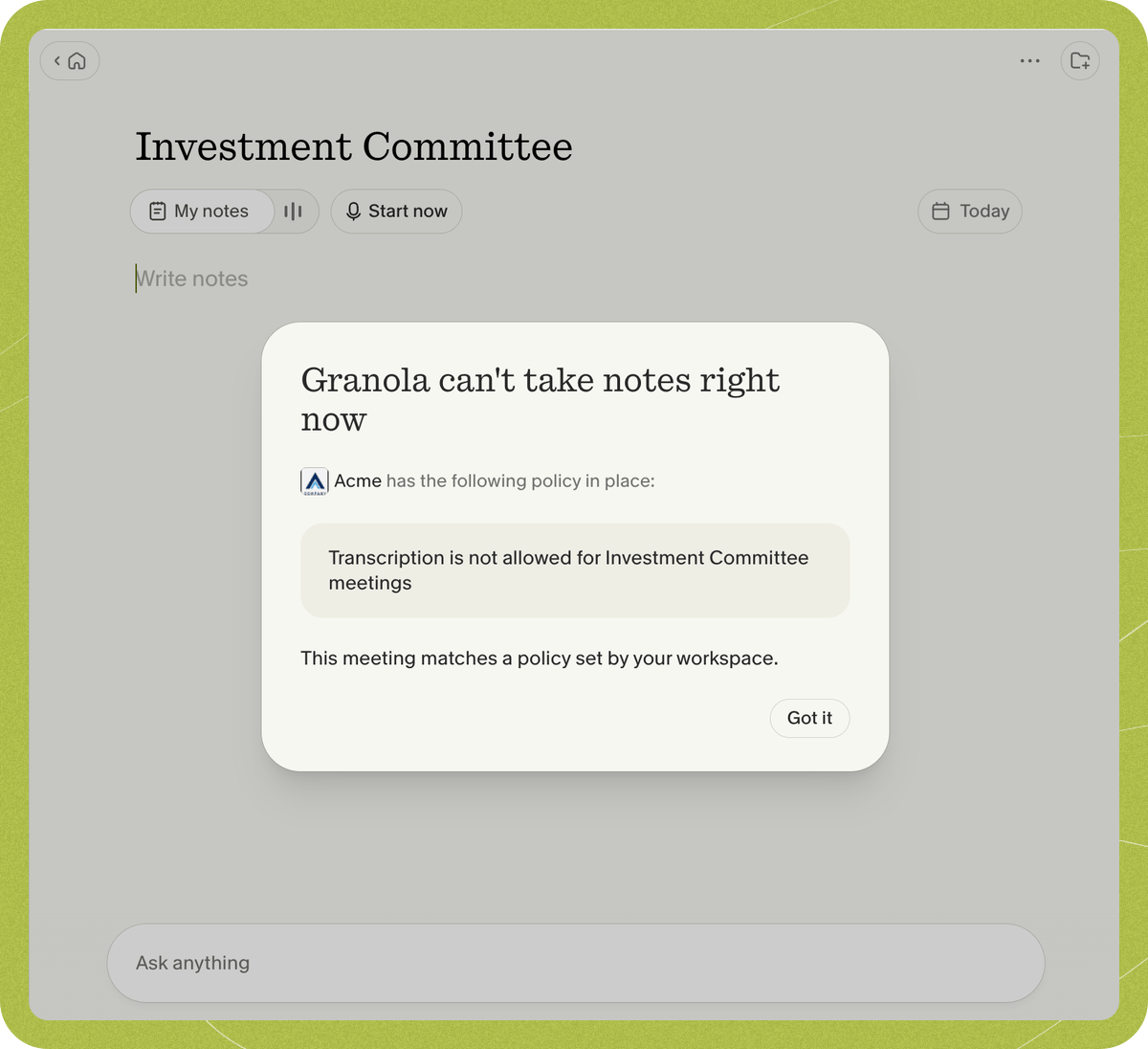
- Select See a preview to see the message and buttons members will see, then Back to setup to keep editing. Preview buttons do not start transcription.
- Select Apply.
- Select Apply changes to save the policy for everyone in the workspace, or Back to return to the policy and keep editing.
Choose what happens
If several policies match, a policy that prevents transcription takes priority. Other matching policies can appear together in a single confirmation or warning. A preview shows one policy on its own.
Choose when a policy applies
Your company’s internal domains include the workspace domain, any additional internal domains registered for it, and domains approved for link sharing. Invitees from any of these domains count as internal. Policies about who is invited ignore declined invitees, room resources, known bots and the member taking notes.
If a note isn’t attached to a calendar event, calendar-based policies can still match an invited meeting currently in progress. Members see wording explaining that the match came from their calendar.
Limitations of people and group policies
Policies about who is invited use the calendar invite, which may differ from who actually joins a call. They are not a live attendance check. The in-person policy is the exception: it checks for an active meeting app instead of the invite. Policies for specific people and a workspace group can miss meetings in two common situations, described below. We’re working on improving both. If you’re planning to use these policies, contact us to discuss your needs and we’ll help you set them up for your organization.People invited through a mailing list
A specific people policy matches the email addresses on the invite. If someone is invited through a mailing list or group address, such asteam@example.com or leadership@example.com, their own address isn’t on the invite. So if you add alex@example.com to a policy, it matches when Alex is invited directly, but may not match when only leadership@example.com is invited.
To cover meetings sent to a list, add the list’s address to the policy as well. The policy then applies to every meeting that list is invited to.
Groups that only exist in your identity provider
A group policy matches people in the Granola user groups you select. Granola only knows about groups in your workspace, either created under Members or synced from your identity provider with directory sync (SCIM). It can’t see groups that exist only in your identity provider or HR system, such as a Legal team in your org chart. A group policy also only matches people who are members of your Granola workspace. If you want to block meetings with people who don’t use Granola, such as your whole Legal team:- Add their email addresses to a specific people policy instead, along with any mailing lists they use.
- Or add them to your workspace and to the group, for example by syncing the group with directory sync. Each person then takes a seat in your workspace.
Customize the message
The message box starts with Granola’s default wording for the condition and action you chose. Edit it to write your own, up to 515 characters including Markdown characters, or clear it to go back to the default. The message supports:**bold**and*italic*[link text](https://example.com)and automatically linked plain URLs- Bullet lists using
-and numbered lists using1.
[Company policy](https://example.com/policy).