

What you can import
Import the meeting’s full transcript, not its summary, recording or video. Each transcript file can be up to 1 MB.
Only meetings that were transcribed at the time can be imported. Turning on transcription in the other tool now won’t create transcripts for old meetings.
Before you start
- Connect Granola to your assistant. Follow How to connect in the Granola MCP guide. Sign in with the Granola account and workspace you want the notes in.
- Use an assistant that can run code and read files on your computer, such as Claude Code, Claude Desktop or ChatGPT. In Claude Desktop, allow Claude to access your files and run code.
- On Enterprise, your admin must turn on the Read transcripts and Edit notes MCP permissions.
Start an import
- Start a new chat in your assistant with Granola turned on.
- Ask it to import your meetings, naming the tool they’re in. For example:
- Help me import my past meetings from Otter into Granola.
- Import my Gong calls from October into Granola.
- Follow its lead. Your assistant will:
- Ask whether you want all your meetings or a date range.
- Walk you through any export steps, and ask where the files are saved.
- Ask for each meeting’s title and start time if the export doesn’t include them. It won’t guess a date.
- Your assistant uploads each transcript to Granola, then tells you how many meetings were imported, are still processing, or failed.
If your assistant can’t run code
If your assistant can’t run code, or its network blocks the upload, import the meetings from the Granola desktop app instead:- Many meetings: attach your export to a chat with an assistant that can run code on attachments. It converts the export into a file named
granola-import.jsonl. Upload it in Settings > Import meeting history > Upload an import file. That page has a request you can copy into your assistant. - One transcript: paste it or choose its file in Settings > Import meeting history > Import a transcript.
What each meeting can include
Your assistant writes these fields for each meeting in an import file. When it uploads files directly, it sends the title and start time, plus attendees and the calendar event when it knows them.
Two things to watch:
- Attendees are never guessed. Your assistant only adds people whose email address it has from the export or your calendar. It won’t make up an address from a speaker’s name, so attendees without one are left off.
- A calendar event is optional, but a wrong one fails the meeting. Meetings import fine without one. If your assistant does add one, it must be in a calendar synced to Granola, and for a recurring meeting it must be that day’s occurrence, not the series. If Granola can’t find the event, that meeting isn’t imported, so your assistant should leave it out rather than guess.
Limits
- Size: up to 1 MB per transcript file, or 200,000 characters per transcript in an import file or pasted into Granola.
- Daily limit: 50 new imports in a rolling 24 hours on Basic (Free), and 500 on paid plans. The limit applies across all your workspaces. Retrying an import doesn’t count again.
- Summaries take time: Granola writes summaries in the background. For a large import, the last summaries can take a few hours. The transcripts are available straight away.
What you get
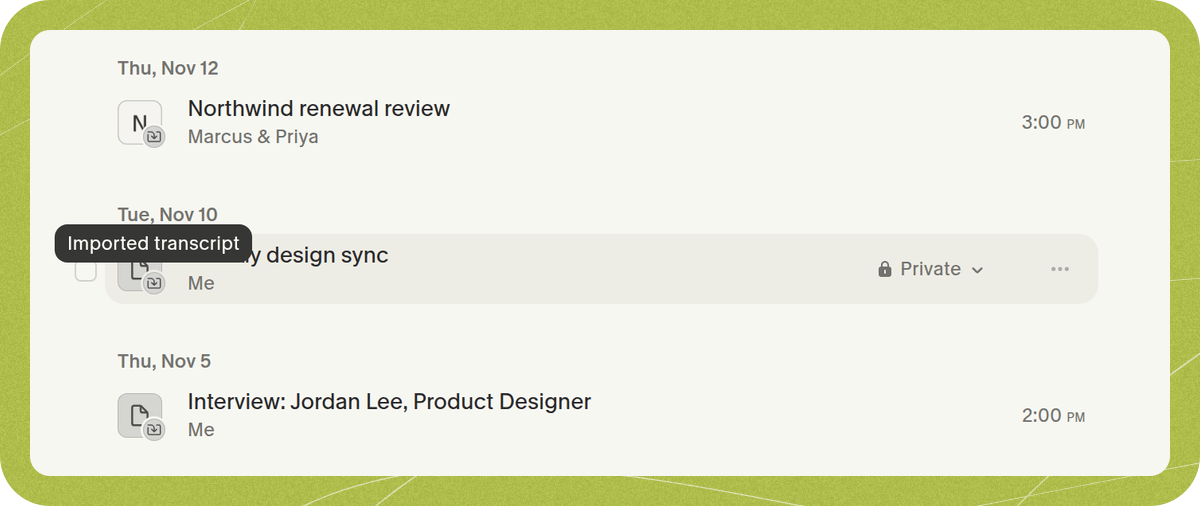
Each imported meeting becomes a note in your active workspace:- Private: only you can see it, and it has no share link. Share it or add it to a folder like any other note.
- Dated to the meeting: it appears in your notes list on the day the meeting took place, not the day you imported it.
- Marked as imported: a small badge on the note’s icon. Hover it to see where the note came from, such as Imported from Otter.
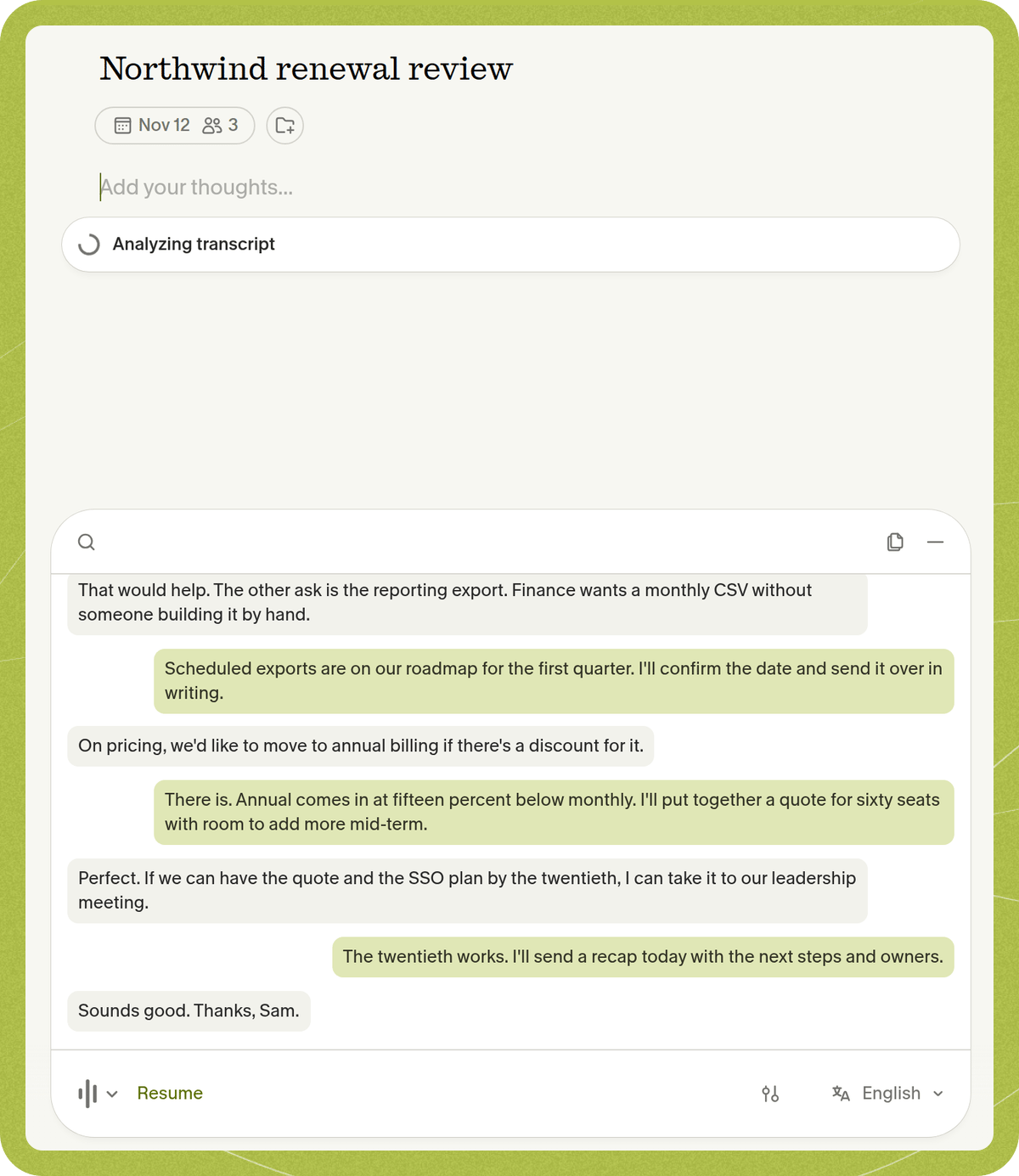
- Import files, pasted transcripts and Zoom: split into separate lines by speaker and time.
- Gong, Otter, Fathom, Google Meet, Notion and Wispr Flow: kept as one block of text, with the original speaker names, and timestamps when the export has them, inside it.