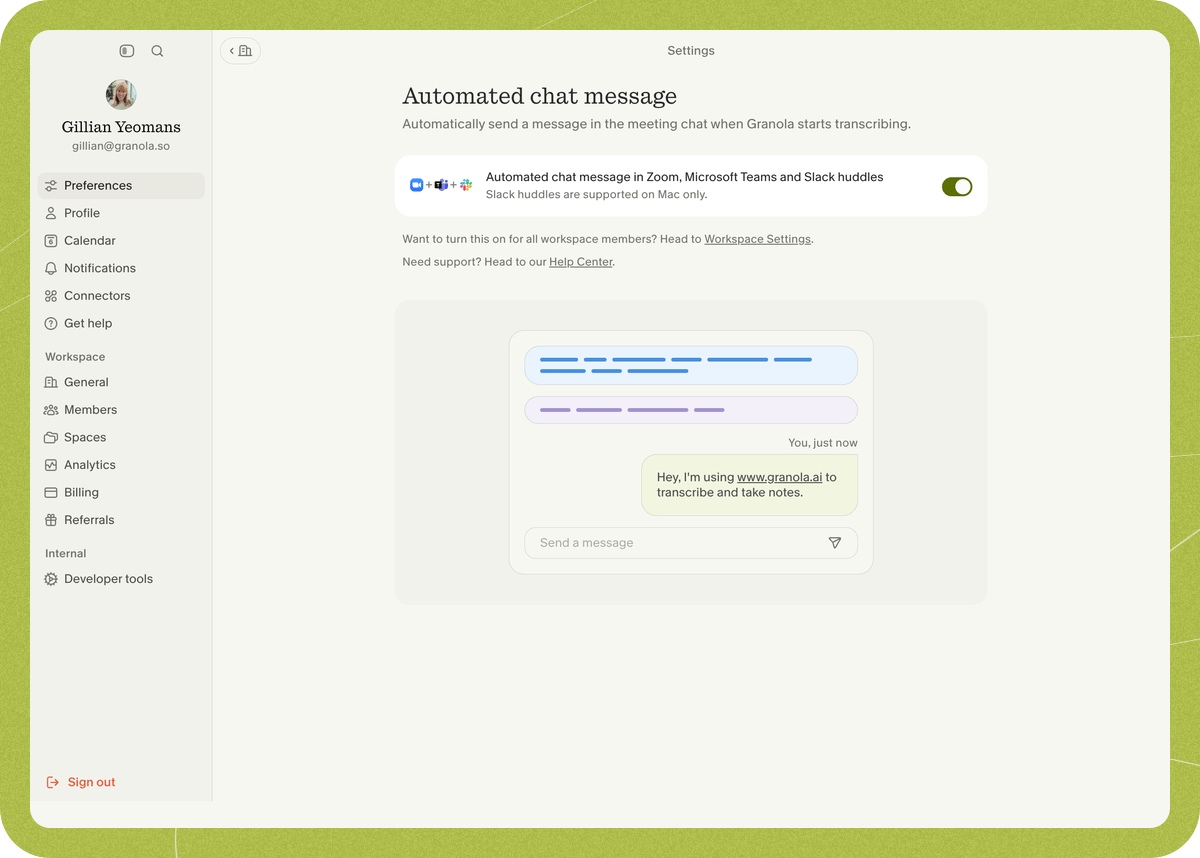

Windows setup
- Click your workspace name in the bottom-left corner, then select Settings. Open Settings > Preferences > Transparency > Automated chat message.
-
Find Automated chat message in Zoom, Microsoft Teams and Slack huddles and turn on the toggle switch.
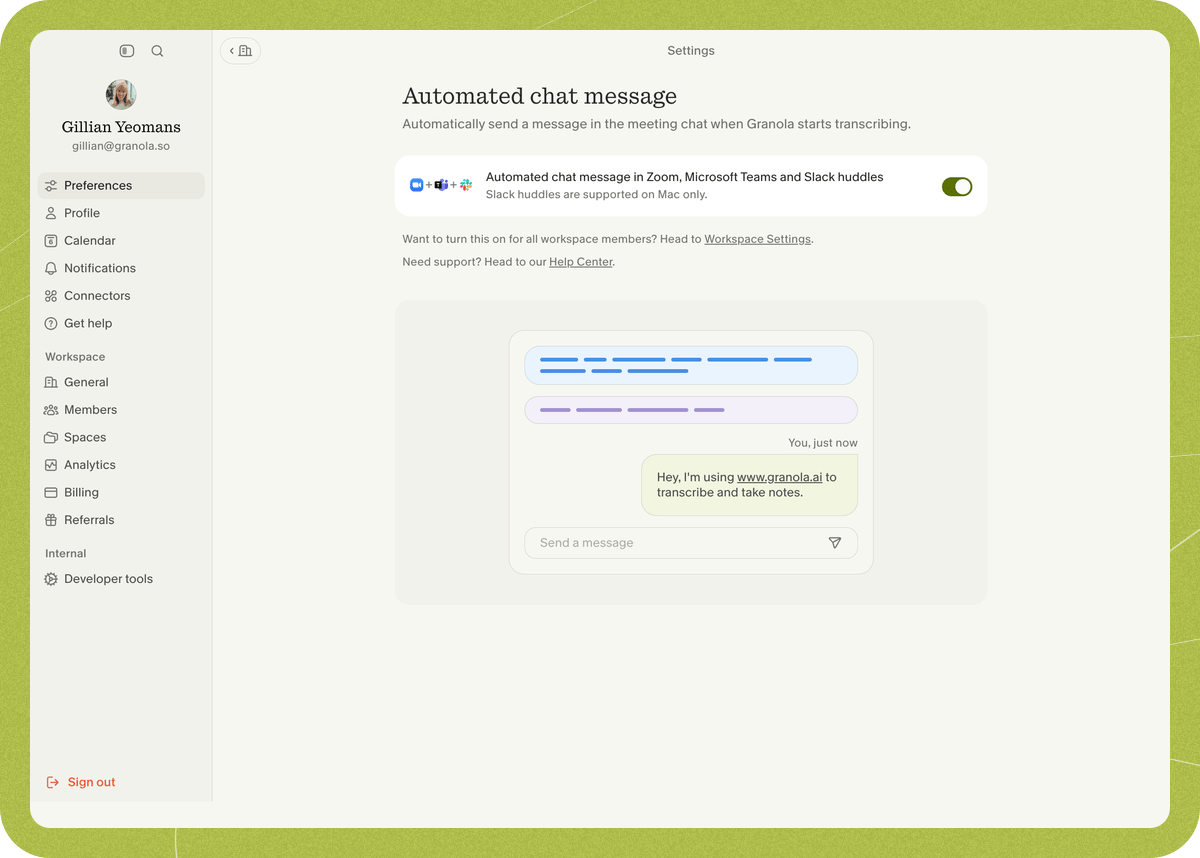
macOS setup
On Mac, there are two steps: turn on the setting and then grant the Accessibility permission.Step 1 — Enable the Zoom, Microsoft Teams and Slack huddles chat feature
-
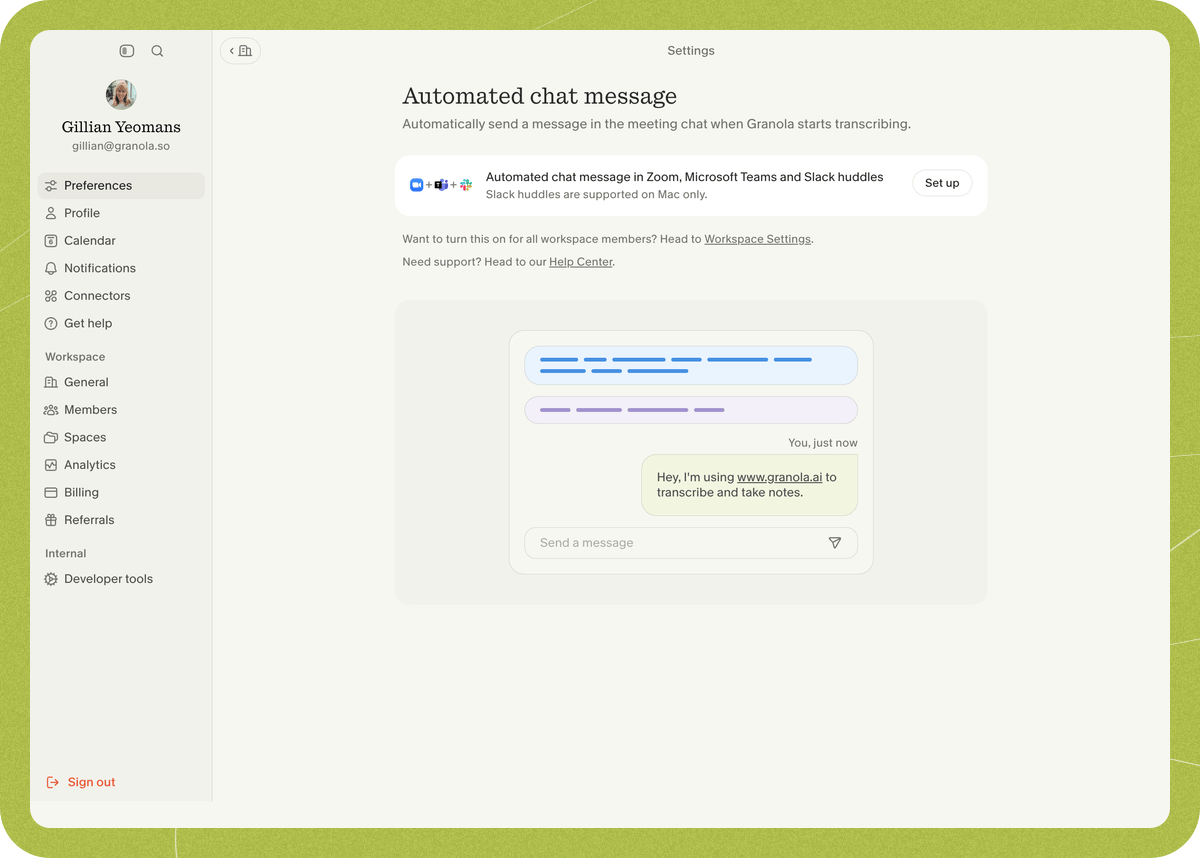
Open Settings > Preferences > Transparency > Automated chat message, find Automated chat message in Zoom, Microsoft Teams and Slack huddles, and click Set up.
-
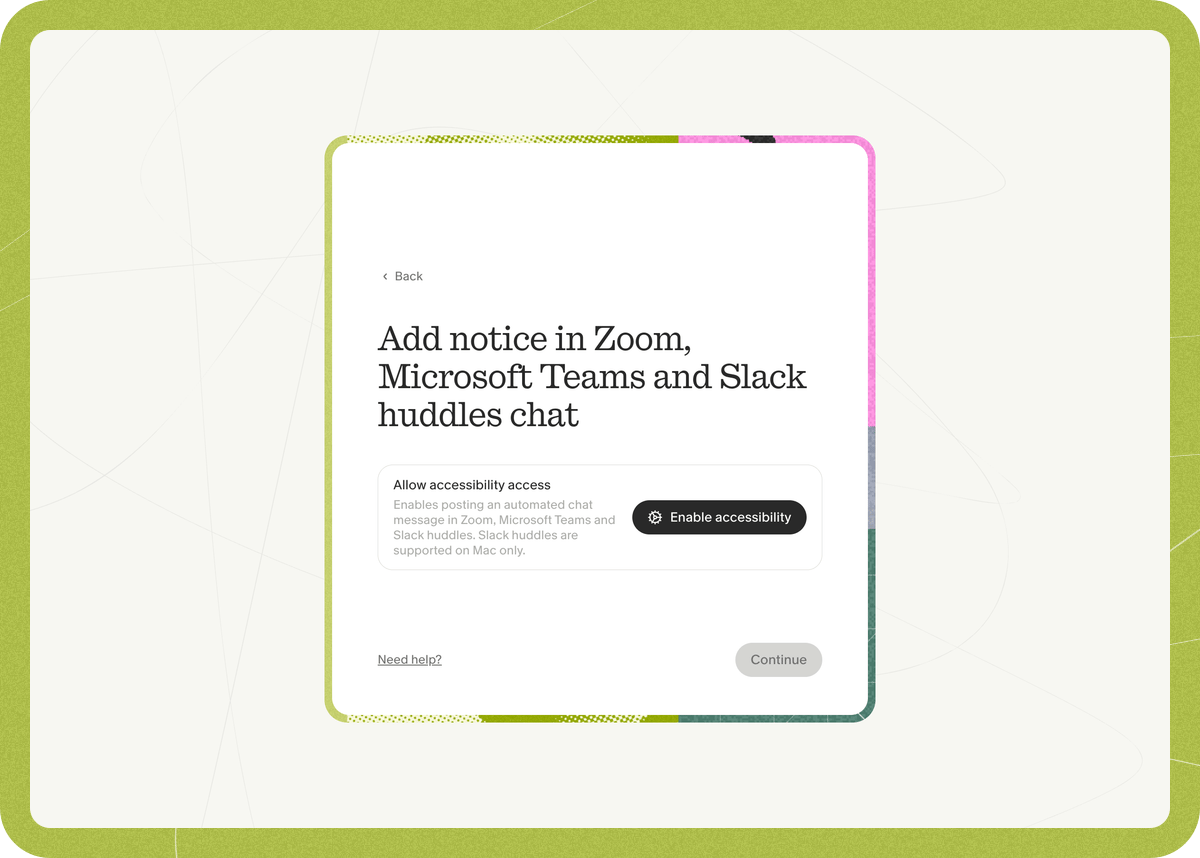
In the setup window, click Enable accessibility.
Step 2 — Grant Accessibility permission
-
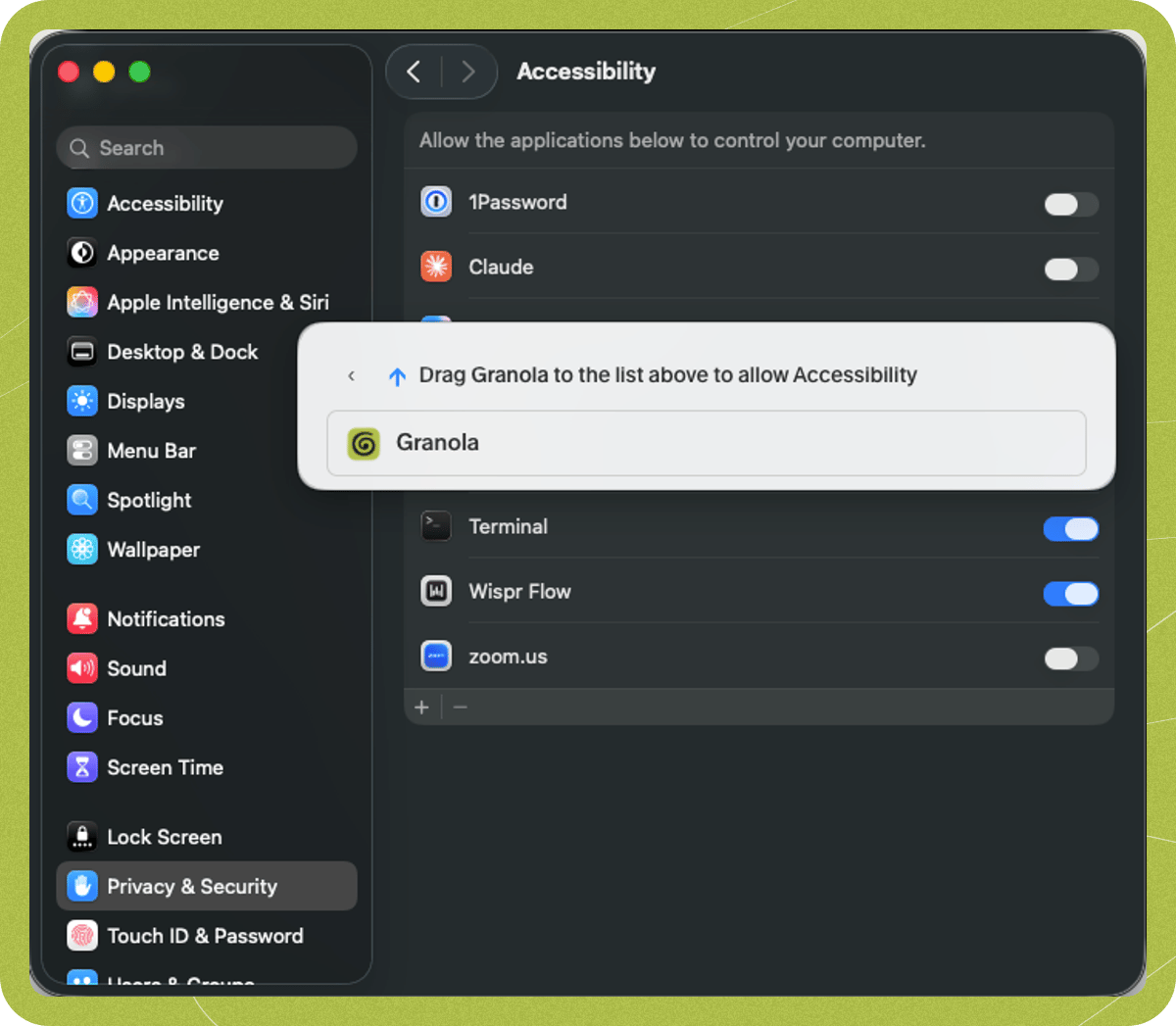
macOS opens System Settings > Privacy & Security > Accessibility. Enable (or drag in) Granola and confirm. macOS asks to let Granola “control your computer” — this is required so Granola can send the message in the meeting chat.
-
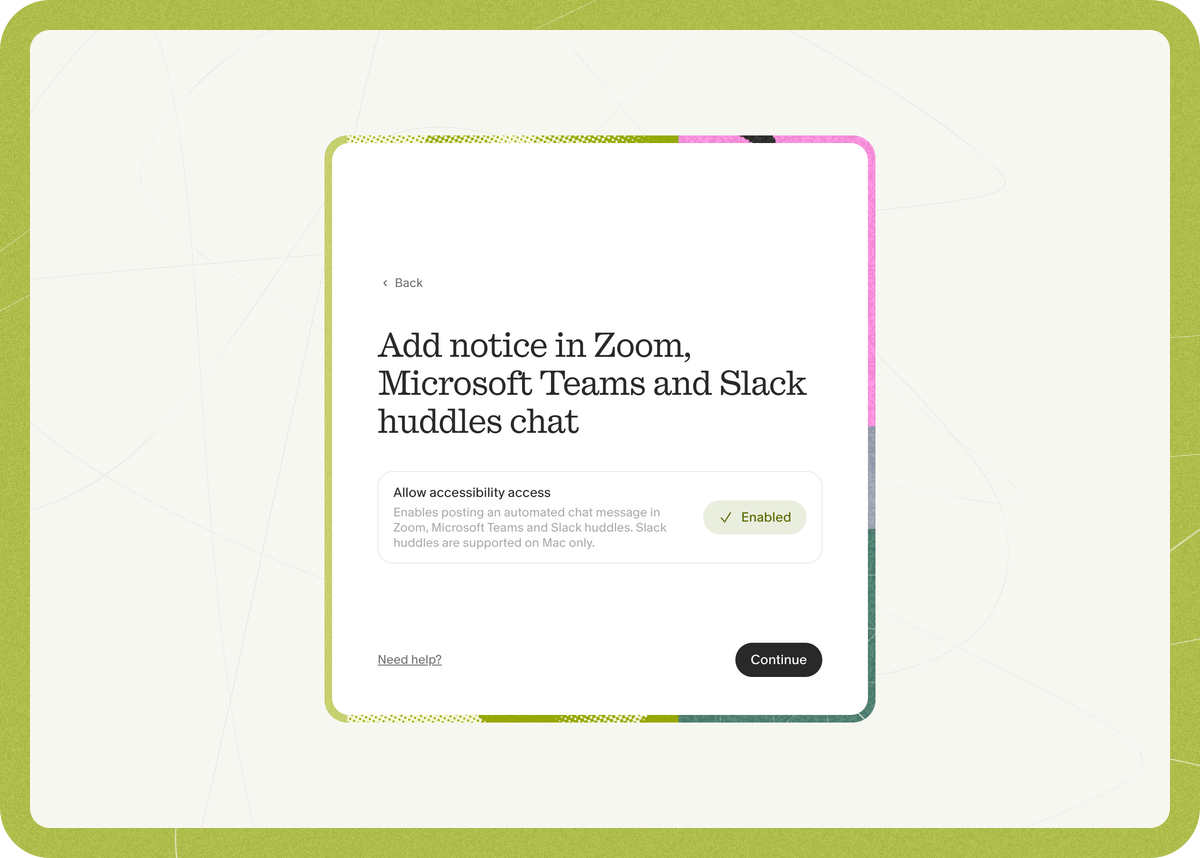
Back in Granola, the setup shows Enabled — click Continue.
-
Automated chat message in Zoom, Microsoft Teams and Slack huddles is now on.