

This guide is for Enterprise plan admins who want to enforce transparency features for everyone in their workspace. On a Free or Business plan? See user guide to set it up just for yourself.
1. Allow accessibility permission (Mac devices)
There’s no need for this on Windows. On macOS, this requires Accessibility permission so Granola can send the message in the meeting chat. It can be granted via MDM or individually.Auto-grant via MDM
Accessibility for Granola can be pre-granted on managed devices so end users never see the macOS permission prompt. The grant is delivered as a Privacy Preferences Policy Control (PPPC) profile pre-approving Granola (team IDQZ7DHHLN25, bundle ID com.granola.app) for the Accessibility service. Below is an example .mobileconfig you can use directly, or adapt as a starting point.
allow-granola-accessibility.mobileconfig
allow-granola-accessibility.mobileconfig
- Open System Settings > Privacy & Security > Accessibility.
- Enable Granola.
2. Enable the automated chat message for your workspace
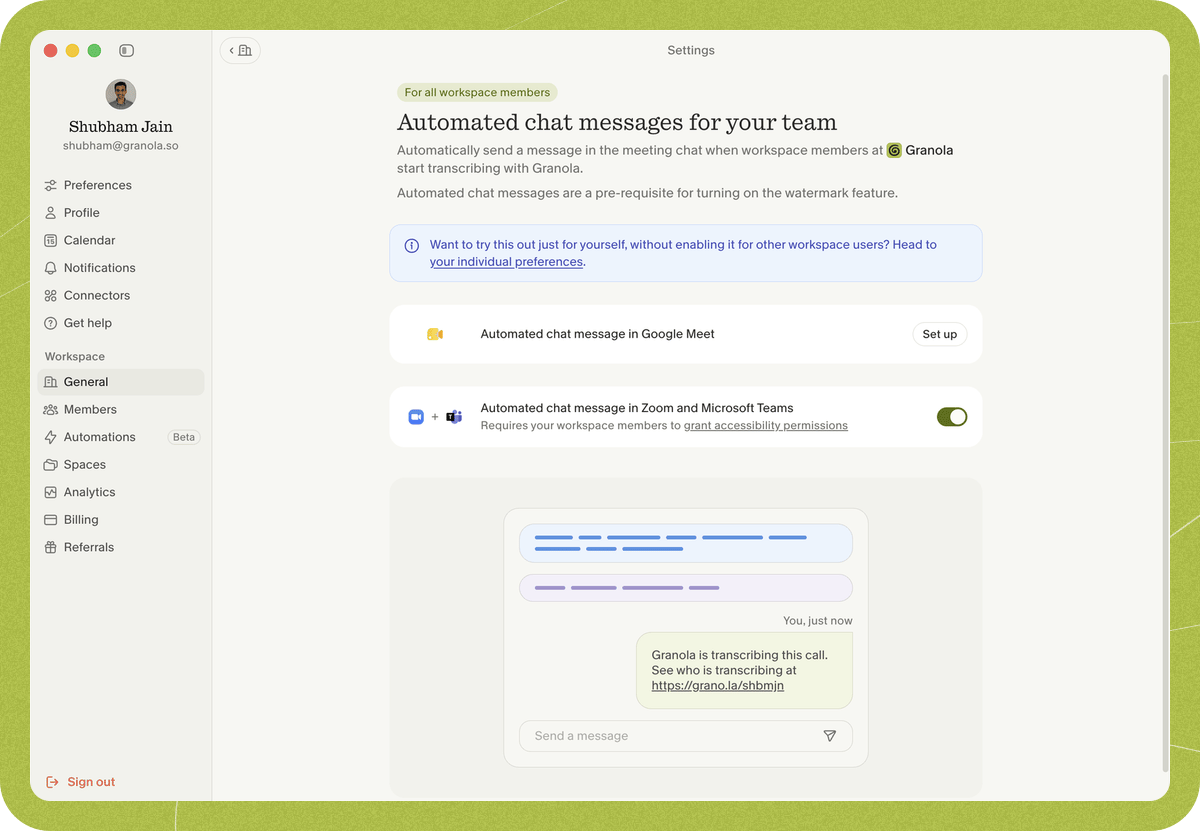
- Open Settings > Workspace > General > Transparency > Automated chat messages for your team.
- Find Automated chat message in Zoom and Microsoft Teams and click Set up.
- Complete the setup, then click Enable for all workspace users.
FAQs
How often is the message sent?
How often is the message sent?
The automated chat message is sent once per meeting, however many people from your workspace are using Granola. It usually appears one to two minutes after the meeting starts. If someone joins a few minutes late, Granola sends a reminder in the chat, unless Zoom is already recording.
Can workspace members turn this off?
Can workspace members turn this off?
No. When an admin enables the automated chat message for the workspace, workspace members can’t disable it. On macOS it needs Accessibility permission, so a member who hasn’t granted it won’t send the message.
Does this work for other video conferencing apps?
Does this work for other video conferencing apps?
Yes. Granola can also post the automated chat message in Google Meet.
The message isn't sending right at the start of a meeting
The message isn't sending right at the start of a meeting
The automated chat message is sent once transcription has started (so another person is definitely present) and the Zoom or Microsoft Teams window is in focus (you’ve clicked on it). It may appear slightly later into the call if little is said at the start or if you’re focused on another window.
I see confetti when entering meetings
I see confetti when entering meetings
If you have Loom running while you’re on Granola, disable its confetti keyboard shortcut: open the Loom widget, click the three dots to open settings, and in preferences disable the keyboard shortcut for confetti.
I still need help
I still need help
Contact us at hey@granola.so and we’ll be happy to help.