

This guide is for Enterprise plan admins who want to enforce transparency features for everyone in their workspace. On a Free or Business plan? See user guide to set it up just for yourself.
Comparing the two options
Automated chat message
Granola posts a message in your meeting chat when it starts transcribing to let everyone know. It’s quick, automatic, and visible without interrupting the flow of conversation. On Google Meet, the message is pinned when the meeting’s chat settings allow it.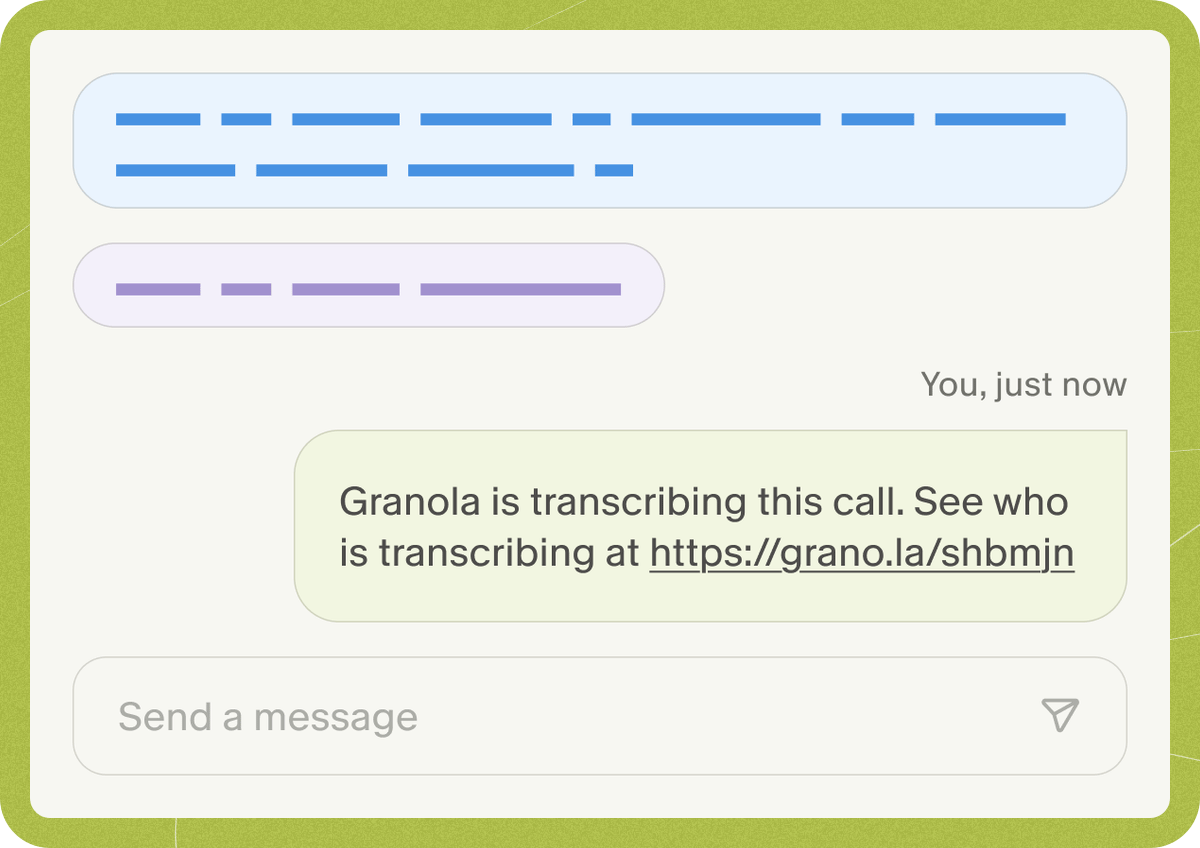
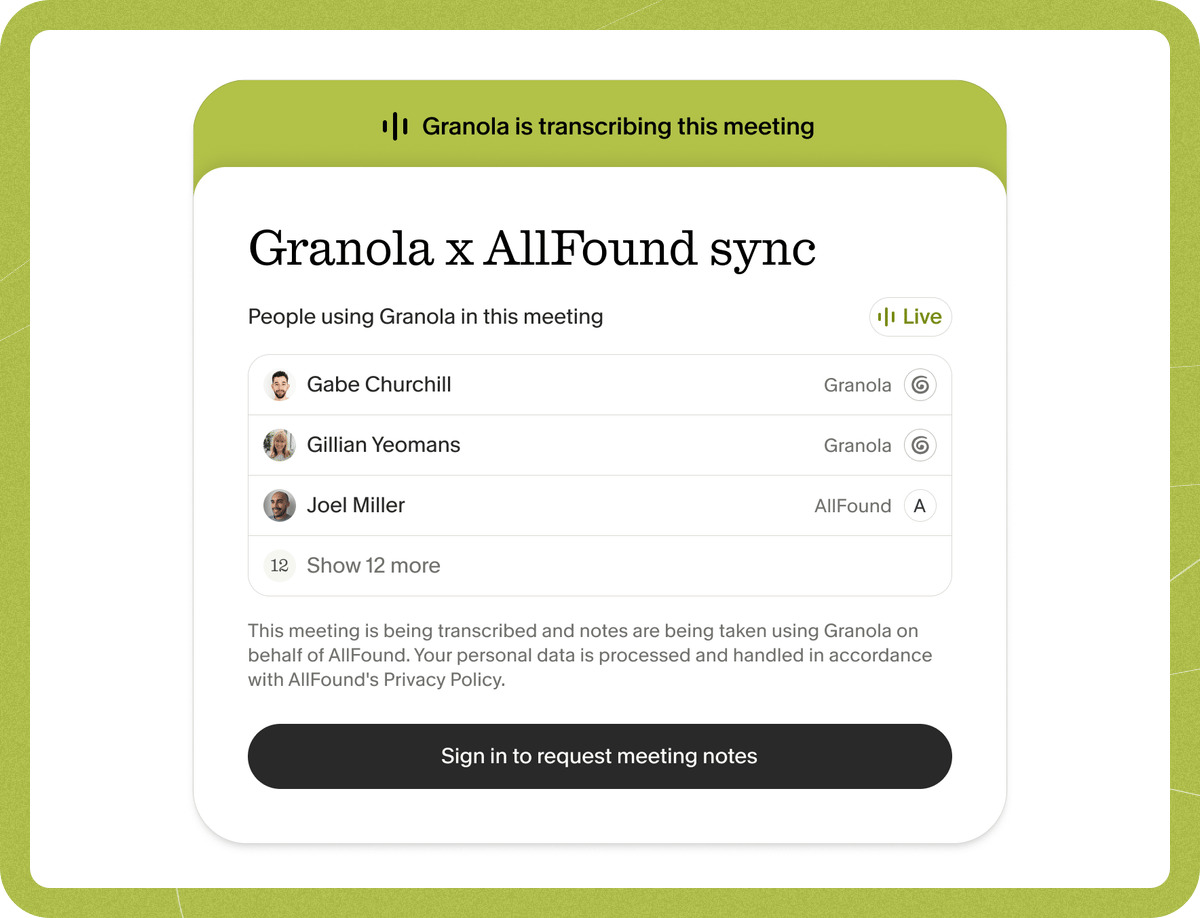
- Google Meet — delivered by the Granola Chrome extension. Works on macOS and Windows. Requires Google Chrome or a supported Chromium based browser (Edge, Arc, Brave).
- Zoom and Microsoft Teams — Granola sends the message in the meeting chat. Workspace admins can enforce this for the whole team on macOS and Windows. On macOS, this requires Accessibility permission, which can be granted via MDM or individually.
Set up for Google Meet
Install the Chrome extension, allow pinning, and enable the automated chat message.
Set up for Zoom and Microsoft Teams
Enable the automated chat message for your workspace.
Granola Watermark
Adds a visible indicator (the “watermark” badge) to your video so other participants can see that Granola is transcribing. It works with any video app that lets you choose a camera source — Google Meet, Zoom, Microsoft Teams, and others — on both macOS and Windows. The watermark only appears while Granola is actively transcribing and disappears when you stop. Before workspace watermark setup can be enabled, you must first enable at least one automated chat message option (Google Meet, Zoom, or Microsoft Teams). This ensures Granola can still keep transcription compliant if a user later turns their camera off in the same meeting.Set up Granola Watermark
Enable it for your workspace, then install the Granola camera on each device.