

This guide is for Enterprise plan admins who want to enforce transparency features for everyone in their workspace. On a Free or Business plan? See user guide to set it up just for yourself.
In Settings > Workspace > General > Transparency > Granola Watermark for your team, if you see a Contact us button (as below), it isn’t enabled for your workspace yet. Email hey@granola.so if you’d like us to turn it on. In the meantime, you can try the watermark for yourself through individual settings.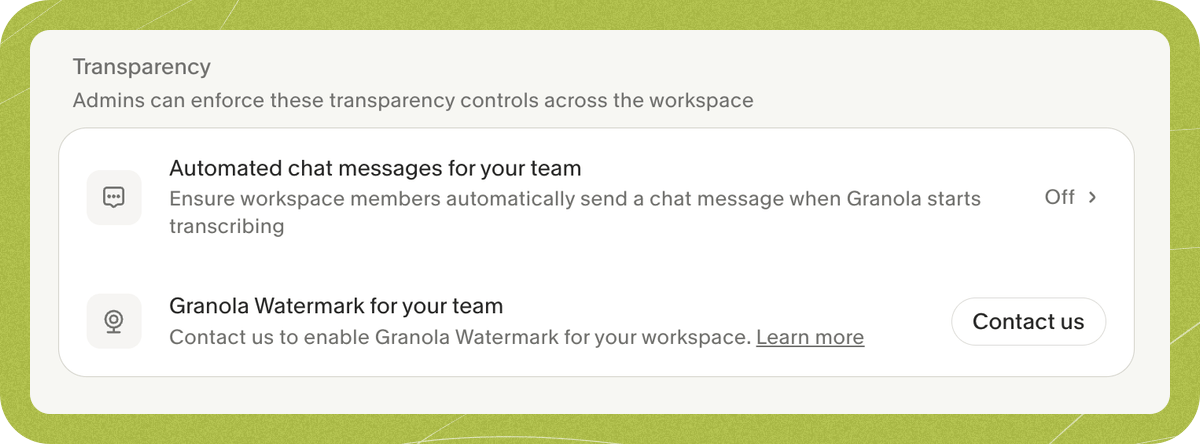
Granola Watermark is available on macOS 14.0+ and Windows 11.
1. Enable at least one automated chat message option (required)
Before you can start watermark setup, your workspace must have at least one automated chat message option enabled:This prerequisite exists because if a user turns their camera off mid-call, Granola can continue transcribing only after transparency has already been established in that meeting — either an automated chat message was sent, or the user had already shown Granola Watermark earlier in the same call.
2. Enable for your workspace (admin)
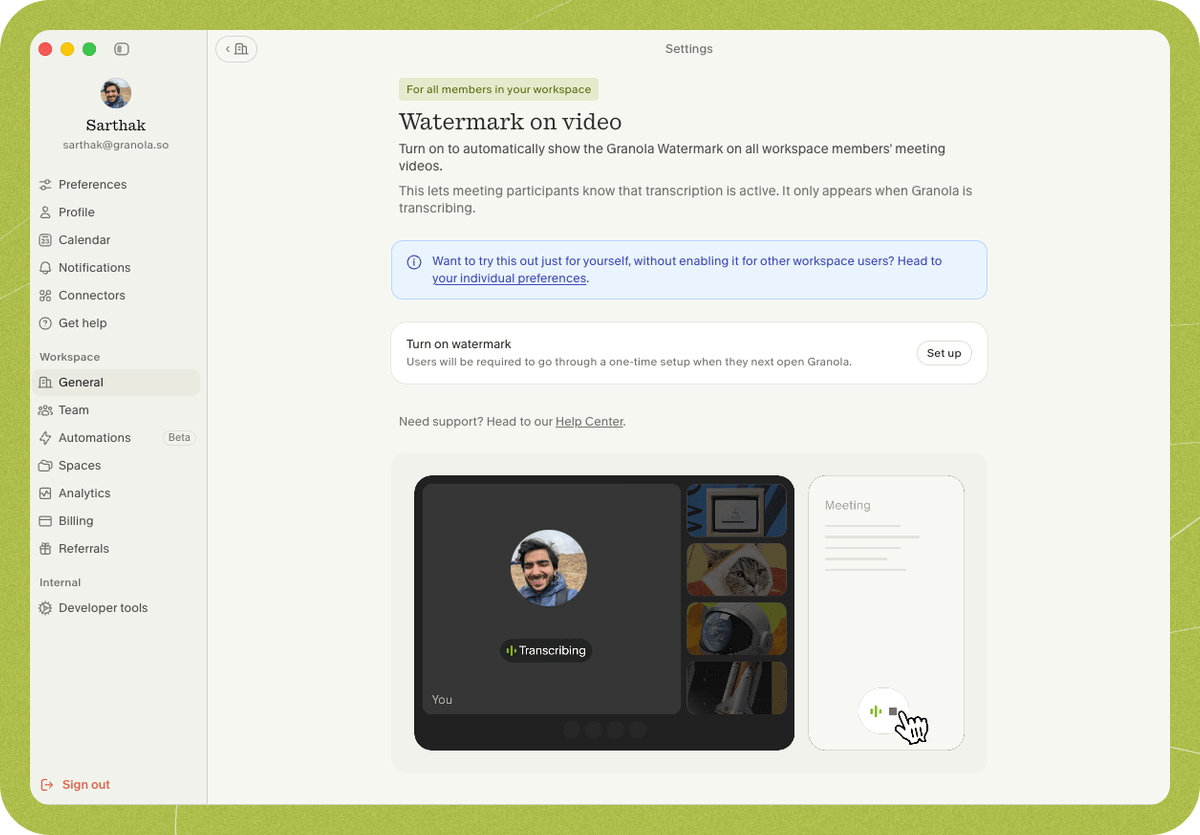
- Open Settings > Workspace > General > Transparency > Granola Watermark for your team.
- Click Set up, complete the wizard, and click Enable for all users.
3. Install the Granola camera on each device
Workspace admins can use MDM to remove the admin/password prompts from the Granola camera setup flow.The steps below are a starting point. Exact deployment steps depend on your MDM tool. If you need help with a specific MDM, contact hey@granola.so.
- macOS
- Windows
The Granola camera is delivered as a system extension bundled inside Granola.app. To remove admin approval prompts, pre-approve the system extension (team ID
Once the profile is applied, workspace members don’t need admin permissions to install the Granola camera. They just complete a one-time setup flow in Granola.
QZ7DHHLN25, bundle ID com.granola.app.GranolaMacWebcam.Extension) with a com.apple.system-extension-policy configuration profile. Below is an example .mobileconfig you can use directly, or adapt as a starting point.allow-granola-webcam-system-extension.mobileconfig
allow-granola-webcam-system-extension.mobileconfig
What workspace members need to do
Workspace members complete a one-time setup flow on their device, then choose a Granola Watermark camera in their meeting app. When Granola Watermark is enabled for the workspace:- Workspace members can’t opt out from individual preferences.
- Granola may stop transcribing until the workspace member’s meeting app is using the Granola camera.
- They still need to select Granola Watermark in each meeting app they use. Most meeting apps remember this choice.
Communicate the rollout
Before enabling or requiring the watermark, tell workspace members:- Granola Watermark appears only while Granola is transcribing.
- It is available on macOS 14.0+ and Windows 11+.
- They need to complete a one-time setup flow in Granola.
- They need to choose a Granola Watermark camera in Zoom, Google Meet, Microsoft Teams, or any other meeting app they use.
- If the workspace requires the watermark, they won’t be able to turn it off from individual preferences.
- Granola may stop transcribing until they switch their meeting app to the Granola camera.
- If someone turns their camera off mid-call, Granola can continue only after transparency has already been established in that meeting (an automated chat message was sent, or Granola Watermark had already been shown earlier in the call).
Notes
Very occasionally, the watermark can be partially or fully off-screen for other participants because some meeting apps crop outgoing video to fit participant layouts. Ask users to apply these app-level settings where available:- Google Meet: In a meeting, hover the self-view tile, click More options, then choose Show my full video to others.
- Zoom: Original ratio in Video & effects. This often helps, but some participants may still see cropped framing depending on their Zoom layout/view settings.
- Microsoft Teams: No equivalent sender-side setting currently. Participants can use Fit to frame for their own view.