

This guide is for individuals who want to enable the notice just for themselves. Are you an Enterprise admin enforcing this for your whole workspace? See the admin guide.
Install the Granola browser extension
-
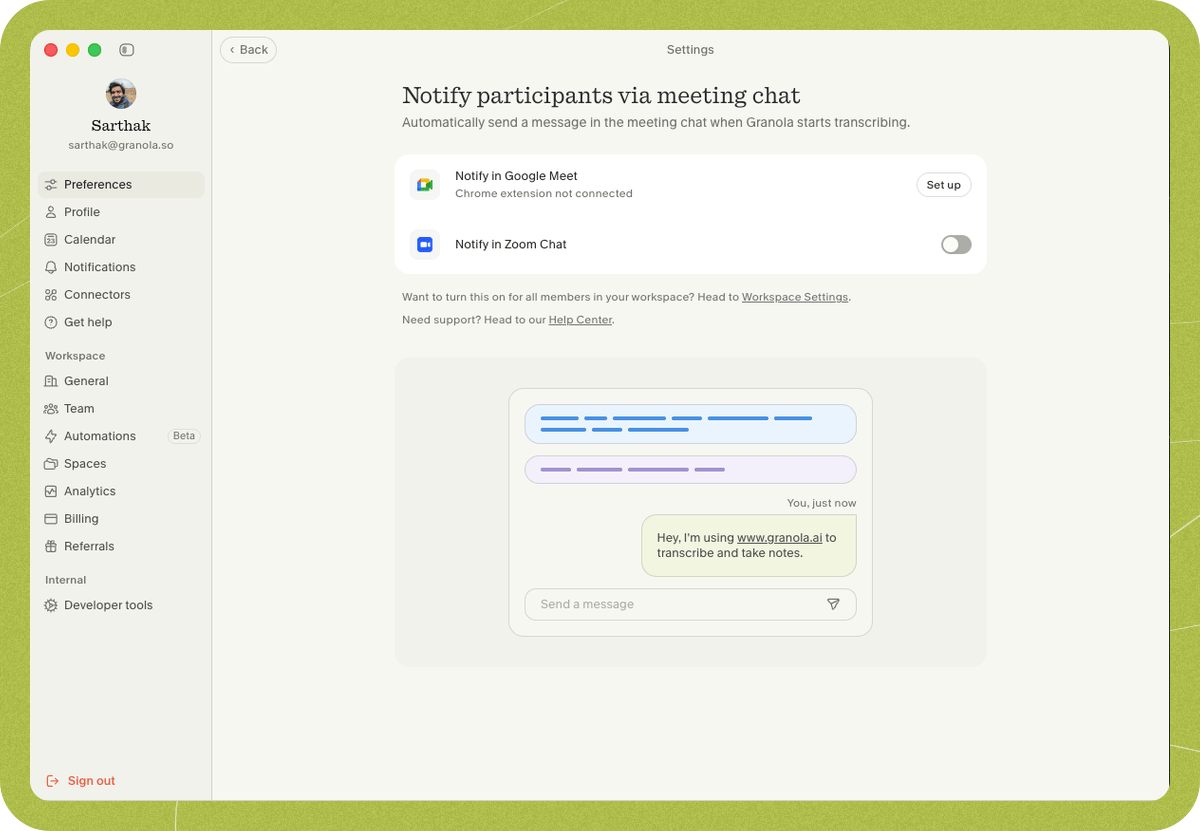
Open Settings > Preferences > Transparency > Automated chat message.
-
Find Automated chat message in Google Meet and click Set up.
-
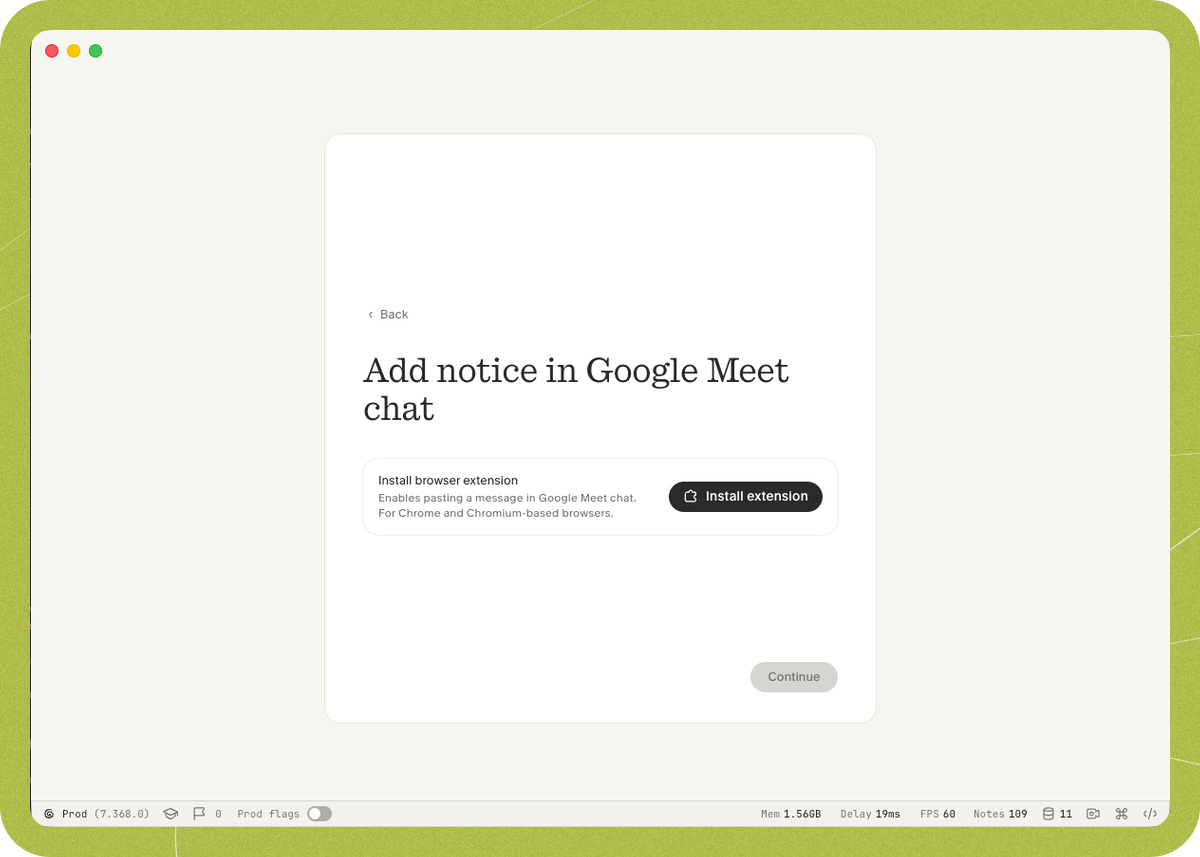
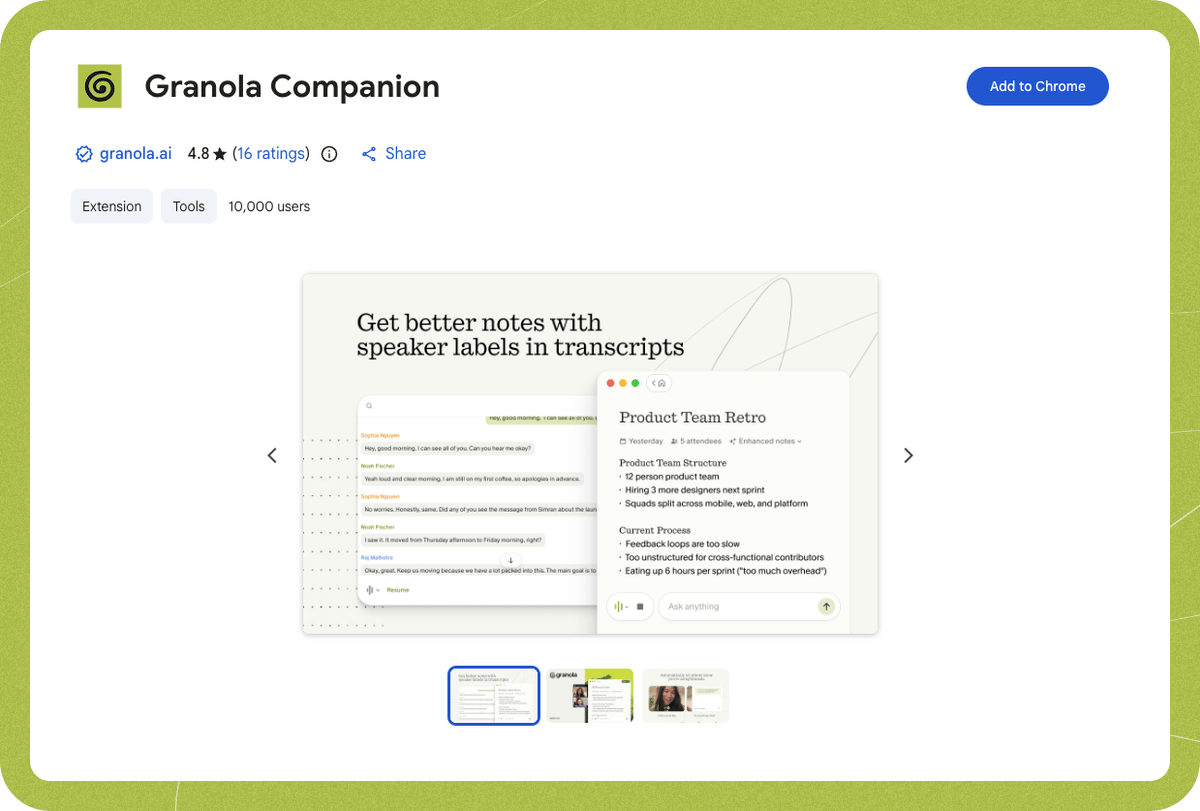
Click Install extension and add the Granola browser extension from the Chrome Web Store.
-
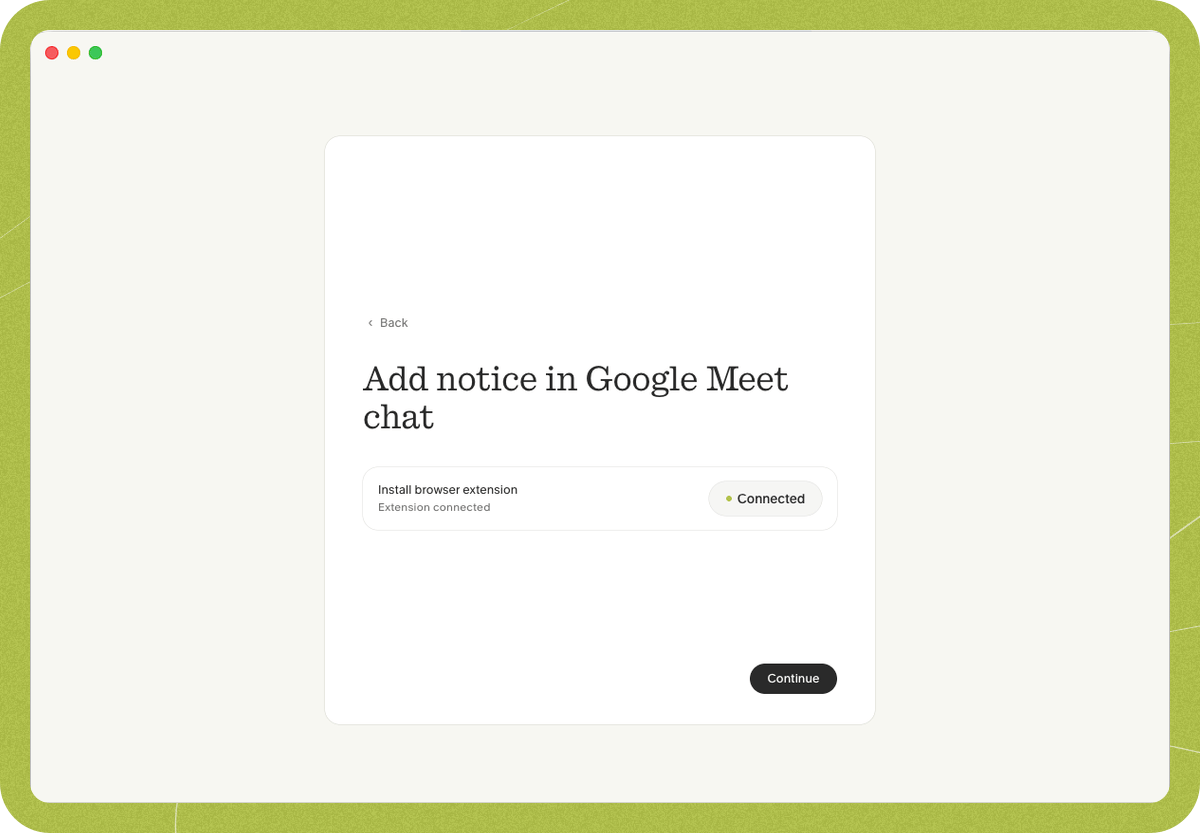
Return to Granola — once the extension shows Connected, click Continue to enable the feature.
Important to know
- The notice is sent after transcription starts and at least one other participant joins — it isn’t sent when you’re alone in the meeting.
- The notice is sent once per meeting — you won’t get duplicate messages if you briefly leave and rejoin.
- Late joiners on desktop see the pinned message. Late joiners on mobile, or external participants, may not see it depending on the meeting’s chat settings.
- For the notice, the extension only sends the message — it doesn’t access meeting audio, video, or transcripts. (If you also use Google Meet speaker tags, the extension reads active-speaker and participant-name data for that feature.)
- Requires Google Chrome or a supported Chromium browser (Edge, Arc, Brave). Other browsers aren’t supported yet.