

This guide is for individuals who want to enable the notice just for themselves. Are you an Enterprise admin enforcing this for your whole workspace? See the admin guide.
Windows setup
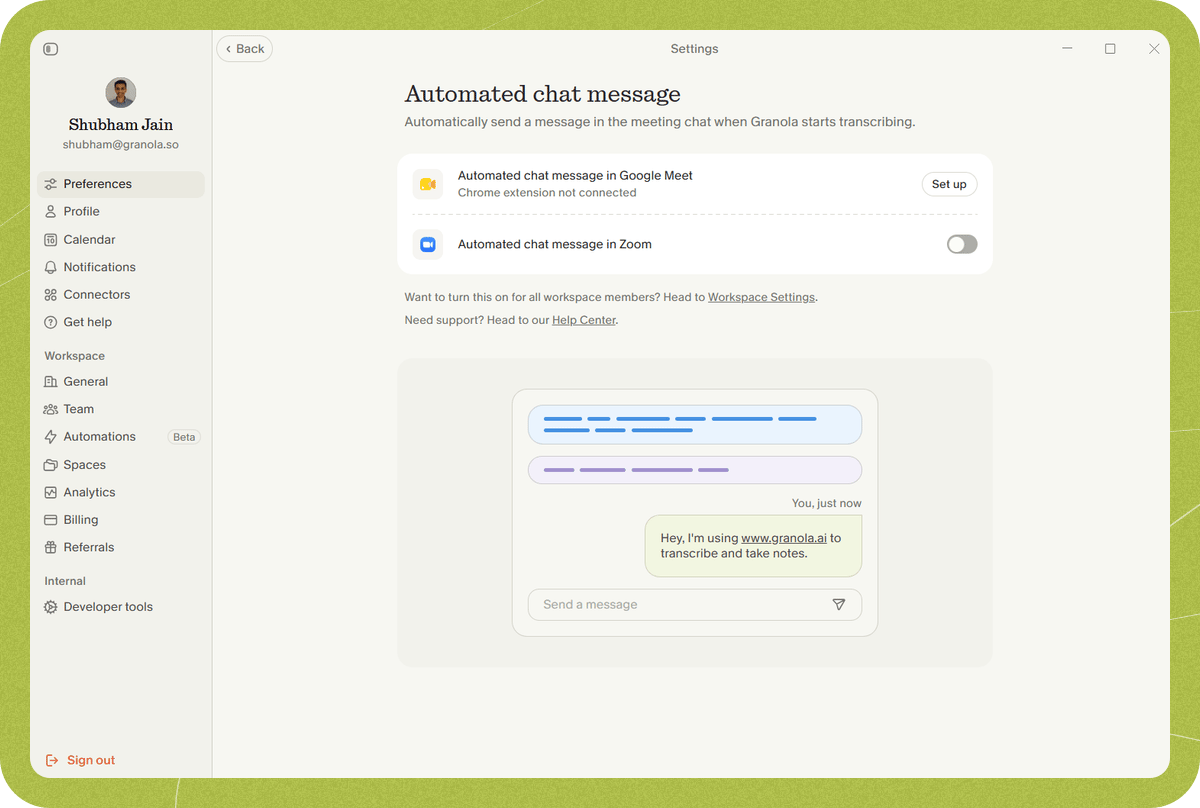
- Open Settings > Preferences > Transparency > Automated chat message.
-
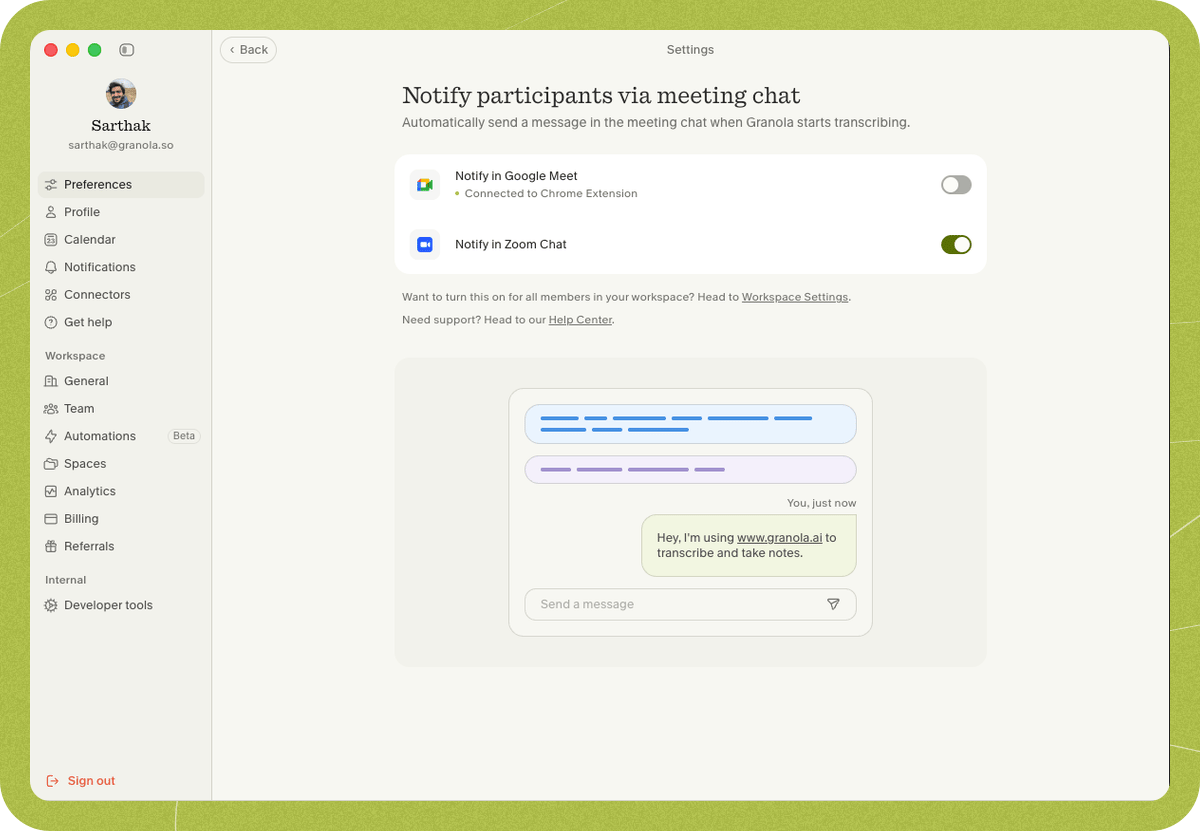
Find Automated chat message in Zoom and Microsoft Teams and turn on the toggle switch.
macOS setup
On Mac, there are two steps: turn on the setting and then grant the Accessibility permission.Step 1 — Enable the Zoom and Microsoft Teams chat feature
-
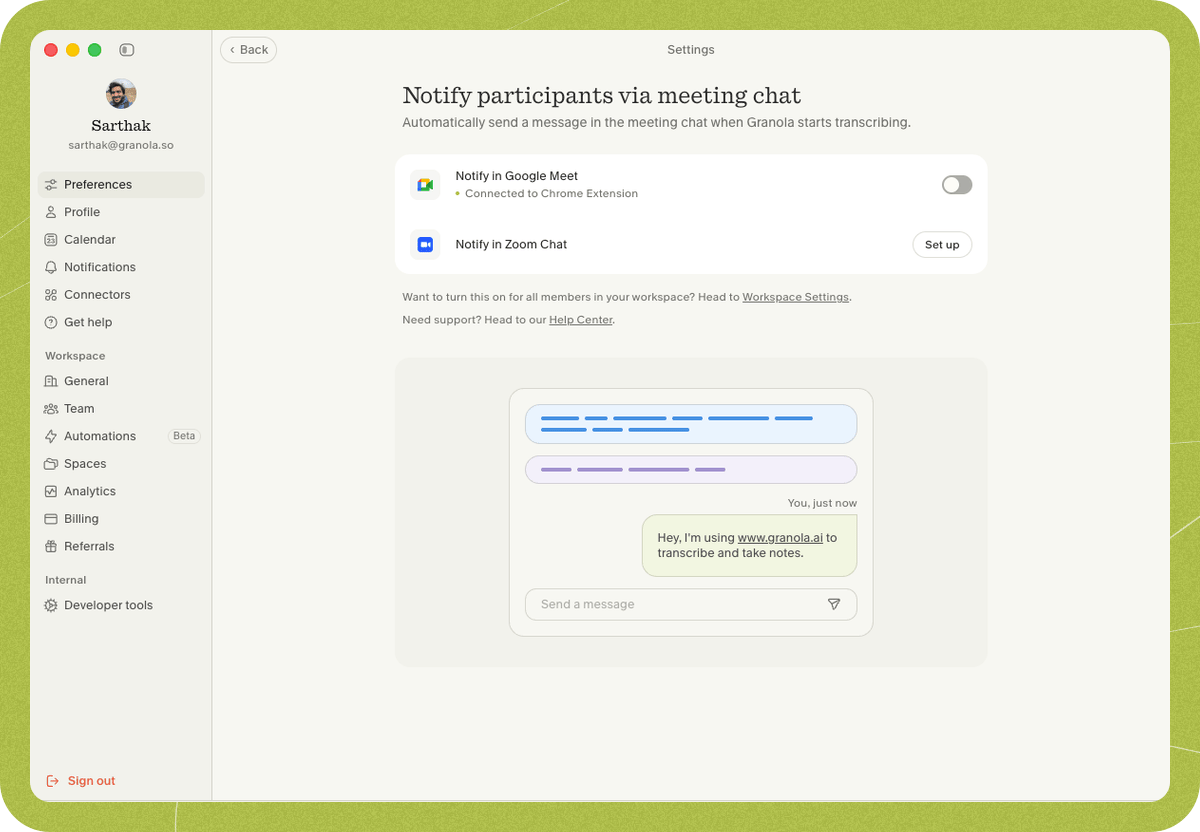
Open Settings > Preferences > Transparency > Automated chat message, find Automated chat message in Zoom and Microsoft Teams, and click Set up.
-
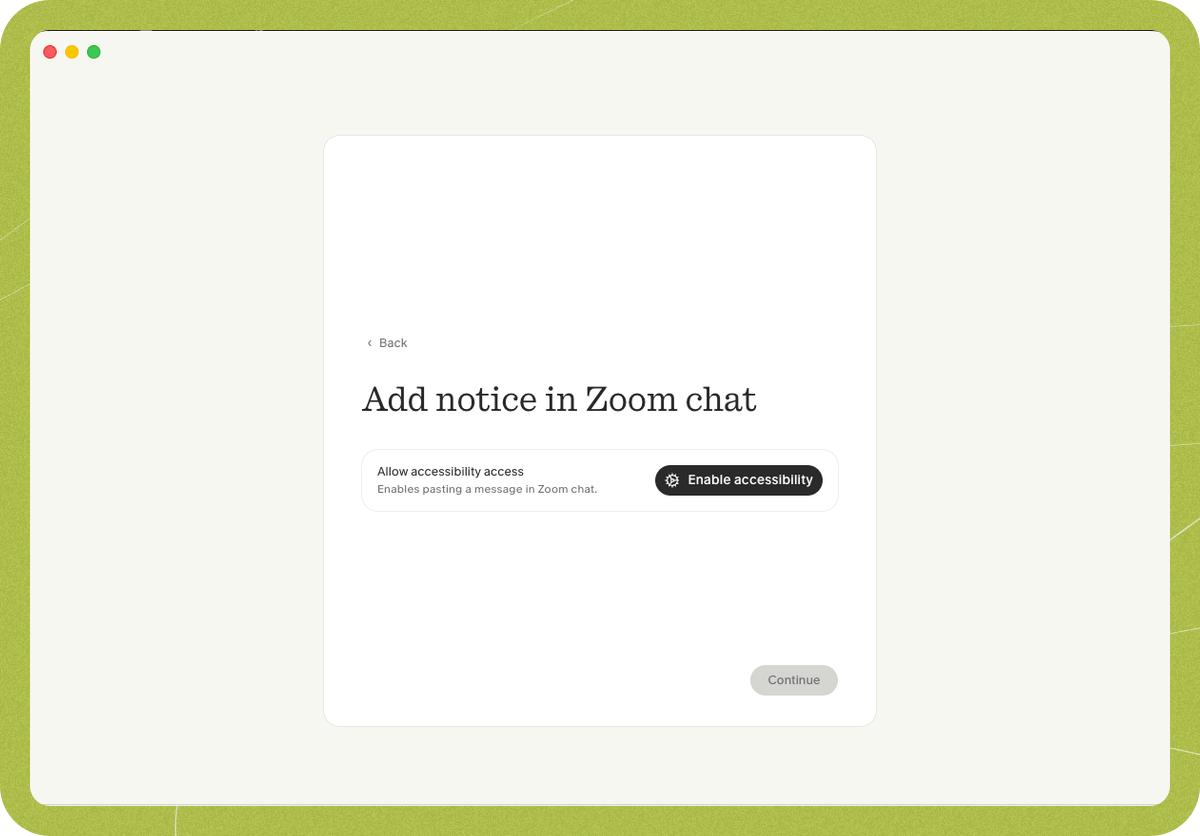
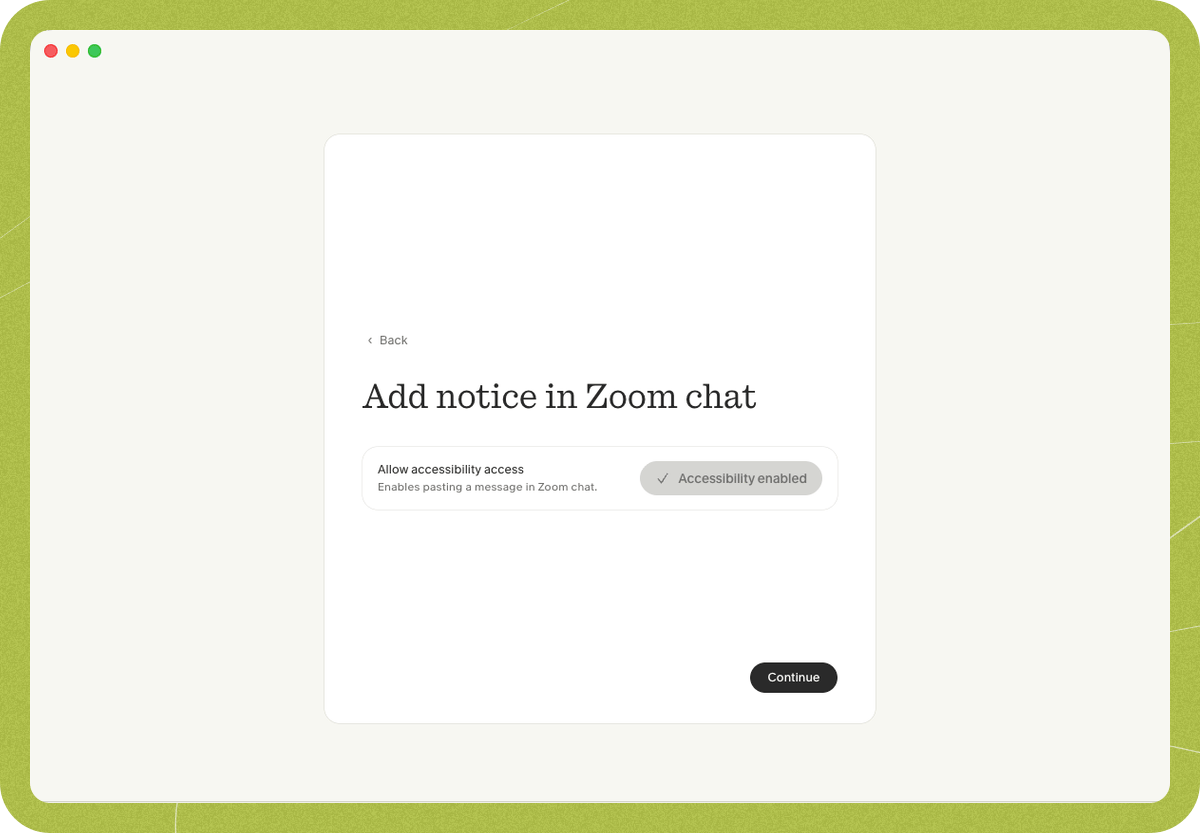
In the setup window, click Enable accessibility.
Step 2 — Grant Accessibility permission
-
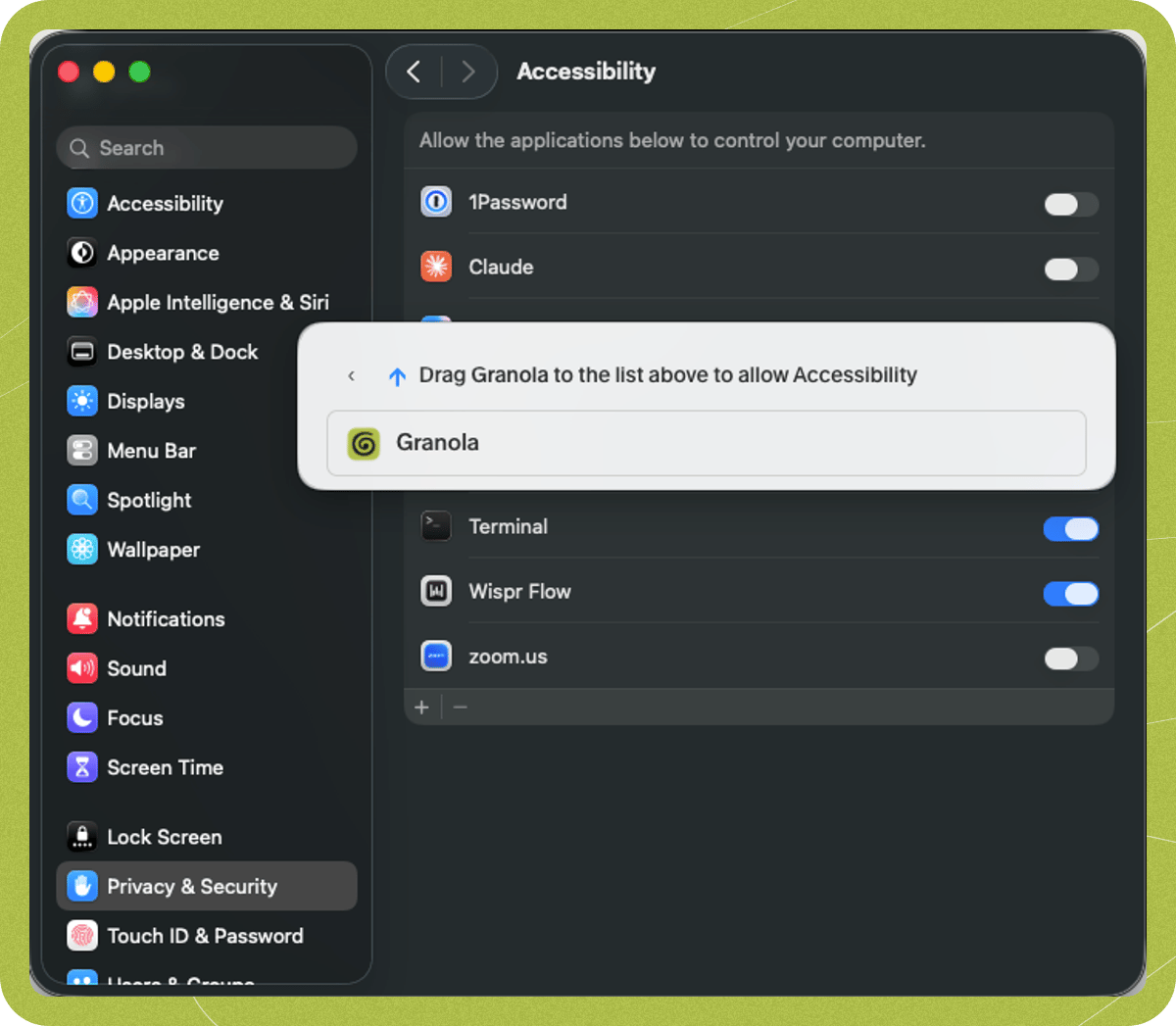
macOS opens System Settings > Privacy & Security > Accessibility. Enable (or drag in) Granola and confirm. macOS asks to let Granola “control your computer” — this is required so Granola can send the message in the meeting chat.
-
Back in Granola, the setup shows Accessibility enabled — click Continue.
-
Automated chat message in Zoom and Microsoft Teams is now on.
When the message sends
The message is posted automatically when both of these are true:- Transcription has started and captured some speech (i.e. someone else is in the meeting — you won’t notify an empty room), and
- The Zoom or Microsoft Teams window is in focus (you’ve clicked on it).
Troubleshooting
The message isn't sending (Loom confetti)
The message isn't sending (Loom confetti)
If Loom is running, its confetti keyboard shortcut can stop Granola from sending the message. Open the Loom widget, click the three dots, go to Preferences, and disable the confetti keyboard shortcut.
I still need help
I still need help
Contact us at hey@granola.so and we’ll be happy to help.