
Install the Granola browser extension
-
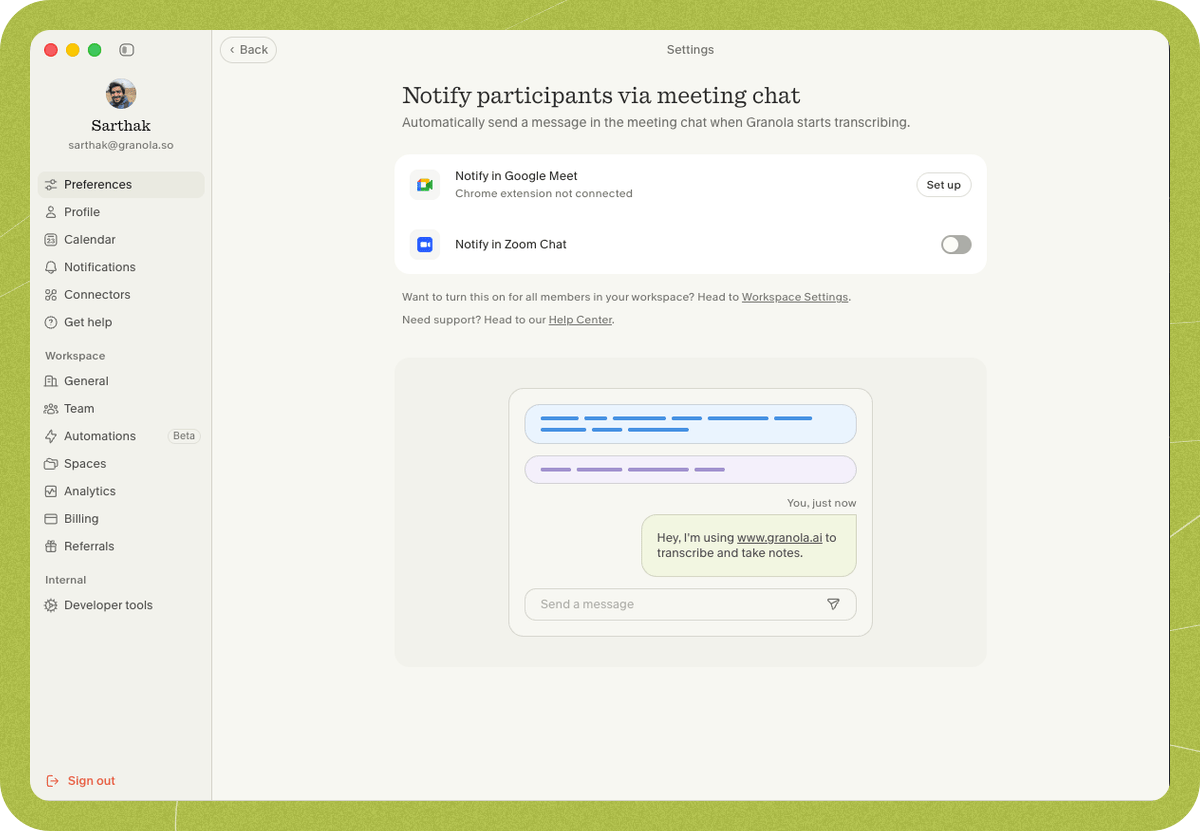
Click your workspace name in the bottom-left corner, then select Settings. Open Settings > Preferences > Transparency > Automated chat message.
-
Find Automated chat message in Google Meet and click Set up.
-
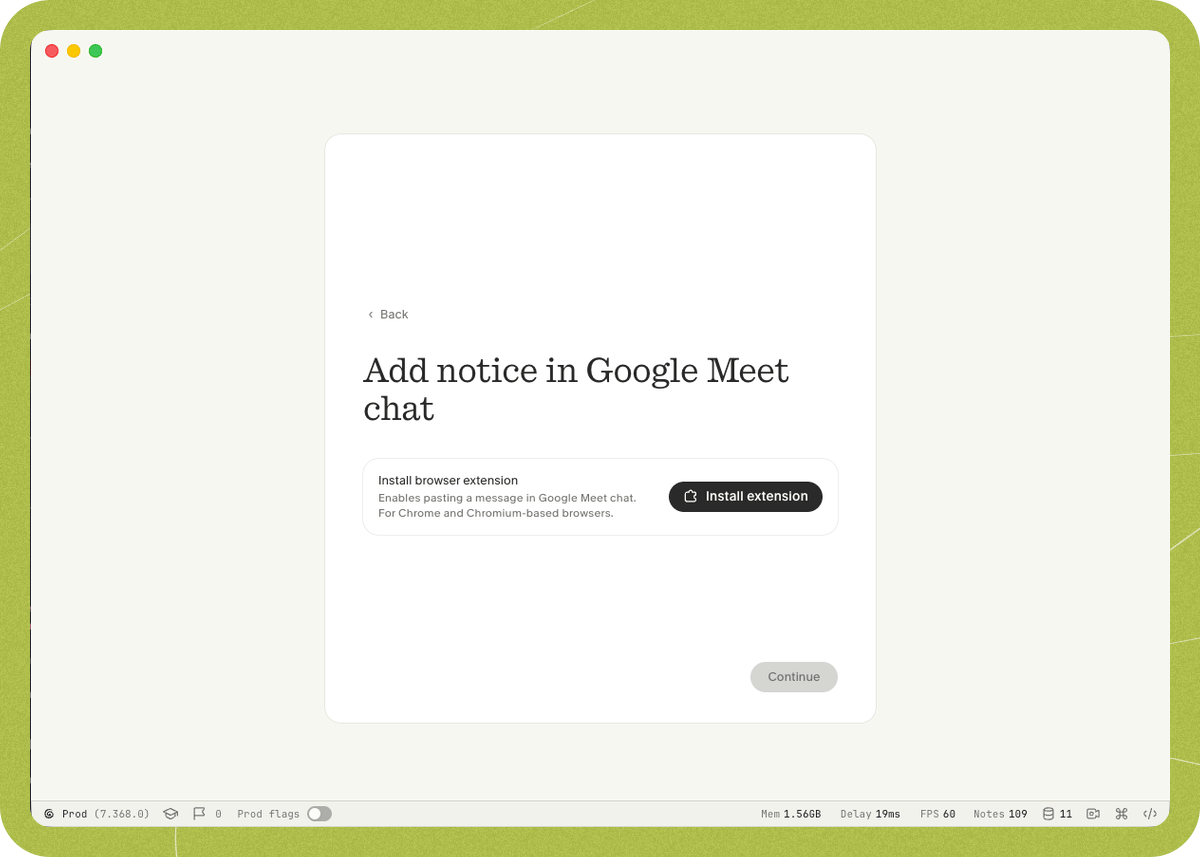
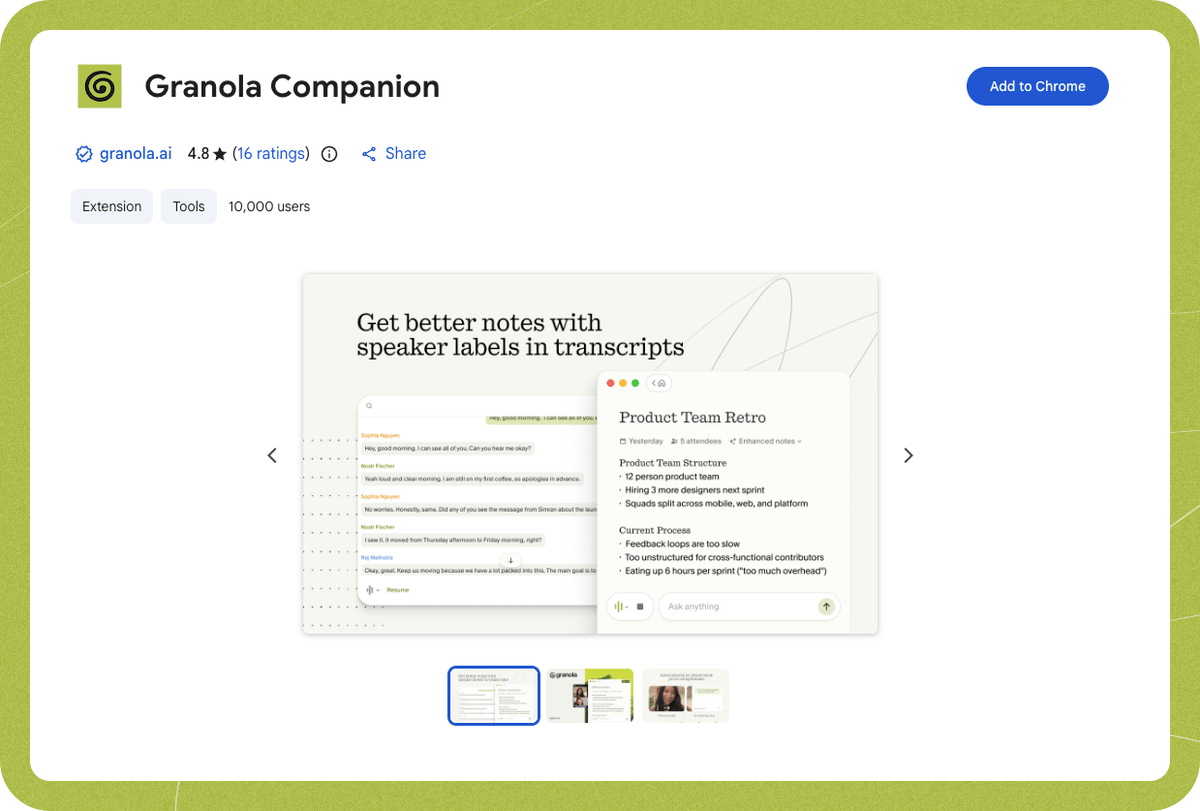
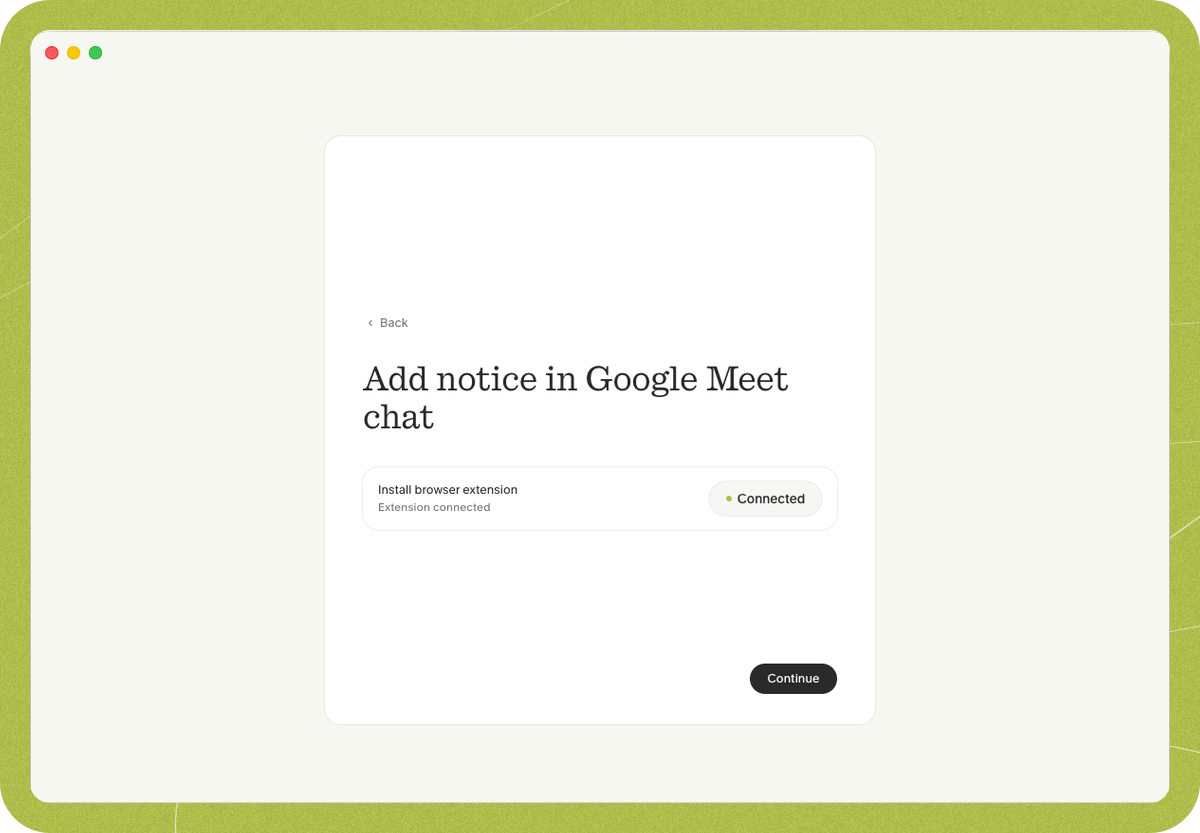
Click Install extension and add the Granola browser extension from the Chrome Web Store.
-
Return to Granola — once the extension shows Connected, click Continue to enable the feature.
Important to know
- The notice is sent after transcription starts and at least one other participant joins — it isn’t sent when you’re alone in the meeting.
- The Google Meet tab must be the active tab in its browser window. You can have another app in front, but if you’ve switched to a different tab in the same window, the notice sends when you switch back.
- The notice is sent once per meeting — you won’t get duplicate messages if you briefly leave and rejoin.
- Late joiners on desktop see the pinned message. Late joiners on mobile, or external participants, may not see it depending on the meeting’s chat settings.
- For the notice, the extension only sends the message — it doesn’t access meeting audio, video, or transcripts. (If you also use Google Meet speaker tags, the extension reads active-speaker and participant-name data for that feature.)
- Requires Google Chrome or a supported Chromium browser (Edge, Arc, Brave). Other browsers aren’t supported yet.