
Using the sidebar
Toggle the left sidebar open or closed with ⌘S (Mac) or Ctrl+S (Windows). The sidebar closes automatically when you open a meeting note so you have more room to read and edit. If you widen the Granola window, the sidebar stays docked inline instead of floating as an overlay.Spaces
By default, the sidebar has two spaces:- My notes: Your private space. It holds all the notes you’ve created plus any private folders others have shared with you. Folders here are visible only to you and people you share them with.
- [Your workspace name]: Your team space. Folders here are visible to everyone in your workspace. Workspace admins are automatically owners of all team space folders and can move a folder to My notes to make it private.
Custom spaces (admins only)
Workspace admins can create additional spaces beyond My notes and the team space. Custom spaces let you share notes and folders with a specific group (such as a department, region, or project team) without making them visible to everyone in the workspace. Open Settings > Spaces (or click Manage spaces in the sidebar) to manage custom spaces:- Create a space: Click Create space, add a name, icon, and description, then add workspace members. Everyone added to a space can see the notes and folders inside it.
- Delete a space: Open the space’s menu and choose Delete space. Deleting a space is permanent, though the notes and folders inside aren’t deleted; they’re just removed from the space.
Creating a folder
Open the sidebar and click + next to a space. Give the folder a name, pick an icon, and optionally add a description to give workspace members context and help Granola Chat focus on what matters.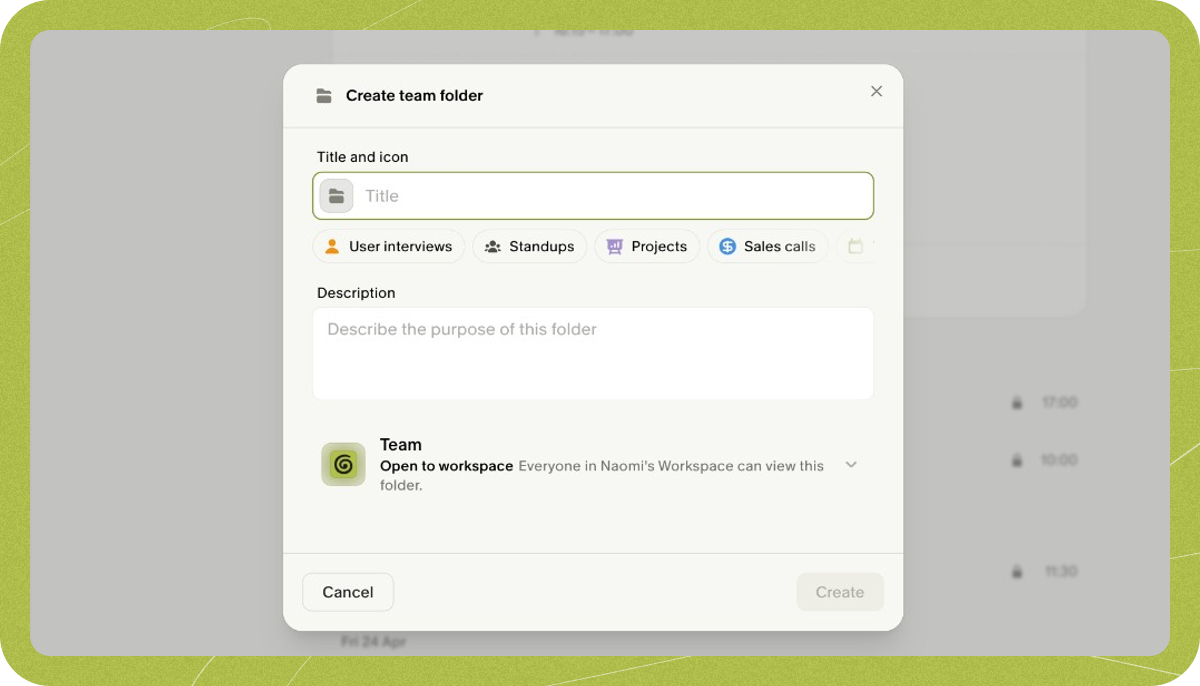
Subfolders
Nest folders inside another folder to add another level of structure, such as a “Sales” folder with a subfolder per client or a “Product” folder split by workstream. Subfolders can be nested one level deep; you can’t create a subfolder inside another subfolder. There are two ways to create a subfolder:- From the menu: Click the three-dot menu next to a folder in the sidebar and select Create folder.
- Drag and drop: Drag an existing folder you own onto another folder in the sidebar. Folders shared with you (where you aren’t an owner) can’t be nested this way.
Add your notes
Click Add to folder on a note, or drag and drop notes onto folders in the sidebar. A note can belong to as many folders as you need.
- Hover over a note and click its checkbox to select it
- Shift + click another note to select a range
- Click Select all to select every note in the current view, then click Add to folder
Auto-adding recurring meetings to a folder
When you add a note from a recurring meeting (such as a weekly standup) to a folder, Granola can ask whether to auto-add all future instances of that meeting to the same folder. Turn on auto-add:- Add a note from the recurring meeting to a folder using Add to folder or drag and drop.
- When the “Auto-add future meetings?” prompt appears, click Auto-add.
- Stop auto-adding: Open the folder picker on any note in the recurring series and uncheck the folder. This removes the auto-add rule.
- Switch folders: Remove the note from the current folder as above, then add it to the new folder and click Auto-add when prompted.
Sharing & permissions
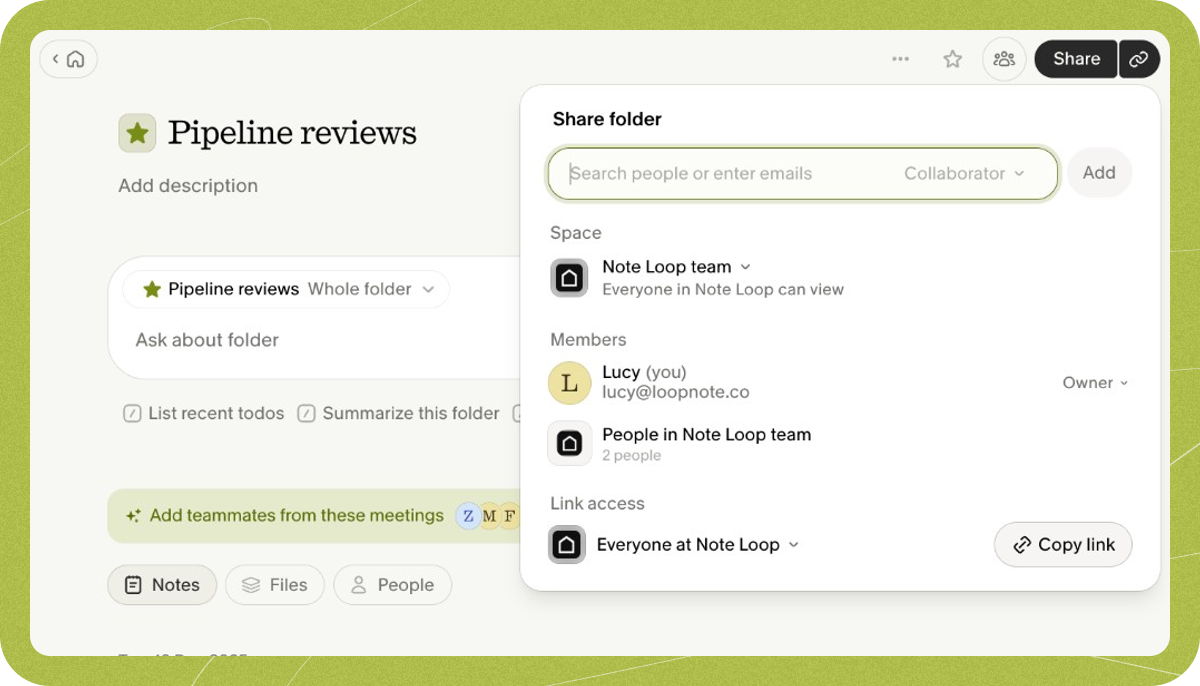
- Space: The folder’s space sets its default visibility. You can change a folder’s space from its sharing settings at any time.
- Members: Add specific people directly to the folder by email address.
- Link access: Control who can open the folder when you share its link.
Adding members
Open the folder’s sharing settings, enter someone’s email address, choose a role (Collaborator, Viewer, or Owner if you’re an owner), and click Add. They’ll receive an email notification. If they already use Granola, the folder appears directly in their sidebar. If they don’t, they can view it in a web browser and are prompted to sign up to open it in the Granola app.Link access
Choose who can access a folder when you share its link: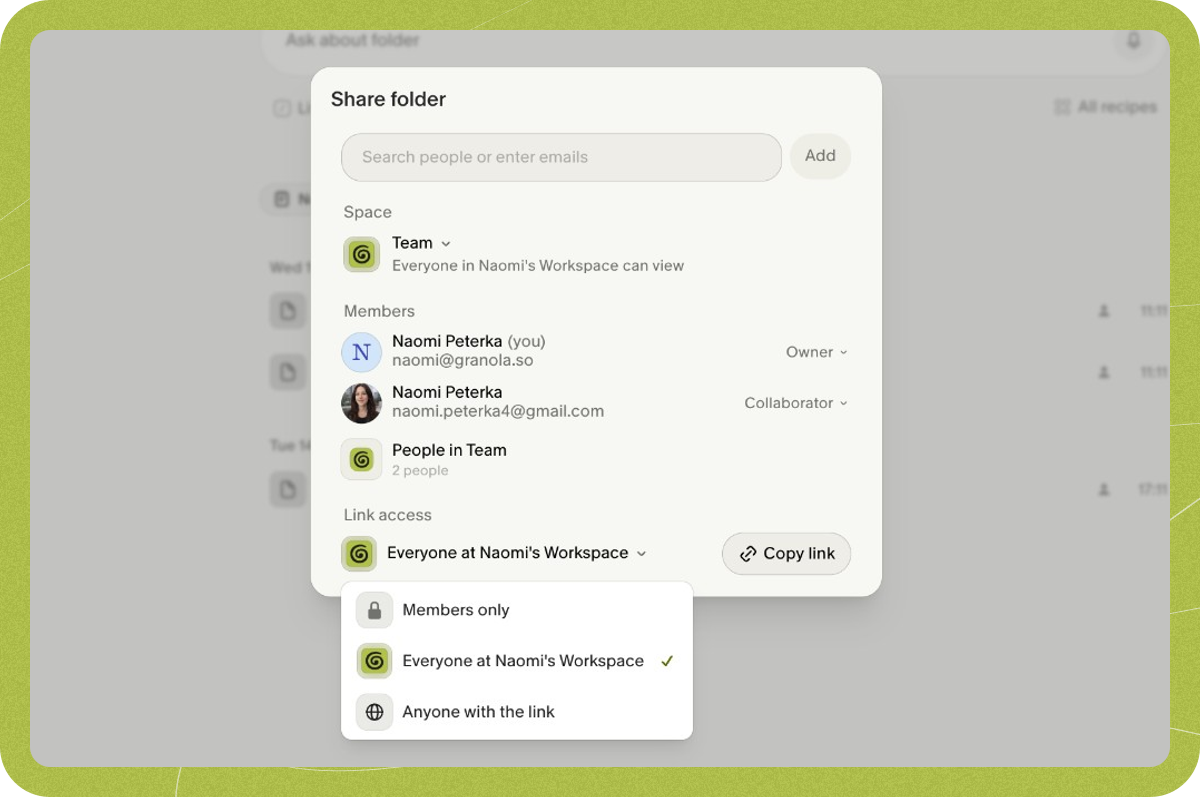
- Invited people only: Only people added to the folder can view it via the link. Best for sensitive information.
- Everyone at [your workspace]: Any Granola user with your company domain can open it. Non-workspace members see “folder not found” after signing in.
- Anyone with the link: Anyone can view the folder in a web browser, even without a Granola account.
Folder roles & permissions
Creating a folder makes you its Owner. Anyone else added to a folder is assigned one of three roles: Owner, Collaborator, or Viewer.
Collaborators and viewers can remove a shared folder from their sidebar by selecting Leave from its three-dot menu.
Anyone who opens a folder in the Granola desktop app gets access to full meeting transcripts. Anyone viewing via a web link sees the summarized notes only; transcripts aren’t available on the web.
Granola Chat
Use Granola Chat inside any folder or space (including My notes and your team space) to ask questions, draft memos, or spot themes across meetings. On Business and Enterprise plans, use the default model or switch from the dropdown. On Basic, Granola picks the model automatically. See model selection in Granola Chat.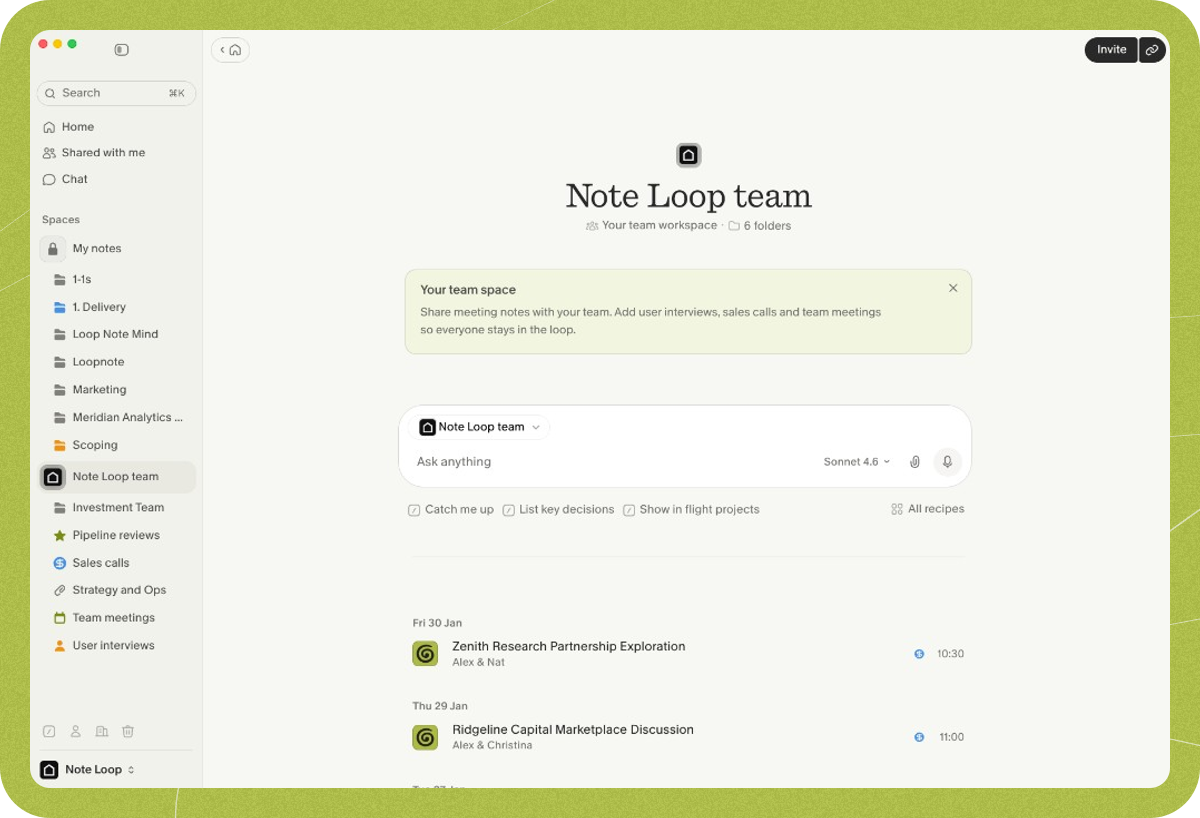
Auto-post integrations
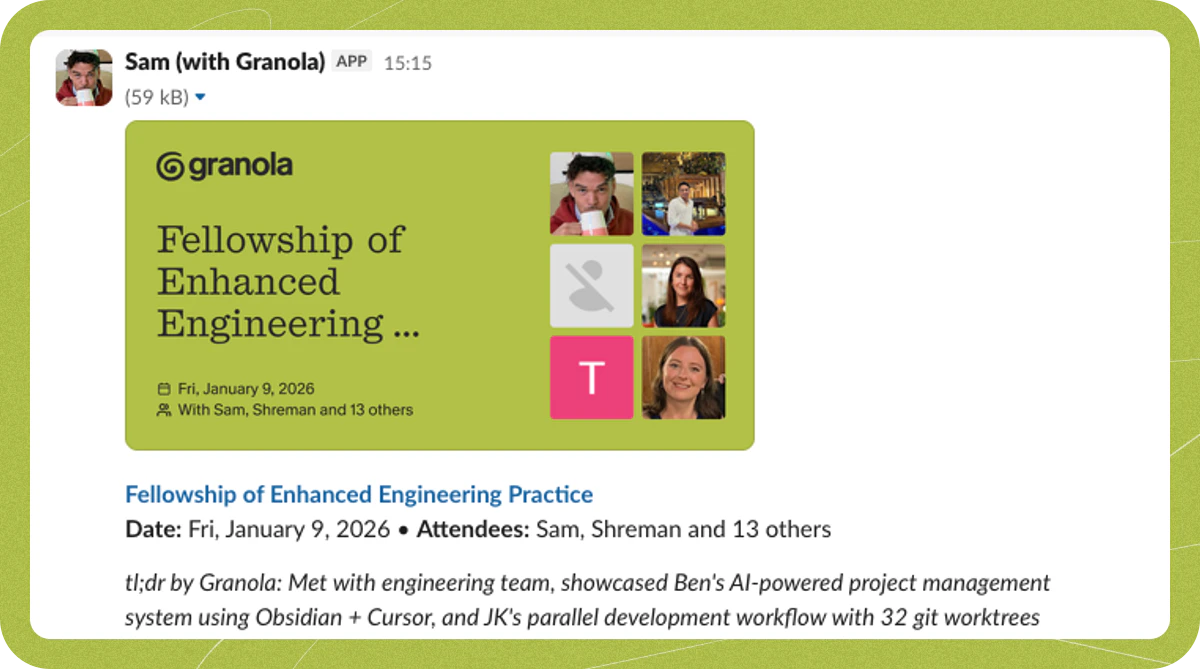
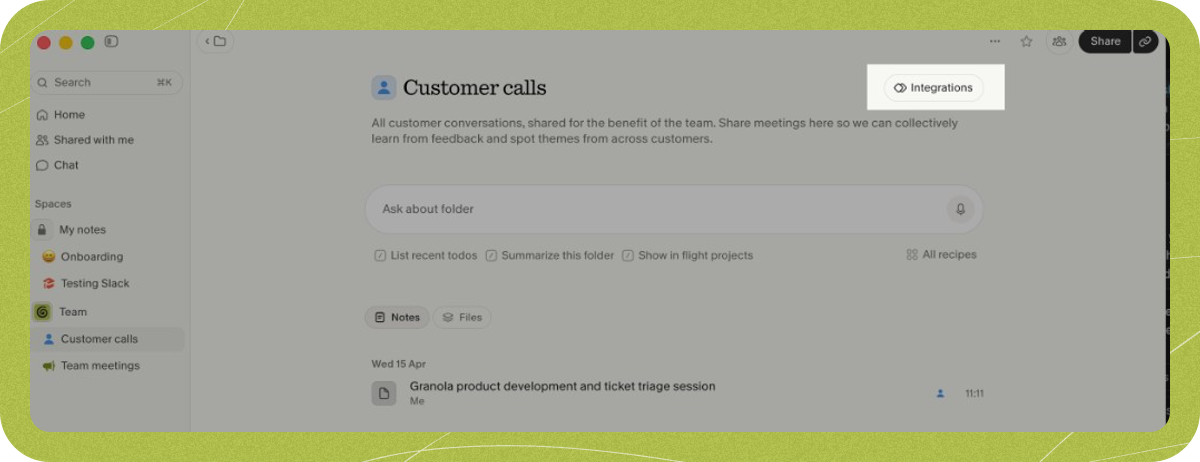
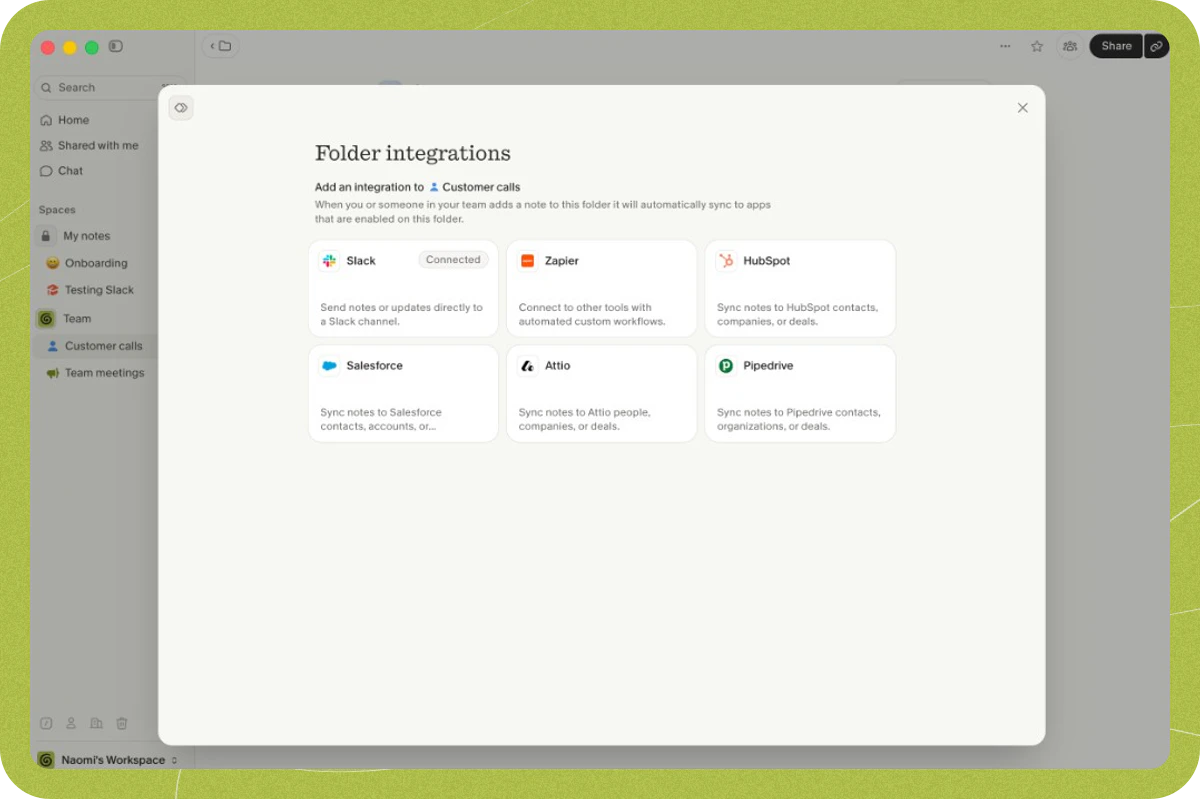
Set up rules to automatically send new notes added to a folder to Slack, HubSpot, Attio, or Zapier. Connect the relevant integration first using its setup guide.