

How it works
Heads Up tells participants that you use Granola before they join a meeting. A Heads Up link doesn’t automatically start Granola. Notes are only taken if someone starts Granola in the meeting. People can also use Granola in meetings without a Heads Up link, unless a workspace transcription policy requires one.Set up Heads Up
Choose your calendar and setup method. Automatic setup adds Heads Up links to eligible meetings. A calendar add-on lets organizers create Heads Up meetings from their calendar.
Each guide includes setup steps, meeting instructions, and how to turn the method off.
- Automatic setup adds Heads Up to eligible meetings hosted by everyone in your workspace. A Google Workspace super administrator or Microsoft 365 administrator must approve Granola’s calendar access first.
- Calendar add-ons let each organizer choose Heads Up for individual meetings. The Google Calendar add-on supports Google Meet and Zoom. The Outlook add-in creates new Microsoft Teams meetings.
Limitations
Meetings organized outside your workspace
Only a meeting’s organizer can add Heads Up. Automatic setup updates meetings organized by members of your workspace, and the calendar add-ons are used by the organizer when they create a meeting. Meetings organized by someone else, such as a customer’s or partner’s call, never have a Heads Up link, even when members of your workspace attend. The same applies to meetings a colleague organizes from a calendar that isn’t connected to your workspace. For these meetings, use other ways to let participants know, such as automated chat messages.Conference rooms
Room devices, such as Google Meet hardware and Microsoft Teams Rooms, often can’t join a meeting through a Heads Up link. So when a conference room is booked on a meeting, Heads Up usually isn’t added, and it’s removed if a room is added later. This applies to everyone on that meeting, not only the people in the room. The exception is Zoom and Microsoft Teams meetings in Google Calendar. They keep Heads Up when a room is booked, and Granola adds a direct link that the room can use.Meetings that are skipped
Automatic setup doesn’t add Heads Up to:- Webex meetings, or meetings without a supported Google Meet, Zoom, or Microsoft Teams link
- Meetings created before automatic setup was turned on
- Some recurring meetings, such as series where a single occurrence has been edited or canceled
Calendar updates
Adding or removing Heads Up changes the meeting invite. Depending on the calendar, attendees may receive an updated invitation.Enable the feature in Granola
To complete setup, a Granola workspace admin must enable Heads Up in Granola.- Click your workspace name in the bottom-left corner, then select Settings. Open Settings > Workspace > General > Transparency > Heads Up Pages for your workspace.
- Turn on Enable Heads Up pages, then select Enable Heads Up to confirm.
Choose which meetings are updated
Under Automatically update meeting links, choose which eligible meetings receive Heads Up links:- All meetings updates both internal and external meetings. This is the default.
- Internal meetings updates meetings only when every participant belongs to your organization or another configured internal domain.
- External meetings updates meetings only when at least one participant is outside your configured internal domains.
- Off doesn’t add Heads Up links to any new meetings.
What participants see
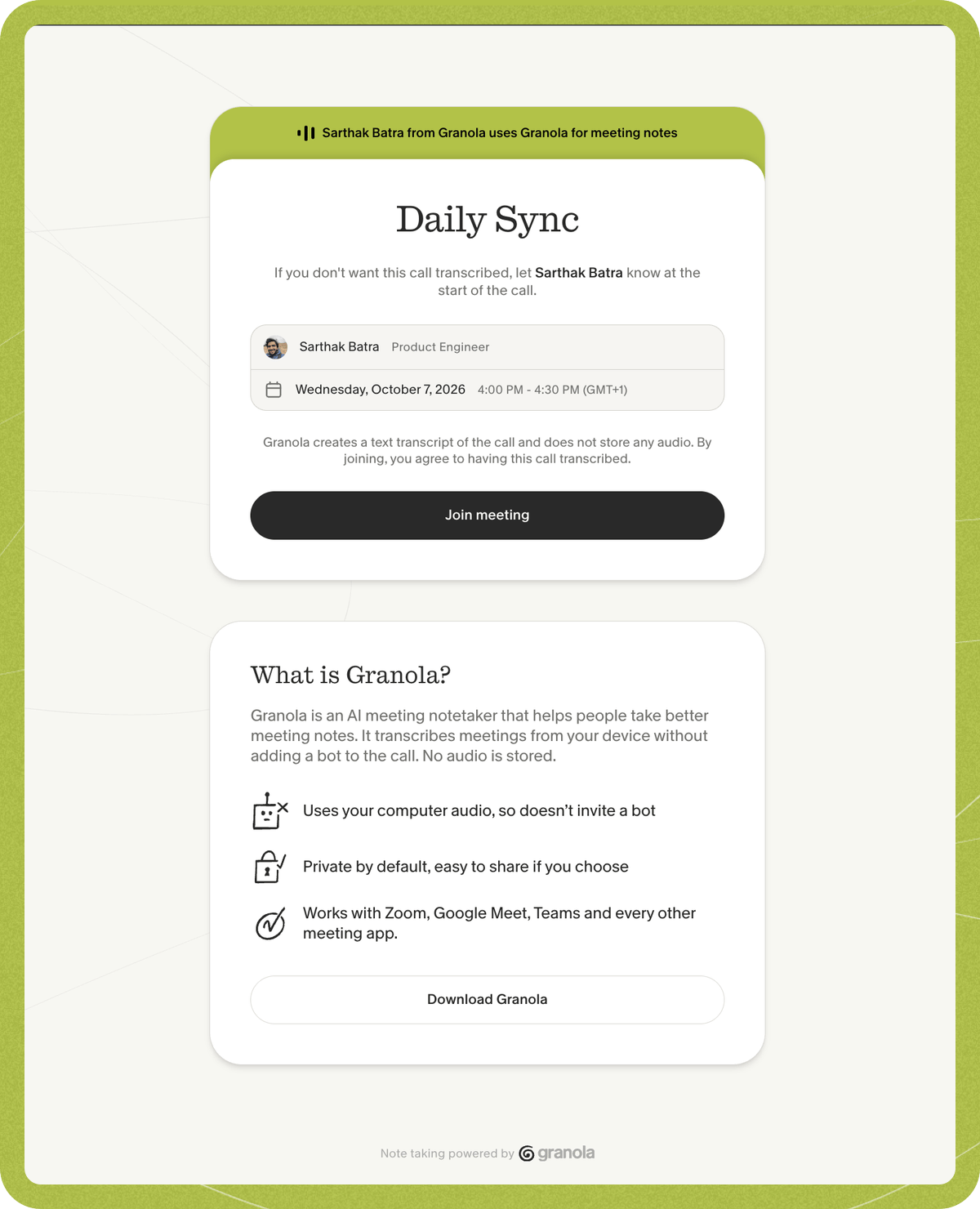
When a participant follows a Heads Up meeting link, they see a page with:- Meeting details (title, time, organizer)
- An explanation that Granola will be used for AI note-taking
- A Join meeting button to confirm and continue
- Your organization’s information
Audit logging
Every time someone clicks Join meeting on the consent page, Granola logs:- Meeting ID
- Date and timestamp of consent
- User agent (browser/device information)