

How it works
Heads Up tells participants that you use Granola before they join a meeting.Set up Heads Up
Choose your calendar and setup method. Automatic setup adds Heads Up links to eligible meetings. A calendar add-on lets organizers create Heads Up meetings from their calendar.
Each guide includes setup steps, meeting instructions, and how to turn the method off.
Enable the feature in Granola
To complete setup, a Granola workspace admin must enable Heads Up in Granola.- Click your workspace name in the bottom-left corner, then select Settings. Open Settings > Workspace > Heads Up Pages for your workspace.
- Turn on Notify all workspace members about Heads Up and confirm.
Choose which meetings are updated
Under Automatically update meeting links, choose which eligible meetings receive Heads Up links:- All meetings updates both internal and external meetings. This is the default.
- Internal meetings updates meetings only when every participant belongs to your organization or another configured internal domain.
- External meetings updates meetings only when at least one participant is outside your configured internal domains.
What participants see
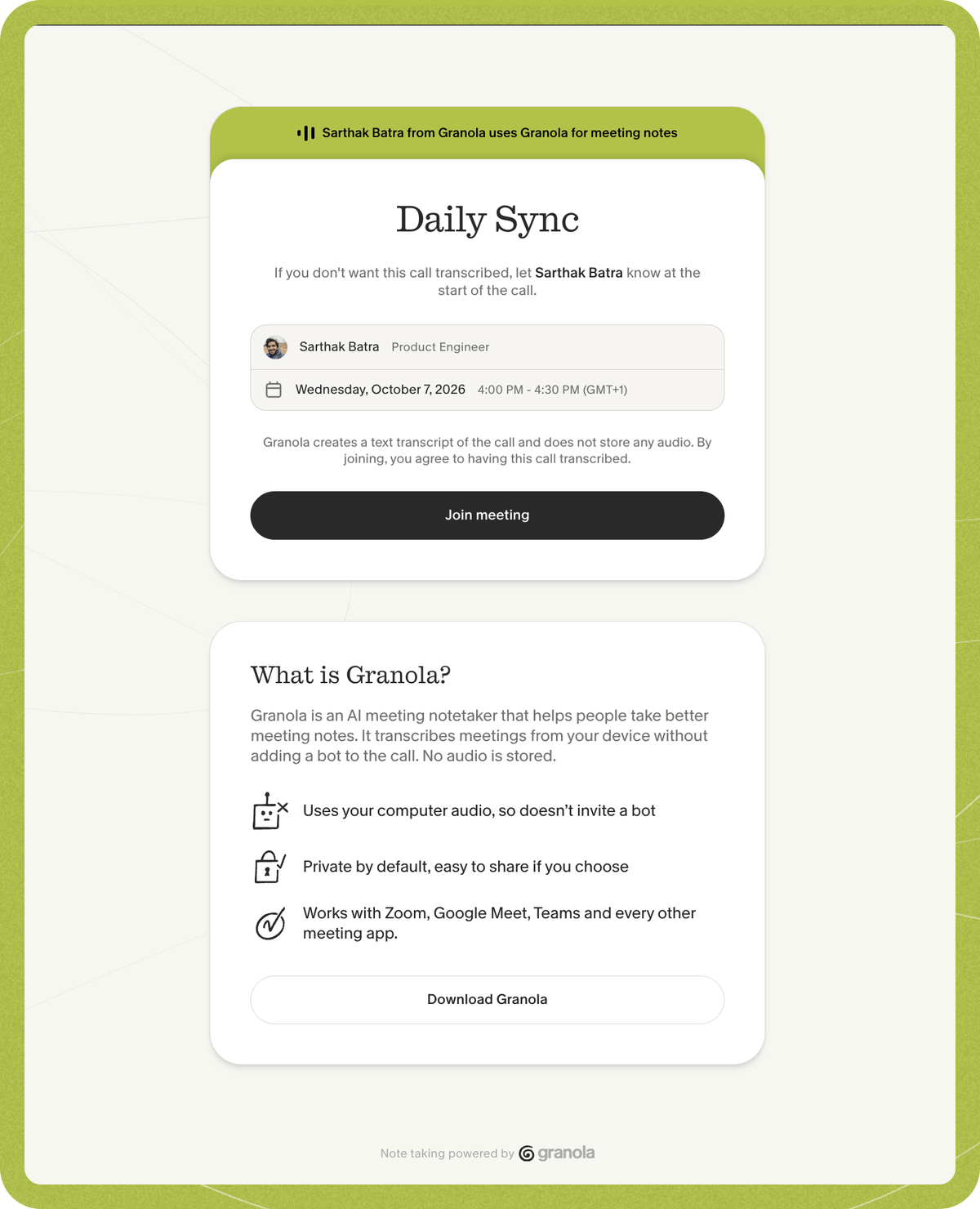
When a participant follows a Heads Up meeting link, they see a page with:- Meeting details (title, time, organizer)
- An explanation that Granola will be used for AI note-taking
- A Join meeting button to confirm and continue
- Your organization’s information
Audit logging
Every time someone clicks “Join meeting” on the consent page, Granola logs:- Meeting ID
- Date and timestamp of consent
- User agent (browser/device information)