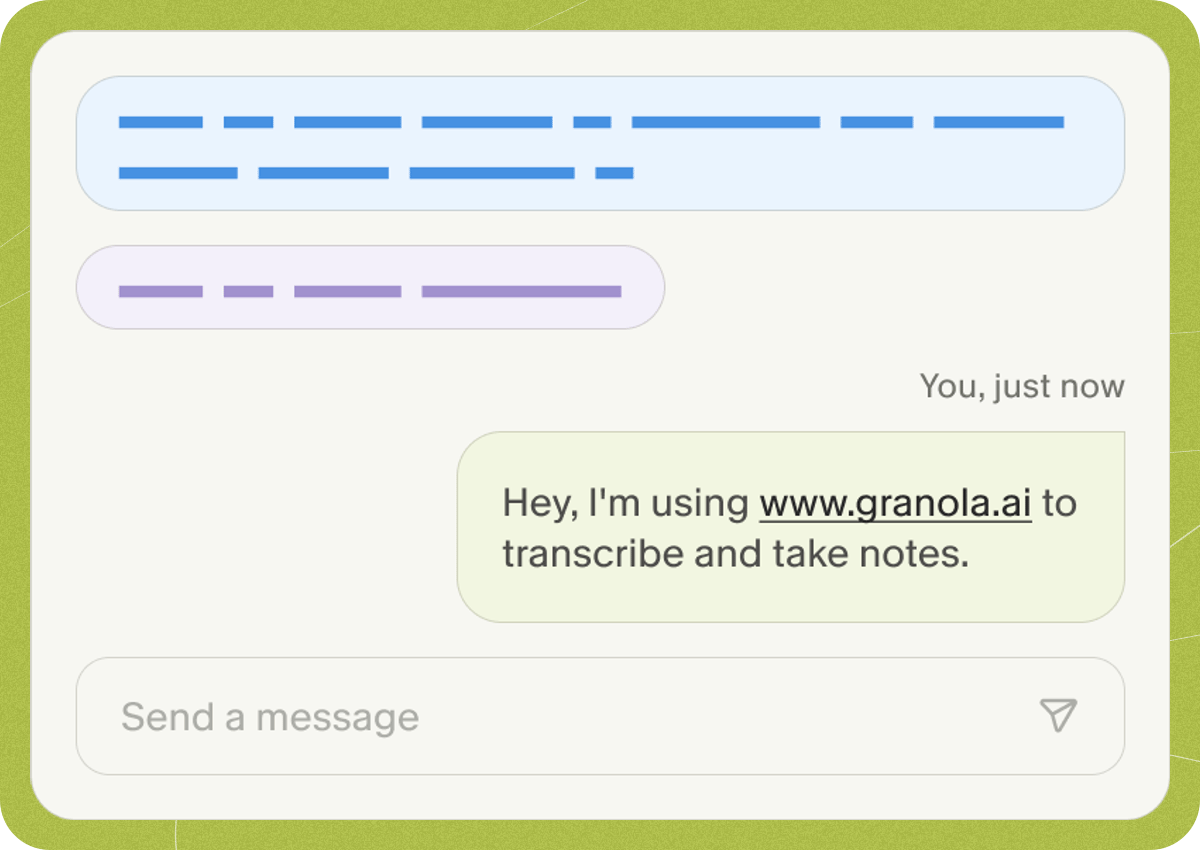
This feature is currently in beta for Enterprise plans. A pinned consent message in Google Meet chat reading "Hey, I'm using www.granola.ai to transcribe and take notes."

Overview

In-meeting notice for Google Meet helps you let people know that Granola is being used during a meeting using a Chrome browser extension. This works in two ways:
  1. Chat message. The browser extension posts a message in the Google Meet chat when your meeting starts, letting all participants know you’re using Granola. The message is pinned so that late-joiners can still see it.
  2. Video overlay. A badge appears on your video feed, visible to other participants for the duration of the call.
A Granola badge displayed on a video feed in Google Meet This feature works on both macOS and Windows, and requires Google Chrome. A workspace admin enables it on behalf of all members, and once enabled, individual users cannot disable it.

How it works

When you have the browser extension installed and in-meeting notices enabled:
  1. You join a meeting on Google Meet.
  2. Granola automatically sends a notice when there is at least one other participant and pins the message.
  3. If your video feed is active, participants also see a badge displayed on your feed.

Setting up

There are two steps: enabling the feature in Granola settings, and installing the Chrome extension.

Enabling in-meeting notices

A workspace admin can turn on automatic notices for all members: In-meeting notice settings page showing Google Meet consent options
  1. Open Settings > Workspace > General > In-meeting notice (App-based).
  2. Under the Google Meet section, toggle on Enable Google Meet consent notices.
  3. Choose a notice mode:
    • Chat message and overlay (default) — sends a message in the meeting chat and shows a badge on your video feed.
    • Chat message only — sends a message in the meeting chat.
    • Overlay only — shows a badge on your camera feed, visible to other participants.
  4. Optionally, customize the chat message text (up to 200 characters).
Once enabled, the notice is sent once per meeting — you won’t see duplicate messages if you briefly leave and rejoin.

Installing the browser extension

After enabling in-meeting notices, each workspace member needs to install the browser extension. There are two ways to do this:

Manual installation

Each user can install the extension individually:
  1. Visit the Granola Chrome extension on the Chrome Web Store.
  2. Click Add to Chrome.
  3. The browser extension connects to your Granola desktop app automatically — no additional setup is needed.

Automated installation via Google Admin

Workspace admins can deploy the extension automatically via Google Workspace Admin. You can roll it out to your entire organization, or scope it to specific teams, locations, or departments using Organizational Units (OUs) or Google Groups.

Adding the extension

  1. Sign in to your Google Admin console.
  2. Go to Devices > Chrome > Apps & extensions.
  3. Add the Granola Chrome extension by its Chrome Web Store URL: https://chromewebstore.google.com/detail/granola/opaadbjlebbbnmjjgdmdllingedoleml
  4. Set the extension to be Force installed and pinned and prevent users from disabling it to ensure consistent deployment.

Scoping installation to specific users

By default, the extension applies to your entire organization. If you want to limit it to specific teams, departments, or locations, you have two options:
Organisational Units let you group users by department, location, or any other criteria and apply policies to each group independently.
  1. In the Google Admin console, go to Directory > Organizational units.
  2. If you don’t already have an OU for the target group, create one. For example, you might create an OU for a specific office location or department.
  3. Move the relevant users into that OU.
  4. Go to Devices > Chrome > Apps & extensions > Users & browsers.
  5. In the left sidebar, select the OU you want to target (instead of the top-level organization).
  6. Add or configure the Granola extension for that OU. Only users in the selected OU will receive the installation.
For more details, see Google’s documentation on viewing and configuring apps & extensions.
If restructuring your OUs isn’t practical, you can target installation via a Google Group instead. This is useful when users span multiple OUs (e.g., a cross-location team).
  1. In the Google Admin console, go to Directory > Groups.
  2. Create a new group (or use an existing one) containing the users who should receive the extension. For example, granola-users@yourcompany.com.
  3. Go to Devices > Chrome > Apps & extensions > Users & browsers.
  4. In the left sidebar, search for and select the group you want to target.
  5. Add or configure the Granola extension for that group. Only members of the group will receive the installation.
For more details, see Google’s documentation on managing group-based policies.
You can combine both approaches — for example, force-install the extension for an OU representing a specific office, and also allow installation for members of a cross-functional Google Group.
Once deployed, the extension will install automatically on the targeted users’ Chrome browsers. Note: The browser extension requires Google Chrome. Other Chromium-based browsers (Edge, Arc, Brave) are not currently supported.

Things to know

Chat message

  • Late joiners: Participants who join after the message was sent will see it if they’re on desktop (via the pinned message). Late joiners on mobile may not see pinned messages due to Google Chat limitations.
  • External participants: Depending on the meeting’s chat configuration, participants from outside your organization who join late may not see the chat message.
  • Continuous Meeting Chat mode: When Continuous Meeting Chat is enabled for a meeting, messages are not pinned at the moment.
  • Tip: For the best chat message visibility, workspace admins can disable Continuous Meeting Chat in Google Workspace Admin settings.

Video overlay

  • Camera required: The video badge only appears when your camera is on. Turning off your camera will stop showing the badge.
  • Virtual backgrounds: If you’re using a virtual background or blur effect in Google Meet, it may partially obscure or hide the overlay badge.

FAQs

Does this replace the old automatic consent messaging? Yes. The Chrome extension is a newer, more reliable approach that works on both macOS and Windows. The previous method relied on macOS accessibility permissions to auto-paste into the chat window. If you’re currently using the older auto-paste setting (Settings > Labs > “Let others know you’re using Granola”), disable it before enabling the browser extension to avoid sending duplicate messages. Does the browser extension access my meeting content? No. The browser extension only sends the notice message and/or displays the overlay badge. It does not access meeting audio, video content, or transcripts. Can I customize the message? Yes. Admins can edit the chat message text in Settings > Workspace > General > In-meeting notice (App-based) (up to 200 characters). Which browsers are supported? The browser extension currently requires Google Chrome. Support for other browsers may be added in the future. Does this work for other video conferencing apps? Not yet, but a separate add-on for Zoom is coming soon. If you’d like support for other tools, please reach out to support@granola.so.