

Quick things to try
- Stop and resume transcription — Open the meeting note. Click Stop next to the green audio bars, wait a moment, then click Resume.
- Check the transcript — Open the transcript and see which side is missing: green bubbles are your microphone; gray bubbles are other people on the call. If your microphone isn’t being transcribed, check that the right microphone is selected.
- Restart Granola — This resets the connection to our transcription servers.
- Mac: Right-click the Granola icon in the Dock and choose Restart Granola (or choose Restart Granola from the Granola menu in the menu bar).
- Windows: Click the
^icon in the bottom-right of the taskbar, right-click the Granolagicon, and choose Restart Granola.
- Restart your computer — If restarting Granola doesn’t help, restart your computer. The processes that capture system audio can get stuck, and a full restart clears them.
- Check your internet connection — Open speed.cloudflare.com and run a speed test. A slow, unstable, or filtered connection can stop transcription even when other websites load.
Why transcription might not be working
If those steps don’t fix it, Granola is usually failing in one of two ways:- It can’t connect to our transcription servers — nothing is transcribed, or transcription starts then stops. In this case, you’ll usually see an orange warning saying that Granola is having trouble transcribing.
- It can’t capture audio, or it’s capturing the wrong audio — one side of the conversation is missing, or the transcript stays empty even though you can hear the call.
Can’t connect to transcription servers
Transcription needs a live connection to our transcription providers. VPNs, proxies, firewalls, and web filtering tools can block this even when other websites work.- In the Granola app, click your workspace name in the bottom-left corner, then select Settings. Open Settings > Get help > Troubleshooting.
- Select Run check under Network connectivity.
- Follow the troubleshooting steps shown in the app. You can copy a report for your IT team if the check fails.
Audio capture
Granola needs to use the same audio devices as your meeting app (Google Meet, Teams, Zoom, and so on). In most cases it selects those devices automatically. If it doesn’t, the transcript will be missing one side of the conversation.Check which channel is missing
Open the transcript (the waveform bars on the note — if Chat is open, click outside it or press Esc first):- Green bubbles (right) are from your microphone — that’s you, and anyone else in the same room.
- Gray bubbles (left) are from your computer’s system audio — that’s other people on the call in your meeting app.
The same words appear twice (Windows, Microsoft Teams)
If you use the Microsoft Teams desktop app on Windows without headphones, you may see the same words twice in your transcript: once in a gray bubble (the other person) and again in a green bubble (your microphone). This happens because the call plays through your computer’s speakers and your microphone picks it up again. Granola normally filters this echo out of your microphone, but the Teams desktop app plays call audio in a way that Granola’s echo filtering can’t detect, so the echo isn’t removed. This is a limitation in how Teams handles audio on Windows. We’ve reported it to Microsoft and the Chromium team. To avoid it:- Use headphones or a headset for Teams calls, so your microphone only hears you.
- Or join Teams calls in a web browser instead of the Teams desktop app.
Change the microphone Granola uses
You can change the microphone Granola uses in the transcript window. Open the transcript, then choose a microphone from the list at the bottom. Auto follows your meeting app’s microphone when one is open. Otherwise it uses your system default. If the wrong mic is selected, pick the same one your meeting app is using.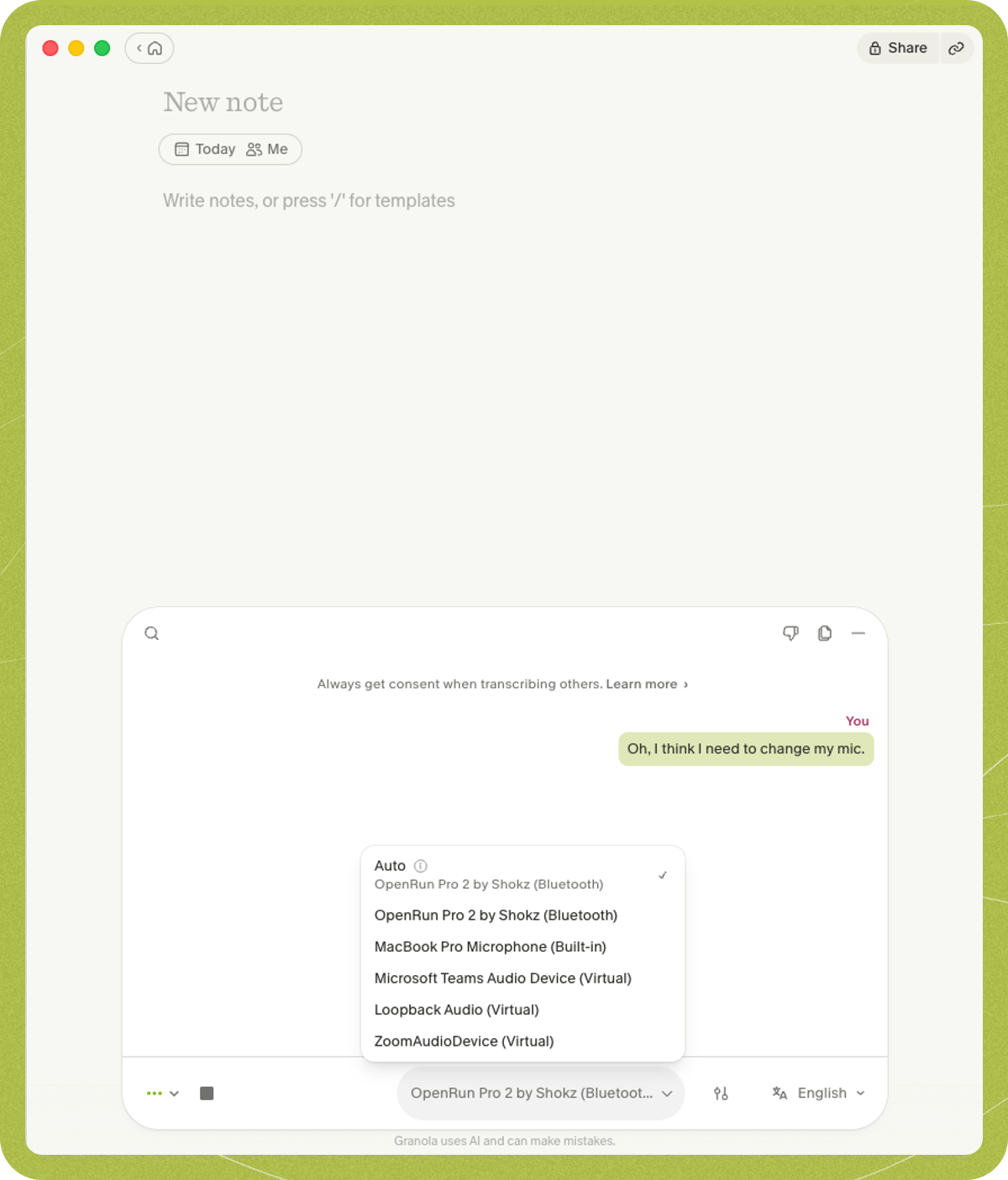
Windows: other people missing in Webex, Teams and some other apps
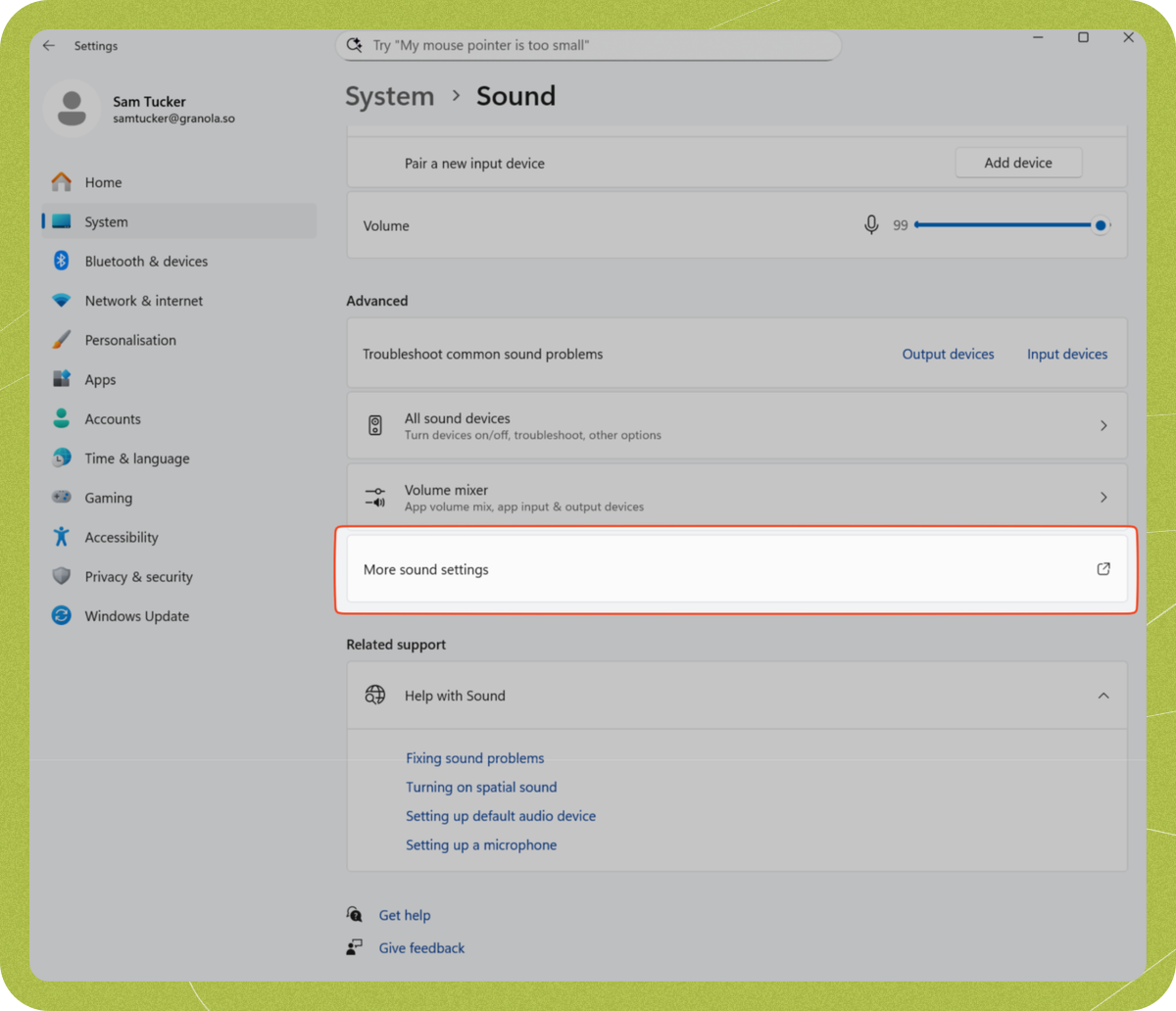
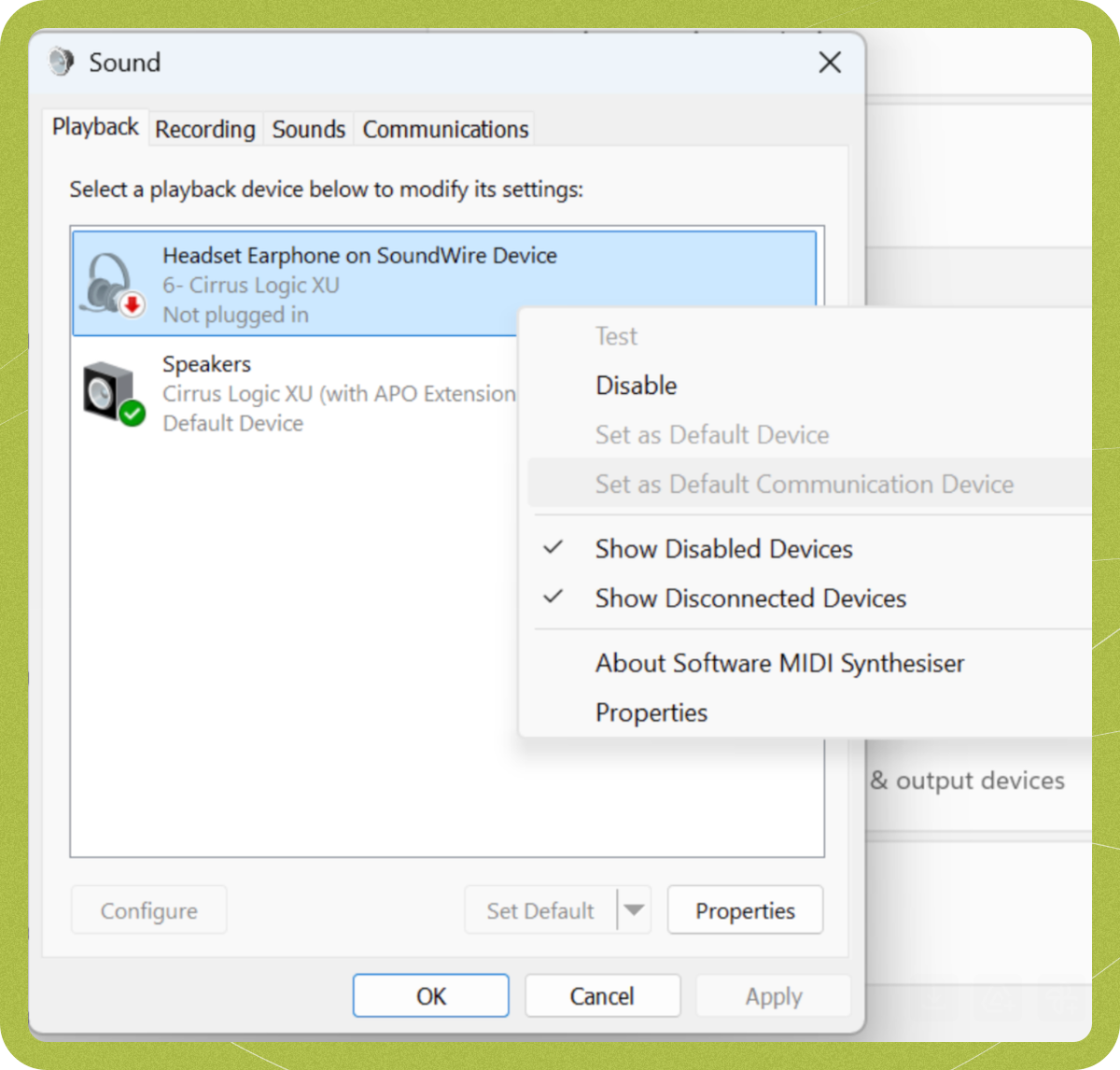
For most meeting apps on Windows, Granola hears the app wherever it plays sound. For a few apps, including Webex, WhatsApp, 8x8 Work, and 3CX, Granola instead listens to your Windows default output device while you’re on a call. Microsoft Teams can also fall back to this. If the meeting app plays through a different device, such as a headset while Windows uses your laptop speakers, Granola won’t hear the other people on the call. Your own voice will still appear. To fix this, make the device your meeting app plays through your Windows default output device, or set the meeting app’s speaker to use the system default.Change your default output device on Windows 11
Change your default output device on Windows 11
- Open Settings > System > Sound.
- Under Output, choose the headset or speakers you use for calls.
Change your default output device on Windows 10
Change your default output device on Windows 10
- Open Settings > System > Sound.
- Under Choose your output device, choose the headset or speakers you use for calls.
Set your meeting app to use the system default
Set your meeting app to use the system default
In your meeting app’s audio settings, set the speaker to the system default (in Webex: Use system setting). The app will then play through the same device Granola listens to.
Windows: meeting apps we don’t support yet
On Windows, if you’re using a meeting app we haven’t added support for yet, sound from other people on the call may not be picked up. Your own voice can still appear in the transcript. If you notice this, get in touch and tell us which app you’re using. This includes Microsoft Phone Link: Granola can’t capture the other person on calls you make or take through your iPhone or Android phone via your PC. To transcribe outbound calls from your phone, use phone calls in Granola for mobile instead.Antivirus software (Windows)
Kaspersky antivirus or endpoint protection can block Granola from using your audio devices. When this happens, you’ll see:We’re having trouble transcribing. Your antivirus software may be blocking Granola.Allow Granola to access your microphone and audio devices in Kaspersky. See Kaspersky’s guide on allowing application access to audio devices. After you’ve allowed Granola, restart Granola and try transcribing again. If it still doesn’t work, restart your computer so Kaspersky reloads the permission.
Check permissions
Granola needs permission to use your microphone (and, on Mac, system audio):- Mac: System Settings > Privacy & Security > Microphone, and Screen & System Audio Recording — both must be on for Granola.
- Windows: Settings > Privacy & security > Microphone — turn on microphone access, and turn on Let desktop apps access your microphone.