

Before you start
- Connect Granola to your AI tool. Follow How to connect in the Granola MCP guide, signing in with the Granola account and active workspace where you want your notes saved.
- Enterprise workspaces: Your workspace admin must enable note access and turn on Import transcripts under MCP permissions.
How to import a transcript
- Start a new chat in your AI tool with Granola enabled. (In ChatGPT, mention
@Granola.) - Paste or attach your transcript — or point your AI tool to another connected app — and ask it to import the meeting into Granola. For example:
- Help me import this meeting transcript into Granola.
- Include the meeting title and start date and time (with timezone) if they aren’t already in the transcript. Your AI tool will ask for any missing details rather than guessing.
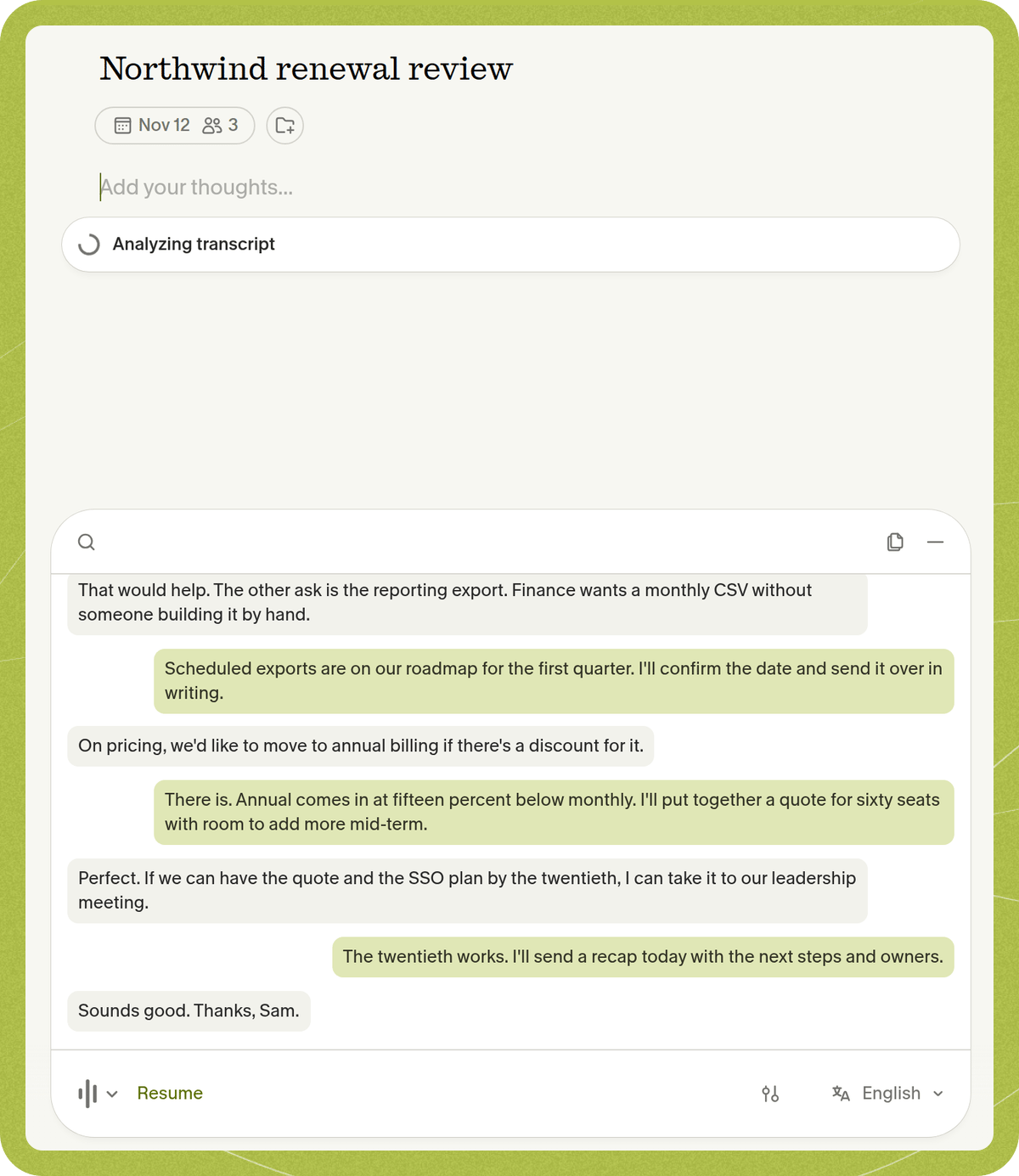
- Your AI tool saves the meeting to Granola and shares a link to the new note.
- Share the full spoken transcript, not a summary, recording, or video.
- Include speaker names and timestamps when you have them so Granola can label each speaker turn.
- Share attendee emails if you have them. Your AI tool only adds attendees with known email addresses and won’t guess emails from speaker names.
What you get
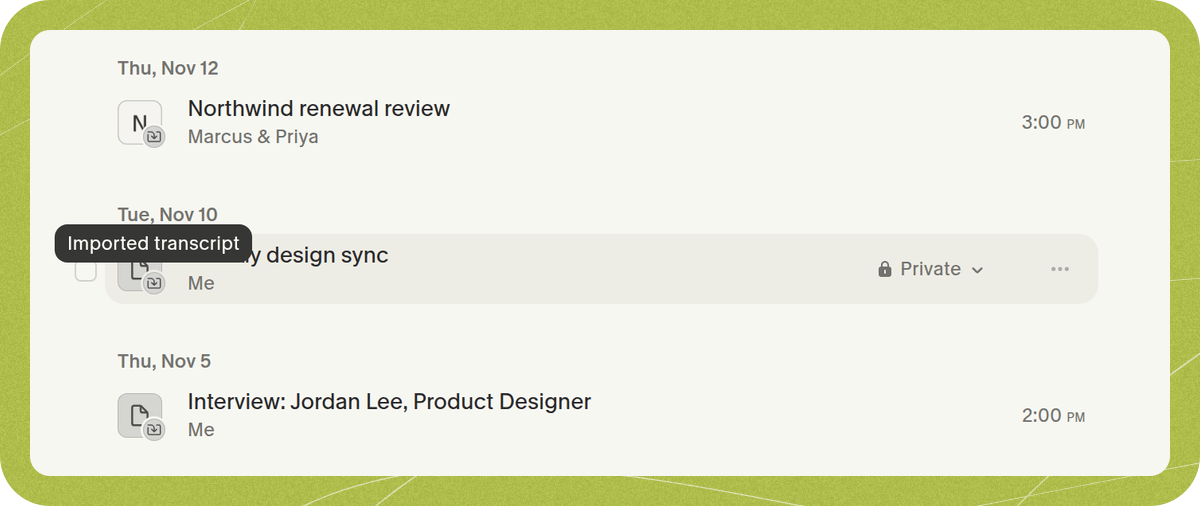
Each imported meeting becomes a note in your active workspace:- Private: Only you can see it, and it has no share link. Share it or add it to a folder like any other note.
- Dated to the meeting: It appears in your notes list on the day the meeting took place, not the day you imported it.
- Marked as imported: A small badge appears on the note’s icon. Hover it to see where the note came from, such as Imported from Claude.
Troubleshooting and FAQ
What happens if I import the same meeting twice?
What happens if I import the same meeting twice?
Importing the same transcript or meeting again returns the existing note instead of creating a duplicate. Re-importing doesn’t update the existing note, and it won’t restore a note you’ve deleted.
Can I import a long meeting transcript?
Can I import a long meeting transcript?
Yes. For long meetings, your AI tool splits the transcript and sends it in parts automatically. Granola waits until the final part arrives before writing the summary.
My AI tool says my workspace doesn't allow transcript imports
My AI tool says my workspace doesn't allow transcript imports
On Enterprise plans, workspace admins control what AI tools can read and edit through MCP. Ask an admin to enable note access along with Import transcripts in MCP access settings.
The imported note was saved to the wrong workspace
The imported note was saved to the wrong workspace
Granola MCP always saves notes to your active workspace. Switch workspaces in the Granola app (click your workspace name in the bottom-left corner), or ask your AI tool to switch workspaces before importing.