
How Granola works with calendars
Granola integrates with Google Calendar and Microsoft Outlook, pulling events from your connected calendar into Coming up. Sign in with your Google or Microsoft account to connect your calendar. If you use Granola on iOS or Android and want to change which calendars appear in your upcoming meetings, update your selections in Settings > Calendar on macOS or Windows. Changes sync to your mobile app automatically. Your Granola home screen should look something like this: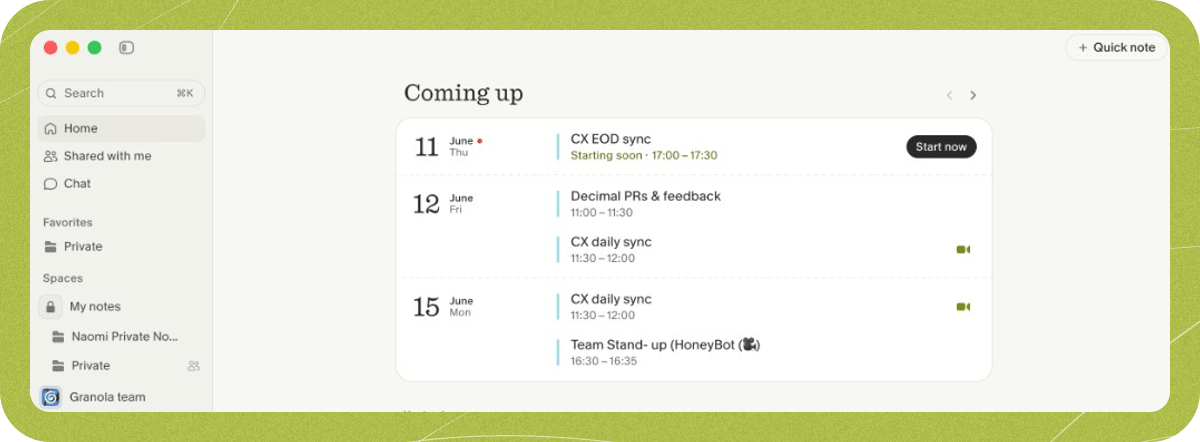
Troubleshooting
I can't see any events in 'Coming up'
I can't see any events in 'Coming up'
Make sure that:
- You can see events in Google Calendar or Outlook Calendar for the email address you use to sign in to Granola.
- The right calendars are toggled on in Settings > Calendar (or hover over Coming up and click Calendar settings).
- Click your workspace name in the bottom-left corner, open Settings, and click Sign out.
- Sign back in — you’ll be prompted to grant calendar permissions again.
I see a calendar event I don't recognize
I see a calendar event I don't recognize
Granola only shows events from the Google or Microsoft calendar connected to your account. It doesn’t read other people’s Granola calendars.If a meeting looks unfamiliar, it’s usually still on your calendar in a form that’s easy to miss:
- An invitation you haven’t accepted or declined yet
- A spam or unknown-sender invite — Google can still send these to Granola even when they don’t show in the normal calendar view
- A shared or delegated calendar that’s toggled on in Settings > Calendar
- A multi-day or all-day event sitting in the banner at the top of the week
If you shared a calendar to Granola and can’t see its events, the calendar may not be shared properly with the email address you use to sign in to Granola. If the shared calendar is from a different provider than your sign-in account (for example, sharing a Google Calendar when signed in with Microsoft), the events must appear in your sign-in provider’s calendar — sharing to your email address alone isn’t enough. For Google Calendar, see how to share your calendar.The shared calendar should appear as a toggle in Settings > Calendar. Granola pulls from the calendar for the email address you’re signed in with, so it can only see what’s visible in that calendar.Once you’ve confirmed the events are shared across: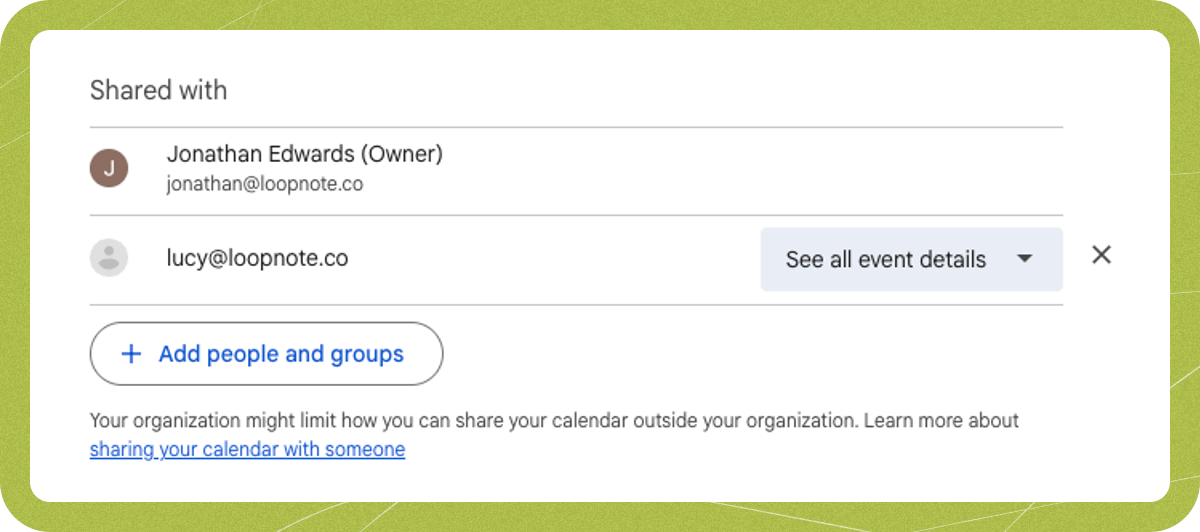
- Open Settings > Calendar (or hover over Coming up and click Calendar settings) to view the calendars available from your connected account.
- Allow a couple of minutes for sync to catch up.
The time zone seems wrong, Granola's showing the wrong time for my meetings
The time zone seems wrong, Granola's showing the wrong time for my meetings
Granola uses the time stored in the calendar connected to your account.If your meetings show the wrong times in Granola, check your time zone settings in Google Calendar or Outlook Calendar and verify the times stored there. Once updated, the change should appear in Granola within a few minutes.
Outlook / Exchange calendar won't connect
Outlook / Exchange calendar won't connect
Granola works with cloud-based Microsoft 365 (Exchange Online) calendars. On-premises Exchange servers are not supported. If you use Outlook with an Exchange server that isn’t Microsoft 365, calendar sync may not be available.For connection issues with Microsoft 365, try signing out of Granola and signing back in with Microsoft so you’re prompted again for calendar permissions. If your organization requires admin approval, your IT admin must approve Granola in the Microsoft admin portal — see Sign in with Microsoft.
Outlook public folder calendars aren't supported
Outlook public folder calendars aren't supported
Outlook public folder calendars use a different system than regular calendars, so Granola can’t access them — even if your organization uses cloud-based Microsoft 365.
Disconnect and reconnect to fix sync
Disconnect and reconnect to fix sync
If events used to show up but have stopped, or you’ve changed calendar sharing:
- Click your workspace name in the bottom-left corner, open Settings, and click Sign out.
- Sign back in with the same Google or Microsoft account.
- When prompted, grant calendar permissions again.
- Open Settings > Calendar and make sure the right calendars are toggled on. Wait a few minutes for sync to catch up.
Google Calendar keeps disconnecting after reconnecting
Google Calendar keeps disconnecting after reconnecting
If your Google Calendar connection disconnects repeatedly after reconnecting, your organization’s Google Workspace security policies may be revoking Granola’s access. Ask your IT admin to allowlist Granola in the Google Workspace Admin Console under Security > Access and data control > API controls > Manage third-party app access.