

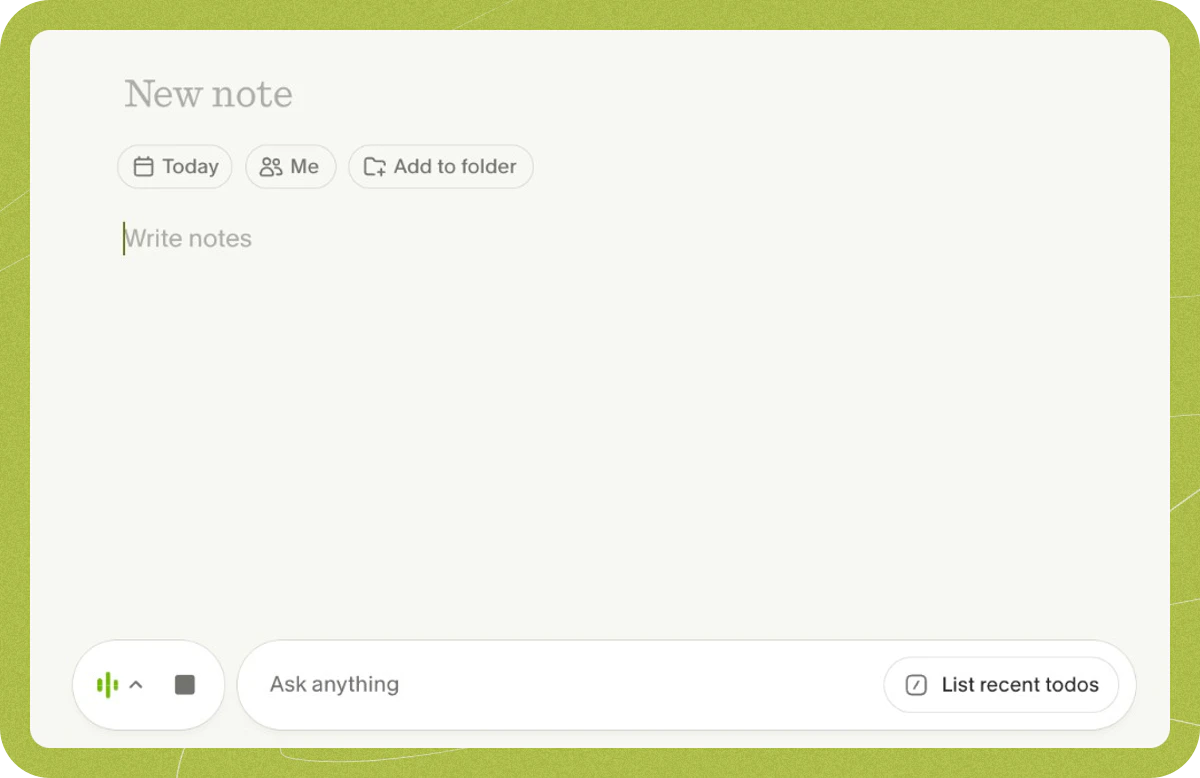
When does Granola start transcribing?
Granola starts capturing audio and transcribing only when you:- Click a meeting notification
- Open a meeting from your home screen after its scheduled start time has passed
- Click + New Note in the top right for an ad-hoc call or meeting that isn’t on your calendar
- Open an upcoming meeting before it begins (Granola starts transcribing automatically at the scheduled start time)
How do I know it’s transcribing?
While Granola is capturing audio, you’ll see green animated bars at the bottom of your note. Click the transcript button (the waveform bars icon to the left of the Ask anything chat bar) to open or close the live transcript panel. The button is hidden while Chat is open; click outside Chat or press Esc to close Chat first.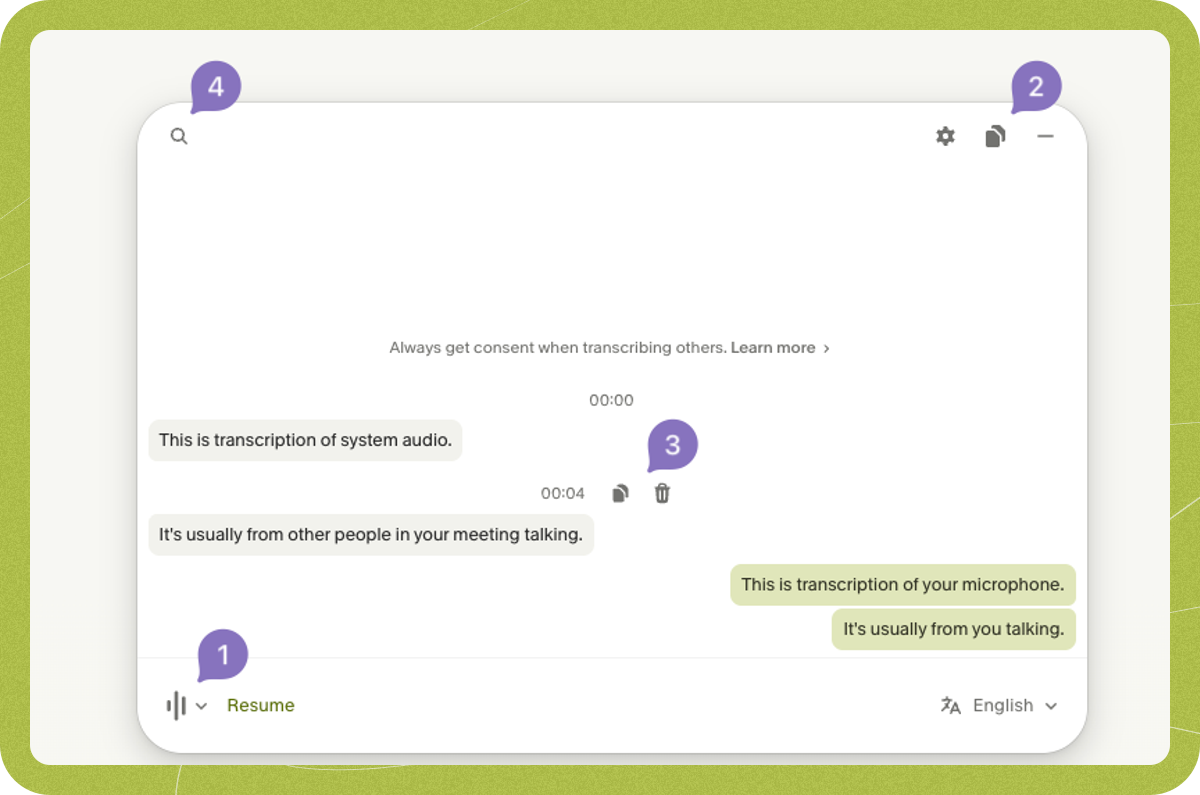
- Gray bubbles (left): System audio, typically other people on the call
- Green bubbles (right): Your microphone
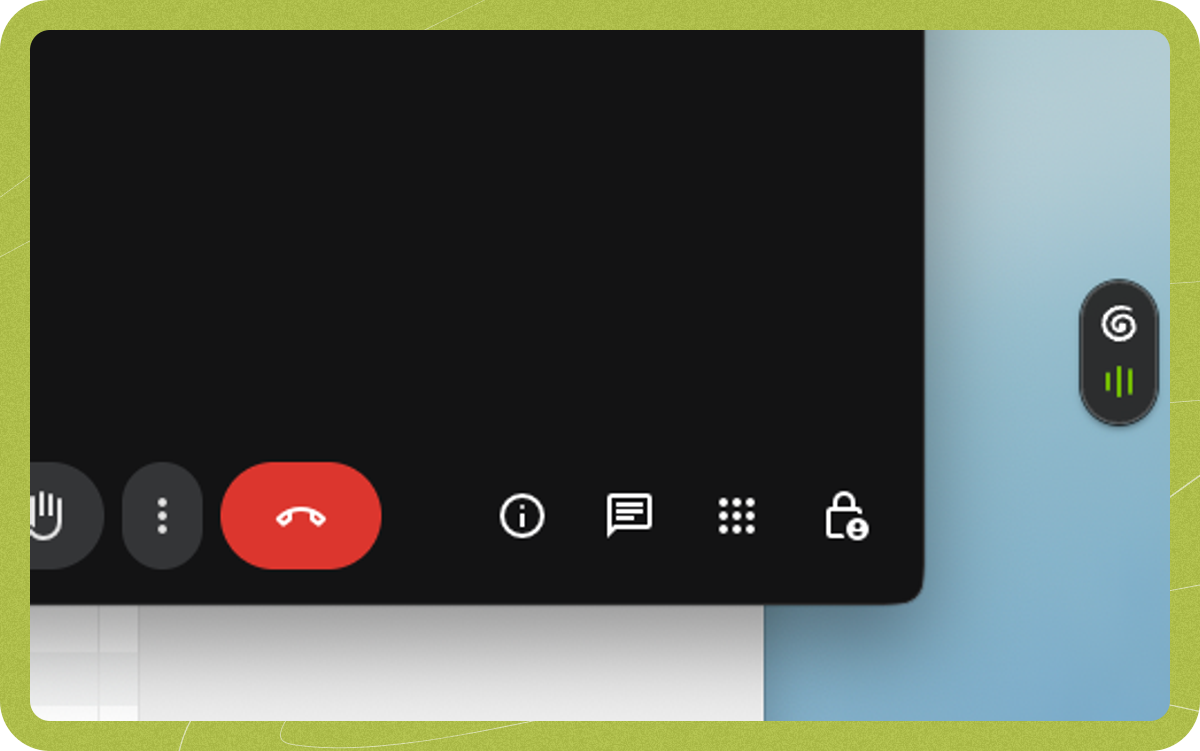
When does Granola stop transcribing?
You can stop transcription at any time with the stop button at the bottom of the screen. Granola also stops automatically when:- It detects that your call has ended, using transcript length, whether your call app (such as Zoom, Teams, or Google Meet) is still active, and the scheduled end time for calendar-linked meetings
- 15 minutes pass with no new audio to transcribe
- Your computer goes to sleep
What audio is Granola capturing?
On desktop, Granola captures audio directly from your device, so no bot joins your call. This works with Zoom, Google Meet, Microsoft Teams, and other desktop or VoIP calling apps. Mobile Granola can’t capture audio from virtual meeting apps. Because desktop Granola captures your system audio inputs and outputs, it can transcribe any call whose audio plays through your computer. For calls that aren’t on your calendar, start with New Note and verify that Granola uses the same audio devices as your meeting app. Granola can’t isolate audio from a single application; it captures the combined system audio stream. Music or other audio playing during a meeting will show up in the transcript even if it’s routed to a different output device. Audio passes directly from your microphone and system audio to our transcription provider in real time. Granola doesn’t record or save audio or video from your meetings, so there are no audio files to play back later. Granola is built for live meetings only and doesn’t support importing or uploading pre-recorded audio files (such as MP3s).Can Granola recognize different speakers?
Yes. Speaker tags label who said what using each participant’s display name in Google Meet, Zoom, and Microsoft Teams on macOS and Windows. Follow the speaker tags setup guide for your meeting app. The Granola mobile app (iPhone and Android) can also distinguish speakers during in-person meetings. When speaker tags aren’t available or turned on, the transcript labels your microphone as Me and system audio as Them. Granola’s AI still infers speakers from context in most meetings, and you can fix a name directly in your notes or ask Granola Chat to update it.How can I improve transcription accuracy?
- Add company names, acronyms, and product terms to Personal jargon (or Workspace jargon, if configured by an admin) in your transcription language settings
- Check that the right audio devices are selected and your microphone input volume isn’t too low
- Use a headset in noisy environments to reduce background sound
How can I extract or copy the transcript from my meeting note?
Open the meeting note and click the transcript button (the waveform bars icon to the left of the Ask anything chat bar) to open the transcript panel. If Chat is open, press Esc or click outside Chat first. From the transcript panel, you can:- Pause or resume: Click Stop to pause transcription without ending the meeting, and Resume to start it again
- Search: Search the transcript for specific words or phrases
- Copy the whole transcript: Click the copy icon in the top right of the transcript panel
- Copy an individual chunk: Click any transcript chunk and click the copy icon
- Delete an individual chunk: Click any transcript chunk and click the delete icon to permanently remove it from the transcript