

Applying templates
- During a call: Type
/in your notes to open the command menu and pick a template. Granola uses it when generating your summarized notes. - After notes are generated: Click the dropdown arrow on the Enhanced tab (or the current template name) and pick another template to regenerate your notes in that format.
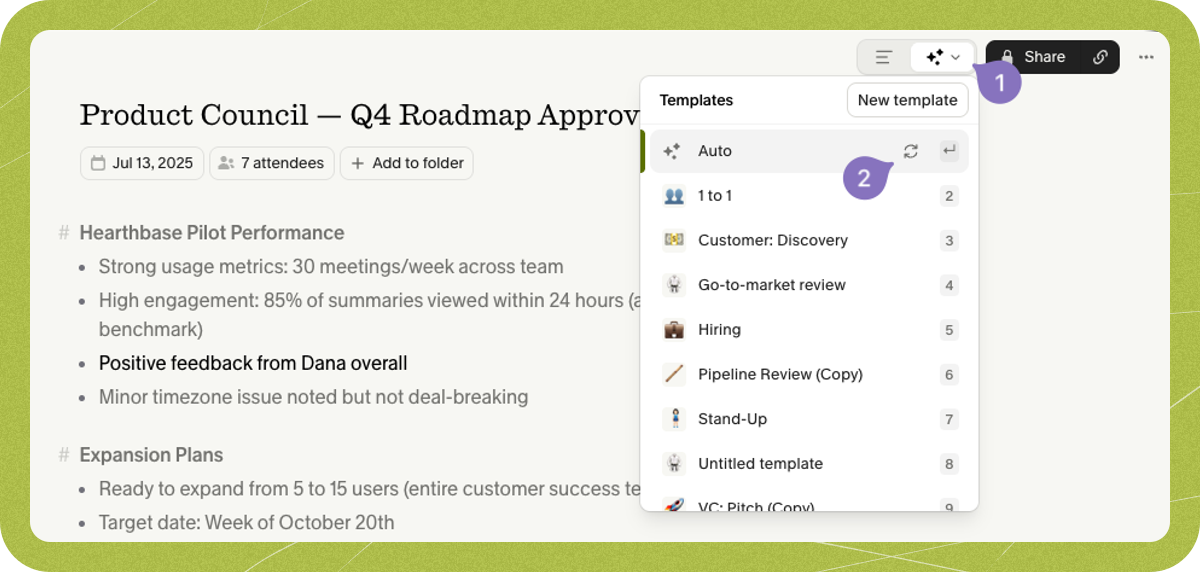
Creating your own templates
To create or edit custom templates, choose All templates… or New template from a note’s template menu, or open your workspace menu in the bottom-left corner and select Manage templates: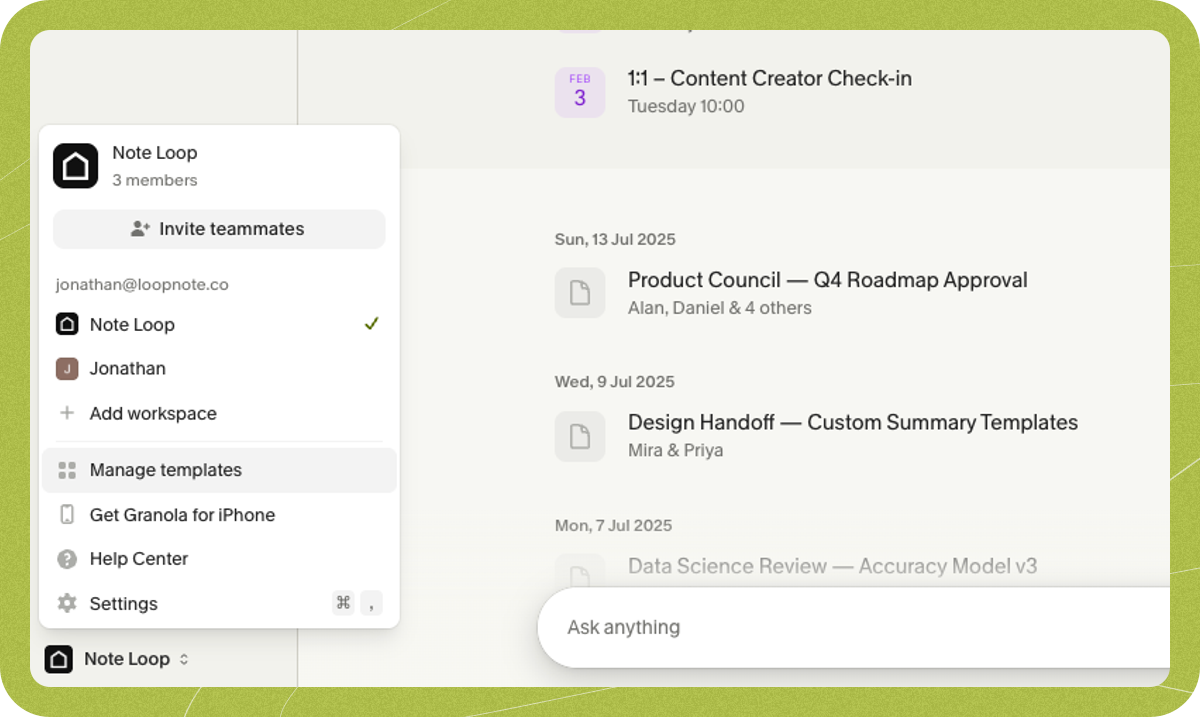
Writing effective templates
Strong templates usually cover four things:- Purpose and context: Describe what you want out of the meeting and any relevant background.
- Example: “This is a user interview to understand what the user thinks about Granola, an AI note-taking tool for meetings.”
- Length and style: State how detailed the notes should be and what to emphasize.
- Example: “Include plenty of detail, quotes, numbers, and data wherever mentioned. Focus more on what they said than what I said.”
- Structure: Add template sections for the groupings you want, such as Key discussion points, Decisions made, or Action items. You can add specific prompts inside each section (for example, “Who introduced Granola to the team and how did they share it?”).
- Iterate: Apply your template to a real meeting and refine the sections based on the output.
Sharing templates with your team
Custom templates start as Private to me. To share a template with workspace members, open it in Manage templates, click Private to me, and switch it to Shared with<your domain>:
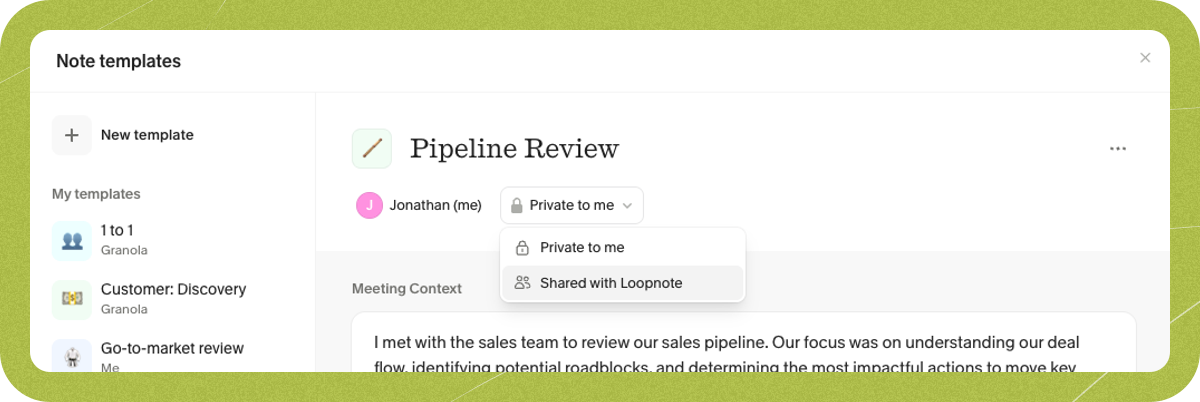
@yourcompany.com). If you sign in with a personal email provider like Gmail or Yahoo, the sharing dropdown isn’t shown. Shared templates are visible to anyone signed in with the same email domain, so workspace members on different email domains won’t see each other’s shared templates even within the same workspace.