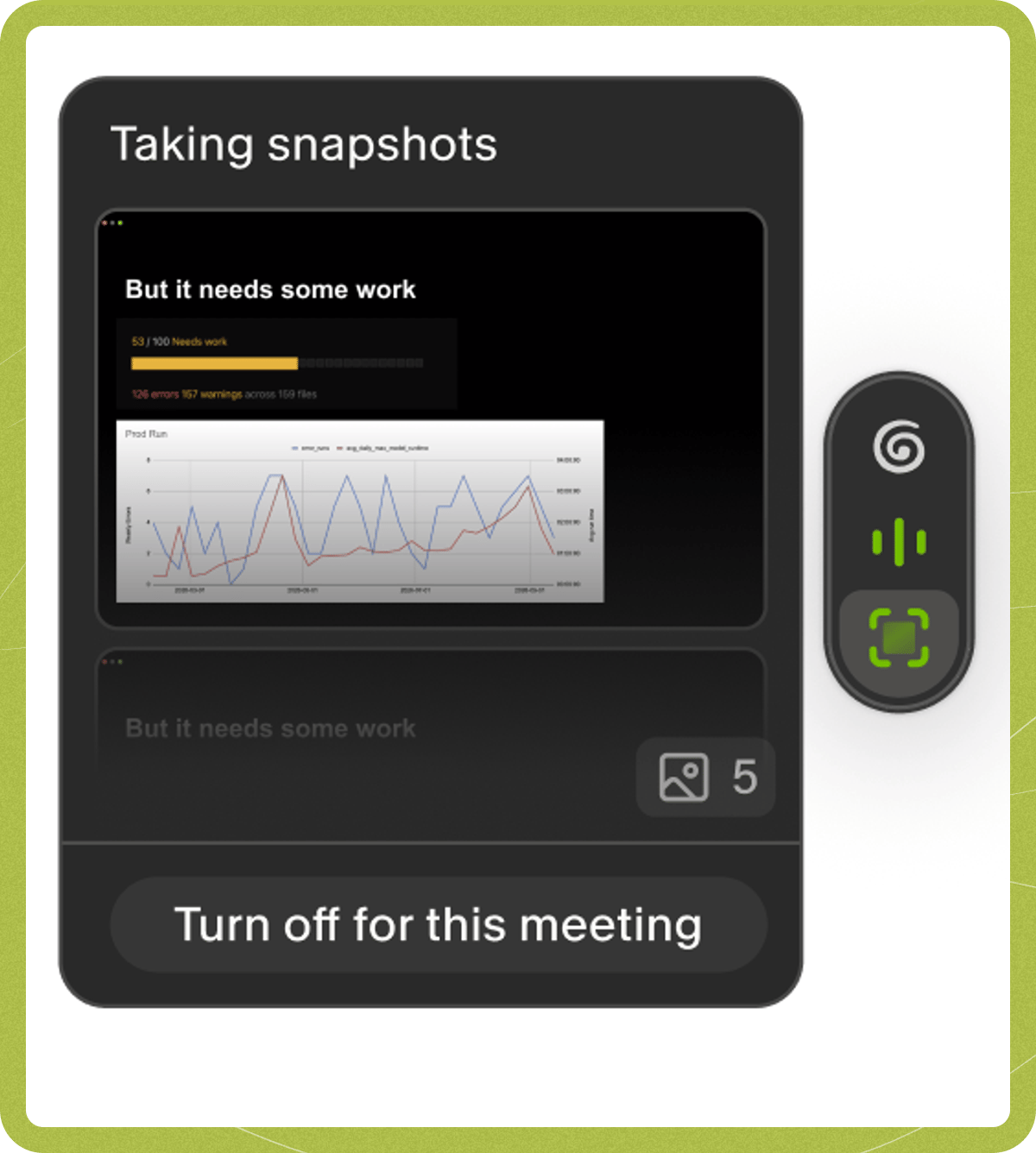

Safari, Firefox and Zoom in a browser aren’t supported. On Windows, Teams only works in the desktop app. If snapshots don’t appear in Zoom, try Gallery view.
Turning it on
Click your workspace name in the bottom-left corner, then select Settings. In Settings > Preferences, under Features: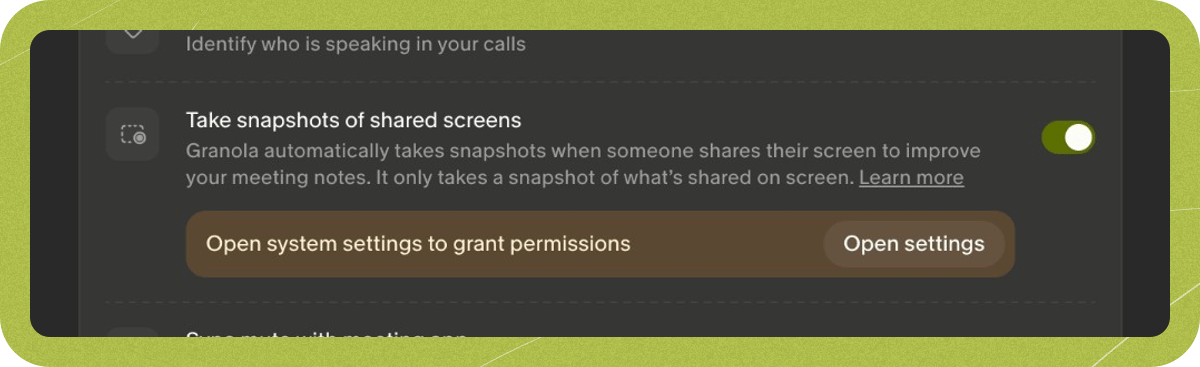
- On macOS, if you see Grant accessibility permissions, click Open settings and allow Granola. The switch stays off until this is granted.
- Turn on Take snapshots of shared screens.
- On macOS, if prompted for Screen Recording, allow it. If you’re asked to restart Granola, click Later. Granola doesn’t need to restart to start taking snapshots.
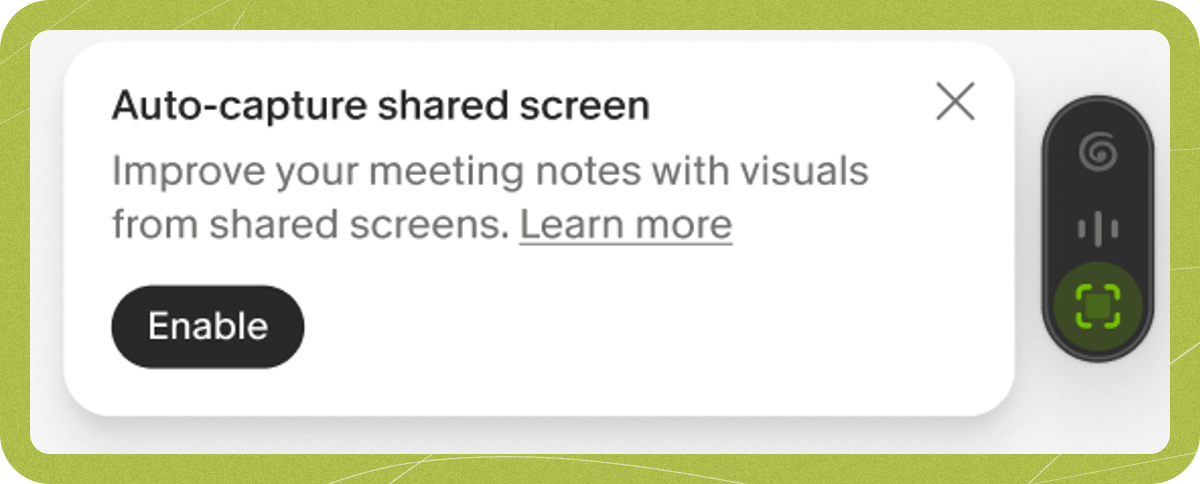
Finding your snapshots
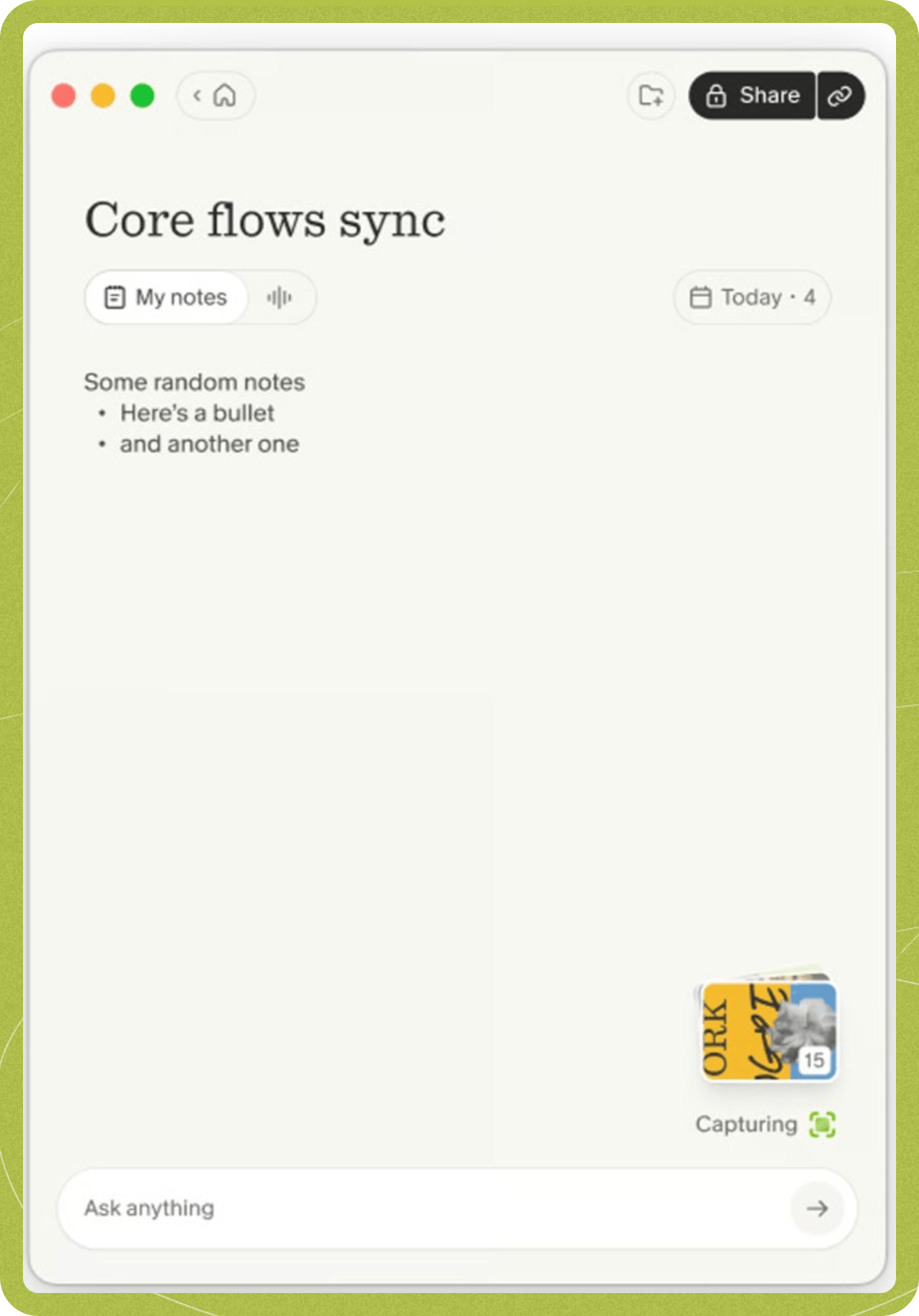
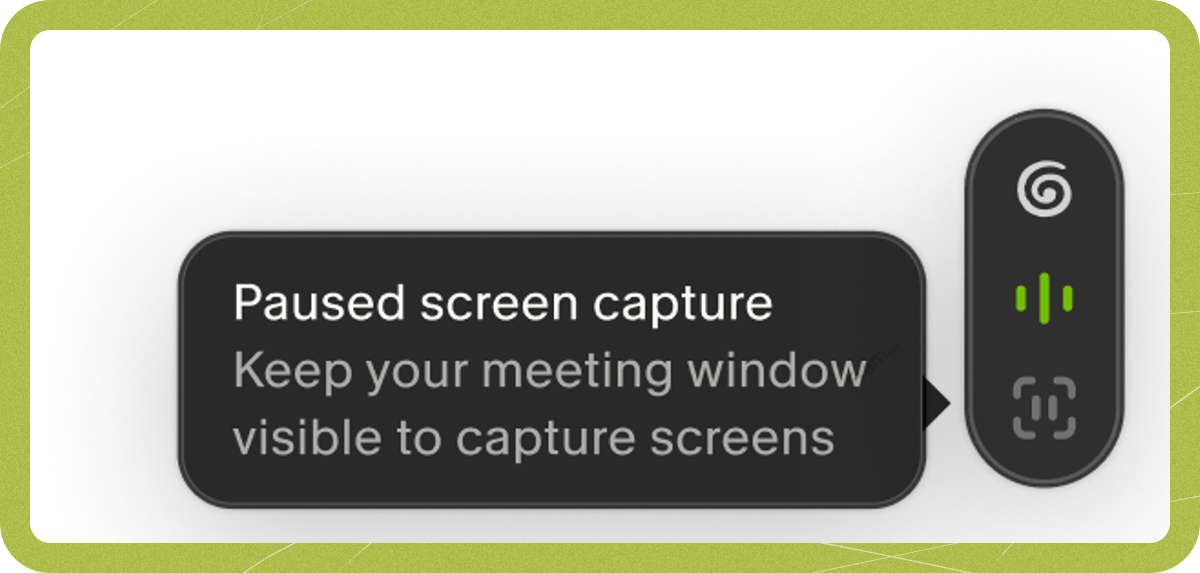
Snapshots collect in the Images stack at the bottom of your meeting note, above chat. The stack shows as soon as snapshots are running, even before the first one. While they are running it says Capturing.