
Sent to Microsoft Edge on iPhone or Android
After you choose Sign in with Microsoft, you may be told to open Microsoft Edge. You might then see Managed browser required, No available apps, or a message that the app could not be opened. Sign-in never returns to Granola. This happens when your organization’s Microsoft Entra Conditional Access policy:- Applies to browser sign-ins; and
- Uses Require app protection policy or Require approved client app as a grant control.
Admins: change the Conditional Access policy
- In the Microsoft Entra admin center, open Sign-in logs and select the failed Granola sign-in.
- Open the Conditional Access tab and identify the failing policy. Under Basic info, check the Application, Resource, and Client app fields.
-
Change that policy in one of these ways:
- Exclude the affected users or group; or
- Set its Client apps condition so it does not apply to Browser.
- Use the Conditional Access What If tool to check the change.
- Ask the user to fully close and reopen Granola, then try Sign in with Microsoft again.
”Approval required”
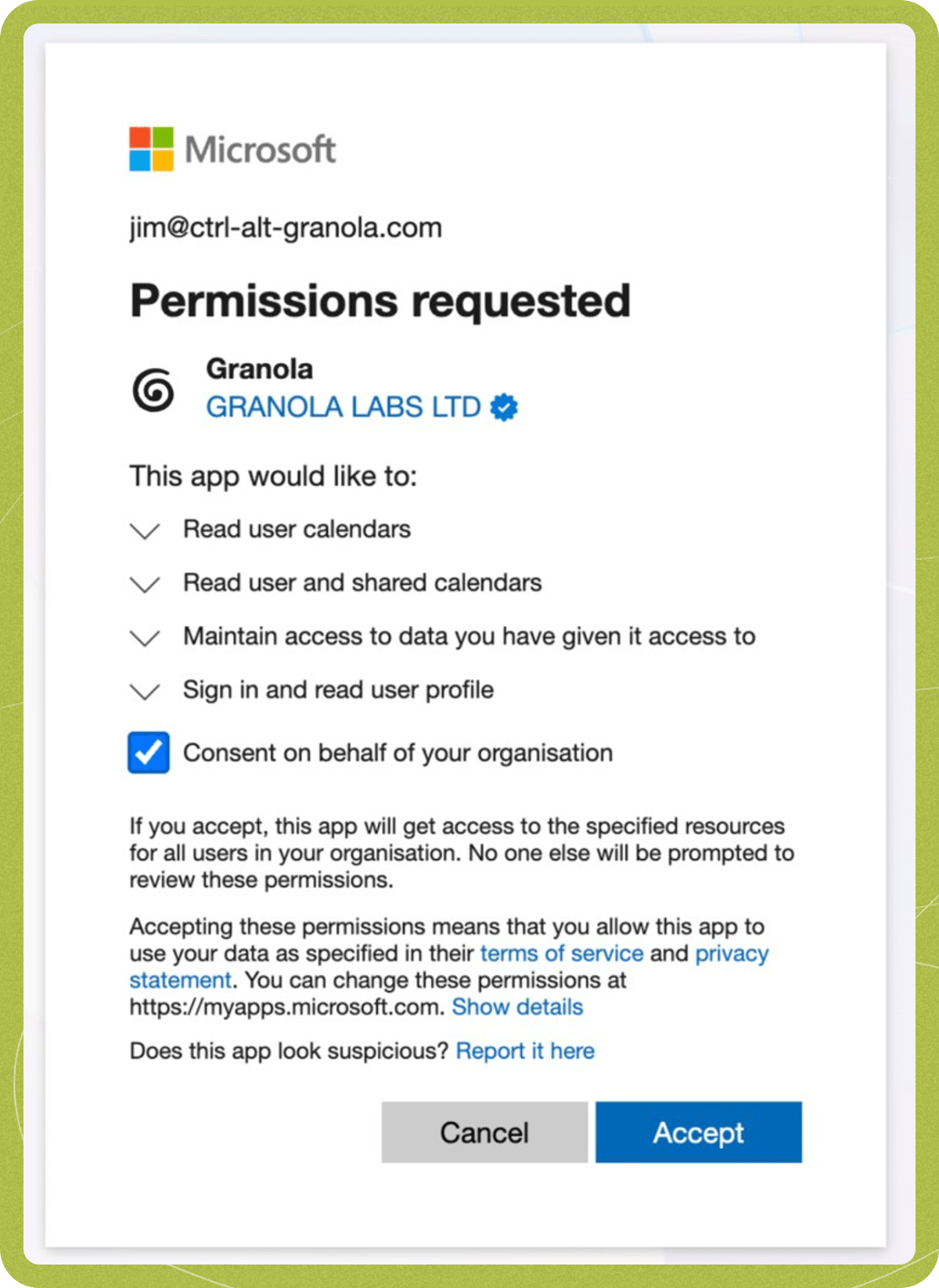
When you use Sign in with Microsoft, you may see a screen like this: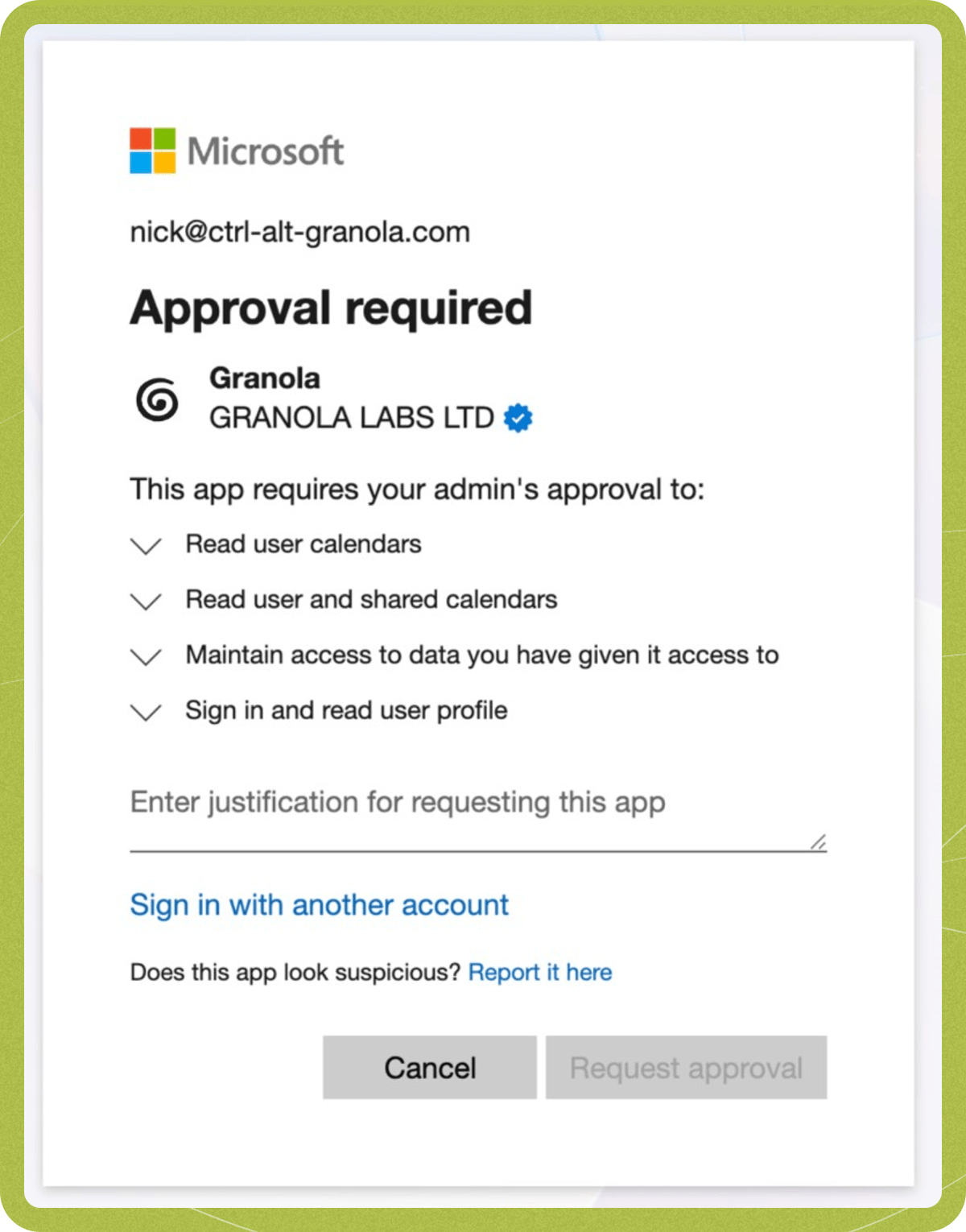
User.Read— Read your basic profile (name and email address)Calendars.Read— Read your calendar eventsCalendars.Read.Shared— Read shared calendars you have access to
openid, email, profile, offline_access) to sign you in. All permissions are read-only — Granola does not request write access to your calendars or any other Microsoft 365 data.
If you see the Request approval button, we recommend this justification message: “I want to use Granola for my meeting notes. Granola needs to read my calendar events so that it can start and stop transcribing at the right times, and so that it can better summarize my meeting notes.”
Admins: how to approve Granola
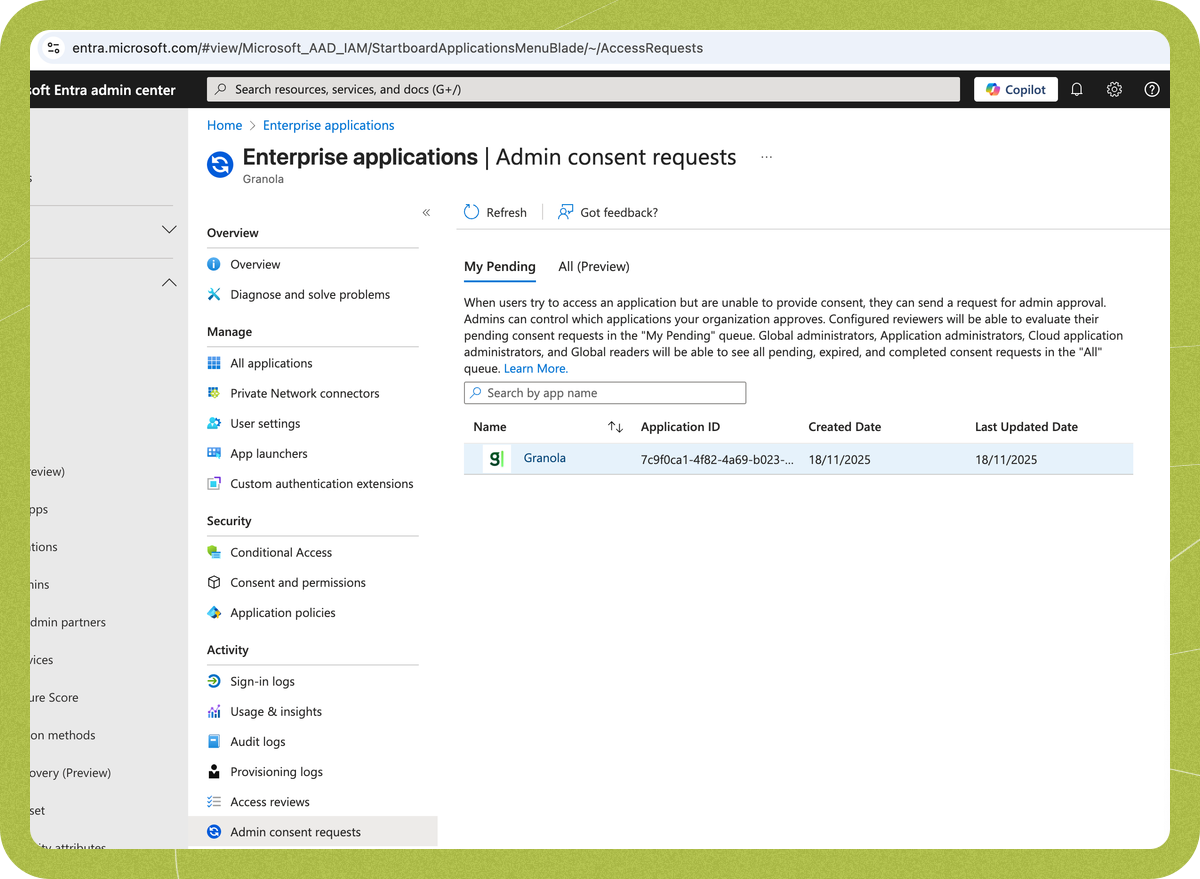
As an admin of your Microsoft 365 organization, to approve a user’s request:- Go to Microsoft Entra admin center > Entra ID > Enterprise apps > Admin consent requests > My pending.
-
Click the user’s approval request for Granola:
-
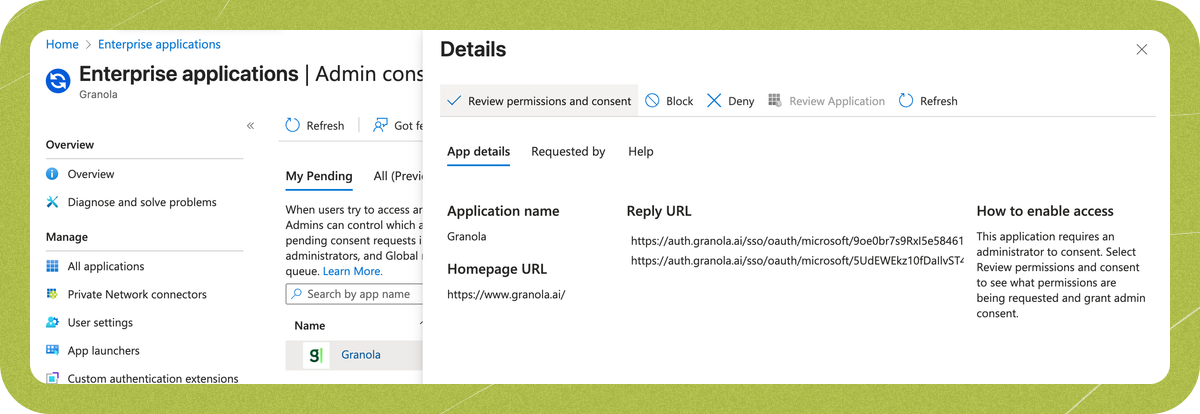
Click Review permissions and consent:
-
Click Accept:
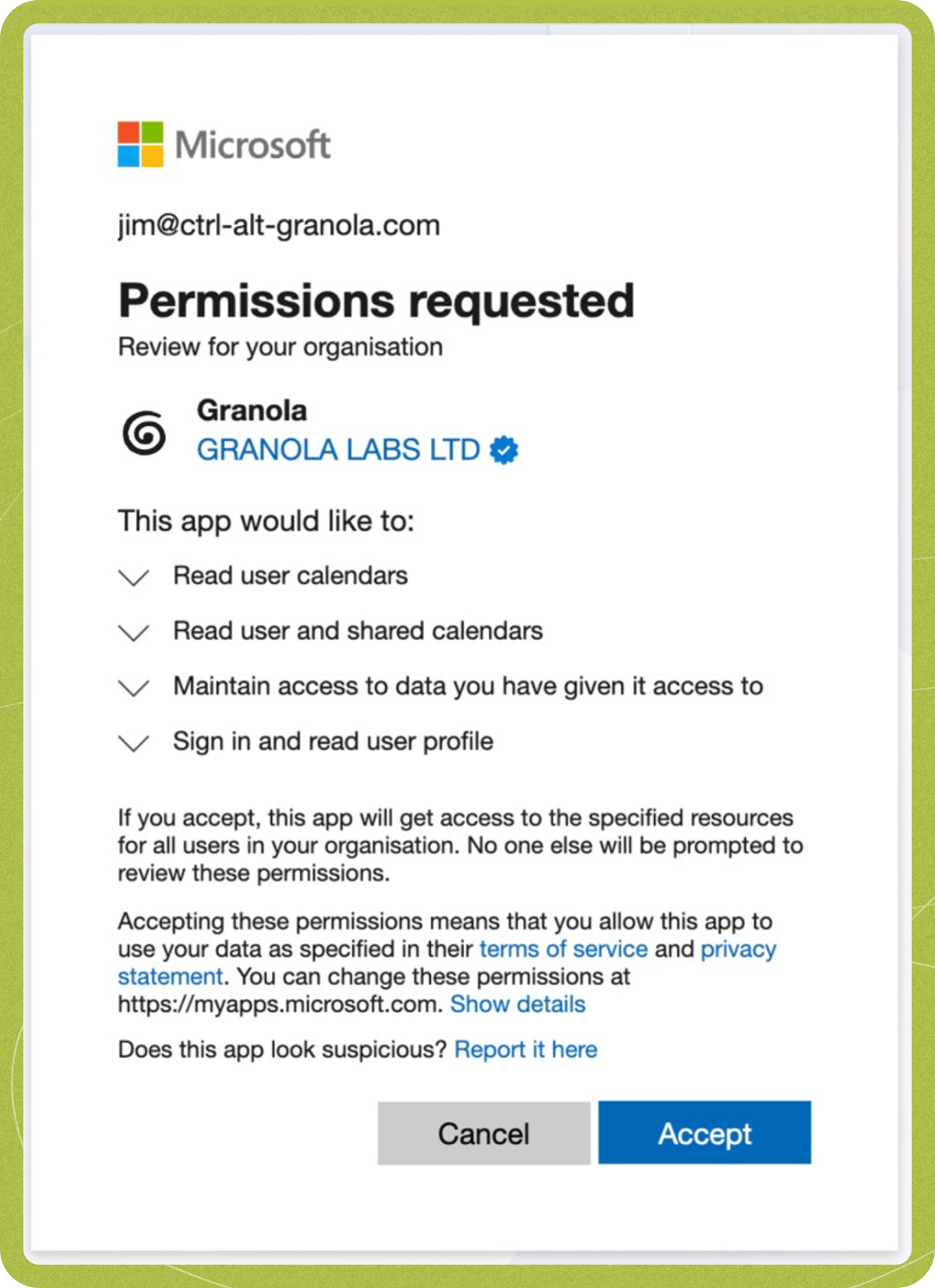
If you don’t see the “Request approval” button
You may see Need admin approval without a Request approval button: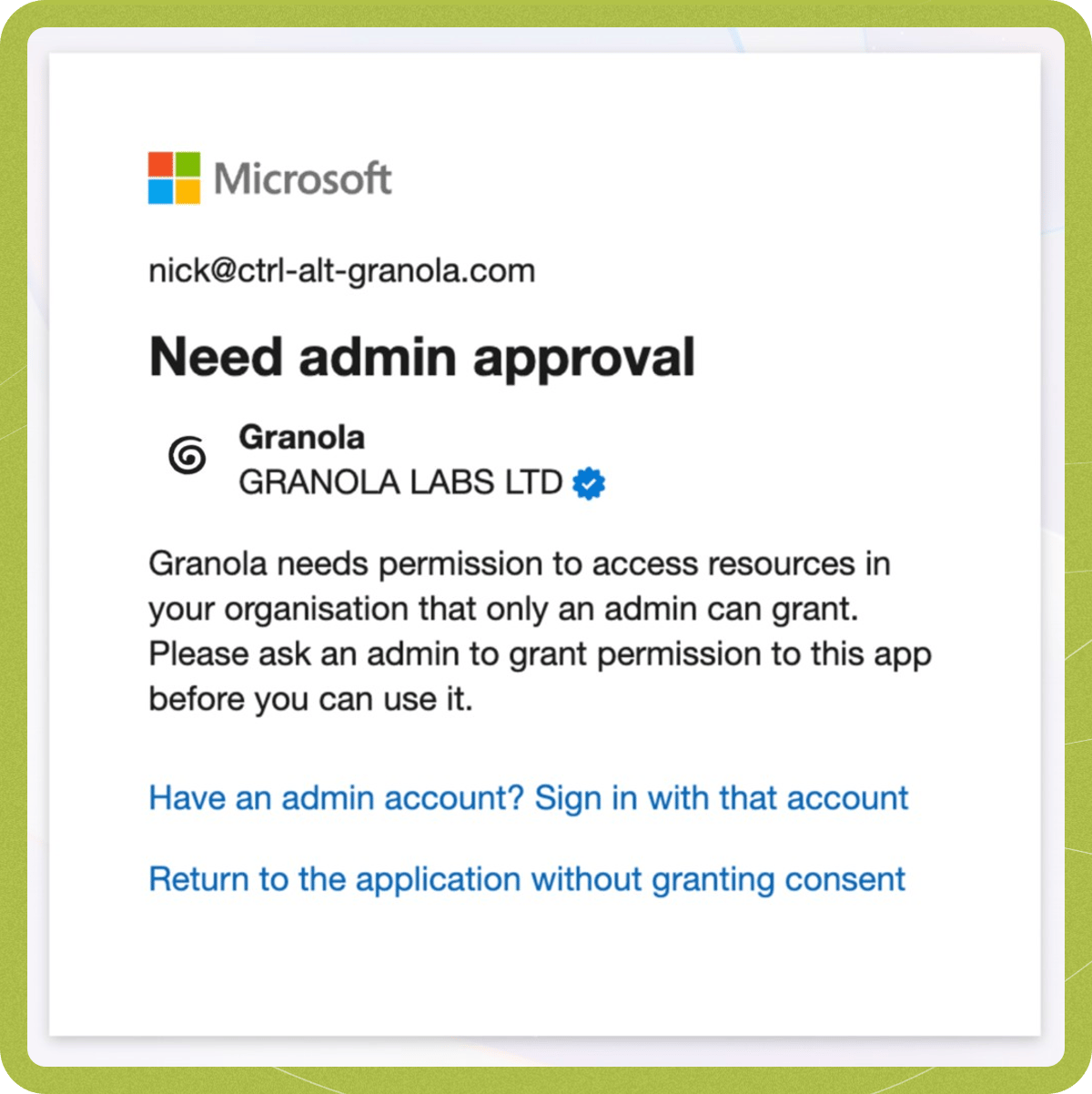
-
Go to Microsoft Entra admin center > Entra ID > Enterprise apps > Consent and permissions > Admin consent settings:
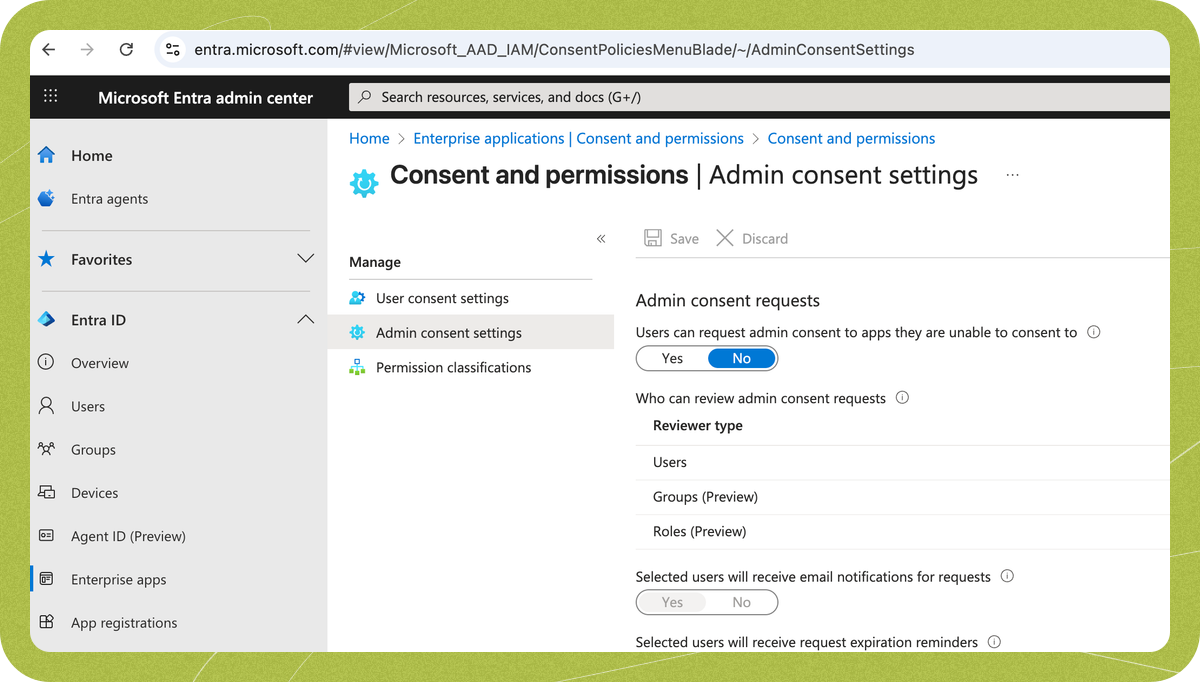
- Set Users can request admin consent to apps they are unable to consent to to Yes.
- Ask the user to try signing in to Granola again. They should see a Request approval button.
- Follow the steps above to approve the request.
If you are unable to enable “Admin consent requests”
If you are unable to enable Admin consent requests, you can approve Granola for your organization by signing in to Granola with your admin account. Download Granola, launch it, click Sign in with Microsoft, and you should see: