

How to share a note
Click Share (or Shared once shared) in the top-right corner of a note to invite people by email, add the note to a folder, or see who has access: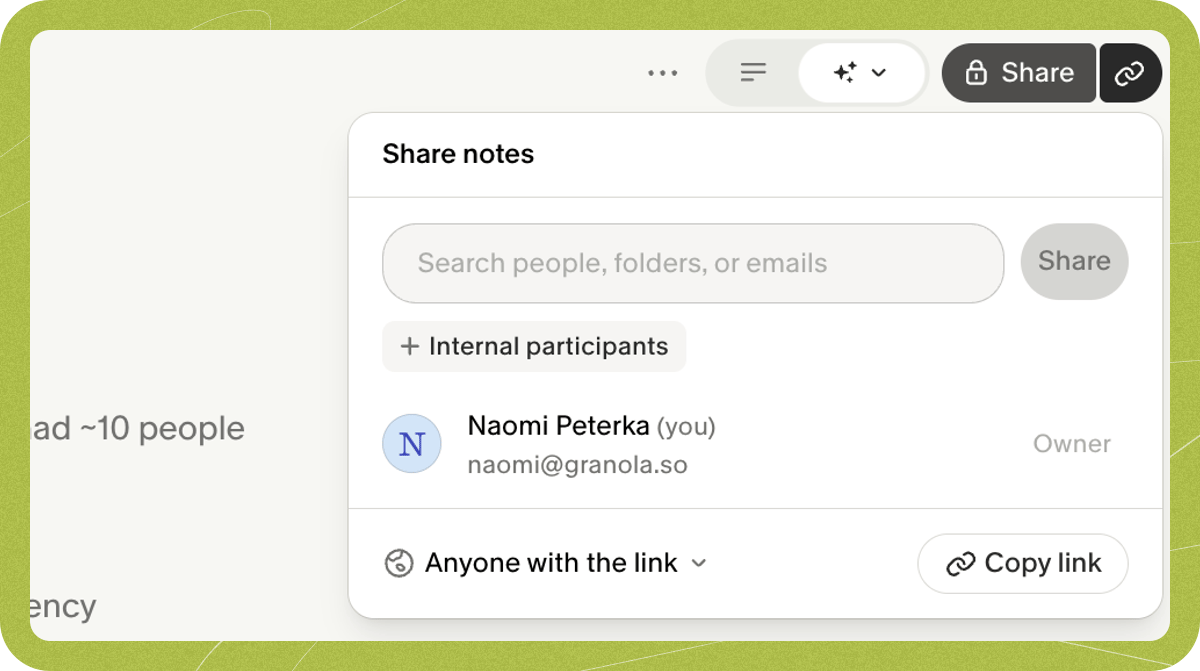
Sharing to integrations and other tools
Click the three-dot menu (...) at the top right of a note to export or send notes to other apps:
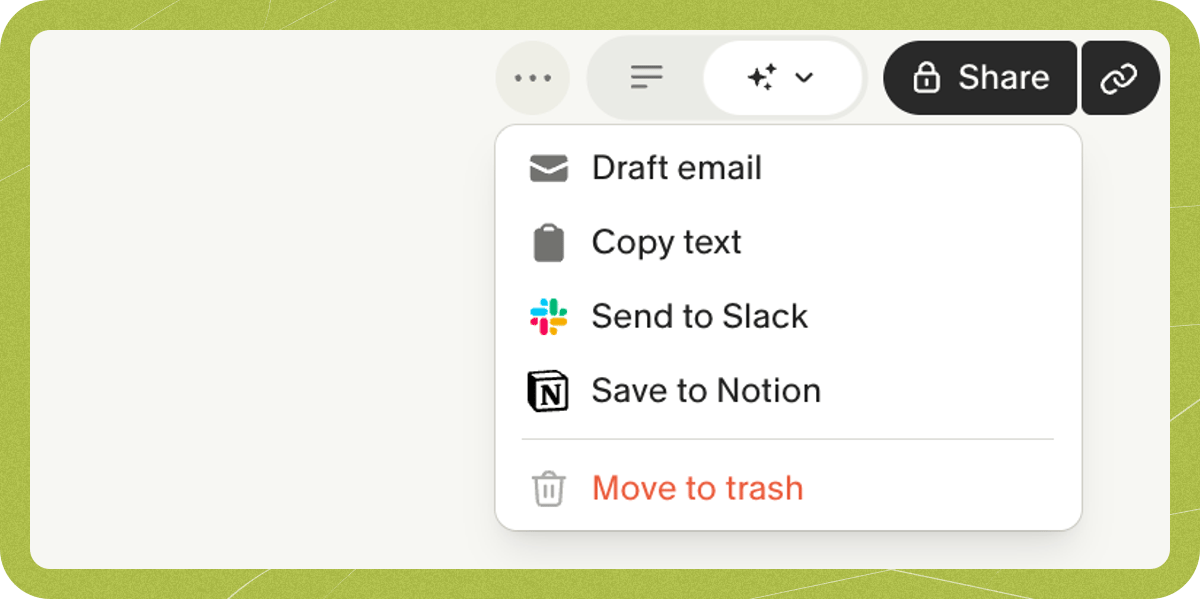
- Copy enhanced notes: Copies your AI-enhanced summary and note link as Markdown (handy for tools like Obsidian). This copies the summary, not the transcript; to copy the full transcript, use the copy option in the transcript panel.
- Send notes via email: Opens a draft in Gmail or Outlook with the note contents filled in.
- Connected integrations: Send the note to Slack, Notion, HubSpot, Salesforce, Affinity, Attio, or Zapier.
Permissions and what recipients see
When you invite someone by email from the Share menu, their role defaults to Collaborator if the first person you add is on your workspace’s company domain, or Viewer if they’re external. You can change the role before sharing. Viewers can:- Read the summarized notes
- Hover over a point for supporting context from the transcript
- Use Granola Chat to ask questions about the meeting
- Folder access doesn’t grant edit permissions on individual notes: Someone who sees a note through a shared folder has Viewer access on that note by default. The note owner (or an existing Collaborator) must explicitly grant Collaborator access on that note in the Share menu.
- Sharing doesn’t add workspace seats: Sharing a note only grants access to that specific note. It doesn’t add the recipient to your workspace, give access to other notes or settings, or count as a billable seat. Workspace membership only changes when someone is invited to the workspace, joins via an invite link, or joins through domain auto-join.
Transcript access and viewing on the web
- In a web browser (
notes.granola.ai): Recipients opening a shared note or folder link on the web see the summarized notes (and can hover over points for transcript context), but full transcripts aren’t available on the web. - In the Granola app: People explicitly invited to a note or accessing it through a shared folder can view the full transcript when they open the note inside Granola (unless transcripts are hidden by workspace settings). Link-only access doesn’t include the full transcript.