

Accessing recipes
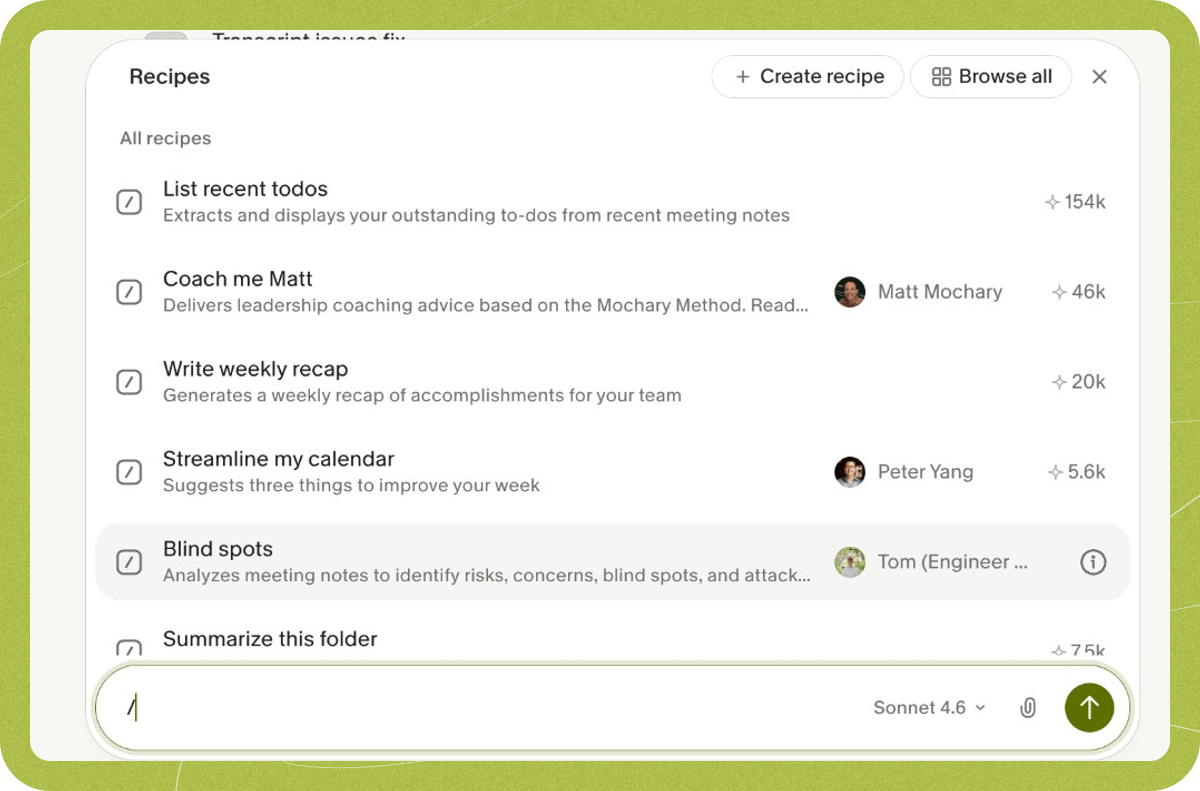
Bring up the recipes menu by typing forward slash (/) in the chat bar. This shows all available recipes, including default ones provided by Granola, recipes you’ve created, and any shared by workspace members.
Browsing and finding recipes
The Recipes view organizes prompts into tabs to help you find what you need.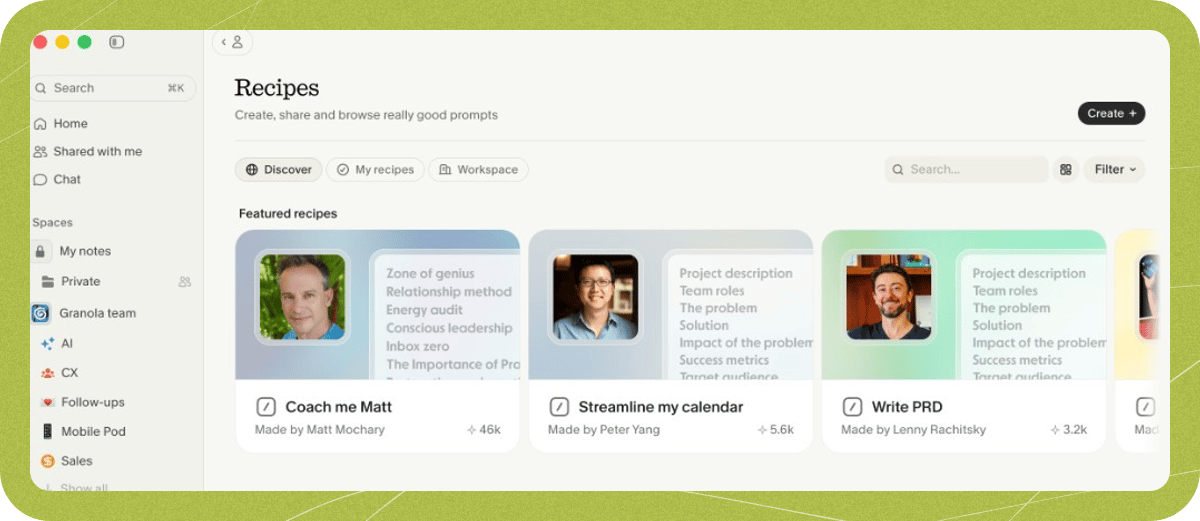
- Discover highlights recommended recipes created by the Granola team and the community.
- My recipes shows the personal recipes you’ve created or saved.
- Workspace shows recipes shared by workspace members.
Creating a recipe
-
Open the recipes menu by typing
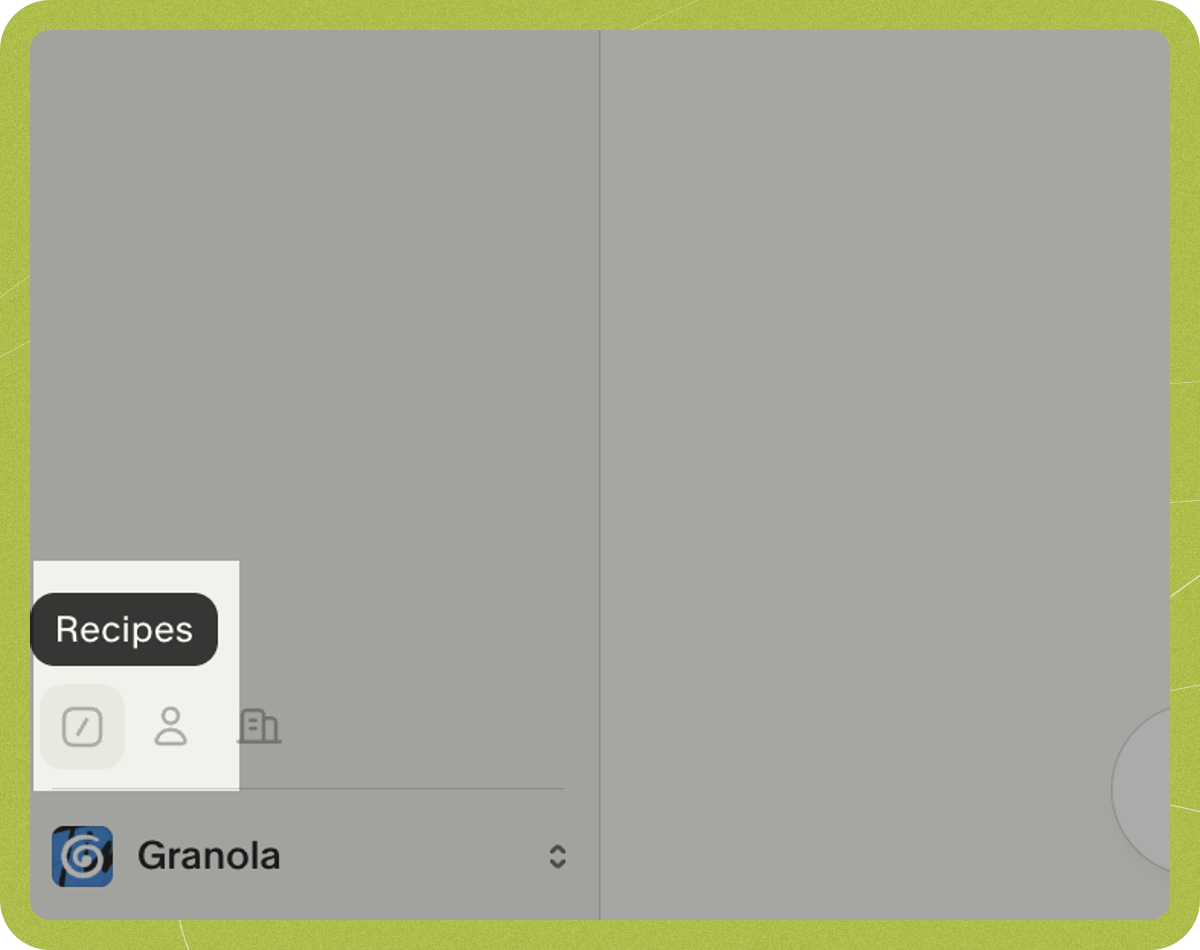
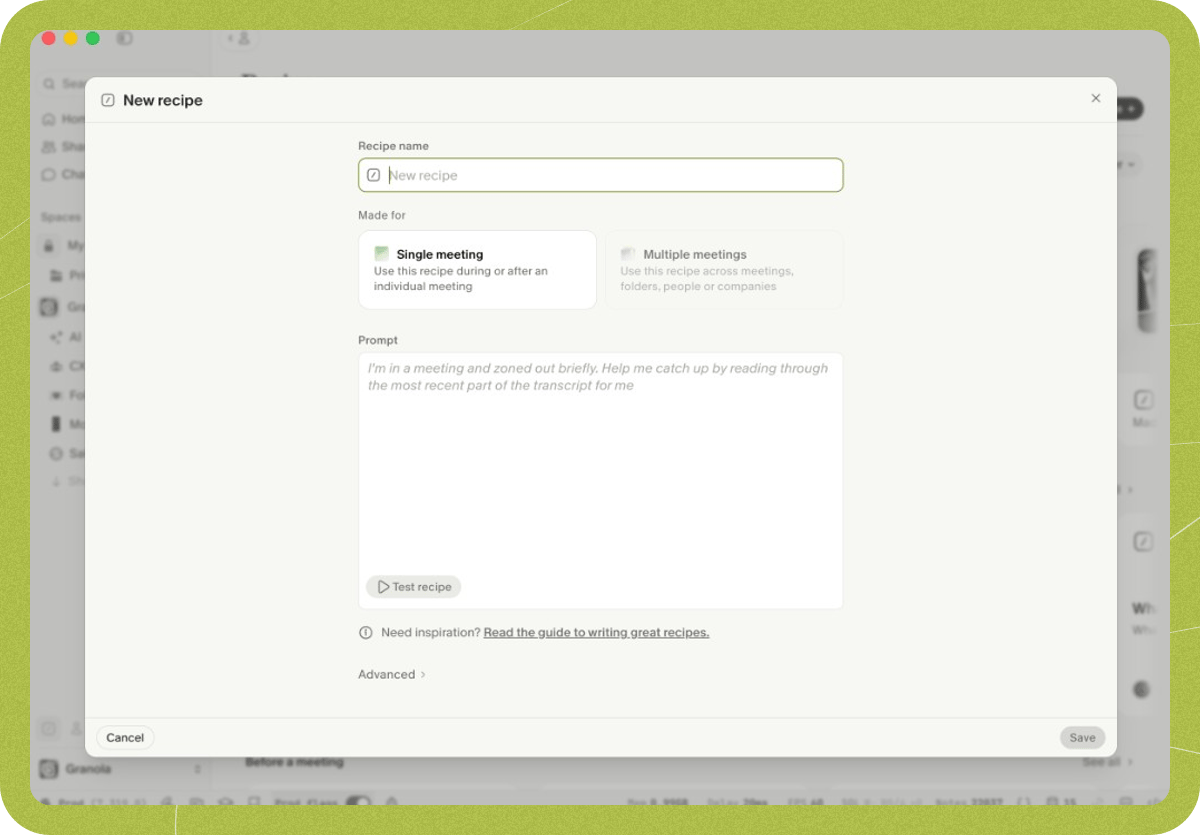
/in the chat bar, or open Recipes in the sidebar. - Select Create recipe (or New recipe).
- Give your recipe a name — this is the shortcut you’ll type into chat.
- Write your prompt with detailed instructions for what you want analyzed and how you want the results formatted.
-
Under Made for, choose where the recipe should be available:
- Single meeting — appears in individual meeting chats, including during live meetings and after they end.
- Multiple meetings — appears on the home screen, in folders, people view, company view, or when you select multiple meetings. It won’t appear in individual meeting chats.
-
Open Advanced if you want to select a specific AI model. On the Basic plan, recipes use Auto. Business and Enterprise plans can choose a model:
- Standard models work well for most tasks.
- Thinking models take longer but handle complex analysis better.
- Save your recipe.
-
Once saved, you can publish the recipe to your workspace or share it via a link. Choose who can access the recipe:
- Private to me
- Everyone at
<your workspace> - Anyone with the link
Editing and deleting recipes
You can edit or delete any recipe you’ve created. To edit a recipe:- Open the recipe from My recipes.
- Click Edit recipe (the pencil icon) in the recipe detail view.
- Make your changes and click Save.
- Open the recipe from My recipes.
- Click Edit recipe (the pencil icon) to enter edit mode.
- Click Delete recipe (the trash icon) in the bottom-left corner.
Using recipes effectively
Each recipe is a static prompt template — recipes do not support variables, placeholders, or dynamic content substitution. The prompt you write is sent as-is every time you run the recipe. If you need variations for different scenarios (for example, different interview rubrics for different roles), create a separate recipe for each variation with the specific details written directly into the prompt. Recipes work best when you provide clear, specific instructions in your prompt, including what information to extract, how to structure the output, and what areas to focus on. Common use cases include:- Extracting action items or decisions from recent meetings
- Summarizing product feedback across multiple calls
- Identifying features or bugs to test from development discussions
- Creating interview assessments after candidate calls
- Analyzing sales conversations for common objections or questions