

Editing sharing for an individual note
Open a note and click Share (or Shared) in the top-right corner to invite people, manage roles, or change who can open the note link: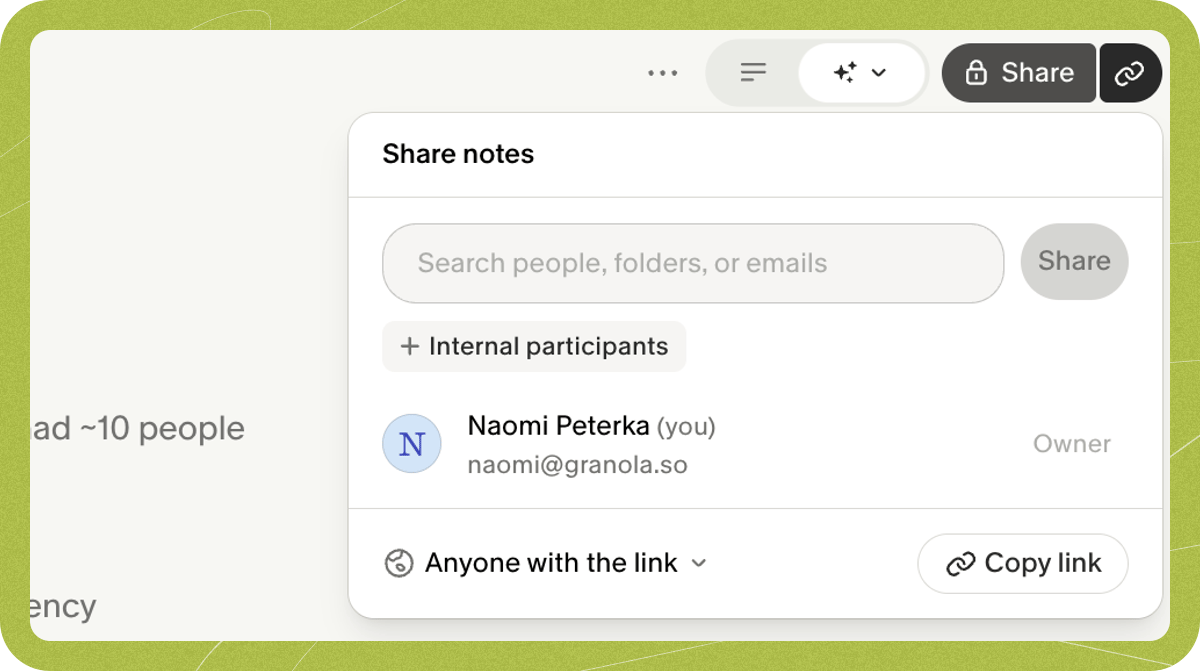
Editing default sharing permissions
Basic or Business plans
- Click your workspace name in the bottom-left corner of Granola Desktop and select Settings.
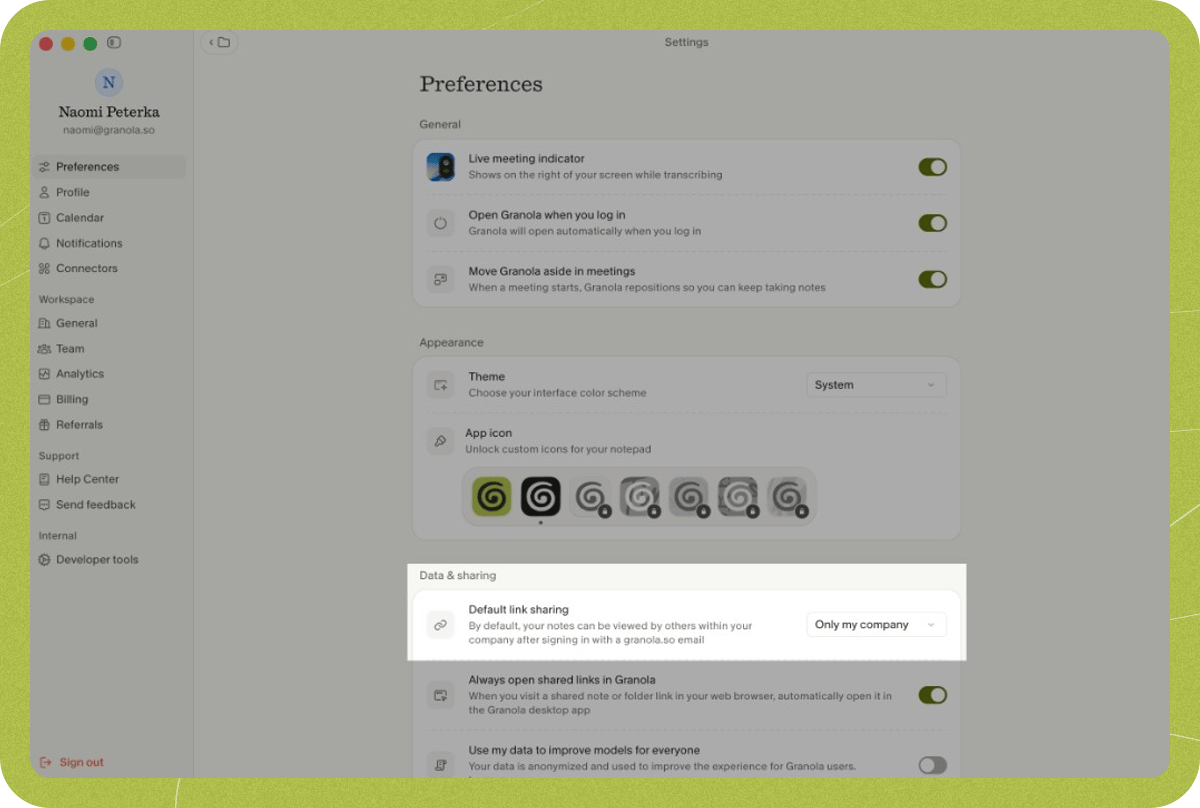
- Open Settings > Preferences and find Default link sharing under Data & sharing.
- Choose Anyone with the link, Only my company, or Private.
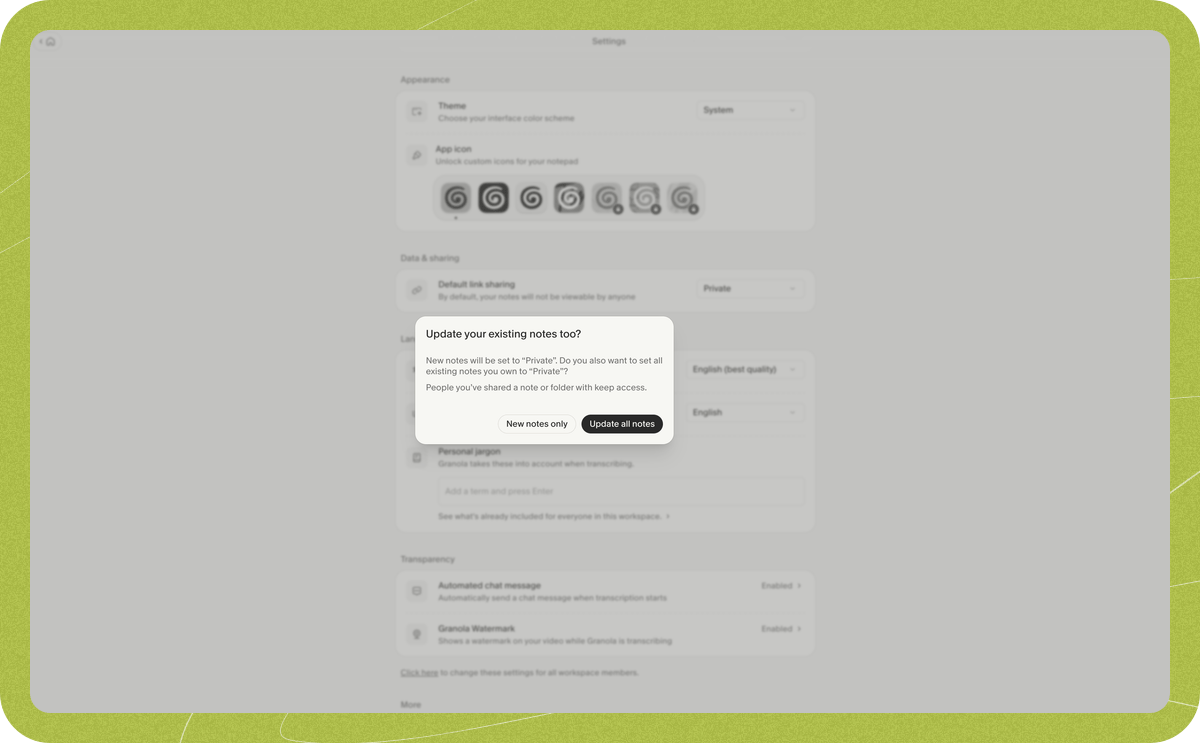
- Update all notes: Applies the new setting to every note you own. Notes that are already stricter stay as they are (for example, a Private note won’t loosen to Only my company).
- New notes only: Applies the setting to new notes and leaves existing notes unchanged.
Enterprise plans: configure for your workspace
On Enterprise plans, workspace admins can set link sharing rules for the entire workspace in Settings > Workspace > General under Data security. Changes apply retroactively to all existing notes and folders in the workspace, and individual workspace members can’t loosen sharing beyond the workspace limit.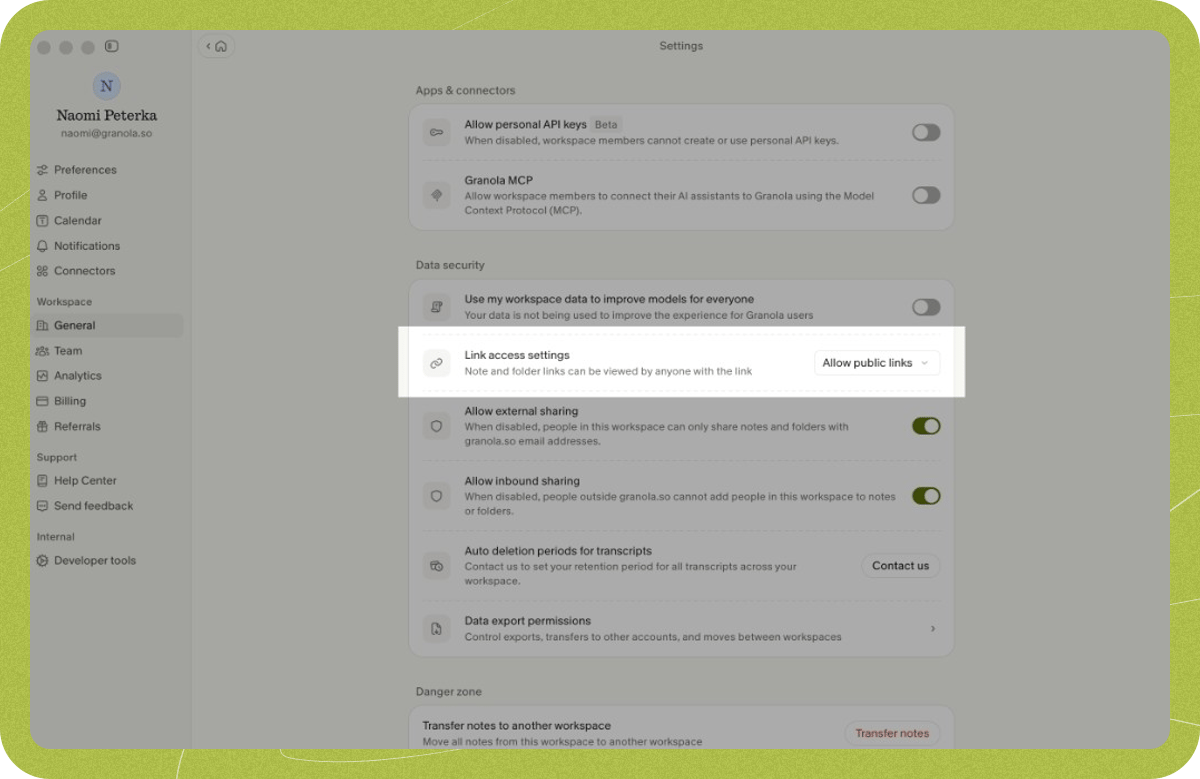
- Allow public links: Notes and folders can be shared via a public link that anyone can open. (Unavailable on HIPAA-enabled workspaces.)
- Only people at your company: Note and folder links can only be opened by someone signed in with an email at an approved domain. Your workspace domain is always approved; admins can add more domains with Add domain, which updates the label to Only approved domains.
- Restricted access: Link sharing is disabled for notes and folders; recipients must be invited directly to view them.