

Overview
The Granola Zoom app lets participants know when Granola is being used during a Zoom meeting. Granola transcribes meeting content when your organization has enabled it and the meeting host allows it. The in-meeting notice is part of Zoom’s native experience:-
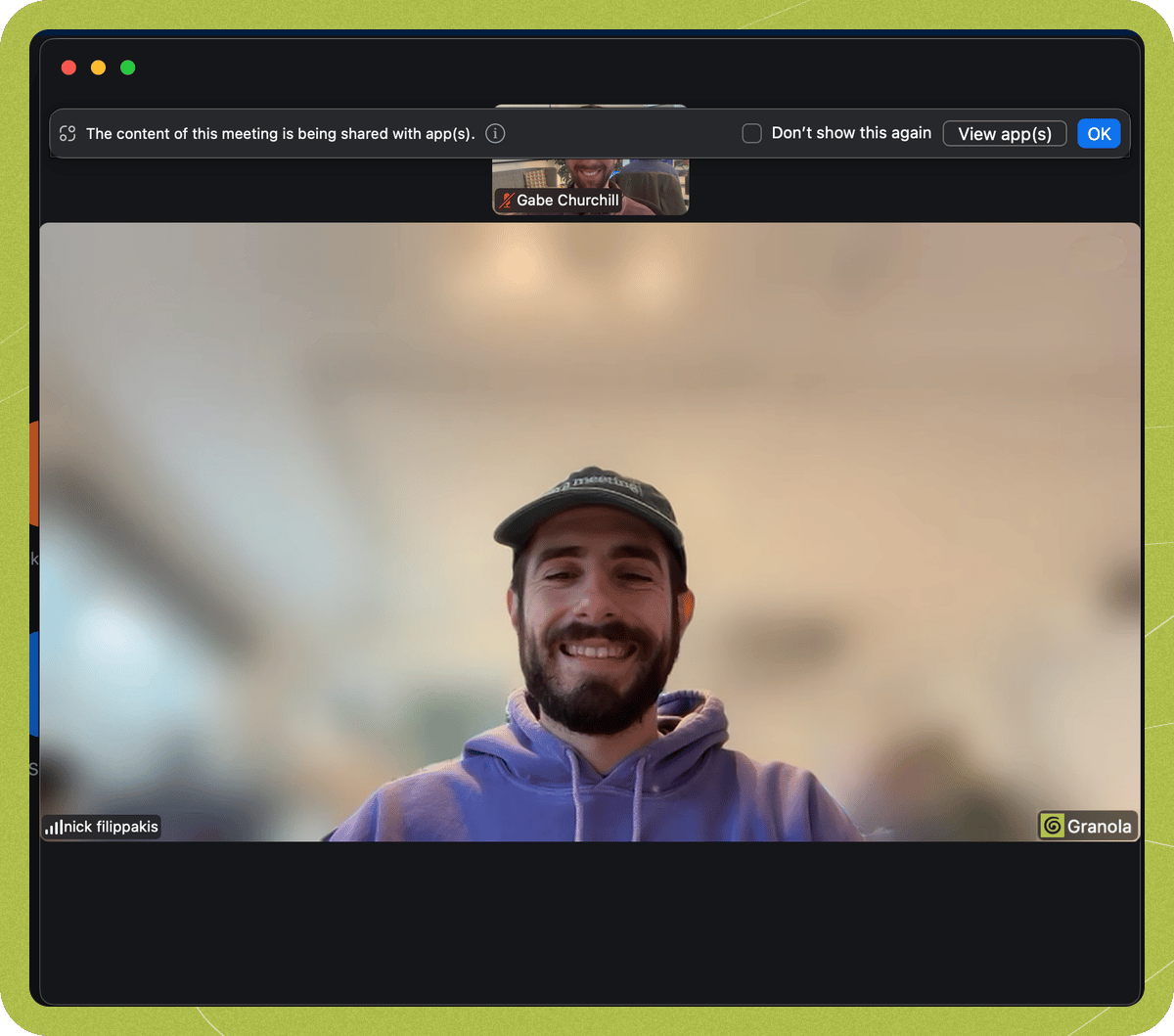
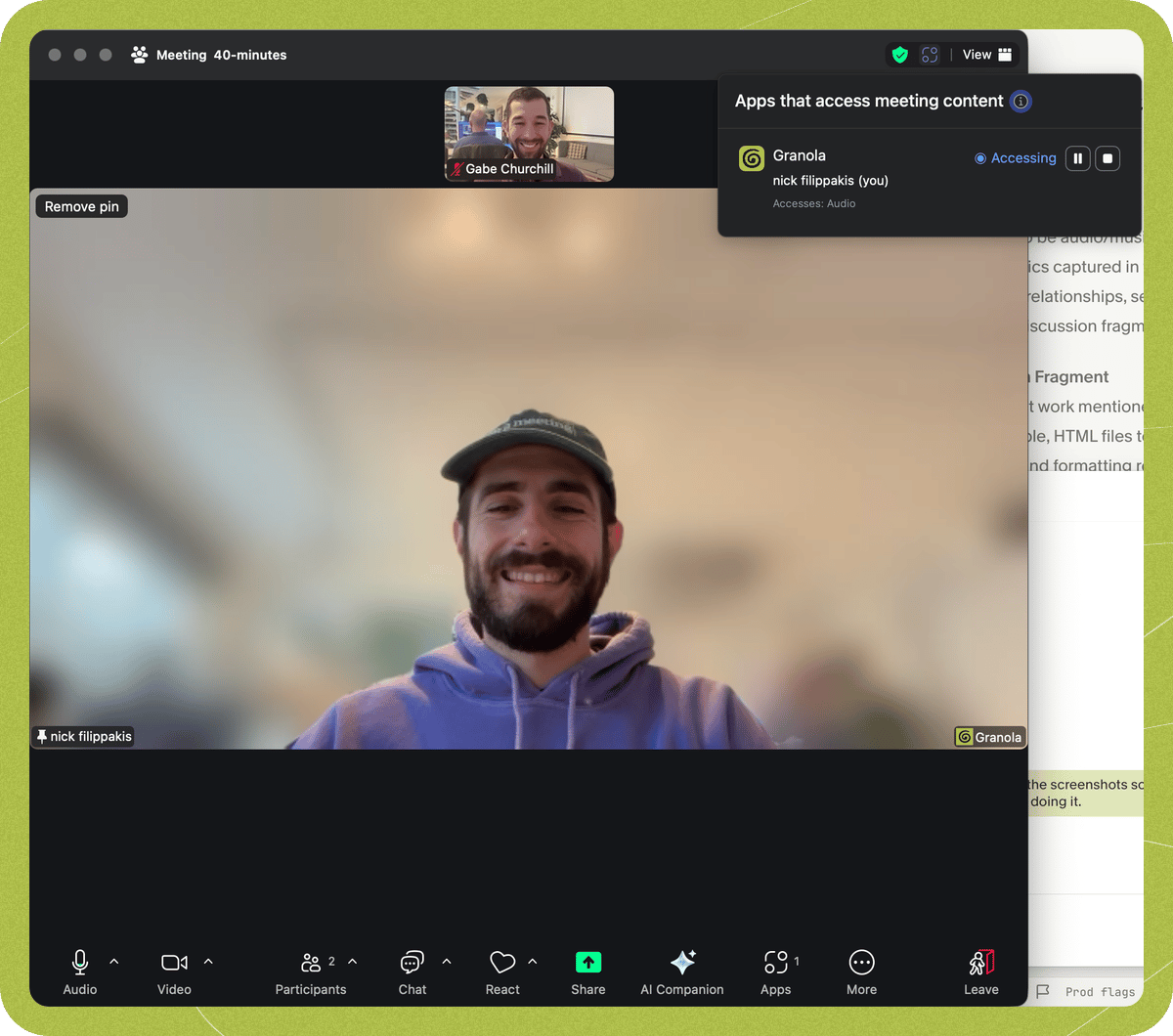
A notification appears: A banner appears at the top of the meeting with the message: “The content of this meeting is being shared with app(s).”
-
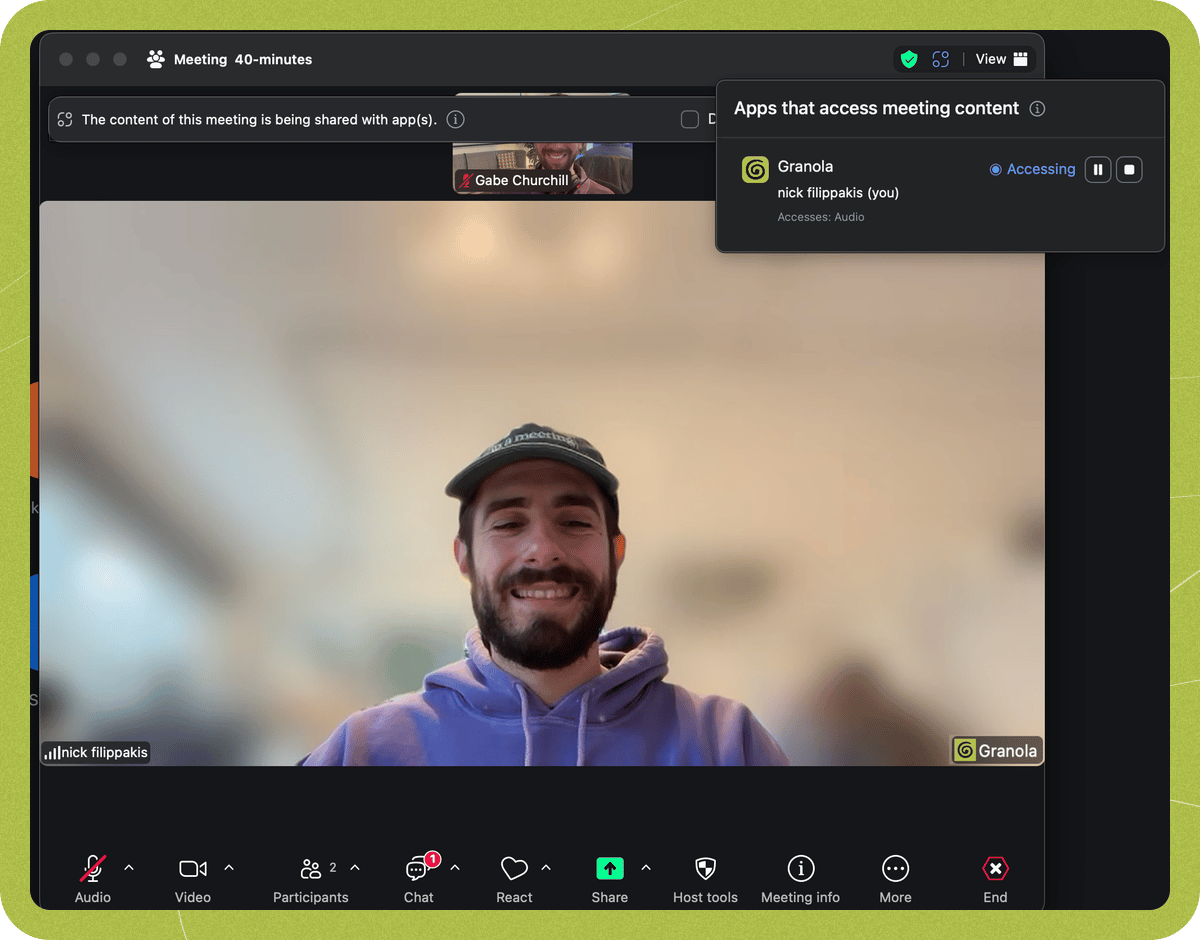
Click to see the app: Participants can click View app(s) in the banner or open the Zoom Apps panel to see that the Granola app is running and accessing the meeting. Zoom shows this so everyone knows which apps are receiving meeting content.
-
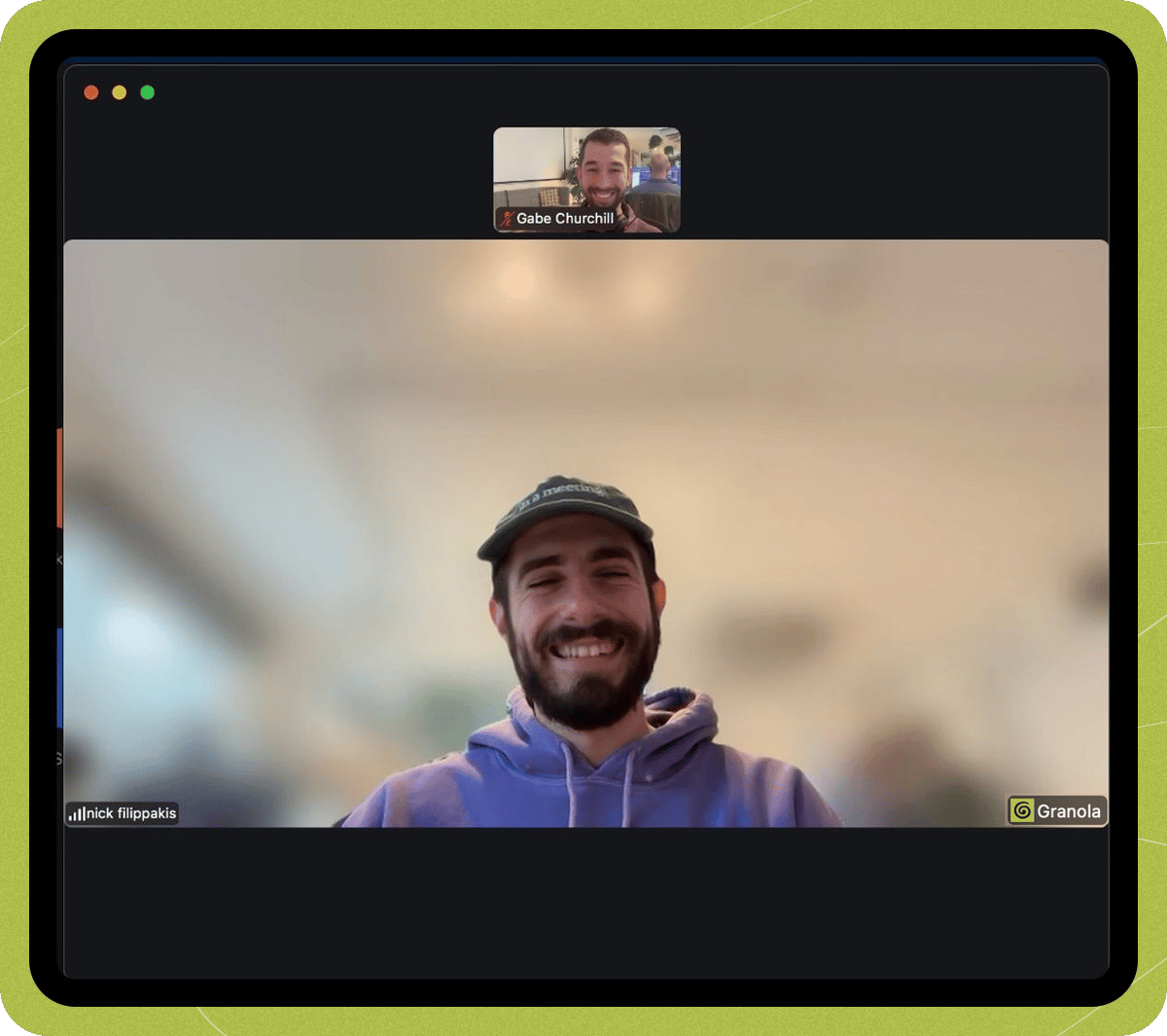
A badge appears: Zoom shows a small Granola icon in the meeting interface so participants can see that an app is accessing meeting content.
Who controls whether Granola’s Zoom app transcribes
End-to-end flow
-
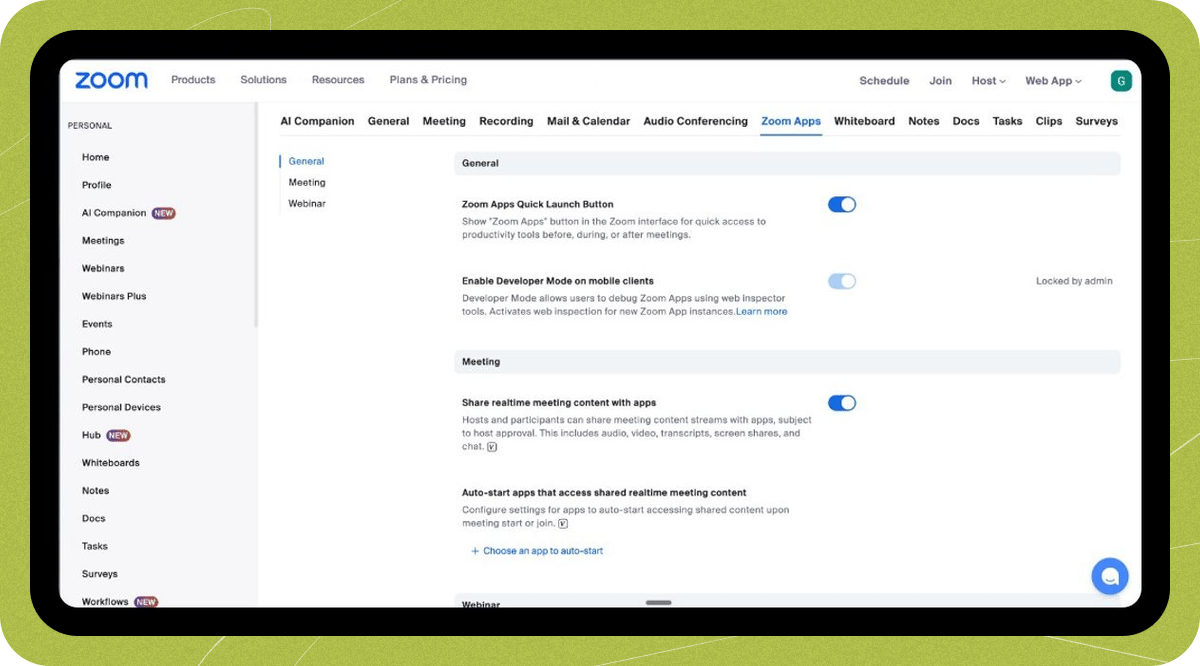
Before the meeting: A Zoom admin enables Share realtime meeting content with apps for the organization (or group/user). Optionally, they can enable auto-start so approved apps (like Granola) can receive real-time content without the host approving each time.
-
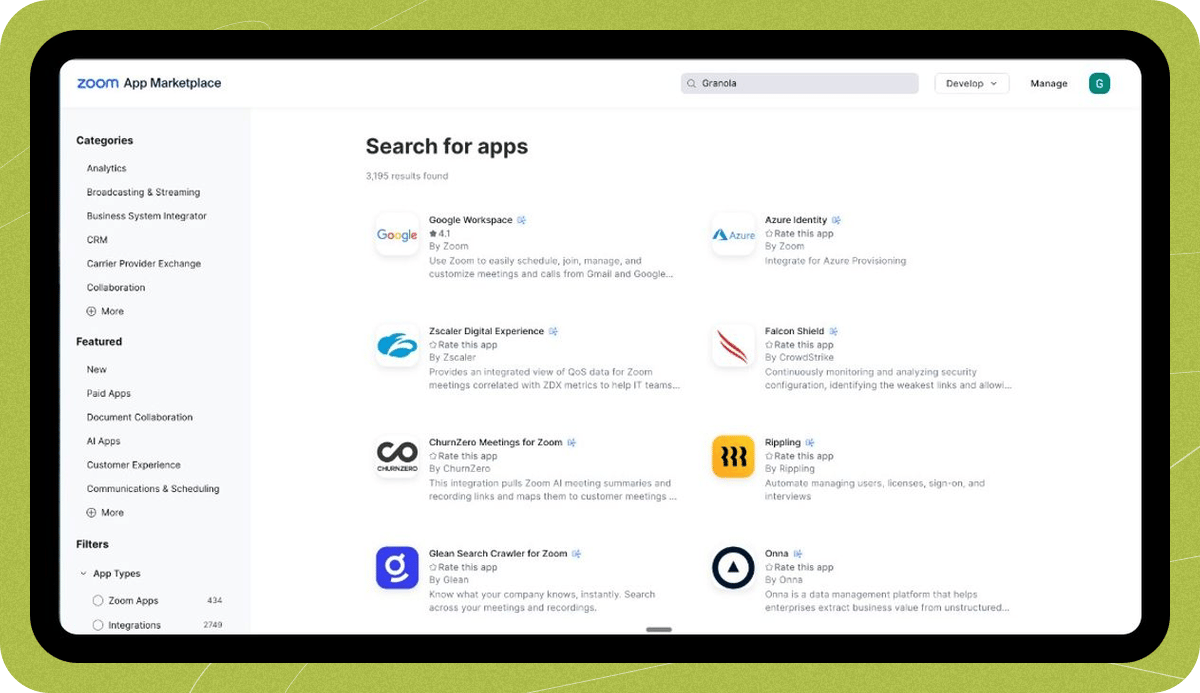
Installing the Zoom app: To set up Granola’s Zoom app, a workspace admin installs the Granola Zoom app from the Zoom Marketplace for employees.
-
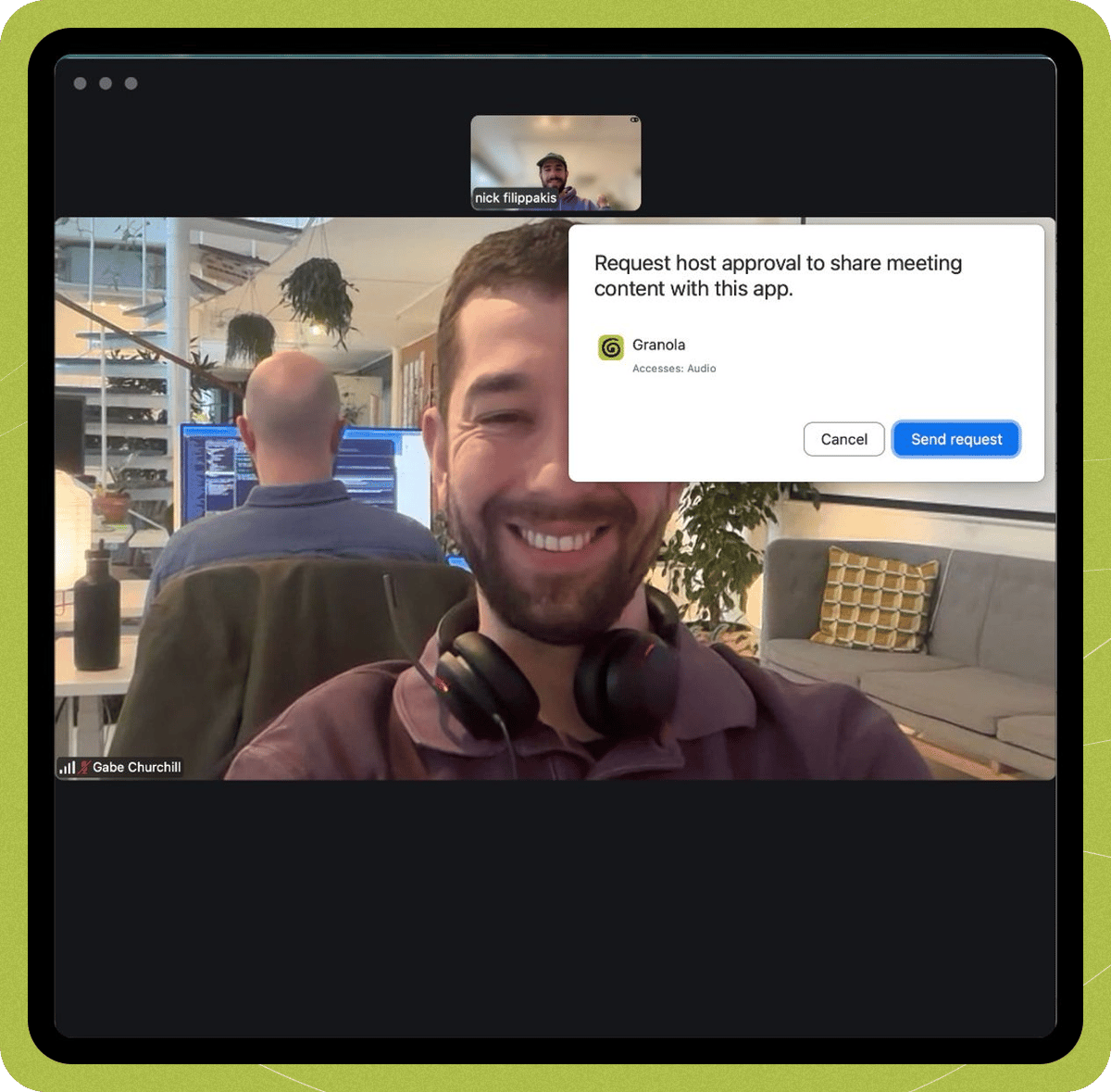
Transcribing the meeting: If you’re the host and have the Granola Zoom app, it can connect and transcribe. If you’re a participant, request host approval for real-time sharing so Granola can connect — unless the host’s organization has auto-approved Zoom apps that access meeting content, in which case no approval is needed.
-
While Granola is running: The badge and app visibility stay shown while the Granola Zoom app is connected and transcribing; if you leave and rejoin, Zoom shows them again once the app reconnects.
Things to know
Installing for your organization (Zoom admins)
Zoom admins can install the app for all users and optionally auto-start it:- Go to the Granola app on the Zoom Marketplace.
- Click Add for others (or equivalent) to install the app for your Zoom account or organization.
- Complete the Zoom authorization steps.
- In Zoom app settings, scroll to Auto-start apps that access shared realtime meeting content.
- Click + Choose an app to auto-start and select Granola.
- In Zoom app settings, enable Share realtime meeting content with apps.
When the notice won’t appear
- The host’s Zoom organization hasn’t enabled Share realtime meeting content with apps.
- The host has not approved real-time sharing (and auto-start is not enabled).
- The host is not in the meeting (Zoom requires an active, eligible host for apps to access the meeting).
- You have not installed the Granola Zoom app or enabled Zoom consent notices in Granola.
What Granola does and doesn’t do with meeting content
- When the host and their organization allow it, Granola’s Zoom app receives real-time meeting content to provide transcription and meeting notes. The in-meeting notice informs participants that this is happening.
- The in-meeting notice (badge and notification banner) is Zoom’s native way of showing which apps are accessing the meeting.
- How we use and protect meeting data is described in our Privacy Policy.
Removing the Granola Zoom app
- For yourself: Sign in to the Zoom App Marketplace Added Apps page, find Granola, open its three-dot menu, and click Remove.
- For your workspace: Sign in to the Zoom App Marketplace Apps Dashboard, go to Apps on account, find Granola, open Manage app, and click Remove App. Once removed, the app is deactivated for all users on your account.
FAQs
Does the Zoom app access my meeting content?
Does the Zoom app access my meeting content?
When the host and their organization allow it, Granola’s Zoom app receives real-time meeting content (such as audio) to provide transcription and meeting notes. Zoom’s in-meeting notice (badge and consent banner) gives participants visibility that this is happening. We use that content only to provide and improve those features, as described in our Privacy Policy. We do not send audio or video back into the meeting.
Who controls whether Granola can access the meeting?
Who controls whether Granola can access the meeting?
Zoom admins for the host’s organization must allow apps to access meeting content, and the meeting host must approve real-time sharing (unless the organization enabled auto-start). If either is disabled, Granola will not receive meeting content and the in-meeting notice will not appear.