
Choose a recipe type
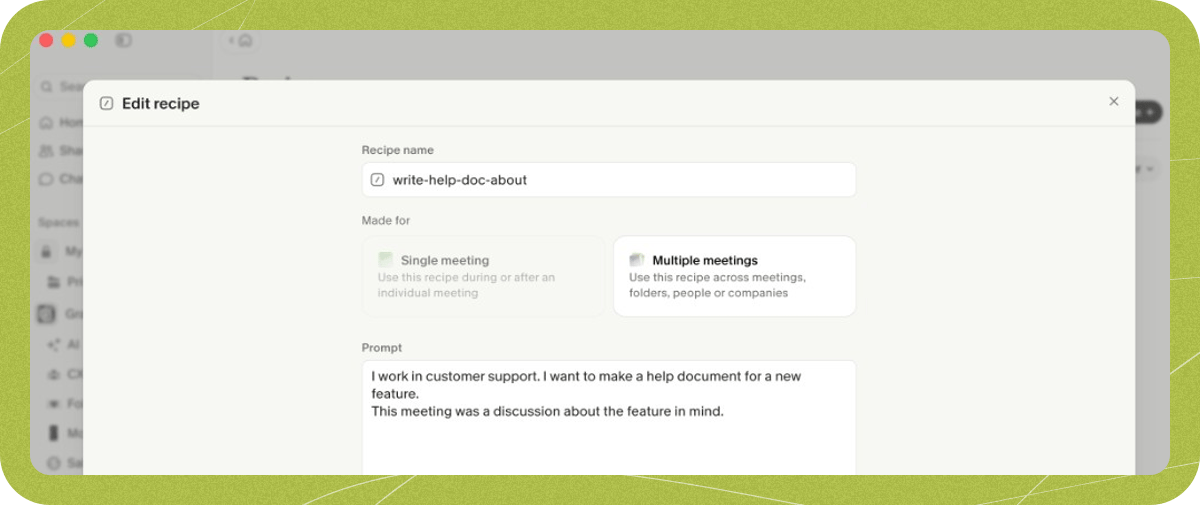
Each recipe runs in one of two scopes. Pick the one that matches when you’ll use it.- Single meeting recipes run on one meeting at a time. Use them during a live call (such as “what did I miss?”, “make me sound smart”, recapping action items before wrapping up, or checking a rubric like an interview scorecard) or right after (such as follow-up emails, bug reports in your team’s format, help articles, or self-reviews).
- Multiple meeting recipes run across groups of meetings. They appear on your home screen, in folders, in people view, in company view, or when you select multiple meetings. Use them for broader work like updating user personas from customer calls, spotting patterns across team meetings, or drafting PRDs and copy from product discussions.
Choose a model
On the Basic plan, recipes use Auto, and Granola picks the model for you. On Business and Enterprise plans, you can select from standard and thinking models from OpenAI, Anthropic, and Google.- Standard models are fast and work well for everyday tasks like quick catch-ups, to-do lists, and short formats.
- Thinking models take longer, but handle longer outputs, detailed analysis, and deeper reasoning better.
Write a clear prompt
Short prompts leave too much to guesswork and produce inconsistent results. When consistency matters, be explicit about the job, the rules, and the format.Start with the job to be done
Open by explaining why you’re asking and what the model needs to produce.A meeting has ended and I need to send a follow-up email to attendees. Your job is to write a professional follow-up email that summarizes key decisions and next steps.Next, add a list of rules as guardrails. Treat the model like a new intern — spell out every requirement instead of assuming it knows.
Add your context once
Include background information in the prompt so you never have to retype it:- Your company and what it does
- Your role, goals, and project details
- Your teammates and their responsibilities
- Technical details like languages and infrastructure (for engineering teams)
Show the format you want
When layout or tone matters, paste an example into the prompt — such as a sample follow-up email or the exact headings you want the output to follow.Test and refine
Good recipes come from iteration. Write a first draft, run it, see where the output falls short, and add rules to prevent those mistakes. In the recipe editor, click Test recipe to run your prompt on a single meeting or a folder. Edit the prompt and regenerate until the result is consistent.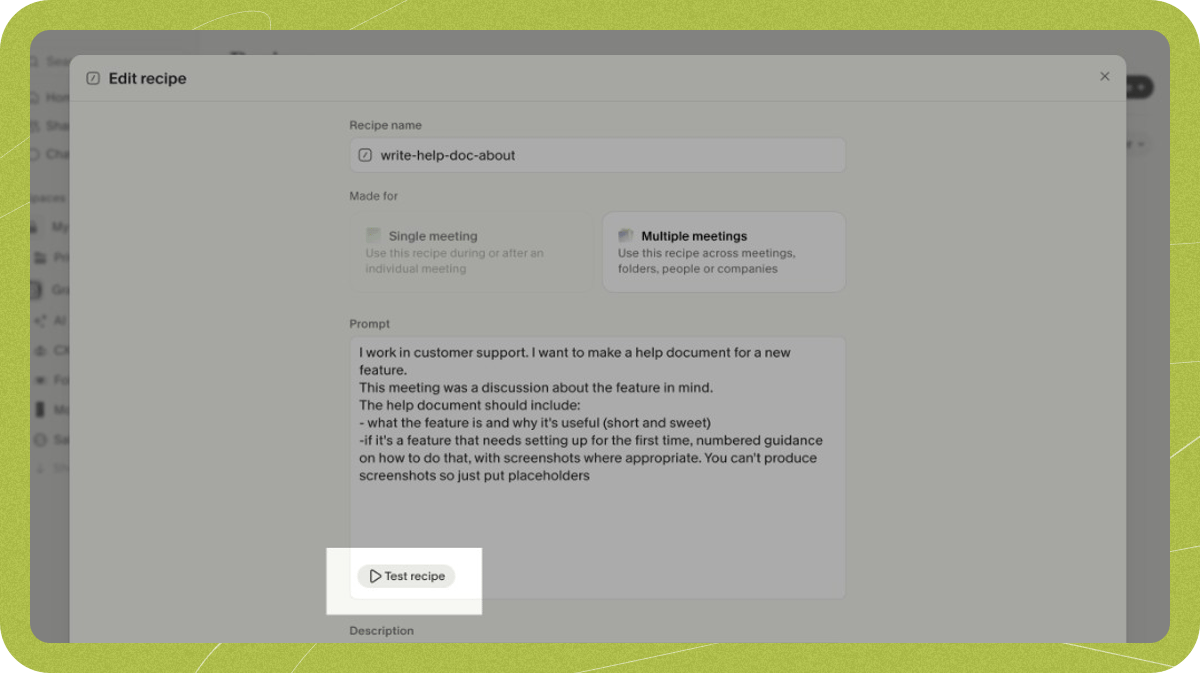
Keep data limits in mind
Granola only has access to your meeting data — not your emails, offline tasks, or external to-do lists. A to-do list recipe, for example, won’t know which tasks you’ve already finished. Design prompts around what was discussed in your meetings.Start from an existing recipe
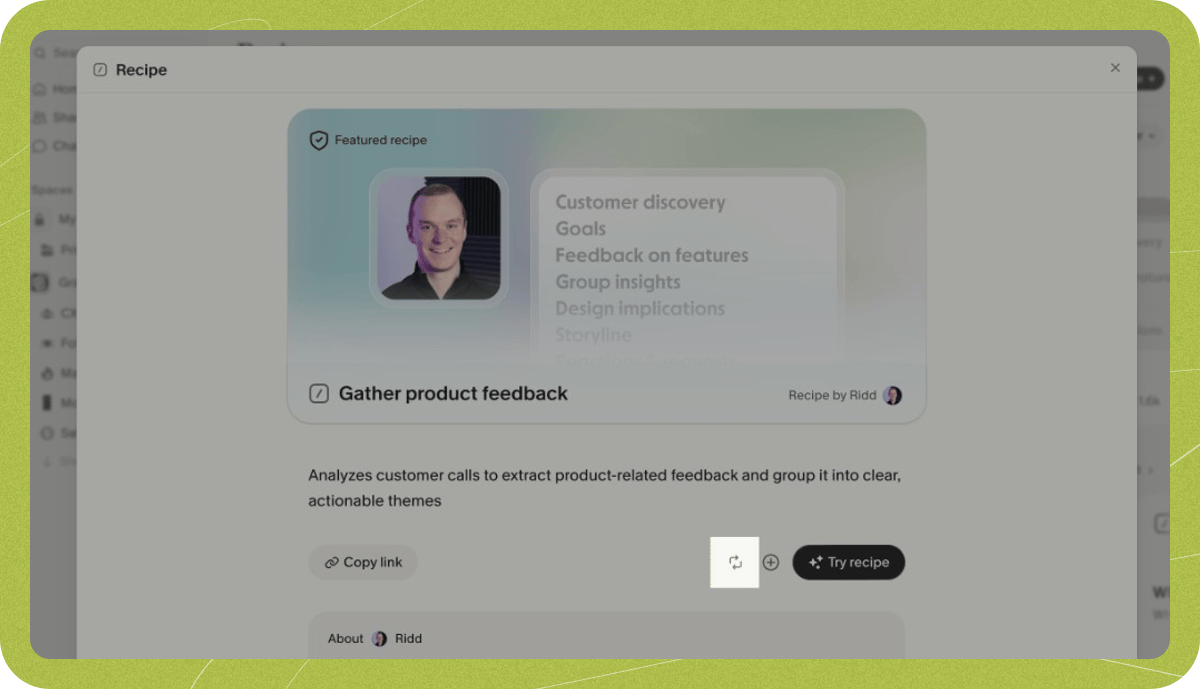
Granola includes pre-loaded recipes you can adapt instead of writing from scratch. Open any recipe and click the remix button to copy it straight into the editor.