

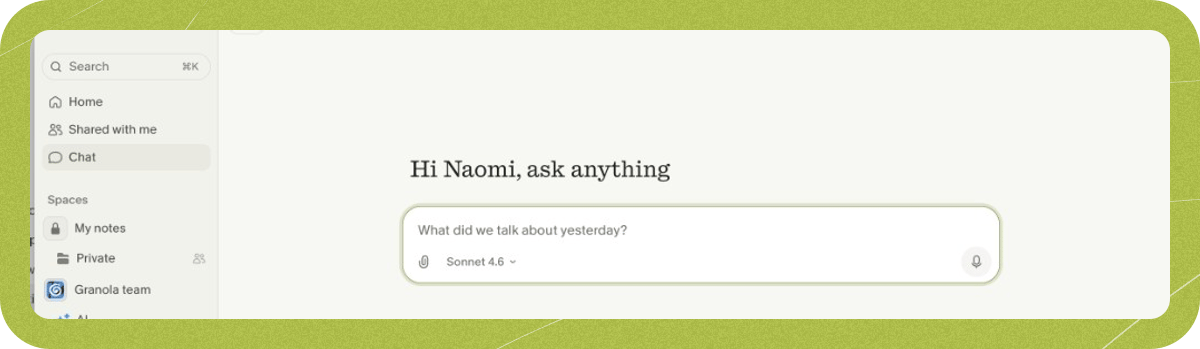
Ways to use Granola Chat
- Before a meeting: Prep for upcoming calls, review your schedule, and recall what came up in earlier meetings.
- During a meeting: Catch up on what you missed, recap action items, or ask for a quick explanation of a complex topic.
- After a meeting: Find specific decisions, draft follow-ups, or ask for feedback on how you ran the call.
- Across meetings: Spot recurring themes, find a detail when you can’t remember which meeting it came from, or query a folder or company-wide notes.
Rewrite notes on desktop
On desktop (macOS and Windows), Granola Chat can rewrite parts of a note. Include words like “rewrite” in your prompt, and name specific sections if you want to focus on part of the note. You can ask it to:- Make notes more or less detailed
- Fix people’s names or reassign action items
- Translate notes into another language
Set your chat scope
Granola Chat automatically searches the meetings in your current view — you don’t need to toggle transcripts on or off.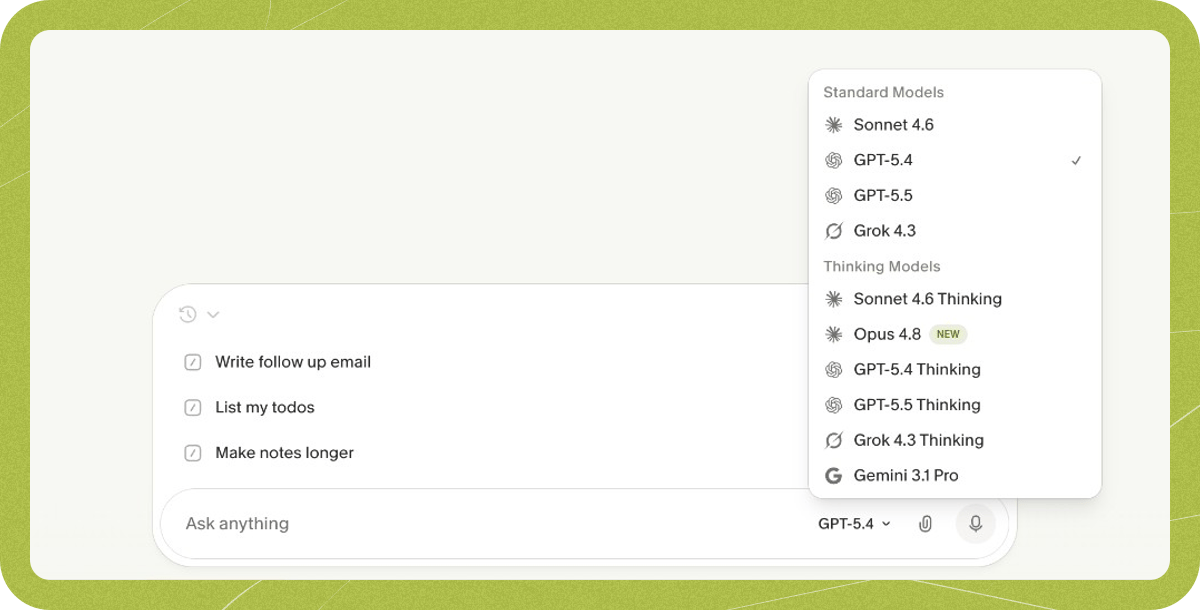
- Home screen: Search across all your notes.
- Single meeting: Ask questions before, during, or after a meeting, or rewrite the note afterward.
- Folder: Search within a team or shared folder.
- Selected meetings: Hover over meeting titles and use the checkboxes on the left to pick specific meetings.
- Basic (free): Last 30 days of notes.
- Business and Enterprise: Full note history.
Upload files for extra context
Click the attachment button in the chat bar to upload files when Granola Chat needs context outside your meetings. File upload isn’t available on iOS or Android.Choose a model
Model options depend on your plan:- Basic (free): Auto only. Other models appear grayed out with an upgrade prompt.
- Business and Enterprise: A default model is preselected, and you can switch to any available model. There is no Auto option. On Enterprise, a workspace admin must enable Fable first.
Reuse prompts with recipes
If you ask the same questions repeatedly, save them as recipes so you can run them in Granola Chat without retyping. Learn how recipes work.Privacy and chat history
Your chat history is private to you. Sharing a Granola note never shares your chat conversations about that note. To delete a chat thread, hover over it in your chat history and click the trash icon.Limits and troubleshooting
- iPad: Granola Chat isn’t supported on iPad.
- Data boundaries: Granola Chat only sees your meeting notes, transcripts, and files you upload or add to folders — not your emails, offline tasks, or separate to-do lists.
- Check that you opened chat from the right view (home screen, single meeting, or folder), or widen your scope to a folder or the home screen.
- Confirm your plan includes the note history you need (Basic covers the last 30 days; Business and Enterprise cover full history).