

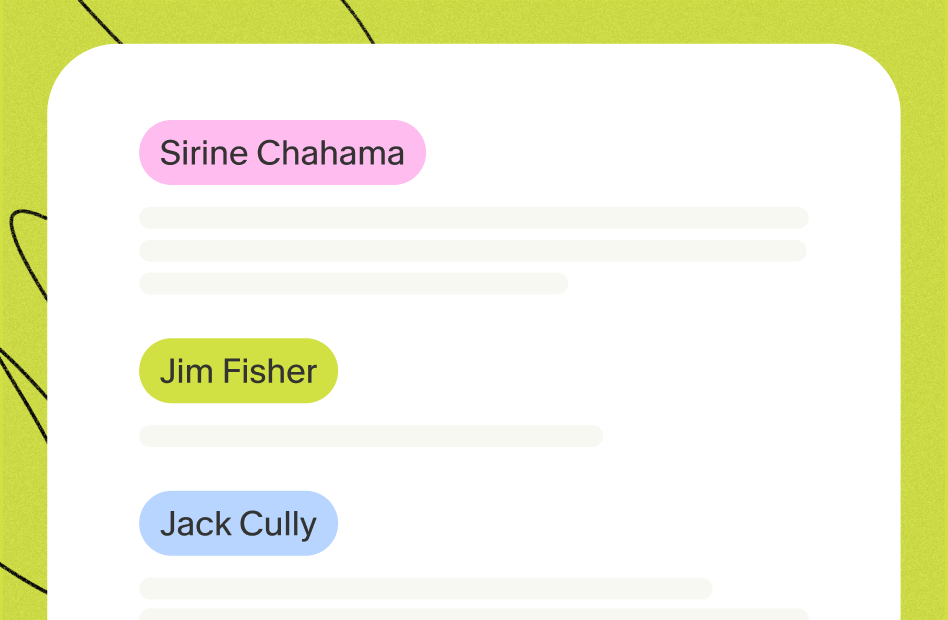
Set up speaker tags
Speaker tags are available in the Granola desktop app on macOS and Windows for Google Meet, Zoom, and Microsoft Teams. Choose your meeting platform below for setup instructions.Set up for Google Meet
Use accessibility in Google Chrome or the Granola Chrome extension. Both are supported.
Set up for Zoom
Use the Zoom Workplace desktop app on macOS or Windows.
Set up for Microsoft Teams
Use the Microsoft Teams desktop app on macOS or Windows.
For workspace admins
Deploy speaker tags company-wide
Pre-grant macOS Accessibility permission via MDM, or deploy the Google Meet Chrome extension via Google Admin.
Use speaker tags in a meeting
Once set up, there’s nothing extra to do during a meeting. Start your call and transcription as usual, then open the transcript panel to see speaker names. Speaker tags only apply while Granola is actively transcribing — they do not add names to older transcripts. Speaker tags also do not start transcription by themselves: Granola only transcribes when you open a meeting note or start a New Note. Learn more in How transcription works.What speaker tags can and cannot identify
- People who join individually: Granola uses the display name your meeting platform shows for each participant.
- People sharing a meeting-room device: If several people speak through the same shared device, Granola cannot distinguish the individuals using it.
- Audio outside the call: Audio playing from elsewhere on your computer may be transcribed without a matching speaker name.
- Overlapping speech: If several people speak at once, Granola may not be able to assign every part of the conversation to the correct person.