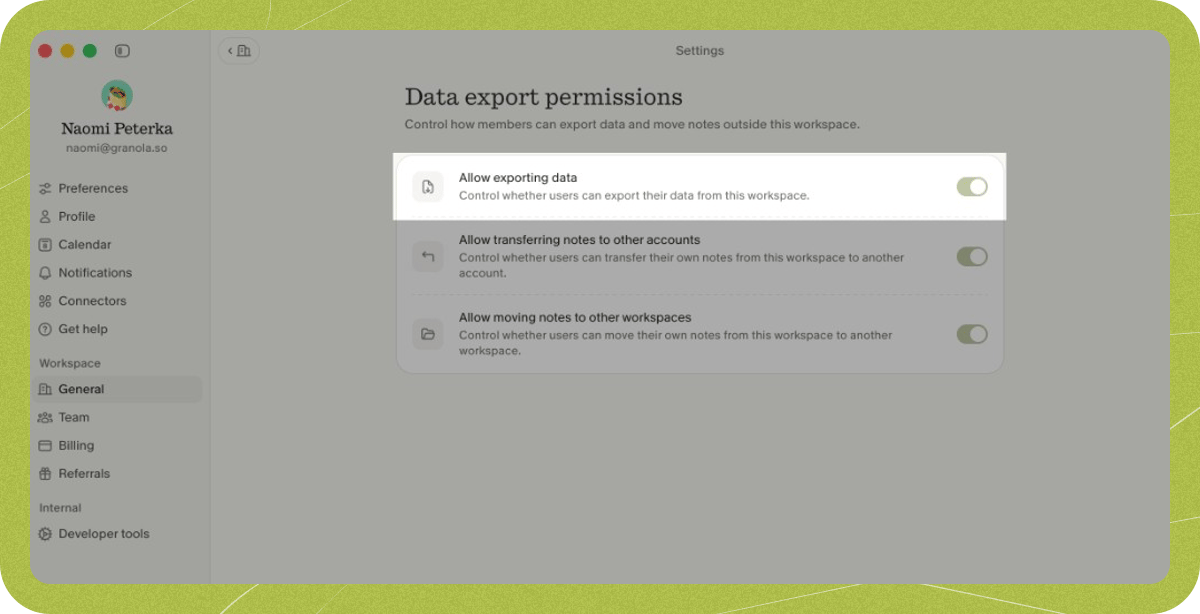

Exporting your historical data
Click your workspace name in the bottom-left corner, then select Settings. Open Settings > Profile, then click Generate CSV to export your historical data: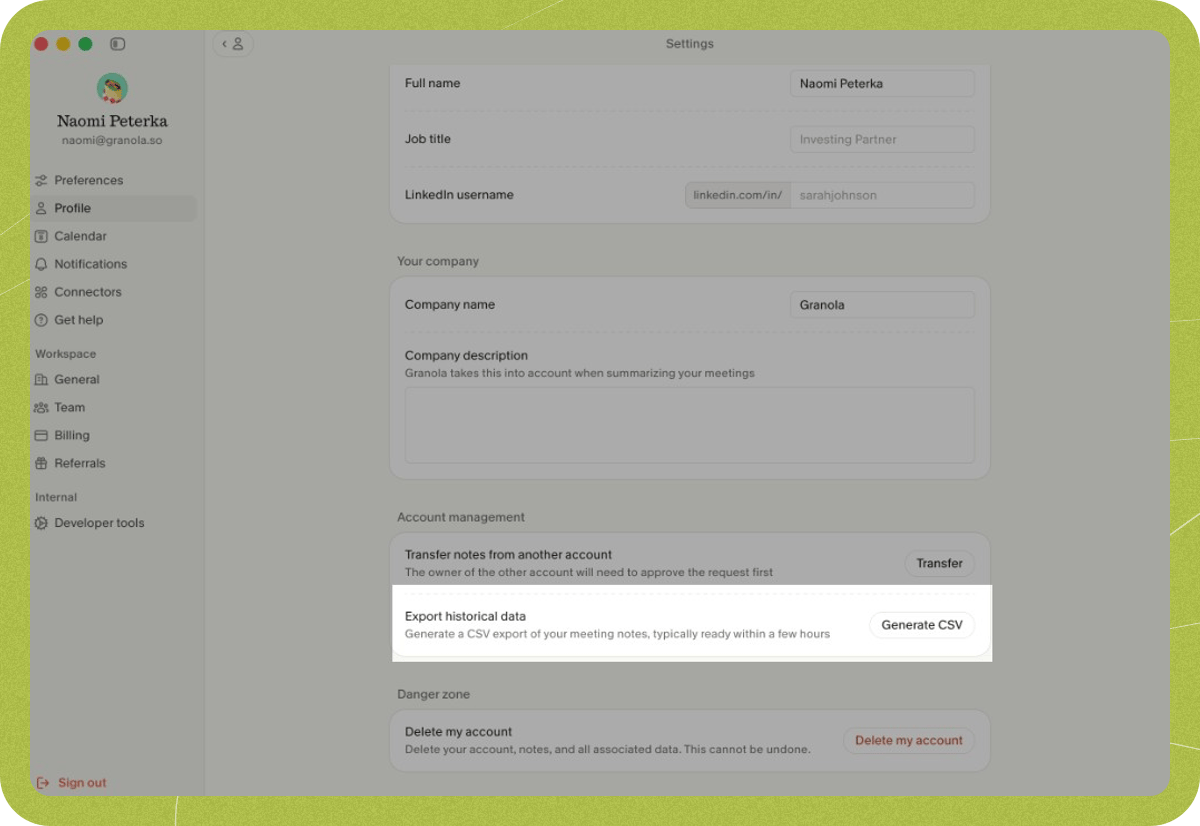
Download link and regeneration
- Download link expiry: The link in the email is valid for 24 hours. After that, the link will no longer work. Open the link in a browser where you’re logged into the same Granola account that requested the export — if you’re signed into a different account or not signed in at all, the download won’t work.
- Regenerating an export: You can request a new export at any time. If your previous link has expired or you need a fresh file, go to Settings > Profile, click Generate CSV again, and choose your workspaces. Note: you can only create one export every 24 hours (per account). If you request another export within 24 hours of your last one, you’ll need to wait until the 24 hours have passed before generating a new export.